[6 Ways] How to Speed Up Computer Windows 10 Successfully?
Windows 10 computer runs quite slow!
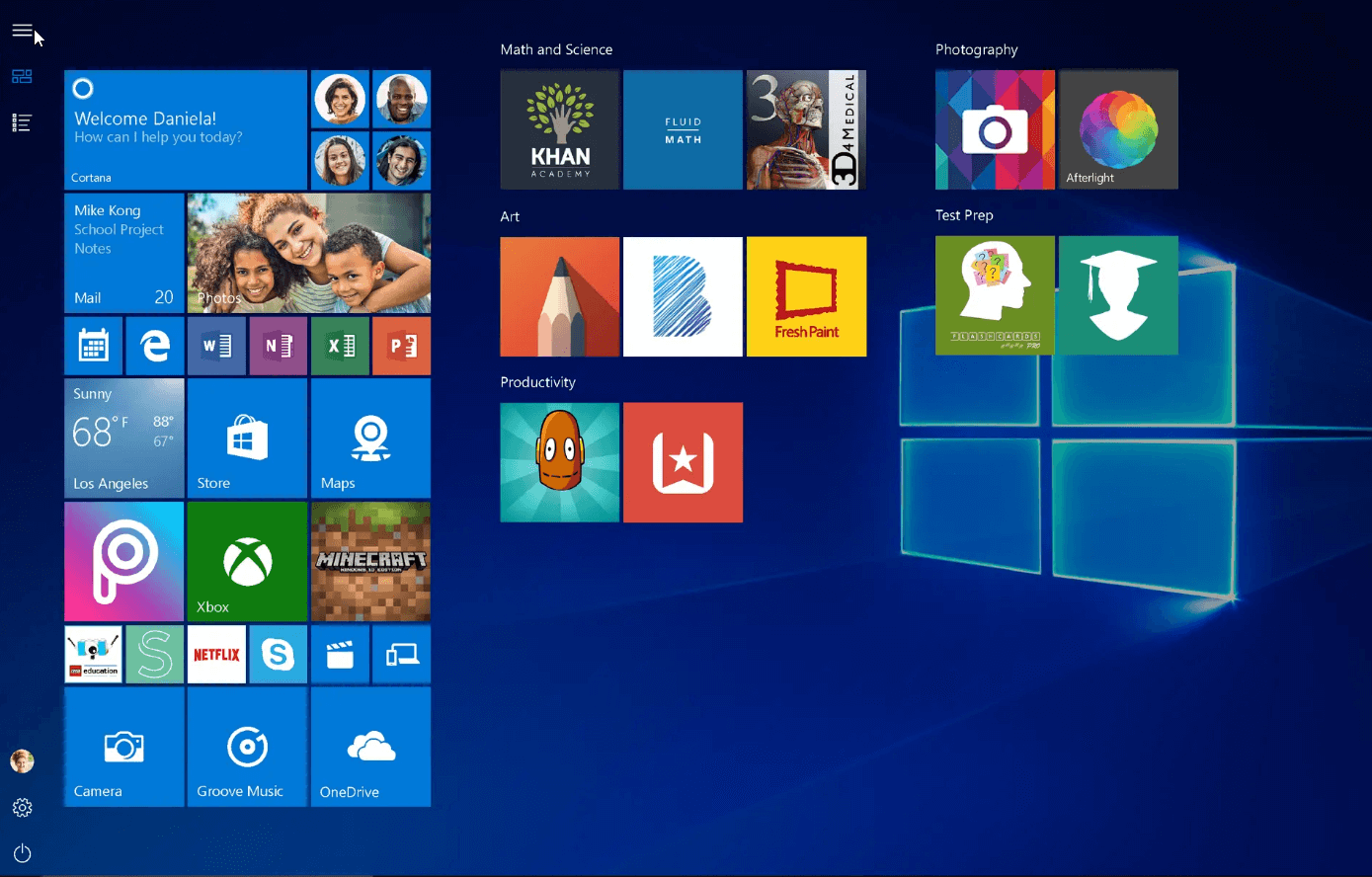
Windows 10 was initially welcomed for its sleek new layout and updated features, but it can suffer from slow performance over time, especially after prolonged usage. If you're experiencing lag when turning your computer on or off, accessing folders, or running applications, it's time to optimize your Windows 10 performance.
6 Ways to speed up Windows 10 computer
To optimize Windows 10/8/7 computer and increase hard drive speed, you can try uninstalling unused software, changing power settings to "High Performance", shutting off Windows tips and tricks, and turning off visual display effects. If these methods are insufficient, you can also try other methods such as disabling startup programs, running a disk cleanup, and using the built-in disk defragmenter to further speed up your computer. Additionally, consider upgrading to a solid-state drive (SSD) for improved performance.
Way 1. Disabling unnecessary startup programs
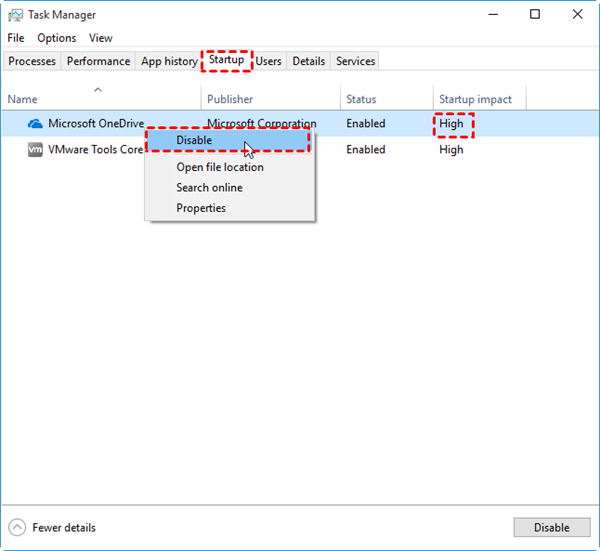
Disabling programs that run automatically when your computer boots up can help boost Windows 10 performance by freeing up valuable memory and preventing slowdowns.
To check and disable startup programs, press "Ctrl+Alt+Del" to open the Task Manager, then click the "Startup" tab. This will display a list of programs that launch automatically when Windows starts. You can see the impact of each program on your system's startup time, with "High" indicating a significant slow-down. To disable a program, right-click on it and select "Disable".
Way 2. Clean up your hard disk
To clean up your hard disk, use the Windows native Disk Cleanup utility to remove temporary files, installer files, and other unnecessary items, and empty the Recycle Bin completely.
To run Disk Cleanup on Windows, click the Start button, type "Disk Cleanup" in the search bar, double-click the app to open it, select the hard drive you want to clean up, and let it calculate how much space you can release. Then, mark the checkboxes next to the files you want to delete and click "OK" to proceed with the cleanup.
Way 3. Add more RAM
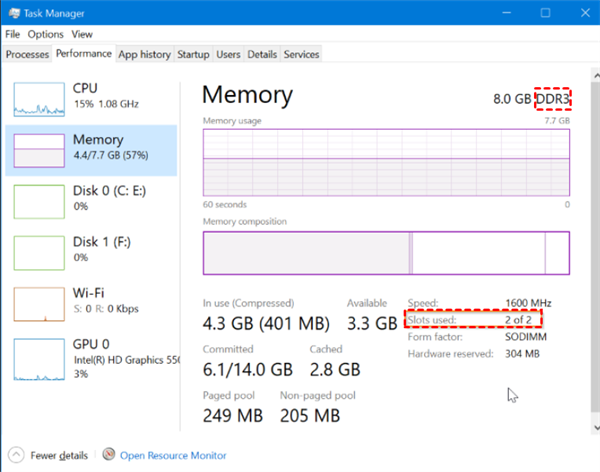
If your Windows 10 computer is running slowly, it's likely due to a lack of RAM. To fix this, you can add more RAM by installing new memory chips. To do this, first check your computer's current RAM type and how many slots are available by opening the Task Manager and clicking "Performance". Then, purchase a compatible RAM and install it in your computer. This should improve your computer's speed.
Way 4. Change the size of virtual memory
Virtual memory is a memory management capability of an OS that temporarily transfers data from RAM to disk storage to compensate for physical memory shortages, potentially influencing a computer's speed if low. To speed up a Windows 10 computer, changing the virtual memory size can be a helpful step.
Step 1. Right-click "My Computer" or "This PC" and choose "Properties".
Step 2. In the left panel, click "advanced system settings".
Step 3. On the "Advanced" tab, click "Settings" under "Performance".
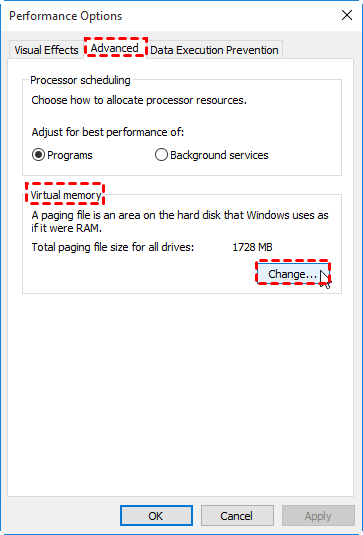
Step 4. To adjust virtual memory settings, click the "Advanced" tab and then select "Change" under the "Virtual memory" section.
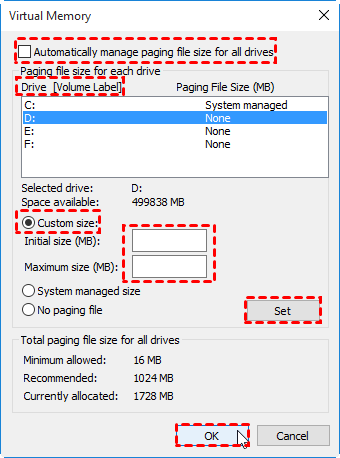
Step 5. To adjust the size of the paging file, you need to uncheck the "Automatically manage paging files size of all drives" option, and then select the specific drive where you want to modify the paging file size from the "Drive" column.
Step 6. To change the initial or maximum size of a disk space, click on the "Custom size" option, enter the desired size in megabytes in the "Initial size" or "Maximum size" field, click "Set" to save the changes, and then click "OK" to confirm the new size.
Way 5. Defrag the hard drive correctly
When data on your hard disk drive becomes fragmented, Windows 10 performance may slow down. Defragmenting your hard drive can help, as it reassembles scattered data into a neat and organized state, allowing the drive to access information and write new data more efficiently.
To defrag your hard drive, you can use the Disk Defragmentation utility from Qiling Disk Master Professional, which allows you to set up a schedule for auto-defragging based on daily, weekly, monthly, or other event triggers, and can be downloaded as a demo version for quick use.
Way 6. Upgrade to an SSD startup drive
Upgrading from a traditional HDD to an SSD can significantly improve a Windows 10 computer's performance, especially when defragmentation has little effect, by enhancing boot time, file access times, and overall system responsiveness.
To upgrade a hard disk drive (HDD) to a solid-state drive (SSD), you can clone the entire HDD to an SSD using a software like Qiling Disk Master Professional. This software supports cloning a disk to another one using two methods: "Clone Disk Quickly" and "Sector-by-Sector Clone". The "Clone Disk Quickly" method copies only the used space to the destination SSD, while the "Sector-by-Sector Clone" method copies every sector. If upgrading a larger HDD to a smaller SSD, choose the "Clone Disk Quickly" method if the SSD is larger than the used space of the HDD. This approach is a straightforward way to transfer data from an HDD to an SSD.
Step 1. Install and run Qiling Disk Master Professional. Choose "Clone Disk".

Step 2. Choose the system disk and click "Next".
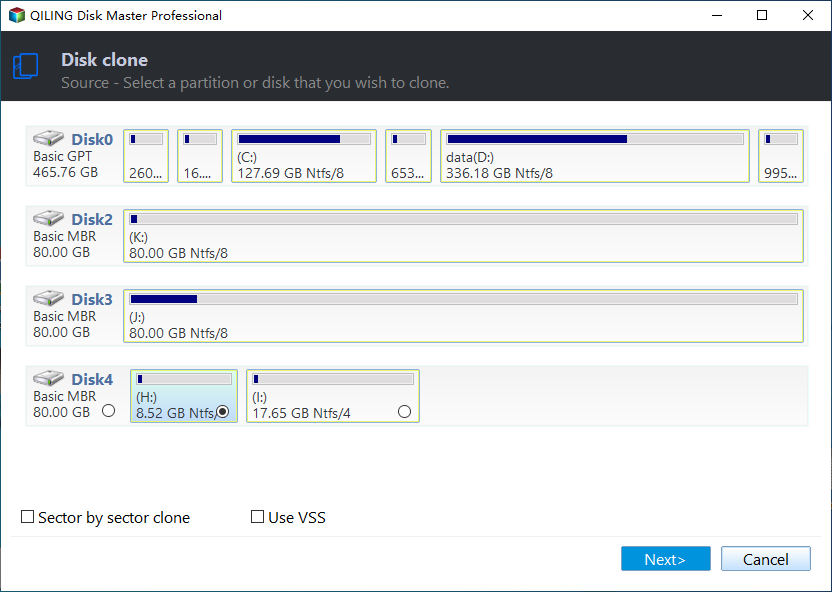
Step 3. Select the destination disk, mark the "Optimize the performance of SSD" checkbox, and click "Next".
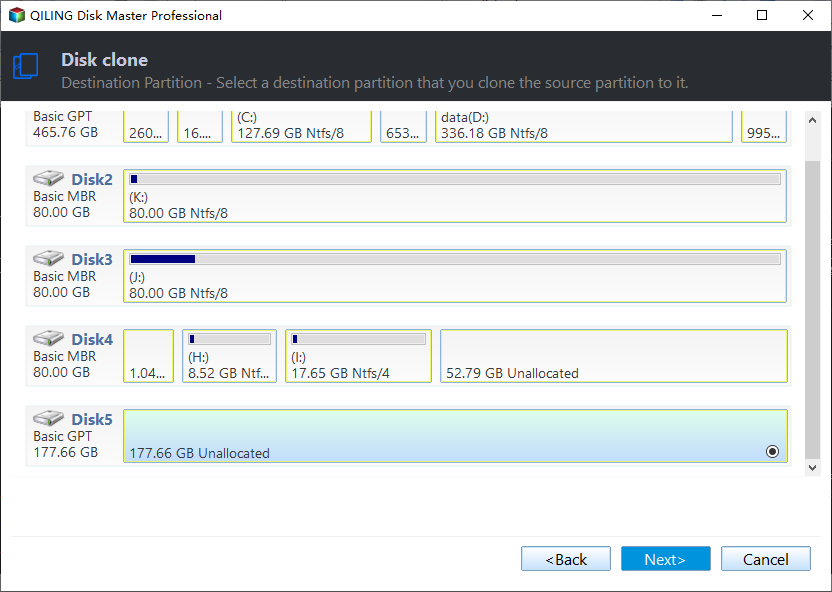
Step 4. Now, you can edit partition size on the SSD drive.

Step 5. Click "Proceed" to start cloning HDD to SSD.
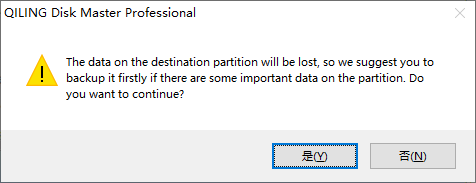
Step 6. To boot from the destination disk, follow the instructions provided and click "Yes" when prompted.
Notes:
①To clone an MBR disk to a GPT disk, you need to switch the boot mode from BIOS Legacy to UEFI, and vice versa. This is necessary for successful booting from the destination disk.
②If you want to move only the OS partition to an SSD drive without transferring the entire disk, you can utilize the "Migrate OS to SSD" wizard.
Summary
To speed up your Windows 10 computer, you can try the methods mentioned earlier, which can also be applied to Windows 7, 8, and 11. Additionally, Qiling Disk Master Professional can help by allocating free space from other partitions to the C drive, securely erasing an SSD or wiping an HDD, and reinstalling everything, which can further contribute to a faster Windows 10 boot time.
Related Articles
- How to Speed up Dell (Inspiron) Laptop on Windows 10/8/7?
Learn how to Speed up Dell (Inspiron) Laptop on Windows 10/8/7 with clear steps, key checks, and practical tips. - Solved: Lenovo Laptop Running Slow Windows 10
If your Lenovo laptop running slow, you need to read this article for why Lenovo laptop running slow on Windows 11/10/8/7 and how to speed up Lenovo laptop. - How to Make Your Computer Faster for Gaming [3 Effective and Simple Ways]?
If you find your game applications load slowly, read this post and you can learn how to make your computer faster for gaming in Windows 10, 8, 7. Several different methods are available for your selection. - How to Upgrade Acer Aspire Laptop to SSD in Windows 10/8/7/XP?
Learn how to Upgrade Acer Aspire Laptop to SSD in Windows 10/8/7/XP with clear steps, key checks, and practical tips. - How to Let Yahoo Mail Export Emails: Two Ways
Here are two ways to let Yahoo Mail export emails: using Outlook client and the Print feature on Yahoo Mail. Also, there is an easy solution to backup Yahoo Mail to hard drive easily. - How to Get Zoho Mail Backup: 3 Easy Ways
This article covers 3 easy ways to do Zoho Mail backup, and using Qiling Disk Master to create an automatic backup of your Zoho emails is particularly recommended.
Products
Articles & Tutorials
- Data Recovery
- Data Backup
- File Recovery
- File Backup
- File synchronize
- System Backup and Restore
- Disk and Partition Clone
- Technical articles
- Disk Master Help
- Windows Deleted File and Disk Recovery Tutorials
- Windows File and Data Recovery Tutorials
- More Windows Tutorials for Install, Security, Files, and PC Tips
- Windows Boot, Repair, and Recovery Environment Tutorials
- Windows Backup Tutorials
- Windows Restore Tutorials
- Windows Clone and Migration Tutorials
- Windows Server Backup, Recovery, and Management Tutorials
- Windows Disk, Partition, and Storage Management Tutorials