How to Perform Zoho Mail Backup: 3 Easy Ways
User Case: How Do I Backup Zoho Emails?
Zoho Mail allows users to export mailbox folders for backup. You can use the Import/Export option in Zoho Mail to export selected folders, or use Zoho's Email Backup feature if your account supports it.
- Question from Zoho community
Zoho Mail is a business communication platform that empowers the modern workforce with collaborative tools, serving as a hub for comments, likes, and sharing options to foster seamless teamwork.
Creating backups of Zoho emails is crucial in safeguarding valuable information from potential data loss or computer crashes. Fortunately, backing up Zoho emails is not a difficult task. This article will provide step-by-step instructions on how to create backups of Zoho Mail in 3 easy solutions, ensuring your important emails are always safe and accessible.
Needs to Backup Zoho Mail
The need for Zoho Mail backup arises due to various reasons, including the risk of losing important emails and attachments in case of account deletion, data corruption, or other unforeseen events. Additionally, users may want to preserve their email history for compliance, auditing, or legal purposes, or simply to have a backup of their email data in case they need to switch to a different email service. Overall, backing up Zoho Mail data is essential to ensure business continuity and protect against potential data loss.
Disaster recovery: Email backup is crucial for businesses as it safeguards critical data and ensures a secure email solution to recover emails in times of need, protecting valuable business information.
Convenient email access: Backing up Zoho emails to a portable storage device, like a USB drive, enables you to access your emails from anywhere, at any time.
Easy migration: Backing up emails is essential when planning to switch to a new email system or computer, as it prevents the loss of vital data during the transition, allowing for a smooth migration process.
Long-term storage: Backing up emails allows for long-term storage and preservation of essential information over extended periods.
How to Perform Zoho Mail Backup in 3 Simple Methods
To back up Zoho Mail, choose one of three methods: export emails manually, enable Zoho Email Backup for supported business accounts, or use Qiling Disk Master for scheduled backup to local or external storage.
- Way 1. Export Zoho Emails for Backup
- Way 2. Backup Zoho Emails by enabling Email Backup
- Way 3. Backup Zoho Emails with third-party software
Way 1. Export Zoho Emails for Backup
To backup Zoho emails locally, you can export them in EML format from the Zoho Mail account, allowing you to save emails from entire folders or specific time periods. This process involves selecting the desired emails, choosing the export format, and saving the exported emails on your local device. The exported emails can then be accessed and managed as needed.
Step 1. Log in to your Zoho Mail account on its website.
Step 2. Navigate to Settings and select Import/Export.
Step 3. In the Export section, select the desired folder and choose to export all emails in that folder, then click Export.
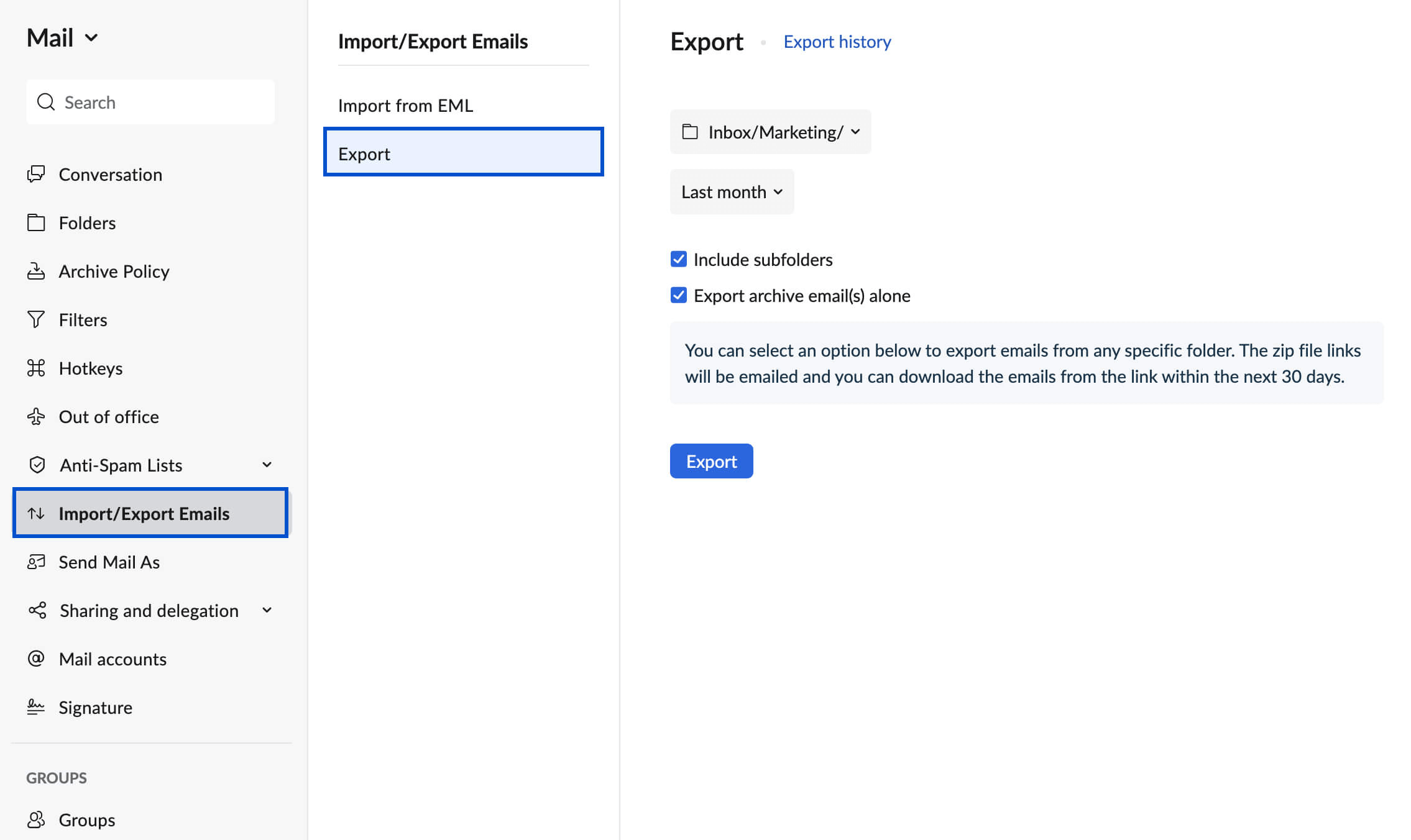
Step 4. After the export process is finished, you will receive an email with a link to download the exported emails in a compressed .zip file.
Manual export is useful for occasional backups, but it does not create automatic regular backups and can be time-consuming for large mailboxes.
Way 2. Backup Zoho Emails by enabling Email Backup
Zoho Mail's email backup solution prevents accidental email deletion by employees, securely storing deleted emails in a central repository where they can be easily retrieved when needed.
- Notes:✎...
- The Email Backup option is only available for Zoho business users.
- The system only saves deleted emails as per the backup policy, and once a recovery process is initiated, the email is removed from the backup storage.
Here is how to enable Zoho Mail backup:
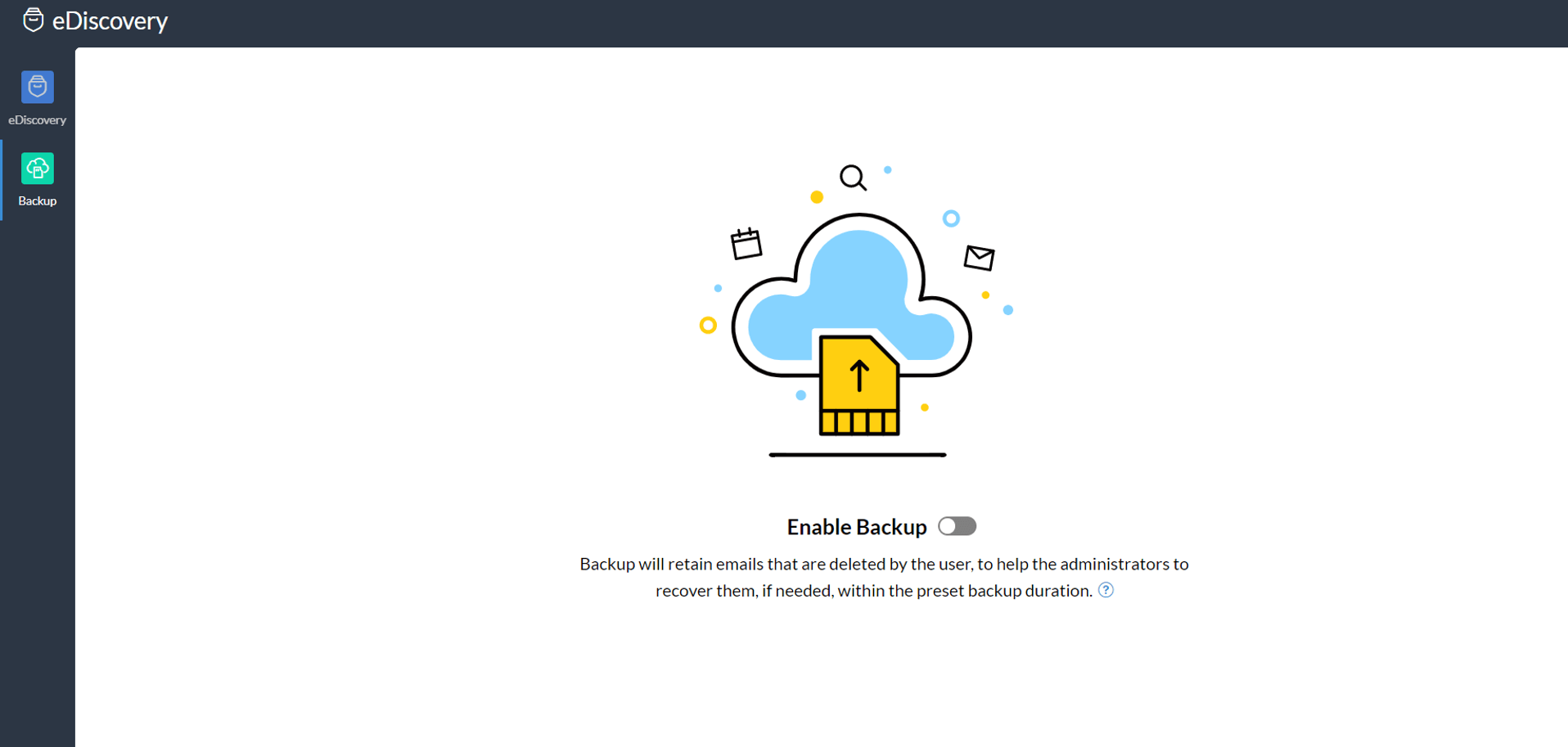
Step 1. Log in to your Admin account by visiting https://ediscovery.zoho.com.
Step 2. Click Backup on the left panel.
Step 3. Turn on the switch next to Enable Backup to enable Zoho email backup for your organization.
Way 3. Backup Zoho Emails with third-party software
Apart from Zoho's built-in options, you can use Qiling Disk Master Professional for a simpler and more flexible Zoho Mail backup. It can automate Zoho Mail backups and save them to your selected locations.
☎ Qiling Disk Master supports backing up an entire email account or specific mailbox folders like Inbox, Drafts, and Outbox. It also supports emails from services such as Gmail, Yahoo, Hotmail, and iCloud.
☎ It allows you to store backup data in various locations, including internal and external disks, USB drives, NAS devices, network locations, cloud drives, and more.
☎ You can set up automated backup schedules based on your preferences, such as daily, weekly, monthly, or triggered by specific events, and even plug in a USB drive to manually back up your data.
☎ This system uses an incremental backup method, which only saves changes or new items by default, but can be switched to differential or full backup as needed.
To automatically back up your Zoho Mail account, download Qiling Disk Master Professional on your computer (with a 30-day trial), and follow the steps to set up the backup process.
- Notes:✎...
- To set up automated Zoho Mail backups, click Schedule Backup and enable it to choose a suitable backup frequency.
- To change the backup method, go to Backup Scheme and turn on Automatic Backup Cleanup to automatically remove old backup images and free up storage space.
Written in the End
To protect important Zoho emails, create backups with manual export, Zoho Email Backup, or Qiling Disk Master. Choose manual export for occasional backups and Qiling Disk Master for automatic backups to a preferred storage path.
Qiling Disk Master can also back up systems, disks, partitions, photos, videos, and other important data, making it useful for broader data protection.
Related Articles
- How to Backup or Export Entire Outlook Mailbox Easily
You will learn how to backup entire Outlook mailbox to PST file or other location. This article also includes two useful methods to backup individual or multiple emails. - Freeware: Install Windows 10 on External USB Hard Drive
This guide explains Freeware: Install Windows 10 on External USB Hard Drive with clear steps, key checks, and practical tips. - What is MBR2GPT Tool in Windows 10 and How to Use it?
Learn how to use MBR2GPT tool in Windows 10 to convert MBR to GPT. Step-by-step guide to convert disk partition style without data loss, enable UEFI boot, and use Qiling Disk Master for safe disk conversion. - Migrate Windows 10 from MBR HDD to GPT SSD | Secure Boot
You will learn how to migrate Windows 10 from MBR HDD to GPT SSD without converting partition manually and ensure it's bootable.
Products
Articles & Tutorials
- Data Recovery
- Data Backup
- File Recovery
- File Backup
- File synchronize
- System Backup and Restore
- Disk and Partition Clone
- Technical articles
- Disk Master Help
- Windows Deleted File and Disk Recovery Tutorials
- Windows File and Data Recovery Tutorials
- More Windows Tutorials for Install, Security, Files, and PC Tips
- Windows Boot, Repair, and Recovery Environment Tutorials
- Windows Backup Tutorials
- Windows Restore Tutorials
- Windows Clone and Migration Tutorials
- Windows Server Backup, Recovery, and Management Tutorials
- Windows Disk, Partition, and Storage Management Tutorials