How to Backup or Export Entire Outlook Mailbox Easily
The Need to Backup Entire Outlook Mailbox
Here are two main reasons why backing up your Outlook mailbox or individual emails becomes an urgent need if you're relying on email to get your work done:
- Outlook contains all valuable data of your company, such as emails, attachments, calendars, contacts, notes, tasks, and more.
- Backing up all emails in Outlook helps prevent unexpected losses due to file corruption, deletion, malfunctioning hardware, system crashes, malware, etc. by creating a secure copy of your emails.
You may want to backup all emails from one email account to another for various reasons, such as protecting data, or simply transferring emails from one account to another, like from a 365 account to a Gmail account, or from one PC to another.
How to Easily Backup All Emails in Outlook
Here are the 2 effective methods to backup entire mailbox, including the PST file option and powerful Outlook backup software, which can be done automatically.
Way 1: Export Entire Mailbox to PST File
The .pst file allows for a simple backup of an entire Outlook mailbox, including emails, contacts, and calendars, while also enabling selective backups by exporting specific folders, excluding Junk or Deleted items.
To create a complete backup of your Outlook account, you still need to backup message rules, signatures, custom forms, custom views, and folder properties, in addition to the backup of your emails and contacts.
Part 1: Backup Emails, Calendars, Contact, etc in Outlook
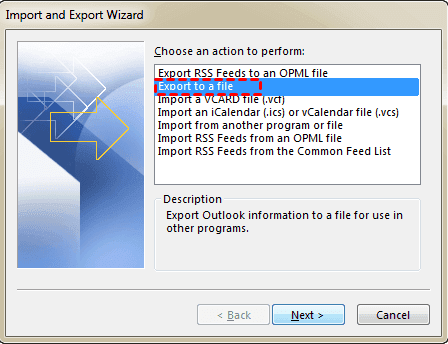
1. To export your Google Drive files to a CSV file, click on the "File" menu, then select "Open & Export" and finally "Import/Export". From the dropdown menu, choose "Export to a file" and click "Next" to proceed.
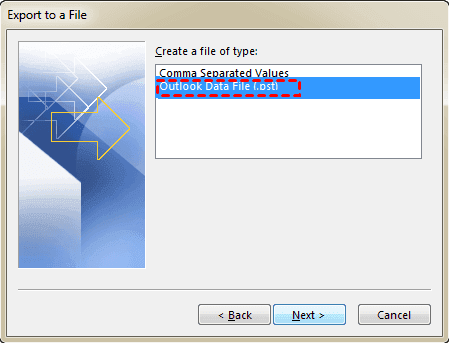
2. Select Outlook Data File (.pst) and click Next.
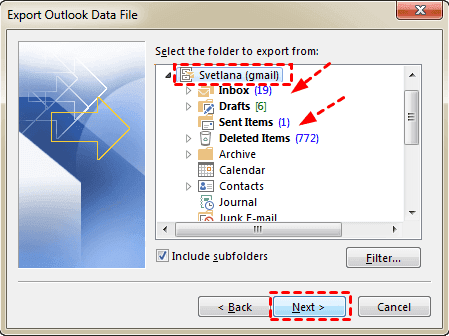
3. To backup a specific email account, select that account from the available options and ensure the "Include subfolder" box is checked to include all subfolders in the backup process.
Notes:
- This will export all folders, including mail folders like Inbox, Outbox, and Drafts, as well as other items like Contacts, Calendar, Tasks, Notes, and Journal. Alternatively, you can choose to export a specific folder, such as Inbox.
- The "Export to a file" feature only allows for the export of a single folder at a time, requiring the user to repeat the process for each folder they wish to export, which can be time-consuming and inefficient.
4. To backup all Outlook emails, keep the default .pst file location (C:\Users\\Documents\Outlook Files\backup.pst) and click Finish.
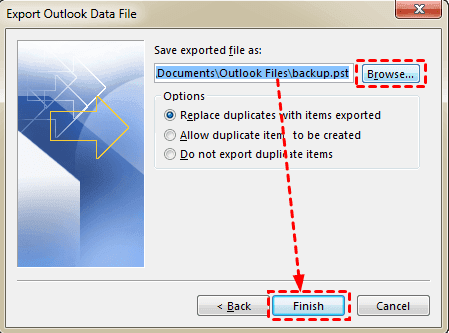
Note: To backup all emails, click on the "Browse..." option to select a location on your hard drive or other storage device where you want to save your emails. This will allow you to save a copy of all your emails in a specified folder or drive.
If you're creating a new .pst file, Outlook will ask you to add an additional password. You can either type a unique password twice or leave both fields empty, then click OK.

Notes:
- If you're exporting an existing .pst file, choose the option to "Replace duplicates with items exported" as it usually works well in most cases.
- If you're exporting to an existing .pst file that's password-protected, enter the password to unlock the file.
Part 2: Individually Backup Message Rules, Signatures, Folder Properties, etc
Since Outlook 2003, message rules are stored in a .pst file, which requires backing up using the "Copy to folder" rule.
1. To access the rule settings, click on "File" in the top left corner of the screen, then select "Manage Rules & Alerts". Alternatively, in Outlook 2016 or 2019, click on the "Home" tab, then select "Rules" and click on "Manage Rules & Alerts".
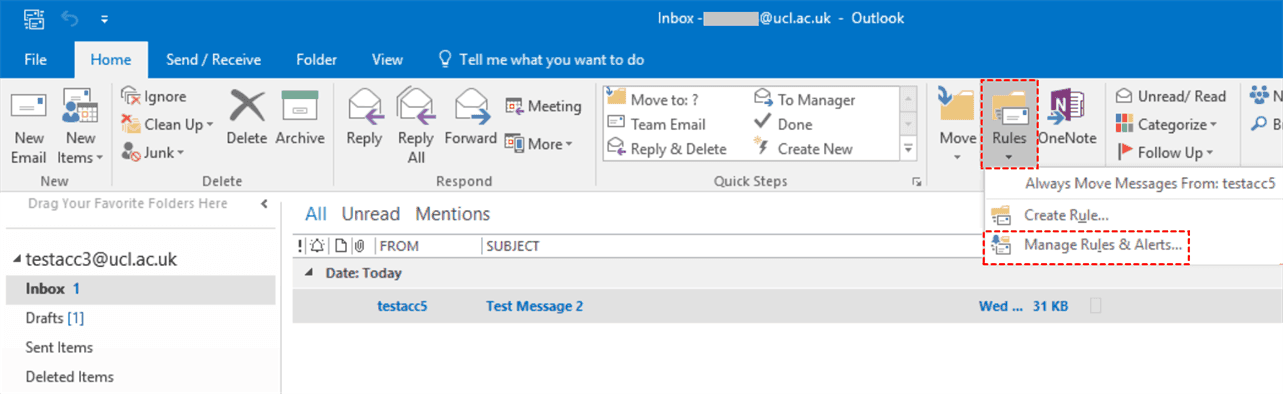
2. Select Options and Export rules.
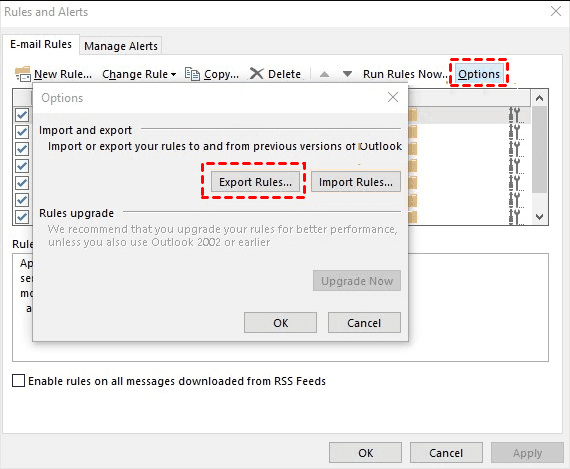
3. Select the folder where you want to save the message rule.
4. To keep the rule compatible with a previous version of Outlook, select the following options.
- Outlook 2002 Compatible Rules Wizard rules
- Outlook 2000 Compatible Rules Wizard rules
- Outlook 98 Compatible Rules Wizard rules
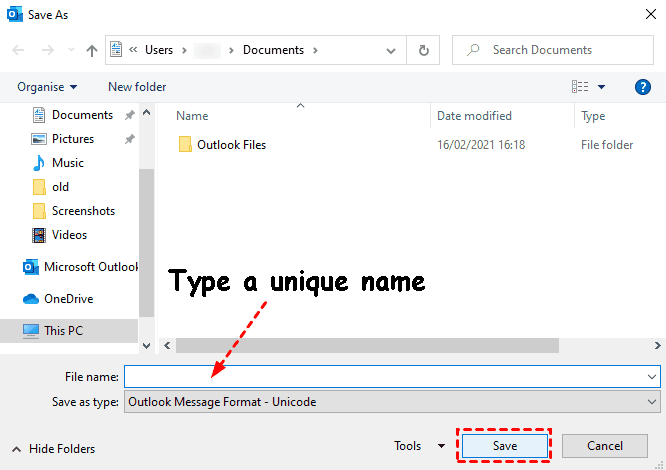
5. Type name for this rule. Then, click Save to backup message rules in Outlook.
To backup other signatures, templates, and folder properties in Outlook, navigate to the location where Outlook stores them, typically in the path "C:\Users\YourUsername\AppData\Roaming\Microsoft\Signatures" for Outlook 2013 or 2016, and copy them to a new folder to preserve them.
Signatures (.rtf, .txt, .htm)
- C:\Users\\AppData\Roaming\Microsoft\Signatures
- C:\Documents and Settings\user\Application Data\Microsoft\Signatures
Stationery (.htm) - Outlook theme
- C:\Program Files\Common Files\Microsoft Shared\Stationery
- C:\Program Files (x86)\Common Files\ Microsoft Shared\Stationery
- C:\Program Files\Common Files\Microsoft Shared\Stationery
Outlook Templates (.oft)
- C:\Users\\AppData\Roaming\Microsoft\Templates
- C:\Documents and Settings\user\Application Data\Microsoft\Templates
Navigation Pane settings (.xml)
- C:\Users\\AppData\Roaming\Outlook\profile name.xml
- C:\Documents and Settings\user\Application Data\Microsoft\Outlook\profile name.xml
Custom forms
- C:\Users\\AppData\Local\Microsoft\Forms
- C:\Documents and Settings\user\Local Settings\Application Data\Microsoft\Forms
Way 2: Automatically Backup All Outlook Emails without PST File
You can use Qiling Disk Master Professional, a powerful Outlook backup software, to automatically backup all Outlook emails, including the .pst file, without any file-locking issues.
- The software allows users to backup their entire Outlook mailbox, including all mail folders, contacts, calendar, tasks, and notes, or to select specific folders for backup.
- It allows you to run scheduled backup tasks with "Daily", "Weekly", "Monthly" or "Event triggers" and can even wake the computer to run the task when not using the Outlook app.
- The feature allows for incremental backups in scheduled tasks and normal compression to reduce the backup image size, enabling more data to be backed up with less space.
Please download this powerful backup software to have a try!
1. To backup Outlook account using Qiling Disk Master Professional, add the account in Outlook and close it, then open Qiling Disk Master Professional and select Backup, followed by File Backup.

Note: The Professional version supports Windows 11, 10, 8, 7, XP, and Vista, while server users should try Qiling Disk Master Server.
2. To add Outlook data to the backup, click the "Add Outlook data" button and select the "Outlook files with the entire mailbox" option.

3. Choose a local path, network or NAS location, or cloud drive to save all emails in Outlook.
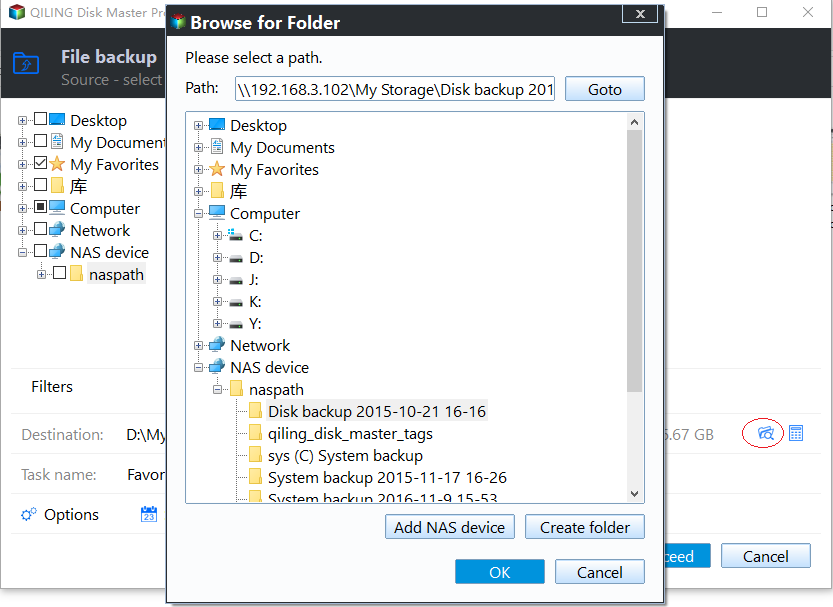
4. To enable scheduled backups, select Daily, Weekly, or Monthly as the backup schedule and ensure the "Wake the computer to run scheduled task" option is checked.
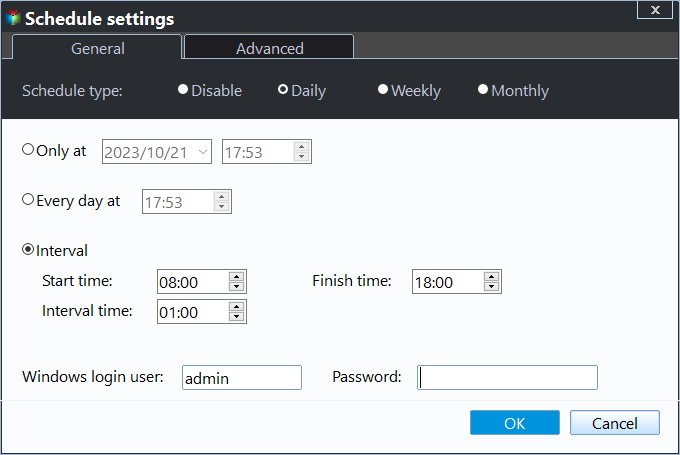
5. Confirm you select the entire mailbox and click Proceed to backup all Outlook emails and other items.
Notes:
- The event triggers only support backup PST files at system startup or user log on, but not for mailboxes containing PST files.
- You can replace "Incremental Backup" with "Differential Backup" in a scheduled backup task, which is safer and based on a full backup.
- To prevent backup disk full issues, delete old backup images regularly and enable the Backup Scheme to manage them effectively.
How to Backup Individual or Multiple Emails instead of Entire Mailbox
If you want to backup specific emails in Outlook, you don't have to backup your entire mailbox. There are two useful methods to help you achieve this: you can backup individual emails or multiple emails, depending on your needs.
Backup a Few Emails using "File backup"
1. Select Backup tab page and File Recovery.
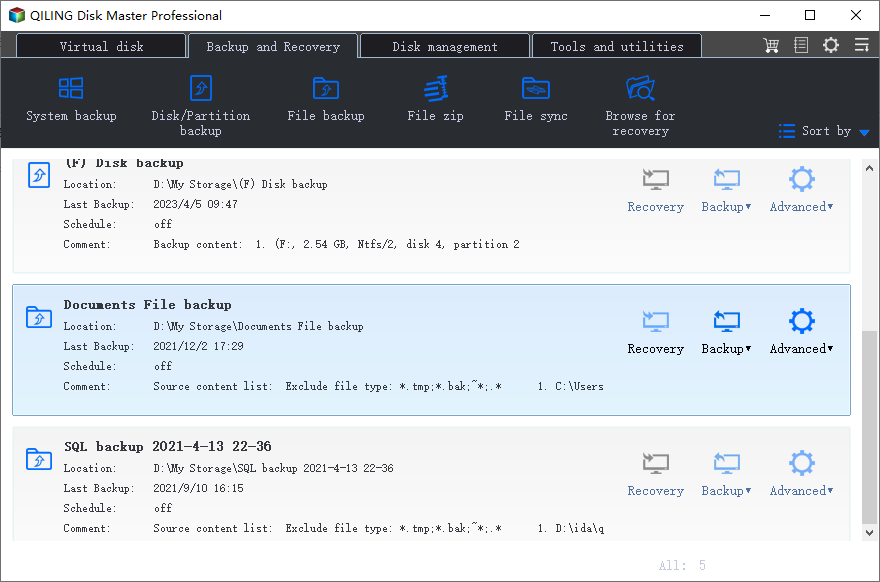
2. Select the email you want to back up in Outlook. Then, drag and drop it into File Explorer.
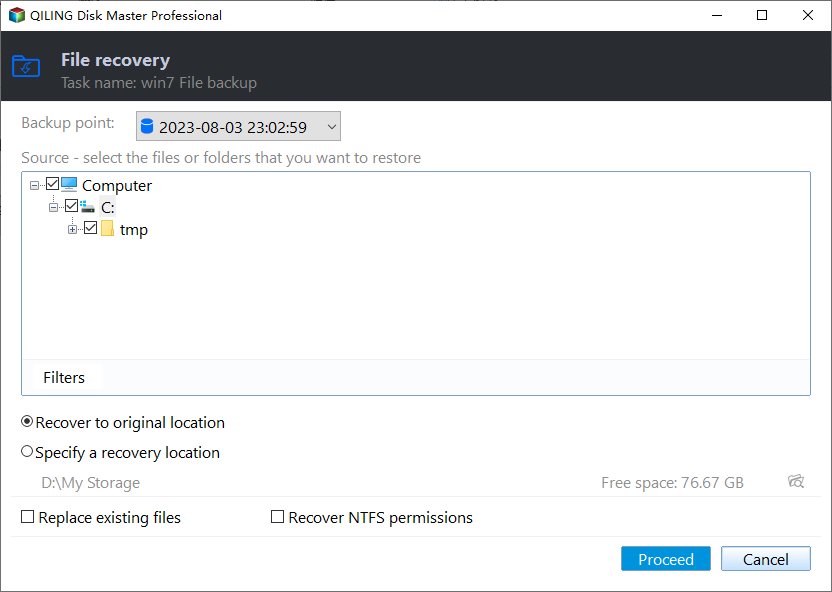
Note: To backup multiple emails, hold down the Ctrl key while selecting emails. This will allow you to select multiple emails at once, making it easier to backup them.
More FAQs about Backup Entire Outlook Mailbox
✍ Can I automatically save Outlook emails to My Computer?
Outlook's autoarchive feature saves old emails to your computer, creating a new PST file each time it archives, only saving past emails.
✍ How to backup all Outlook emails to hard drive
To backup all Outlook emails to a hard drive, use the "Export to a file" feature, which saves emails to PST files, but requires importing to access them. Alternatively, you can use the "Save as" or drag and drop method to achieve the same goal.
✍ Where is my Outlook Data File (.pst)?
The Outlook Data File (.pst) will be saved to the "Outlook files" folder in your documents, where Outlook will also look for backup files, making it convenient to import files by keeping a copy there.
✍ How to restore backup from a PST file?
Outlook offers you the option to "open Outlook data file" and "import/export" in the "open & export" tab, allowing you to either access and move emails back into your inbox or import a PST file into a new account.
Summary
The .pst file is a simple way to backup an entire Outlook mailbox, including emails, contacts, calendars, and notes. If you prefer an automatic method or your account already has a .pst file, consider using a powerful Outlook backup software like Qiling Disk Master Professional.
You can enable the schedule backup feature to run the task automatically at off-peak hours, and also wake up your computer at a specific time.
Related Articles
- (Solved) Outlook Not Showing Old Emails | 6 Ways
You will get all the possible reasons for Outlook 2016 or Windows 10 not showing old emails and 6 effective methods to fix it. To keep your emails safe, please back them up. - Backup Outlook PST Files to OneDrive with 2 Tested Ways
You will learn both manual and automatic method to backup Out PST files to OneDrive, even breaking the file locking issues. Get more below and backup your PST files now. - Solved | Windows 10 File Copy/Transfer Very Slow (8 Methods)
This guide explains Solved | Windows 10 File Copy/Transfer Very Slow (8 Methods) with clear steps, key checks, and practical tips. - Complete Guide: Synology Drive Sync Multiple Folders
Follow this guide to Complete Guide: Synology Drive Sync Multiple Folders, with backup options, storage tips, and recovery precautions. - Best Free Way to Backup WD My Cloud to Amazon Drive
You need to create multiple backups, not only backup WD My Cloud to Amazon Drive, but also to other clouds like OneDrive, Google Drive, Dropbox etc, so your data is always safe even if the Amazon Drive is deprecated. - How to Easily Perform Continuous File Sync on Windows
This article tells you how to perform continuous file sync on your PC, including 2 possible ways. Choose the one that suits you best.
Products
Articles & Tutorials
- Data Recovery
- Data Backup
- File Recovery
- File Backup
- File synchronize
- System Backup and Restore
- Disk and Partition Clone
- Technical articles
- Disk Master Help
- Windows Deleted File and Disk Recovery Tutorials
- Windows File and Data Recovery Tutorials
- More Windows Tutorials for Install, Security, Files, and PC Tips
- Windows Boot, Repair, and Recovery Environment Tutorials
- Windows Backup Tutorials
- Windows Restore Tutorials
- Windows Clone and Migration Tutorials
- Windows Server Backup, Recovery, and Management Tutorials
- Windows Disk, Partition, and Storage Management Tutorials