(Solved) Outlook 365 Not Showing Old Emails | 6 Ways
- Outlook 2016/Windows 10: Old Emails Missing from Inbox
- Why Is My Outlook Not Showing Old Emails?
- How to Fix Outlook Not Showing Old Emails Problem
- Way 1: Reset Default View Settings (Recommend)
- Way 2: Find Old Emails in New Search Folder
- Way 3: Check Cache Exchange Mode
- Way 4: Change Retention Policies
- Way 5: Reduce Oversized PST Files
- Way 6: Search Old Emails in Outlook.com
- Backup All the Outlook Emails to Keep Them Safe
- More FAQs about Outlook Old Emails
- Summary
Outlook 2016/Windows 10: Old Emails Missing from Inbox
Old emails (anything past today) keep disappearing. The old emails can be viewed through the search feature, but not just by clicking the inbox folder. There are no rules that would limit e-mail viewing. The slider has been set to "all", I think this was the one to keep all messages without deleting them after a certain point. Just in case, I did that. But this did not resolve the issue either.
- Question from User Forum
Encountering issues with Outlook not showing old emails is a common problem among users. To address this issue, it's essential to identify the root cause, which could be due to various reasons such as corrupted data files, incorrect configuration, or issues with the account settings. Before attempting any fixes, it's recommended to safeguard your Outlook data by backing it up, which can be done by clicking on the provided link. Once your data is secure, you can proceed with troubleshooting the issue, which may involve checking the account settings, rebuilding the cache, or reinstalling Outlook.
👉Backup All the Outlook Emails to Keep Them Safe
Why Is My Outlook Not Showing Old Emails?
Outlook not showing old emails is a common issue for new users, typically within the past year, and can be caused by various factors. The problem may arise due to synchronization issues with the server, corrupted profile data, or incorrect settings, among other reasons. Additionally, if the user has recently switched from another email client, it's possible that the old emails were not properly imported or synced with Outlook.
|
⚙ Improper Outlook settings |
You may have wrong sync settings, view settings, etc. |
|
🗑 Accidental deletion |
You accidentally delete old emails in Outlook. |
|
📧 Email archive |
Your old emails are archived by Outlook or yourself. |
|
📊 Storage limit |
If you've reached your storage limit, old emails might not be synchronized or displayed. |
How to Fix Outlook Not Showing Old Emails Problem
To fix old emails not showing in Outlook 365, first identify the possible cause, which could be a sync issue, a corrupt OST file, or a problem with the Exchange server. If it's a sync issue, try restarting Outlook or running the Outlook repair tool. If it's a corrupt OST file, try deleting and re-downloading the file. If it's a problem with the Exchange server, try checking the server status or contacting your IT department.
Way 1: Reset Default View Settings (Recommend)
Research shows that most users resolve the issue by trying this method first. It is suggested to give this approach a try as the initial step. The Outlook App not showing old emails is also caused by the misconfiguration of Views settings, which can be resolved by resetting its default view settings.
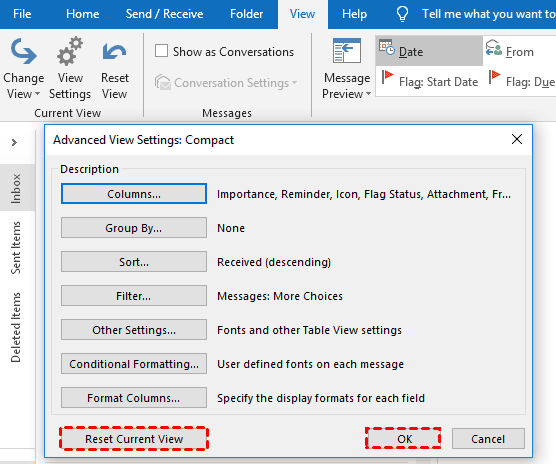
1. To access the Advanced View Settings window, click on the "View" dropdown menu and select "View Settings". This will open the settings window where you can customize various view settings.
2. Click Reset Current View and click OK to save changes.
Way 2: Find Old Emails in New Search Folder
The old emails in MS 365 email are grouped in old mail, which means they can't be searched in the Send and Receive menu, and this is why the Outlook app isn't showing them.
1. Click the Folder menu and New Search Folder.
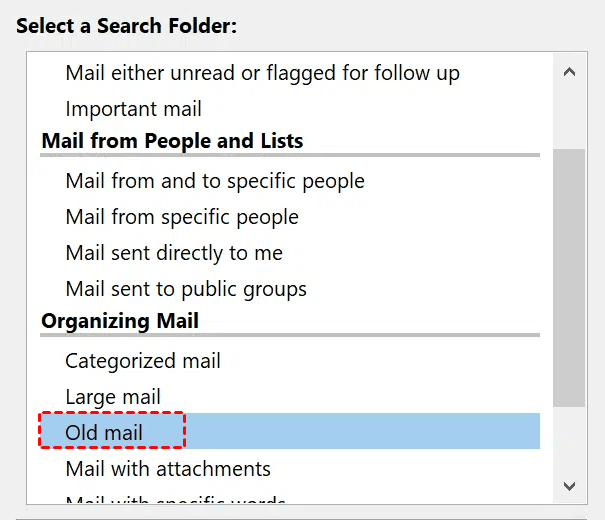
2. Scroll down to the Organizing Mail section and select Old mail.
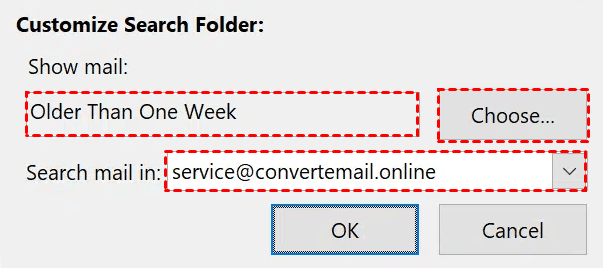
3. Select the time period for which you want to view the emails, such as "Older than 3 months", and choose the unit of time, like days, weeks, or months.
4. Select MS 365 account you want to search for old emails and click OK. The script will create a new folder named "Older than 3 Months" in the Search Folders section, where all emails older than 3 months will be moved.
Way 3: Check Cache Exchange Mode
The Cache Exchange mode is a feature for the Exchange mail server that determines how long email messages can be retained. If you're experiencing issues with Outlook not showing emails older than a certain time period, such as 1 month or 12 months, checking the Cache Exchange mode may resolve the issue.
1. Click File > Info and select Account Settings twice.
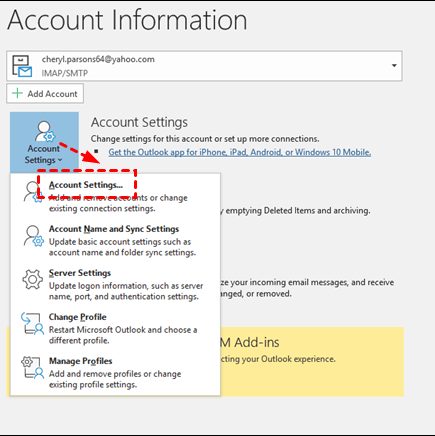
2. Select the account not showing old emails and click Change.
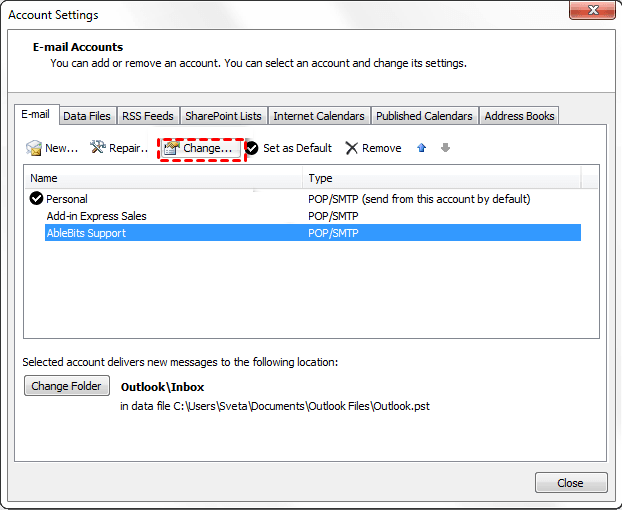
3. To enable Cached Exchange Mode in Outlook, check the box next to "Use Cached Exchange Mode" and move the slider to the right from 1 year to All, then click Next and finish the configuration. After that, reboot Outlook to make the changes take effect.
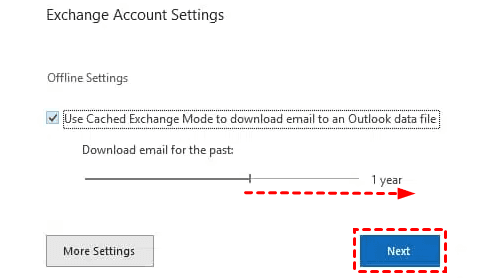
Note: When using an Exchange account in Outlook, the Windows client will automatically delete emails after 1 year, unless specified otherwise.
Way 4: Change Retention Policies
The retention policy in Microsoft 365 allows you to set a timeframe for archiving or deleting emails. If you don't want emails to be deleted after a certain period, such as 1 month, 3 months, or even 1 year, you can modify the retention policy in the Exchange Admin center.
1. To manage compliance and retention policies in the Exchange admin center, go to the "Compliance management" section and select "Retention policies".
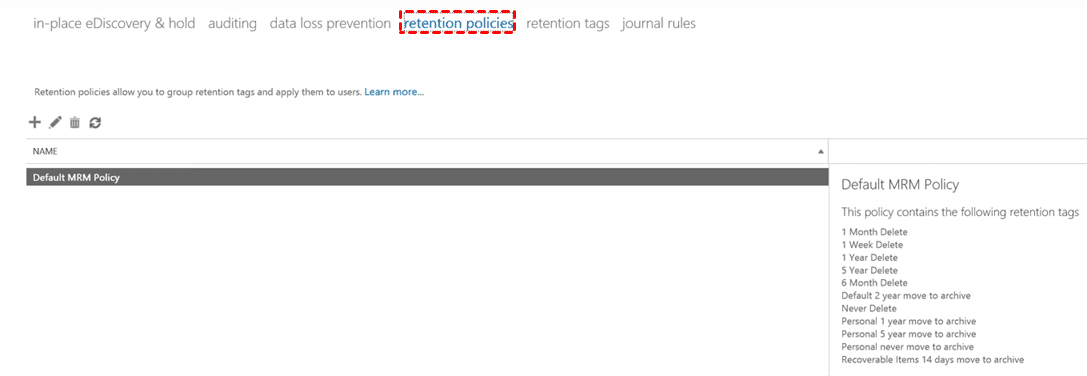
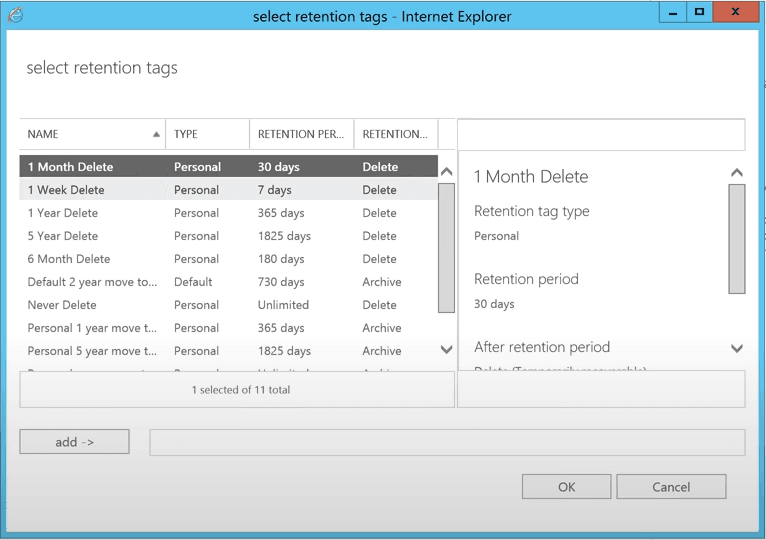
2. Click the + button to create a new retention policy, then type a name and click the + button under Retention tags to add a tag to the policy.
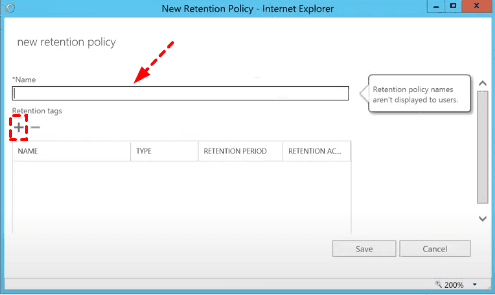
3. To change the retention policy, select a new policy and click OK. This can be a 1-year delete or longer policy. Once selected, the new policy will be applied and the window will update to reflect the change. Click Save to confirm the new policy.
4. To assign this policy to your account, click on Recipients and then Mailboxes.
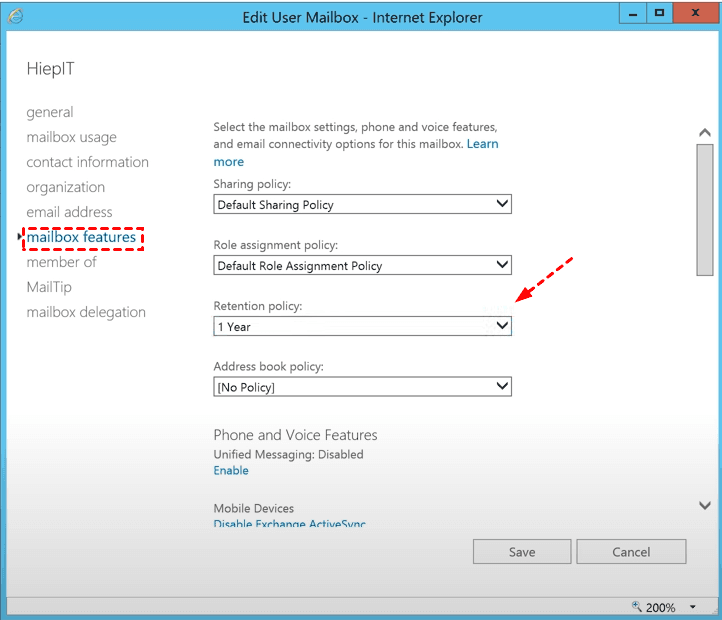
5. To configure a user's mailbox, double-click the account to open the User Mailbox window, then click on the Mailbox features and select the previously created policy, followed by clicking Save.
Way 5: Reduce Oversized PST Files
If your Outlook 2016 data file (PST) is close to or exceeds the 50GB size limit, you may experience issues where old emails are not showing. To resolve this, consider reducing the size of your Outlook data file to ensure it stays within the recommended limit.
1. Go to the "Deleted Items" folder and clear out any unnecessary data files.
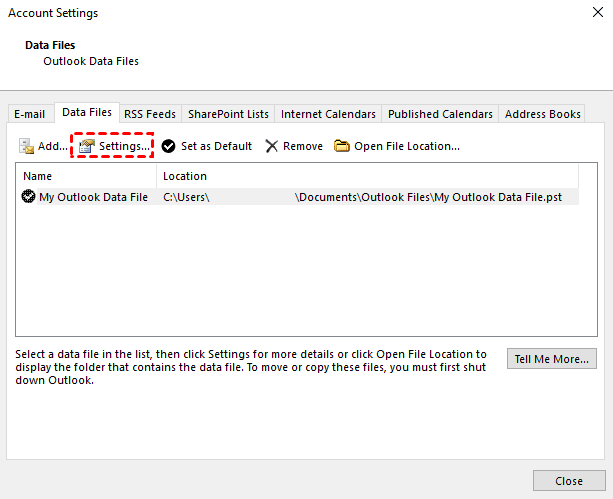
2. Open the Account settings window, click Data Files, select the account with large PST files, and then click Settings.
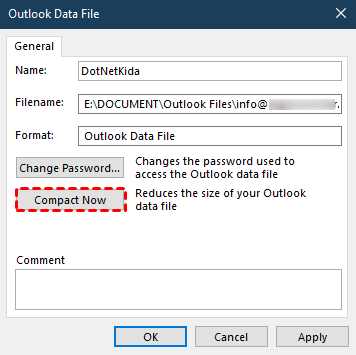
3. Click Compact Now and Apply, then OK. This will initiate the process of reducing the size of your Outlook data file.
Way 6: Search Old Emails in Outlook.com
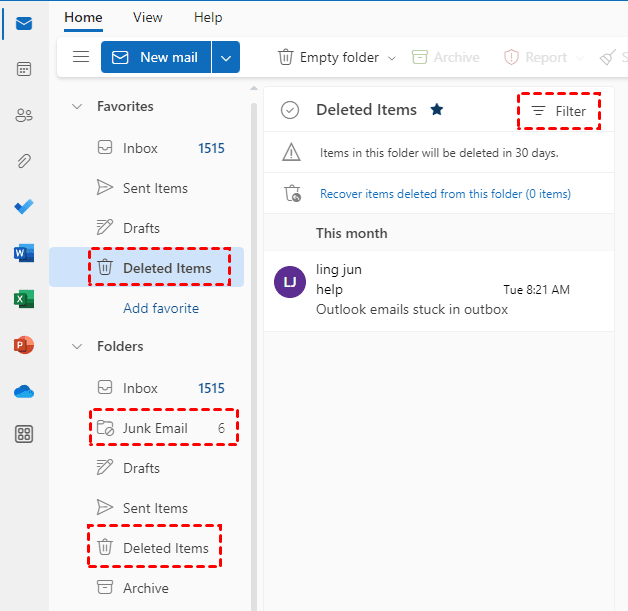
If you're using Outlook.com, you can find old emails in the Archive, Deleted Items, or Junk Email folder, or check your Filter.
1. To retrieve old emails from Outlook.com, open the website and log in with the account that is missing the emails. Once logged in, click on the "Help" or "Support" button at the top right corner of the screen.
2. Check the Archive, Deleted, and Junk Email folders in order, and also check the Filter to see if your email is there.
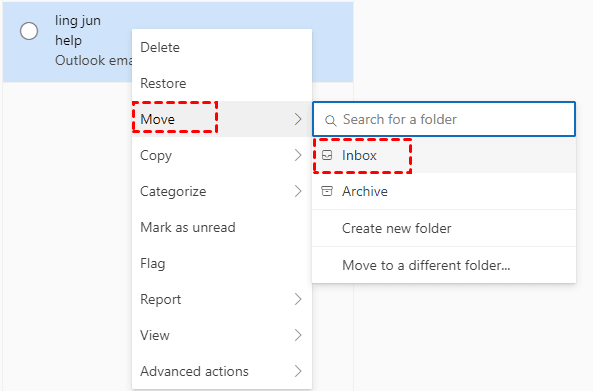
3. Right-click the old emails and click Move > Inbox.
Backup All the Outlook Emails to Keep Them Safe
If old emails are damaged or deleted, the most effective way to recover them is to restore them from a backup image. To keep emails safe or resolve not showing issues, it's essential to back up all emails. Qiling Disk Master Professional is a top-notch Outlook backup software that can assist with this process.
- Diverse Backup Content: Backs up emails, attachments, calendars, contacts, notes, etc.
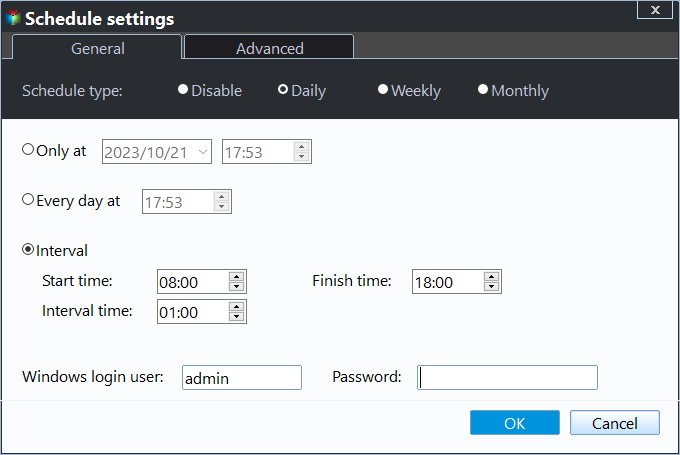
- Scheduled Backup TasksThis feature allows for scheduled backups to occur on a daily, weekly, or monthly basis, or can be triggered by specific events. It also includes automatic incremental backup, which only saves changes made to files since the last backup, reducing storage space and backup time.
- Flexible Backup Options: This product supports backup to external hard drives, USB disks, network drives, NAS, or cloud drives.
Download this powerful backup software to have a try! For server users, you may want to try Qiling Disk Master Server instead.
Step 1. Open Outlook, and be sure you log in with your account.
Step 2. Launch Qiling Disk Master Professional and click Backup and File Backup.

Step 3. Click Add Outlook data and select the account containing all the emails you want to backup.

Step 4. Select a local path, network or NAS location, or cloud drive to store all of your Outlook emails by clicking the second box.

Step 5. Enable Daily, Weekly, Monthly, or Event triggers schedule backup and click Proceed to backup all the emails automatically.
Notes:
- This software provides three backup options: Full Backup, Incremental Backup, and Differential Backup, which can be chosen in the Backup Scheme.
- Besides, you can also enable automatic backup cleanup methods to resolve the backup disk full issue, making it the most effective method to do so.
More FAQs about Outlook Old Emails
✍ Does Outlook delete old emails?
Outlook typically doesn't delete old emails unless you enable the archive option, which moves them to the "Archive" folder instead of keeping them in your inbox. However, in some cases, Outlook may automatically delete emails.
✍ How long does Outlook keep emails?
Outlook allows users to set a retention policy for emails, specifying how long they want to keep emails before they are deleted or archived, with options such as 1 week, 1 month, 6 months, 1 year, or 5 years.
✍ How do I find old emails in Outlook by date?
- Click on the "Search" tab and select "Advanced Find" from the options available.
- To search for emails, select the mailbox you want to search in and enter the date range you want to search for. You can also use specific keywords or phrases to narrow down your search results.
- To find a specific email, click on the "Search" button to scan for all emails on the desired date. Once the search is complete, browse through the results to locate the intended email.
✍ How do I get Outlook to show all my emails?
- To view all emails as conversations, go to the "View" tab and select "Show as Conversations".
- If you're still not seeing all of your emails, a filter may be hiding them. To resolve this, go to the "View" tab and click on the "Change View" option. This should allow you to see all of your emails, including those that may have been filtered out.
- Select the "All Messages" option to view all your emails in one place.
✍How to solve old emails not showing in Outlook Mac?
- Adjust the Sync Settings: To sync all emails in Outlook, go to the Preferences, then Accounts, select your email account, and click on the Advanced tab. Check the box next to "Download headers only" or "Download complete items" to ensure all emails are synced.
- Clear the Cache: Close Outlook and delete the cache files, which can become corrupted and prevent emails from displaying correctly, found in the ~/Library/Group Containers folder.
- Rebuild the Outlook Database: If the above steps don't work, you can try rebuilding the Outlook database. To do this, quit Outlook, hold down the Option key while reopening it, and select "Database Utility." Then, choose your profile and click on "Rebuild" to recreate the database. This should resolve any issues with the database and get Outlook working properly again.
Before rebuilding the Outlook 365 database, ensure to backup all emails to prevent any data loss. This can be done by exporting emails to a PST file or using the built-in backup features in Outlook.
Summary
To fix Outlook not showing old emails, identify the reason behind it and follow the corresponding method. If your emails are missing due to a corrupted PST file, try scanning it with a PST repair tool or rebuilding the index. If you've recently upgraded to a new version of Outlook, check if the old emails are stored in a separate folder or database. If you're experiencing issues with email syncing, check your internet connection and ensure that your account is properly configured.
Qiling Disk Master Professional is a great choice for Outlook data backup, allowing users to backup emails, attachments, contacts, notes, and more, making it suitable for tasks such as backing up PST files to OneDrive or external disks.
Related Articles
- 2 Tips | How to Backup Hard Drive Before Formatting on Windows 11/10/8/7
Formatting your hard drive can be a necessary step, but it's essential to back up your data first. To do this, you can use Qiling Disk Master or Windows Backup and Restore to create a backup of your hard drive before formatting. - How to Create Disk Image Windows 10 for Free on Laptops & PCs
This article provides a step-by-step guide on how to create a disk image on Windows 10, using both the Qiling Disk Master software and the built-in Backup and Restore tool on Windows 11/10. - Stepwise Guide | How to Install Windows 7 on a Hard Drive for Another Computer
This is a step-by-step guide on how to install Windows 7 on a hard drive for another computer. However, with the help of Qiling Disk Master, you can also learn how to install Windows on an external hard drive for another PC. - Top 2 Ways to Transfer OS from Laptop to Desktop🔥
You can transfer an operating system from a laptop to a desktop in two ways: by backing up the entire laptop and restoring it, or by creating a clone and booting it on the desktop. A detailed tutorial on how to do this using a professional backup and cloning tool can be found in the post. - Backup Windows 10 64 Bit OS or Files Easily (2 Ways)
This article tells you how to backup OS or files on Windows 10 64 bit to protect your data and provides you with 2 helpful ways. - 2 Ways | Backup Windows 10 PC to Synology NAS Safely
This guide explains 2 Ways | Backup Windows 10 PC to Synology NAS Safely with clear steps, key checks, and practical tips.
Products
Articles & Tutorials
- Data Recovery
- Data Backup
- File Recovery
- File Backup
- File synchronize
- System Backup and Restore
- Disk and Partition Clone
- Technical articles
- Disk Master Help
- Windows Deleted File and Disk Recovery Tutorials
- Windows File and Data Recovery Tutorials
- More Windows Tutorials for Install, Security, Files, and PC Tips
- Windows Boot, Repair, and Recovery Environment Tutorials
- Windows Backup Tutorials
- Windows Restore Tutorials
- Windows Clone and Migration Tutorials
- Windows Server Backup, Recovery, and Management Tutorials
- Windows Disk, Partition, and Storage Management Tutorials