Backup Outlook PST Files to OneDrive with 2 Tested Ways
What Is PST File?
PST files are commonly used by home users or small organizations to store copies of messages, calendar events, contacts, attachments, and other items on POP3, IMAP, HTTP, and web-based mail accounts.
To move data to a PST file on your computer, you can do so, but it will limit your ability to access the data when using Microsoft Outlook Web Access with an Exchange Server email account or working on another computer, and it has a 2GB file size limit.
Can I Backup Outlook PST to OneDrive?
Microsoft advises against storing active PST files from Outlook in the OneDrive folder, as the synced copy may not be intact, potentially leading to issues when restoring it. This could result in an unusable file.
If you're using OneDrive to back up all your files, including your PST files, they will be automatically backed up along with the rest of your files. There's no need for a separate backup specifically for PST files. OneDrive will sync and back up your PST files, just like any other file on your computer. So, you don't need to worry about a separate backup for PST files.
If you need to backup Outlook PST files to OneDrive, but your mailbox has limited space, you can consider backing up PST files (less than 10GB) that are not connected to the mailbox. This way, you can still utilize your OneDrive storage without affecting your mailbox's space. Two effective methods are provided in this article to help you achieve this.
How to Backup Outlook PST Files to OneDrive Effectively
Here are two methods to backup Outlook PST files: you can either manually backup PST files to OneDrive using the Outlook Files folder, or use a powerful backup software to automate the process, saving you time and effort.
Way 1: Backup Outlook PST to OneDrive Manually with Outlook Files Folder
To backup Outlook PST files to OneDrive, start by locating the PST Files folder, which is typically found in the default location of C:\Users\YourUsername\AppData\Local\Microsoft\Outlook. Note this location as you will need it for the copy and paste method to move the PST files to OneDrive. Once you have the location, you can proceed with the backup process.
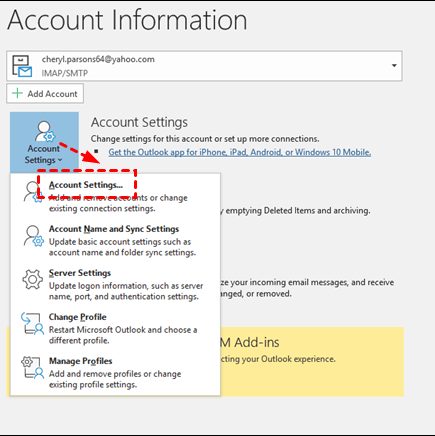
- To access account settings, click the "File" tab and then select "Account settings" from the "Info" dropdown menu.
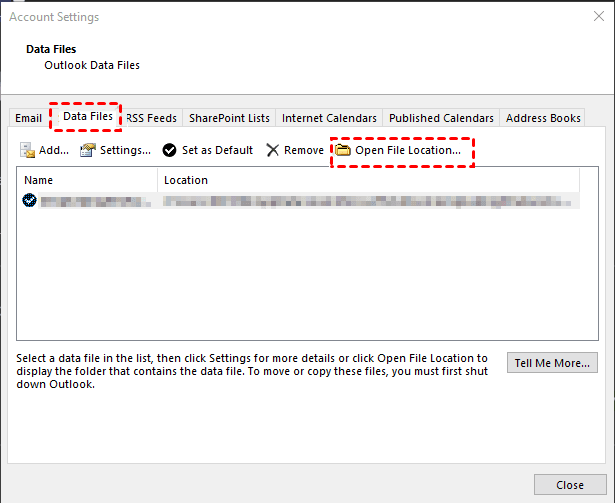
- To backup files, switch to the Data Files tab, select the files you want to backup, and then click Open File Location. This will direct you to the location of the files, which you should then copy to a safe place.
Step 1. Close the Outlook desktop client to be sure your PST files will not be locked.
Step 2. Open File Explorer and paste the Outlook Files folder location to access it.
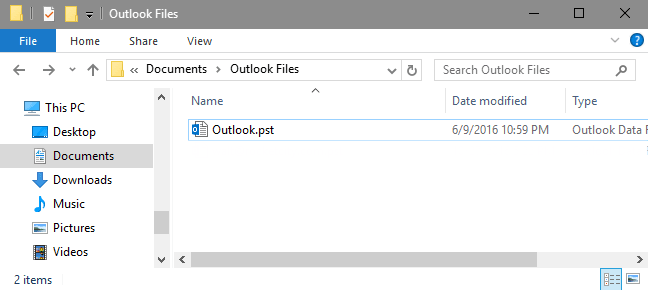
Step 3. To back up PST files with OneDrive, copy the PST files you want to back up and paste them into the local OneDrive folder. This will initiate an automatic backup of the PST files with OneDrive.
Way 2: OneDrive Backup PST Files Automatically with Powerful Software
If you want to move PST files to OneDrive automatically without the risk of locking issues, consider using Qiling Disk Master Professional, a powerful backup software that can help you achieve this.
- The tool allows you to schedule backups on a daily, weekly, monthly, and event trigger basis, and also enables you to wake the computer to run scheduled tasks during off-peak hours or when Outlook is not in use.
- With this feature, you can save time and space by backing up only the files that have changed since the last backup, using either Incremental Backup or Differential Backup.
- It can delete old backup images with "Automatic Backup Cleanup" to free up space, eliminating the worry of a full backup disk.
Please download this powerful backup software to have a try!
Windows 11, 10, 8, 7, XP, and Vista are supported on the Professional edition, while server users can try Qiling Disk Master Server.
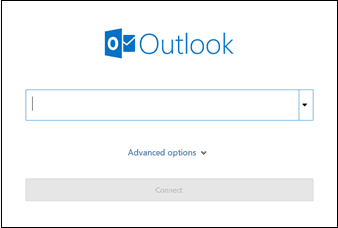
Step 1. Open Outlook, type email and click Connect, then follow the on-screen instructions to add the Outlook account containing PST files.
Step 2. Launch Qiling Disk Master Professional and click Backup and File Backup.

Step 3. Click Add Outlook data and select the Outlook account containing PST files you want to backup.

Step 4. Click Select a cloud drive and then select OneDrive to receive PST files in Outlook.

Step 5. Enable "Daily", "Weekly" or "Monthly" schedule backup and be sure the option"Wake the computer to run scheduled task" is checked.
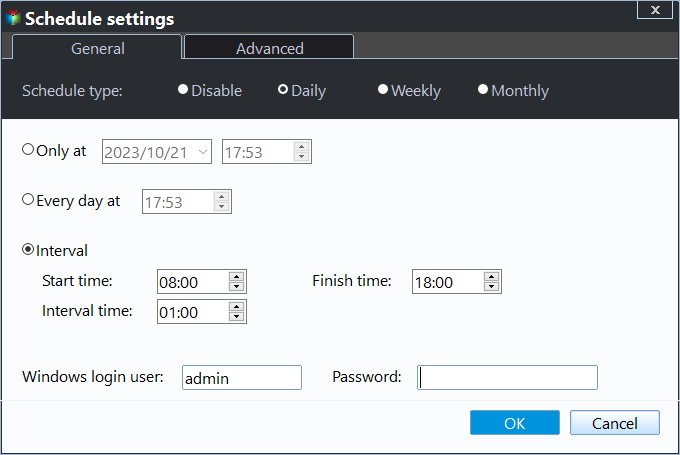
To resolve the issue of PST files being locked while backing up to OneDrive, click "Proceed" to automatically backup PST files without locking them.

Notes:
- The Event triggers for only backing up PST files at system startup and user log on, making it impossible to set a specific time to run the PST file backup task.
- This software will use incremental backup by default when schedule backup is enabled, but it can also be set to differential backup.
- To prevent backup disk full issues, delete old backup images regularly and enable Backup Scheme.
FAQs about Outlook PST Files
✍ Where is the PST file location?
The PST file created by Outlook 2013 or later is saved in the local Documents\Outlook Files folder, while earlier versions like Outlook 2007 save it in drive:\Users\user\AppData\Local\Microsoft\Outlook.
✍ Can I access the PST file from a network?
The .pst file is a personal storage table that is used by Microsoft Outlook to store email messages, contacts, and other data. Due to its sensitive nature, it's not recommended to open or use a .pst file from over a network as it can be prone to corruption.
Summary
Microsoft advises against backing up Outlook PST files to OneDrive, but if your mailbox is running out of space or you still want to do so, you can use either of the two methods mentioned. Just be sure to close your Outlook before backing up your PST files.
If you want to run a task automatically, try using powerful Outlook backup software like Qiling Disk Master Professional. It allows you to schedule backups and backup PST files at a specific time when Outlook is not in use.
Related Articles
- How to Restore When Outlook Favorites Missing[2024 Guide]
If you're wondering why your Outlook favorites are missing or how to restore them, this article has you covered. We'll explain the most common reasons for Outlook favorites disappearing and provide step-by-step instructions for getting them back. - QuickBooks Unable to Backup Company File - What to Do?
If you're experiencing the QuickBooks unable to backup company file error, you're in the right place. This post will guide you on how to resolve the issue and provide a better way to back up your QuickBooks company file. - How to Restore System Image Without Repair Disc [Ultimate Guide]
If you're concerned about restoring your system image without a repair disc, rest assured it's possible. A professional backup tool like Qiling Disk Master can help create a system image on an external device, which can then be used to restore it on your device. - Best Way to Restore Windows 10 to Dissimilar Hardware
Follow this guide to Best Way to Restore Windows 10 to Dissimilar Hardware, with backup options, storage tips, and recovery precautions. - Windows 7 Backup Encryption and Your File Encryption Key
This article introduces you to Windows 7 backup encryption workarounds and 'Back up your file encryption key' solutions. - Fix Windows Automatic Repair Loop using Command Prompt
Learn how to Fix Windows Automatic Repair Loop using Command Prompt with clear steps, key checks, and practical tips.
Products
Articles & Tutorials
- Data Recovery
- Data Backup
- File Recovery
- File Backup
- File synchronize
- System Backup and Restore
- Disk and Partition Clone
- Technical articles
- Disk Master Help
- Windows Deleted File and Disk Recovery Tutorials
- Windows File and Data Recovery Tutorials
- More Windows Tutorials for Install, Security, Files, and PC Tips
- Windows Boot, Repair, and Recovery Environment Tutorials
- Windows Backup Tutorials
- Windows Restore Tutorials
- Windows Clone and Migration Tutorials
- Windows Server Backup, Recovery, and Management Tutorials
- Windows Disk, Partition, and Storage Management Tutorials