Windows Automatic Repair Loop (Fixed)
- What is automatic repair?
- Windows automatic repair loop and its cause
- Prevention measure for your computer
- How to access recovery tools in Windows
- Quick fix to Windows automatic repair loop
- Fix 1: Restart your computer
- Fix 2: Check boot priority in BIOS
- Fix 3: Disable early launch anti-malware protection.
- Fix 4: Replace the bad driver
- Fix Windows automatic repair loop using command prompt
What is automatic repair?
In Windows 8/8.1/10, Automatic Repair is a tool that detects operating system startup problems and automatically starts a diagnostics-based troubleshooter to resolve the issue without requiring user intervention.
If the problem is severe and the automatic repair does not start automatically, you can create a recovery disk and use it to troubleshoot your computer.
Windows automatic repair loop and its cause
The computer stuck on automatic repair is often caused by various factors, including anti-malware protection, corrupted system files or drive, bad drivers, damaged registry settings, or incorrect device partition or OS partition values. This issue typically presents itself with error messages.
- automatic repair couldn't repair your PC
- preparing automatic repair
- Windows automatic repair loop without disc
- Windows 10 automatic repair failed
- log file c /windows/system32/logfiles/srt/srttrail.txt Windows 10
- Windows 10 automatic repair your PC did not start correctly
Prevention measure for your computer
To avoid data loss or system crashes, it's essential to create a backup in advance, especially when your computer is experiencing issues. If you're unable to access your system, you can try booting into safe mode and then backing up any important files or data. This can help ensure that your valuable information is preserved, even in the event of a system failure.
To create a backup, use a user-friendly backup and restore software like Qiling Disk Master, which offers free backup of your system, entire disk, and files.
Aside from its basic backup function, this tool offers additional features that enhance its utility. It allows for compression of backups at either Normal or High levels, providing a convenient way to save space. Additionally, users can opt for incremental or differential backups, giving them more flexibility than a full backup. The tool also enables scheduling of backups to occur at specific intervals, such as daily, weekly, or monthly, making it easier to maintain a consistent backup routine.
If you need more advanced features, you can upgrade to Qiling Disk Master Professional or Qiling Disk Master Server, which are suitable for Windows 7/8/10/11/XP and Windows Server 2008/2012/2016/2019/2022 respectively.
Step 1. Download free Qiling Disk Master and open it.
Step 2. To back up your system, click on Backup in the menu and select System Backup from the dropdown options. Alternatively, you can also choose Disk Backup, Partition Backup, or File Backup.

Step 3. In this window, select a path to save your backup.

Qiling Disk Master will automatically select the system partition and other system-related partitions by default, eliminating the need to manually choose which partition to back up.
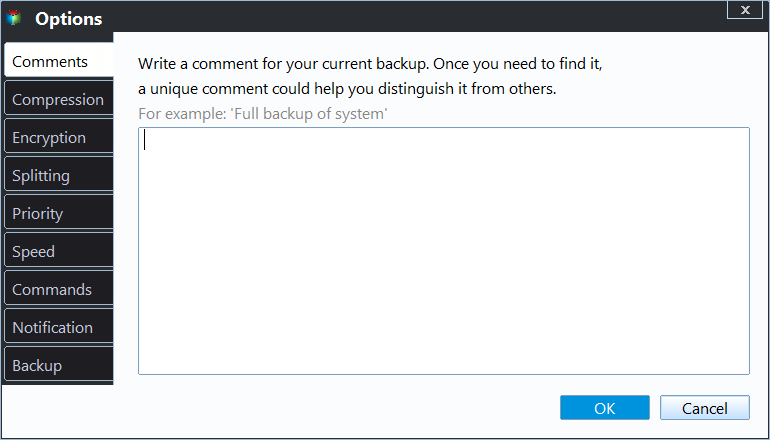
Step 4. Set up settings if needed.
Step 5. Click Proceed to run the pending operating.
If you're stuck in an automatic repair loop on Windows 11/10/8.1/8, you can try to fix it with or without a disc. If the issue persists, you can restore your system to a previous state using a system image backup or other backup methods.
♬ Easier way to create bare metal backups for protection:
You can use Qiling Disk Master to backup your system and create a bootable media, making it easier to recover your computer if it's not working. This software allows you to boot your computer from the media, access a boot menu, and quickly recover your system using a specific key. It's a useful tool for system recovery.
How to access recovery tools in Windows
To access the Startup Settings or Command Prompt in Windows 10 HP/Dell/Asus, you can press the Shift key while restarting the computer, which will lead you to the Startup Settings. Alternatively, you can also use the Windows installation media to access the Command Prompt. Once you have access to either of these tools, you can then use the built-in recovery options to fix the automatic repair loop issue.
If your computer can boot up, you can try using Boot Options. If not, you may need an installation disc.
1. Use Boot Options Menu. To access the Boot Options Menu, simply restart your computer multiple times until it appears, then select Troubleshoot > Advanced Options, and choose the recovery tools you need.
2. Use installation disc. To access the recovery tools, insert your Windows installation CD/DVD, turn on your computer and press a key when prompted to boot from CD or DVD. Once booted, click "Repair your computer" and then "Troubleshoot" followed by "Advanced Options" to access the recovery tools in the next window.
You can directly press Shift + F10 on the Windows Setup Screen to open a command prompt window automatically.
Quick fix to Windows automatic repair loop
Fix 1: Restart your computer
For Windows automatic repair loop issue, the simplest reason is often that the computer wasn't properly shut down due to a power cut, crash, or laptop battery running out of charge. To resolve this, simply restart your computer.
To restart your computer, simply turn it off, then press the power button to turn it back on, and it will automatically restart. Alternatively, you can press the Windows key + X and select Restart from the menu.
If the previous solution doesn't work, you can try resetting Windows Update components by running the Windows Update Troubleshooter or by using the command line with the following steps: Open Command Prompt as Administrator, type `net stop wuauserv` and press Enter, then type `ren C:\Windows\SoftwareDistribution SoftwareDistribution.old` and press Enter, then type `ren C:\Windows\System32\catroot2 catroot2.old` and press Enter, followed by `net start wuauserv`.
Fix 2: Check boot priority in BIOS
To resolve the issue, go to your BIOS settings by pressing a specific key during the initial screen, navigate to the boot option, and set your hard drive as the priority boot device, overriding the Windows Boot Manager.
Fix 3: Disable early launch anti-malware protection.
You're receiving the "Windows 10 Automatic Repair couldn't repair your PC" error due to malware protection. To resolve this, go to the Boot menu, select Troubleshoot > Advanced options > Startup Settings, choose Restart, and then select Disable early launch anti-malware protection. Restart and see if it resolves the issue.
Fix 4: Replace the bad driver
To resolve the issue, you can start by enabling safe mode with networking using boot options, then download the latest driver. After that, use the DISM command to restore the health of your driver, and finally restart your computer and install the new driver. This should resolve the problem.
Fix Windows automatic repair loop using command prompt
Fix 1: Delete corrupted file
Step 1. You can use the following command to check for corrupted files in the command prompt: `chkdsk /f` or `chkdsk /r` to check for corrupted files and attempt to repair them. This will scan the disk and report any errors or corrupted files. If you find any corrupted files, you can try to repair or delete them using the command prompt.
C:
Cd Windows System32LogFilesSrt
SrtTrail.txt
When encountering a VMWare file issue, such as a message indicating a corrupt file like "Boot critical file c:windowssystem32driversvsock.sys is corrupt," it's essential to identify the specific type of problematic file. This involves searching for the file type mentioned in the error message, ensuring its integrity and authenticity, and potentially reinstalling or replacing it if necessary.
Step 2: Delete the corrupted files. You can type the following and press Enter.
cd c:windowssystem32drivers
del vsock.sys

Fix 2: Rebuild BCD and run chkdsk
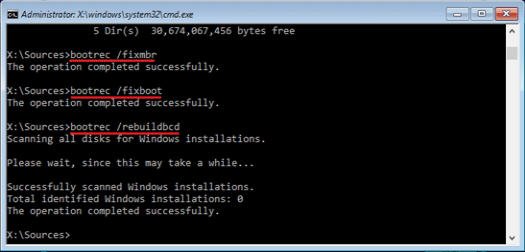
Step 1. Rebuild BCD and repair MBR. You can type the command below.
bootrec.exe /fixmbr
bootrec.exe /fixboot
bootrec.exe /rebuildbcd
Note:
fixmbr writes a new MBR to the system partition, effectively replacing the existing one.
/fixboot writes a new boot sector onto the system partition.
The rebuildbcd scan checks all disks for Windows installations and offers a choice of which entries to add to the BCD store.
Step 2. Run Chkdsk. Type the following command with partition driver letter.
chkdsk/r c:
Running Chkdsk can check and repair the hard drive filesystem corruption. It scans the drive for errors and fixes them, helping to prevent data loss and ensure the drive remains stable and functional.
step 3. Restart your computer and see if this works.
Fix 3: Restore Windows Registry or Registry settings using RegBack
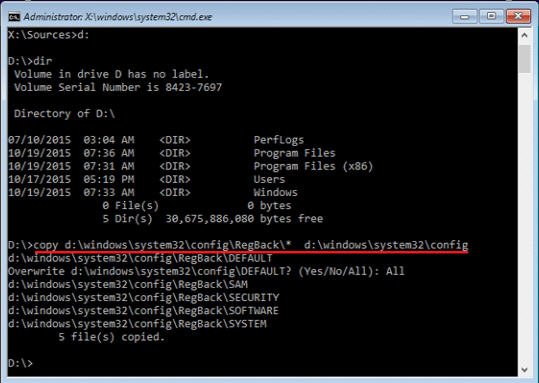
Step 1. To determine if your system drive is the C: drive, you can simply type "dir c:" in the command prompt. If you see folders like "Program Files", "Program Files(x86)", "Users", and "Windows", it's likely your system drive. If not, try the next drive letter.
Step 2. To restore Windows registry from RegBack, use the command that prompts you to overwrite files, type All and press Enter. This will allow you to restore the registry from the RegBack folder, which is a backup of the registry.
copy d:windowssystem32configRegBack* d:windowssystem32config
Step 3. To exit the command prompt, simply type exit and press Enter. This will close the command prompt window.
Step 4. If you're experiencing an issue with your computer, try restarting it and see if the problem is resolved. This simple step can often resolve a wide range of problems, from software glitches to hardware issues.
Windows automatic repair loop can be a frustrating issue that prevents you from accessing your computer. However, you can try to back up your system, disk, or files in safe mode, and then use the given solutions to fix the problem. This should help you break the loop and regain access to your computer.
Related Articles
- Your PC Ran into a Problem Loop – Fixes for Windows 10/8.1/8
Owing to driver update, system file corruption or a memory issue, your computer may be stuck at a blue screen with error message: your PC ran into a problem loop. - 4 Methods to Fix Startup Repair Windows 7 Loop
This guide explains 4 Methods to Fix Startup Repair Windows 7 Loop with clear steps, key checks, and practical tips. - Windows 10 Startup Repair Not Working: Solved
When you encounter Windows 10/11 Startup Repair not working problems, you can refer to this article and find effective solutions here. - How to Create a Backup Disk for Windows 10 [Two Best Solutions 2022]
This article will introduce two ways to create a backup disk for Windows 10. You can use the Windows built-in tool or choose a more straightforward way using reliable third-party software. - How to Do System Restore in Safe Mode Windows 7
This article covers everything related to system restore in safe mode including a step by step guide. Swip to learn more. - How to Fix This Copy of Windows Is Not Genuine
After installing a Windows Update, there are chances that you might see the sign this copy of Windows is not genuine. Here are some fixes.
Products
Articles & Tutorials
- Data Recovery
- Data Backup
- File Recovery
- File Backup
- File synchronize
- System Backup and Restore
- Disk and Partition Clone
- Technical articles
- Disk Master Help
- Windows Deleted File and Disk Recovery Tutorials
- Windows File and Data Recovery Tutorials
- More Windows Tutorials for Install, Security, Files, and PC Tips
- Windows Boot, Repair, and Recovery Environment Tutorials
- Windows Backup Tutorials
- Windows Restore Tutorials
- Windows Clone and Migration Tutorials
- Windows Server Backup, Recovery, and Management Tutorials
- Windows Disk, Partition, and Storage Management Tutorials