Your PC Ran into a Problem Loop – Fixes for Windows 10, 8.1, 8
About your PC ran into a problem loop
Your PC crashes and displays a blue screen with an error message, prompting a restart, often accompanied by a possible reason for the error at the bottom.
If you receive a prompt saying "DRIVER_VERIFIER_DETECTED_VIOLATION" after a system crash or freeze, it means that the problem was caused by a faulty driver. You can try searching online for more information on this error, or you can try to update or reinstall the problematic driver to resolve the issue.
The error message "stop c0000005" is a generic Windows error message that indicates a system thread exception not handled. This error can occur due to various reasons, including hardware issues, software conflicts, or corrupted system files. However, it's not the only issue you might encounter, and you can receive other prompts related to system thread exceptions, inaccessible boot devices, NTFS file system errors, bad pool header errors, and more.
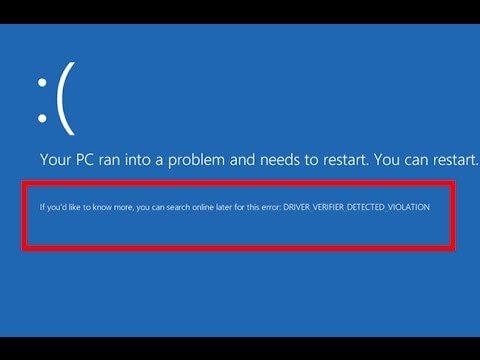
Reasons to your PC ran into a problem restart loop
When your PC experiences a problem and restarts in a loop, the error message and detailed information provided can help you identify the cause and find potential solutions.
In the following, I will list some common reasons for you.
1. Windows or driver update.
2. Fault drivers, conflicting drivers.
3. Faulty hardware.
4. Corrupted system files.
5. Registry error.
6. Overheating problem.
7. Memory issues.
8. Virus attack
How to fix your PC ran into a problem loop in Windows 10/8.1/8
To troubleshoot the issue, you'll need to log into Windows on the problem computer. If you're unable to log in, try power cycling your PC three times to perform a hard reboot and restart it in Safe Mode. Once you're logged in, you can attempt to resolve the problem using the provided solutions.
Uninstall and reinstall drivers
If you encounter a system thread exception not handled or driver verifier detected violation, it's likely due to faulty or conflicting drivers. You can identify the problematic drivers in the Event Viewer and remove them from the Device Manager.
Step 1. Click Win + R and type cmd in the pop-up window.
Step 2. Type eventvwr and press Enter in the command prompt.
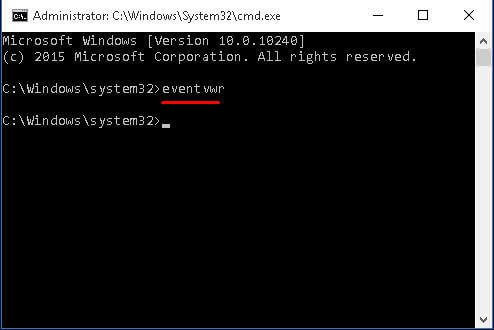
Step 3. Click Windows Logs and then System in the pop-up Event Viewer window
Step 4. Click the Source tab at the top, and check which driver causing the error.

Note:
The blue screen error prompt often displays the name of the faulty driver, such as atikmdag.sys, ATI22DVAG.sys, or ATI2CQAG.dll, which can be used to identify the problematic driver.
Step 5. Go to Device Manager (devmgmt.msc) and uninstall the problematic driver. And then reinstall the right version from the manufacturer's website.
Run sfc command
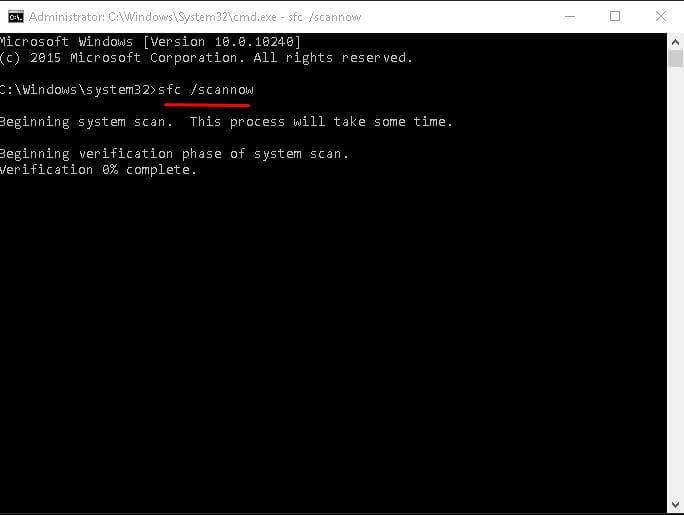
If your PC is experiencing a bootloop due to corrupted system files, you can run the System File Checker (SFC) to scan the disk and repair the damaged files, potentially resolving the issue.
Step 1. Open command prompt.
Step 2. Type sfc /scannow in the command prompt and press Enter to run it.
Run disk check
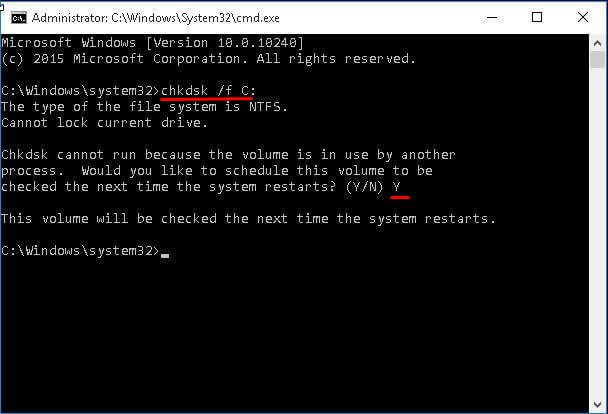
A blue screen of death error can be caused by a corrupted disk, which can be checked using a disk check. The disk check can help determine if the corrupted disk is the cause of the error.
Step 1. Open Command Prompt.
Step 2. Type chkdsk /f C: in the following window and hit Enter.
Step 3. Type Y in the window and restart your computer.
Modify Memory Dump Setting
Step 1. Open the Run window, and then type control sysdm.cpl in the pop-up windows and hit OK.
Step 2. In the System Properties window, click the Advanced tab and Settings under the Start-up and Recovery section.
Step 3. In the Start-up and Recovery window, uncheck Automatically restart and set Write debugging information to Complete memory dump.
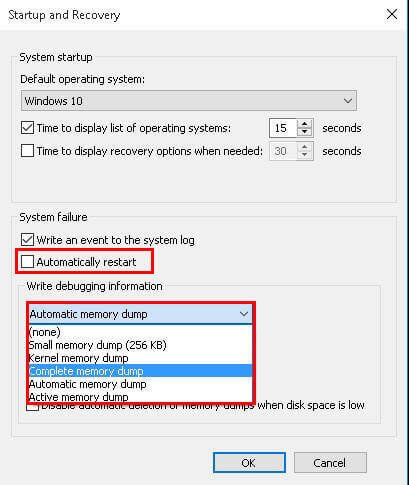
Step 4. Restart your computer.
Other ways to fix your PC ran into a problem loop
If you're unable to access safe mode, you can boot from a recovery disk or installation media. In Windows 10/8.1/8, you can create a recovery disk using the built-in tool Recovery drive, and select to backup system files to the recovery drive if you want to reset your PC.
You can also download the Media Creation Tool from Microsoft's official download page and follow the on-screen instructions to install Windows 11.
Automatic repair
Step 1. Restart your computer from Windows installation media.
Step 2. In the Windows Setup window, click Next and Repair your computer.
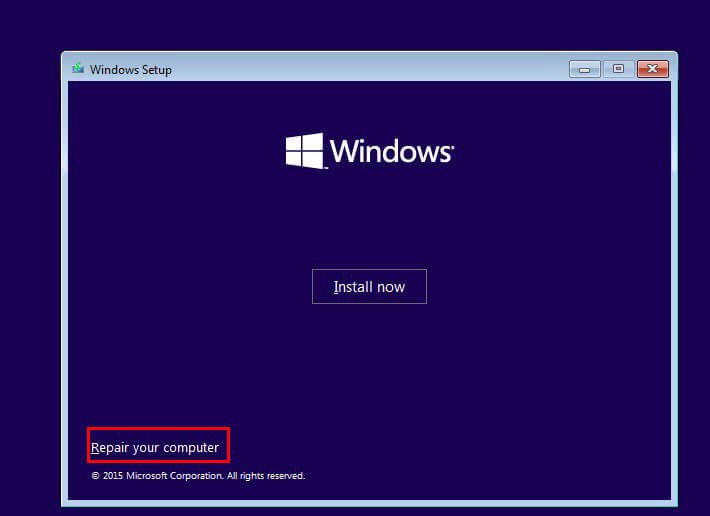
Step 3. In the blue screen window, select Troubleshoot and Advanced Options.
Step 4. Select Startup Repair and the operating system to fix, and then Windows will initiate the repair and restart.
Clean install
Step 1. Restart your computer and Boot from installation media.
Step 2. In the Windows Setup window, set up language and other preference, and then click Next.
Step 3. Click Install now.
Step 4. Click I don't have a product key and Next. If your product key is activated on the machine, you can skip this step. It will reactivate itself after the operation.
Step 5. Select the operating system and click Next.
Step 6. Accept the license terms and click Next.
Step 7. Select Custom install.
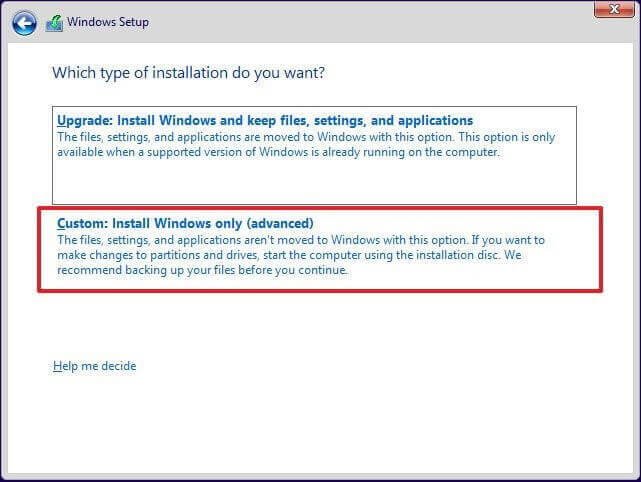
Step 8. Delete system partition and other OS related partitions, then select the unallocated space to install Windows and click Next to start the operation.
What to do after your PC ran into a problem loop fixed?
You're experiencing a problem loop on your Windows 10/8.1/8 PC, and you're not keen on spending a lot of time searching for solutions to recover your computer. It can be a time-consuming and hit-or-miss process.
To ensure quick recovery in case of a computer issue, create a system image backup using free backup and restore software, allowing you to quickly restore your system to a previous state.
I recommend using Qiling Disk Master for backup and restore software, as it allows for creating system image backups without issues. In case of a computer problem that cannot be resolved quickly, you can restore the system image backup to get your computer working normally again.
To create a system image backup, you need to download Qiling Disk Master first, which will allow you to backup your entire system, including the operating system, installed programs, and personal files, to an external drive or cloud storage.
Start the detailed steps:
Step 1. Launch Qiling Disk Master and click Backup > System Backup in order.

Step 2. Choose a location to save the backup, such as a local hard drive or an external storage device like an external hard drive or USB flash drive, to save the backup.

Step 3. Set up settings if needed.

Note: To free up space for backups, you can use incremental or differential backups to only save changed parts, and also consider deleting old backup images to make room.
Step 4. Click Proceed.
Wrapping things up
To resolve the problem loop on your PC, try restarting your computer, checking for updates, and running a System File Checker (SFC) scan. If the issue persists, consider using a System Restore point to revert to a previous working state. Additionally, running a disk cleanup and disk defragmentation may help resolve any disk-related issues.
To avoid problems that can't be fixed, create a backup of your computer in advance and save it to a safe place, which can quickly restore your computer, keep your files intact, and installed programs working normally.
Related Articles
- Fix Windows Automatic Repair Loop using Command Prompt
Learn how to Fix Windows Automatic Repair Loop using Command Prompt with clear steps, key checks, and practical tips. - System Restore Not Working Windows 10 – How to Fix
This guide explains System Restore Not Working Windows 10 – How to Fix with clear steps, key checks, and practical tips. - 8 Ways to Fix Computer Stuck on Restarting Screen
To safely fix "computer stuck on restarting screen" in Windows 10 or 11, you need to get the reasons, backup your system, and try the following 8 effective methods. - Which One is Better: Backup or Copy Files
This article examines two approaches to backup your PC: Backup or Copy Files. - Create System Image Backup in Windows Server 2012 Easily (2 Ways)
You can choose to create a system image in Windows Server 2012 step by step with Windows Server Backup or Qiling Disk Master Server. It depends on the level of disaster recovery you need. - The Best Disk Imaging Software for Windows Server 2016
This guide explains The Best Disk Imaging Software for Windows Server 2016 with clear steps, key checks, and practical tips.
Products
Articles & Tutorials
- Data Recovery
- Data Backup
- File Recovery
- File Backup
- File synchronize
- System Backup and Restore
- Disk and Partition Clone
- Technical articles
- Disk Master Help
- Windows Deleted File and Disk Recovery Tutorials
- Windows File and Data Recovery Tutorials
- More Windows Tutorials for Install, Security, Files, and PC Tips
- Windows Boot, Repair, and Recovery Environment Tutorials
- Windows Backup Tutorials
- Windows Restore Tutorials
- Windows Clone and Migration Tutorials
- Windows Server Backup, Recovery, and Management Tutorials
- Windows Disk, Partition, and Storage Management Tutorials