Computer Stuck on Restarting Screen - 8 Effective Ways
My computer is stuck on the restarting screen
A user is experiencing a frustrating issue with their Windows 10 system, where it gets stuck on restarting indefinitely. The problem is causing them significant inconvenience and they're seeking assistance to resolve it. The user's system is unable to complete the restart process, leaving them unable to access their computer.
"I upgrade my Windows 10 from v1511 to v 1607 and it requires a restart. But the computer has been restarting for a long time. Both Ctrl+Alt+Delete and F8 key have no effect. Why my computer gets stuck on restart screen? What to do if my computer stuck on blue restarting screen?"
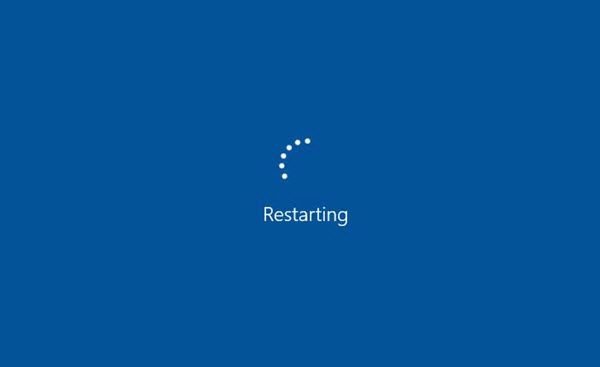
Why my computer is stuck on restart Windows 10/11?
Computer restarts on boot due to various reasons. Common causes include a faulty power supply, overheating, a failing hard drive, or a malfunctioning BIOS. Additionally, issues with the operating system, such as corrupted system files or incorrect boot configurations, can also lead to repeated restarts on boot. Furthermore, driver conflicts, outdated drivers, or hardware incompatibility can also cause the computer to restart on boot.
- The last shutdown was not properly.
- Your Windows 10 drivers are not properly Installed or outdated. To resolve the issue, you can try uninstalling and reinstalling your driver, or updating the outdated driver. This should resolve the problem.
- Windows 10 updates are still pending. You could consider stopping the update first, then restart it.
- RAM is affected.
- Fast Startup function is enabled. Fast Startup may cause issues when shutting down the computer, particularly if Wake-on-LAN is used, and some users also report that the power button on their keyboard becomes unavailable.
Backup system without starting Windows to avoid further problems
I know you're eager to fix your computer's stuck restart issue, but if you're not tech-savvy, you might inadvertently cause more harm than good.
To prevent a worse situation, create a system image before attempting to fix the restart issue, allowing for a quick restoration of the computer. The best free backup software, such as Qiling Disk Master Standard, can assist in this process.
- It allows you to create bootable media on another working computer and boot the computer in trouble.
- The system backup will include the operating system, installed programs, and personal data, as long as they are stored on the system partition.
- All Windows systems, including Windows 11, 10, 8, 7, XP, and Vista, are supported.
After your computer is back to normal, you can schedule system backups daily, weekly, or monthly to update the changes, with the option to backup only changed files using incremental backup to save disk space for new backups.
Download Qiling Disk Master Standard, install it, and prepare an external hard drive to save images. Additionally, you will need a SATA-to-USB cable to connect the external drive to your computer.
Step 1. Run Qiling Disk Master Standard, go to Tools > Create Bootable Media, select Windows PE and USB device, and click Next to create a bootable USB.

Step 2. Insert the bootable USB into the computer in trouble and set it as the first boot option. You may be prompted to press a key, such as "Press any key to boot from USB".
Step 3. Qiling Disk Master will start loading, once done, click Backup and System Backup subsequently. If you want to backup entire disk, select Disk Backup instead. Once done, click Backup and System Backup subsequently.

Step 4. Qiling Disk Master will automatically select the system partition and boot-related partitions, so you only need to select the prepared disk as the destination path and click Proceed to continue. This allows you to backup your entire computer to a USB flash drive, external hard drive, or OneDrive, as long as it can be detected.

8 effective ways to fix Windows 10 restarting loop
You can stop Windows 10 from restarting using one of the 8 effective ways borrowed from MS technicians and experienced users. These methods can help you prevent unwanted restarts and ensure a smoother experience on your Windows 10 device.
- Fix 1: Restart without connecting peripherals
- Fix 2: Restart in safe mode
- Fix 3: Enable never sleep mode
- Fix 4: Disable fast startup
- Fix 5: Run the Performance Troubleshooter
- Fix 6: Run System Maintenance troubleshooter
- Fix 7: Restore the SoftwareDistribution Package in Windows Update
- Fix 8: Enable Display highly detailed status messages
Fix 1: Restart without connecting peripherals
If you're experiencing issues with your computer, you can try unplugging other peripherals and restarting your computer to see if that resolves the problem. This can help isolate the issue and determine if it's related to one of the connected devices.
Fix 2: Restart in safe mode
If you're having trouble with your computer, you can try restarting it and pressing the F8 key repeatedly until the Advanced Options menu screen appears. From there, highlight Safe Mode and press Enter. If the F8 key isn't working, you can try forcibly restarting your computer 5 times.
Fix 3: Enable never sleep mode
Step 1. Right-click on Windows key and then select Power Options> Change when the computer sleeps in order.
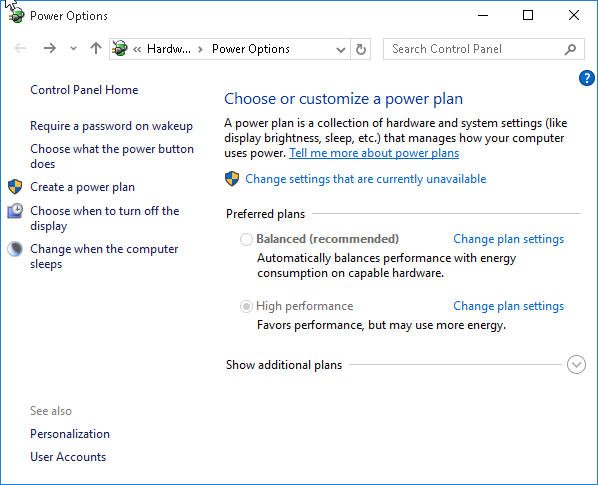
Step 2. Click the Change settings that are currently unavailable link.
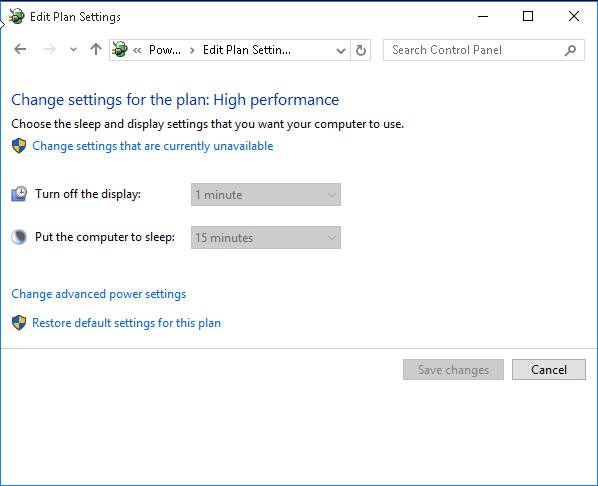
Step 3. Select Never under the sleep section.
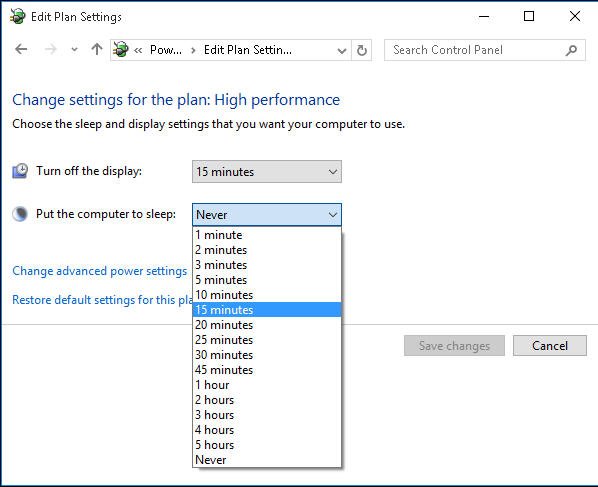
✎If the method described doesn't work, you can either click the "Restore default settings for this plan" link or use the command "powercfg --restoredefaultschemes" to restore the default settings.
Fix 4: Disable fast startup
Step 1. Go to the Power Options window and click Choose what the power buttons does option on the left pane.
Step 2. Click Change settings that are currently unavailable link.
Step 3. Under Shutdown settings, unmark the Turn on fast startup checkbox and click Save changes button.
Fix 5: Run the Performance Troubleshooter
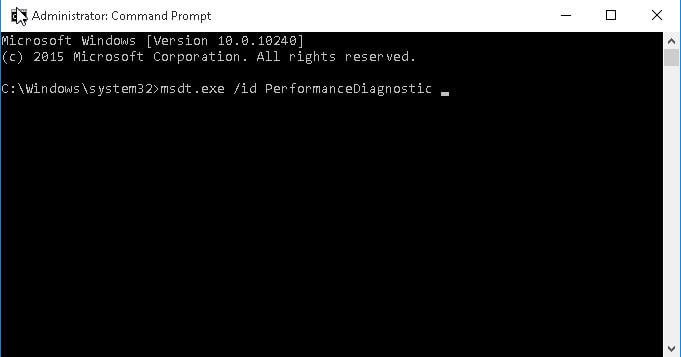
The Performance Troubleshooter is a tool designed to resolve performance-related issues, such as freezing, non-responding programs, and system crashes, to optimize Windows speed.
To run the Performance Diagnostic tool, open the Command Prompt as an administrator, type the command `msdt.exe /idPerformanceDiagnostic`, and press Enter.
Fix 6: Run System Maintenance troubleshooter
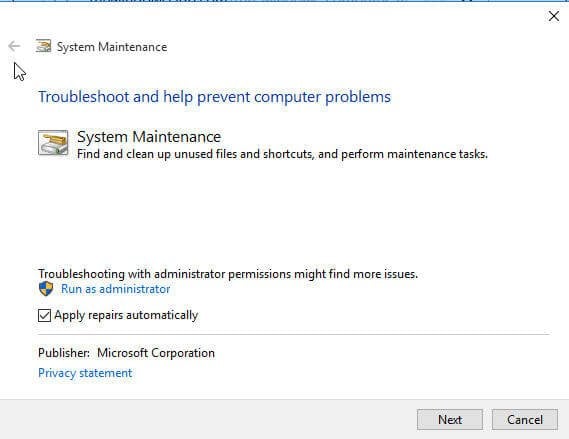
Step 1. Type the following command in the Run windows and hit Enter to run System Maintenance troubleshooter.
%systemroot%\system32\msdt.exe -id MaintenanceDiagnostic
Step 2. Tick Apply repair automatically and click Next.
Fix 7: Restore the SoftwareDistribution Package in Windows Update
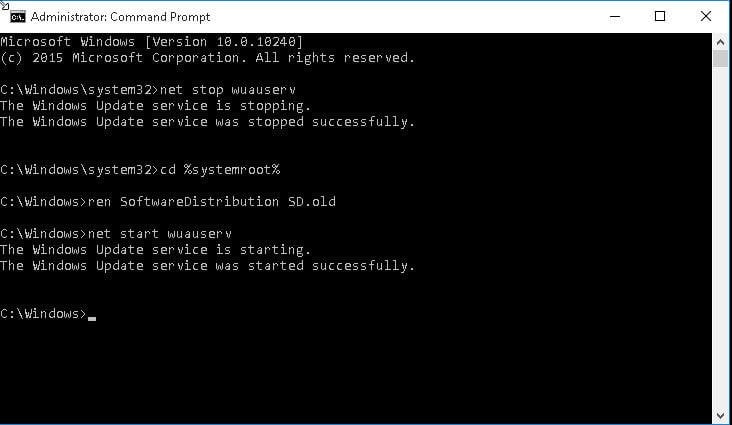
Step 1. Run cmd as administrator, type the following commands and press Enter after each:
- net stop
- wuauserv
- cd %systemroot%
- ren SoftwareDistribution SD.old
- net startwuauserv
✎Note:
- net stop wuauserv could disable the update service.
- The command "cd %systemroot%" in the command prompt can switch the current directory to the installation directory of the Windows OS, which is typically located at C:\Windows. This allows users to navigate and access files and folders within the Windows installation directory.
- The SoftwareDistribution SD.old can create a new SoftwareDistribution from the older distributions.
- net start wuauserv could restart the update service.
Fix 8: Enable Display highly detailed status messages
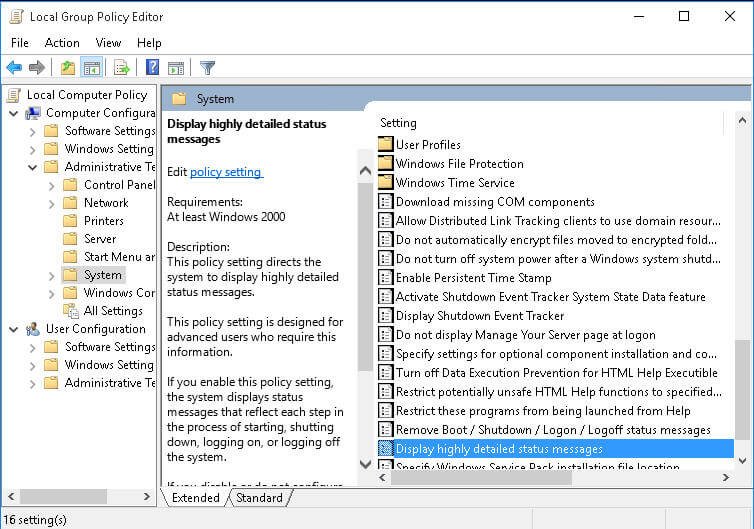
In Windows 8/10, the "Display highly detailed status messages" policy setting allows users to see detailed step-by-step information about the system's processes, such as startup, shutdown, login, and logout, as well as background activities while performing these operations. This setting provides transparency into what Windows is doing behind the scenes.
You can determine where or at what stage your Windows is getting stuck by setting up the system to a specific point, allowing you to identify the exact issue. This process involves setting up the system to a certain point, and then you can find the details below.
Step 1. Type gpedit.msc in the Run window and hit OK.
Step 2. Navigate to Computer Configuration > Administrative Templates > System. Then, double-click on Display highly detailed status messages.
Always keep Windows 10 update to enhance Windows security
Windows Update is a feature that provides security updates and critical fixes to users, helping to protect their computers from bugs and security threats.
Microsoft released Windows 10 21H2 on November 16, 2021, focusing on productivity, management, and security, with new features including improved performance and reliability, enhanced security features, and updated management tools.
- Adding WPA3 H2E standards support for enhanced Wi-Fi security.
- Windows Hello for Business introduces a new deployment method called cloud trust, enabling simplified passwordless deployments and achieving a deploy-to-run state within a few minutes.
- GPU compute support has been added to the Windows Subsystem for Linux (WSL) and Azure IoT Edge for Linux on Windows (EFLOW) for machine learning and other compute-intensive workflows.
Microsoft released Windows 10 22H2, extending the life cycle for Windows 10, with 18 months of servicing for Home and Pro editions, and 30 months for Enterprise and Education editions.
Summary
You can easily fix the "computer stuck on restarting screen" issue with the above fixes. To avoid further problems, it is suggested to create a system image, which has the ability to recover your computer even when it refuses to boot. This is also true for Dell/HP/ASUS computer stuck in restart loop issue.
The best free Qiling Disk Master Standard is a great choice, offering not only system backup but also disk, partition, or files backup, with the option to run automatically. Upgrading now unlocks more advanced features, such as USB plug-in, differential backup, backup scheme, and more. For details, please check the edition comparison page.
Related Articles
- Windows 10 Upgrade Stuck at 0% or 99% – 7 Ways to Fix It!
You can easily fix the "Window 10 upgrade stuck" error with given solutions below. And then don't forget to backup system to protect data. - 6 Solutions to Windows 10 Reset Stuck at 1% , 34%, 64%, 99%
You will learn 6 solutions to Windows 10 reset stuck at 1%, 44%, 64%, 74%, 99%, and one preventive measure to avoid data loss. - How Do I Factory Reset A Windows 7 Lenovo Laptop?
This guide explains How Do I Factory Reset A Windows 7 Lenovo Laptop with clear steps, key checks, and practical tips. - How Do I Save Game Data while Updating the Game?
This guide explains How Do I Save Game Data while Updating the Game with clear steps, key checks, and practical tips. - How to Download and Use Acer Erecovery Management Software
Acer eRecovery Management is a software designed by Acer for their laptops to create a backup of the system and restore it in case of any issues. However, users often find it inconvenient and look for alternative solutions. - Acer eRecovery Management stuck
You will learn how to fix Acer eRecovery Management stuck problem in common situations and easily factory reset Acer without losing data.
Products
Articles & Tutorials
- Data Recovery
- Data Backup
- File Recovery
- File Backup
- File synchronize
- System Backup and Restore
- Disk and Partition Clone
- Technical articles
- Disk Master Help
- Windows Deleted File and Disk Recovery Tutorials
- Windows File and Data Recovery Tutorials
- More Windows Tutorials for Install, Security, Files, and PC Tips
- Windows Boot, Repair, and Recovery Environment Tutorials
- Windows Backup Tutorials
- Windows Restore Tutorials
- Windows Clone and Migration Tutorials
- Windows Server Backup, Recovery, and Management Tutorials
- Windows Disk, Partition, and Storage Management Tutorials