Top 2 Disk Imaging Software for Windows Server 2016
Why Create Disk Image for Windows Server 2016?
A disk image is a backup file of a partition, volume, or entire data storage device, containing all its contents and structure, created by copying the source disk.
Disk images are crucial for users, whether they're Windows PC or Server users, as they protect data from system crashes, hard drive failure, or other accidents. These images can be used to restore corrupted systems and data, making them essential for disaster recovery. If you're looking to image your Server 2016, you've come to the right place.
How to Create Disk Image in Windows Server 2016
Windows Server 2016 can be imaged using the built-in Windows Server Backup tool, which allows for local backups of data. However, this tool is not installed by default and must be installed separately before use.
Using Windows Server Backup to create a disk image in Windows Server 2016 can be time-consuming and storage-intensive, and only allows for one scheduled backup task. Fortunately, there are alternative disk imaging software options available that can make the process easier and provide more functionality.
Next, I'll show you the detailed steps of both these two methods. You can first read and then choose the suitable one to follow based on your needs.
- Part 1. Server 2016 Create Disk Image with Windows Server Backup
- Part 2. Best Server Imaging Software for All Server Systems
Part 1. Server 2016 Create Disk Image with Windows Server Backup
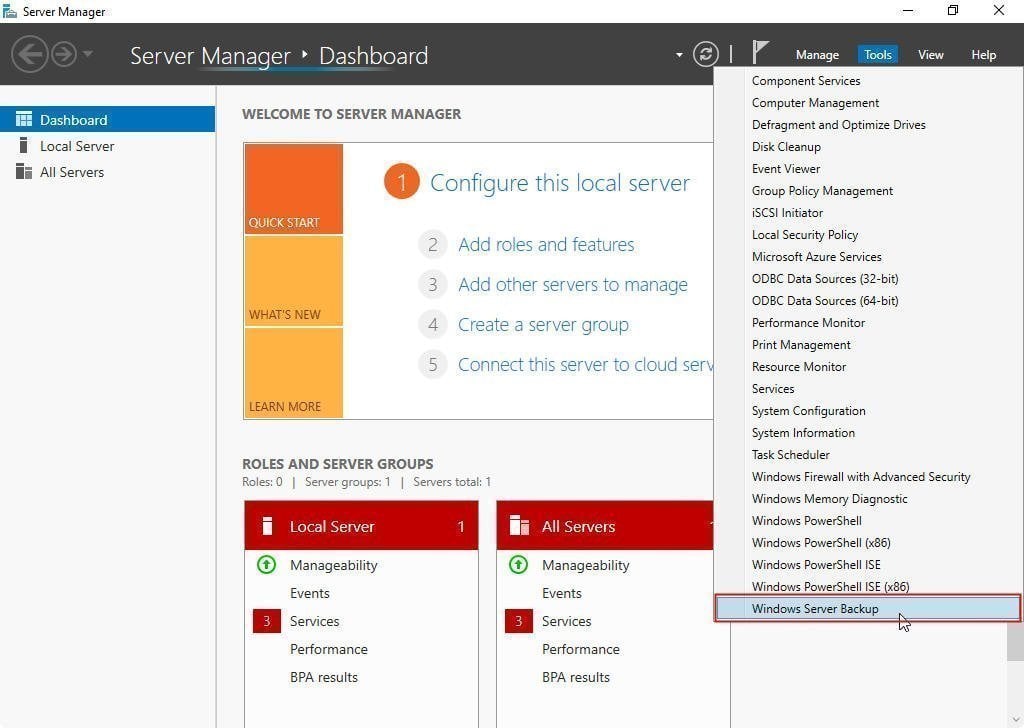
- Click the Start menu, select Server Manager, and then click Windows Server Backup at the bottom of Tools.
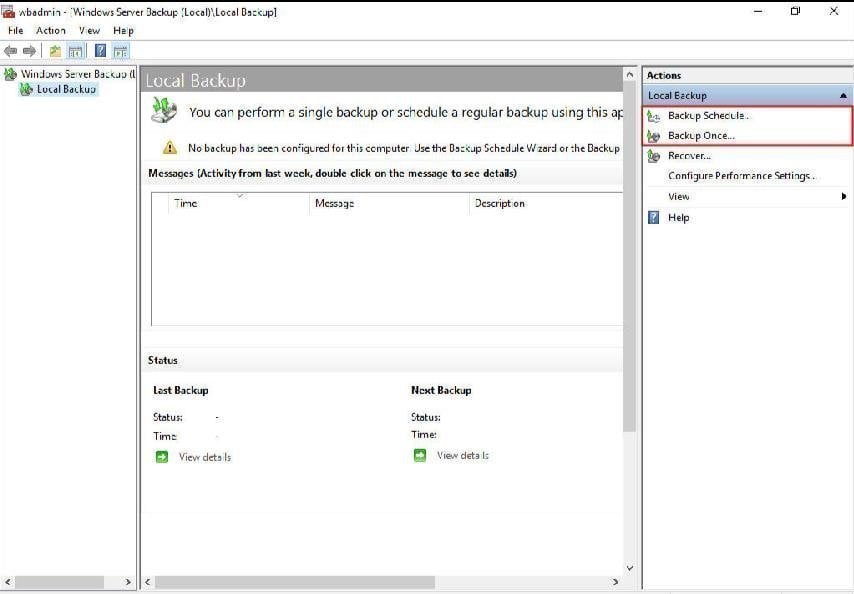
- To schedule or perform a one-time backup, select "Backup schedule..." or "Backup Once..." from the Actions pane.
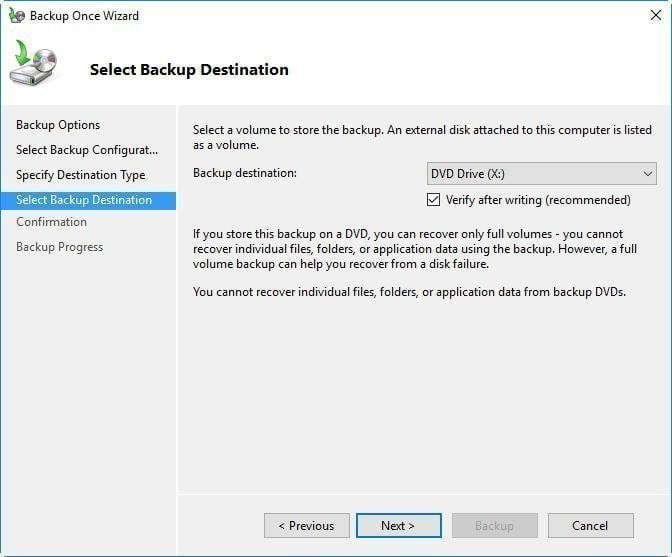
- Follow the wizard to back up step by step.
Part 2. Best Server Imaging Software for All Server Systems
Qiling Disk Master Server is designed specifically for Windows Server systems, offering capabilities beyond just creating disk images.
- This tool allows you to create a system image or disk image for Windows Server, and also enables you to backup specific files as needed.
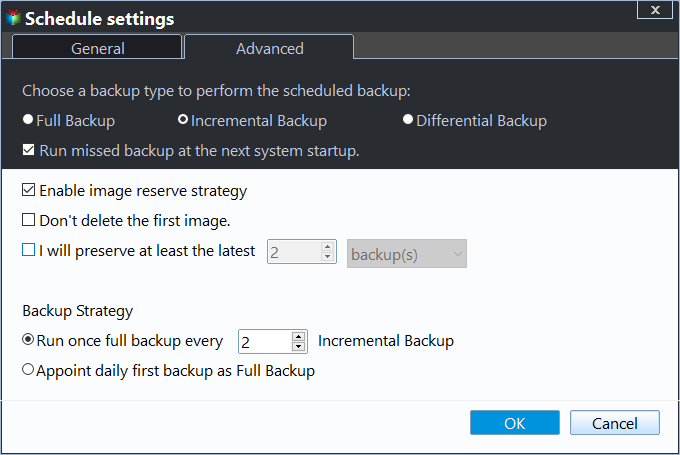
- It allows you to schedule daily, weekly, or monthly backups, and also supports incremental and differential backups to save time and storage space.
- It supports a wide range of Windows operating systems, including Windows Server 2003, 2008, 2012, 2016, 2019, 2022, and their respective R2 versions, as well as SBS 2003, 2008, 2011, and various Windows PC systems.
This disk imaging software has a user-friendly interface that allows you to create a disk image with just a few clicks. To create a disk image for Server 2016, simply download and install the tool, then follow the steps to complete the process.
Step 1. When you launch the software, you can see its dark blue interface. Click Disk Backup under the Backup tab.

Step 2. To create an image of a disk, click on the "Disk" option and select the disk you want to image. Then, choose a destination path to save the image file, which can be on an external hard drive, USB flash drive, or network share, allowing for backups of Windows Server 2016 to these locations.

Step 3. Confirm the operations. If there is no problem, click Proceed. It will proceed with creating a disk image for you. Just wait till the progress ends.
★ Advanced backup settings you may need:
👉 Options: You can set up various features on your account, including comment, encryption, compression, and email notification, among others.
👉 Schedule Backup: There are 5 options available.
- In Windows Server 2016, you can schedule automatic backups with options for daily, weekly, or monthly frequency, eliminating the need for manual backups.
- You could trigger the backup event to perform the backup based on User logon, User logoff, System startup, or System shutdown.
- When a USB device is plugged in, Qiling Disk Master automatically backs up the data on the device or copies data to the USB drive.

👉 Backup Scheme: The retention policy can be customized, offering four schemes to manage old backup images and free up space: by quantity, by time, by daily/weekly/monthly, and by space.
Conclusion
Using Windows Server Backup or Qiling Disk Master Server can help create a disk image for Server 2016. However, using Qiling Disk Master Server is simpler and more powerful, offering features like incremental/differential backup and multiple scheduled backups.
If you want to protect unlimited PCs and servers within your company, you can choose Qiling Disk Master Technician Plus, which allows you to offer unlimited billable technical services to clients and copy installation directories for portable version creation.
Related Articles
- Windows Server Backup Restore Step by Step Guide
- How to Clone Hard Drive on Windows Server 2016/2012/2008?
- Why Windows Server Backup Not Doing Incremental Backup?
- Fast backup and recovery software - QILING Disk Master Professional
The ultimate purpose of backup software is to save companies and business organizations from the massive setbacks that can occur from data loss. - Surface Recovery Image: How to Download & Create & Use🔥
Using Surface Recovery Image can be a little complex, but we'll make it easy for you. To get started, follow the guide to download, create, and use the Surface Recovery Image effectively. - Windows 7 System Image Backup Failed Not Enough Disk Space[SOLVED]
If you are facing Windows 7 system image backup failed not enough disk space error, fix it with the below solutions. Learn three methods to create disk space to store system image backup on your computer,
Products
Articles & Tutorials
- Data Recovery
- Data Backup
- File Recovery
- File Backup
- File synchronize
- System Backup and Restore
- Disk and Partition Clone
- Technical articles
- Disk Master Help
- Windows Deleted File and Disk Recovery Tutorials
- Windows File and Data Recovery Tutorials
- More Windows Tutorials for Install, Security, Files, and PC Tips
- Windows Boot, Repair, and Recovery Environment Tutorials
- Windows Backup Tutorials
- Windows Restore Tutorials
- Windows Clone and Migration Tutorials
- Windows Server Backup, Recovery, and Management Tutorials
- Windows Disk, Partition, and Storage Management Tutorials