How to Do System Restore in Safe Mode Windows 7
Quick Navigation:
- What is system restore?
- Can I do system restore in safe mode Windows 7?
- How to do system restore in safe mode Windows 7
- What if you can't boot into safe mode Windows 7?
- How to system restore with bootable media and system backup
- Written in the end
What is system restore?
System restore is a tool that creates a record of changes to a computer's system or software, allowing users to restore their computer to a previous good state by reverting important Windows files and settings, such as drivers, registry keys, system files, and installed programs.
Windows creates a system restore point before making changes to your computer, such as installing or uninstalling programs, updating drivers, etc., which allows you to restore your computer to its previous state if something goes wrong, without affecting your personal data.
Can I do system restore in safe mode Windows 7?
We can't predict unexpected events, but we can prevent them by creating a system restore point, which allows us to undo harmful changes via System Restore. However, if your computer can't boot, this solution is no longer applicable.
System restore in safe mode can be a helpful solution when you're unable to boot Windows, or if your computer is experiencing issues like crashes or blue screens due to updated drivers, or if it's infected with malware.
To restore your computer in safe mode, you need to have an available restore point, which is the premise to restore computer in safe mode. However, some users have reported being unable to boot into safe mode in Windows 7, at which point you can consider proceeding to the next part.
How to do system restore in safe mode Windows 7
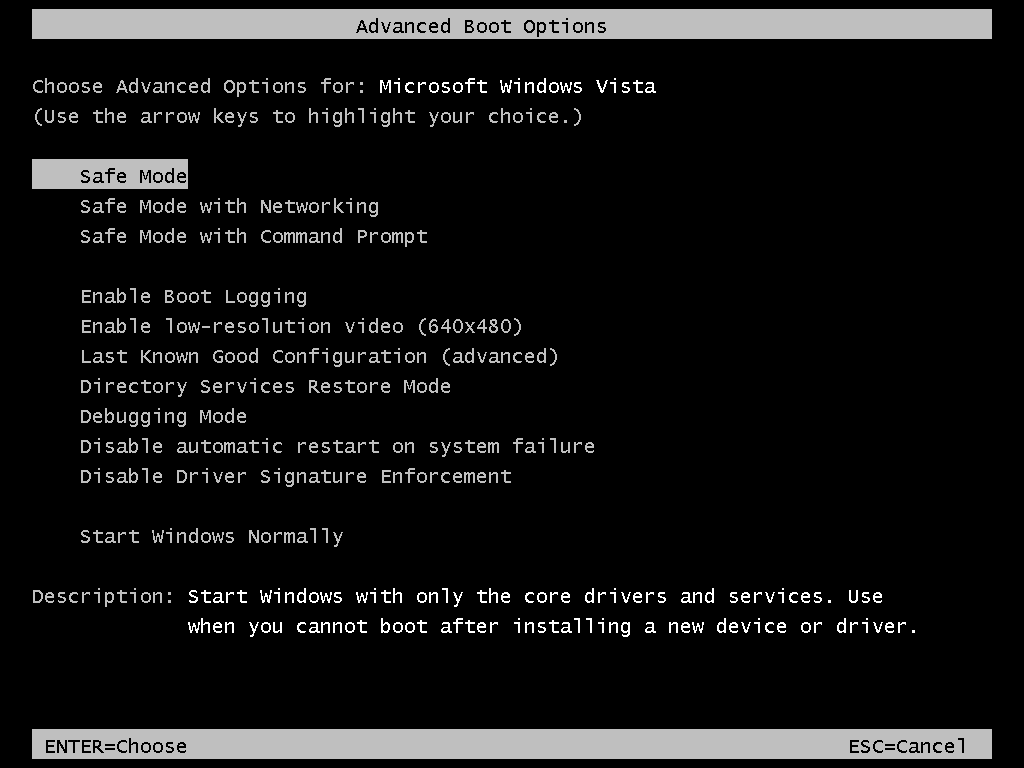
Step 1. Press the F8 key repeatedly before the Windows logo appears, to access the Advanced Boot Options.
Step 2. To access safe mode, go to the Advanced Boot Options, select Safe Mode, and log in to your account when it loads. Then, close the pop-up box that appears.
Step 3. To access System Restore, click on the Start menu and select "All Programs" followed by "Accessories" and then "System Tools." From there, select "System Restore" to open the next window. Alternatively, you can type "System Restore" in the search box and select it.
Step 4. In this window, ensure the recommended system restore point is working properly. If it is, click Next. If not, select Choose a different restore point.
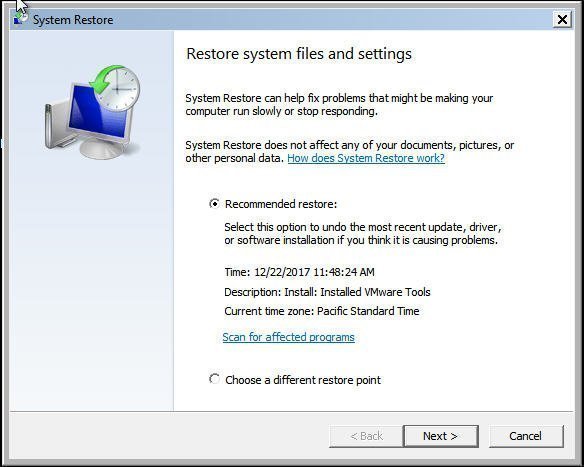
Step 5. Confirm that the system settings are correct and click on the "Finish" button to restore Windows 7 to a previously selected date.
What if you can't boot into safe mode Windows 7?
If Windows 7 Safe Mode won't load, it may indicate serious OS problems. You can try using a Windows 7 system repair disc or creating a bootable media with third-party software to restore your computer to a previous date.
The repair disc contains system recovery tools to troubleshoot and recover your computer from serious errors or restore from a system image. However, you may not have a CD/DVD disc or encounter issues creating the system repair disc, often due to conflicts with other software or errors, resulting in a common error message "System repair disc could not be created (0x80070057)".
Third-Party software like Qiling Disk Master Professional allows you to create a bootable media and system backup. This bootable media can be an ISO image file or used on a CD/DVD or USB device, and can start any Windows computer, including 32-bit and 64-bit versions. For instance, a bootable media created in Windows 7 using Qiling Disk Master can also start Windows 8, 8.1, 10, and 11 without any issues.
How to system restore with bootable media and system backup
As mentioned earlier, system repair disc is error-prone, so here I just take Qiling Disk Master Professional as an example and show you the entire process, including create bootable media and restore from system image. Then. let's have a closer look.
Create a bootable media with Qiling Disk Master Professional
To create a bootable media, you'll need a working computer running Windows 7/8/10/11 and a writable removable drive, along with a free download of Qiling Disk Master Professional.
Step 1. Launch Qiling Disk Master Professional, then click "Tools" and "Create Bootable Media" sequentially.

If you don't have a USB or CD/DVD, you can create a recovery environment with Qiling Disk Master, allowing you to directly backup and restore or clone without booting Windows.
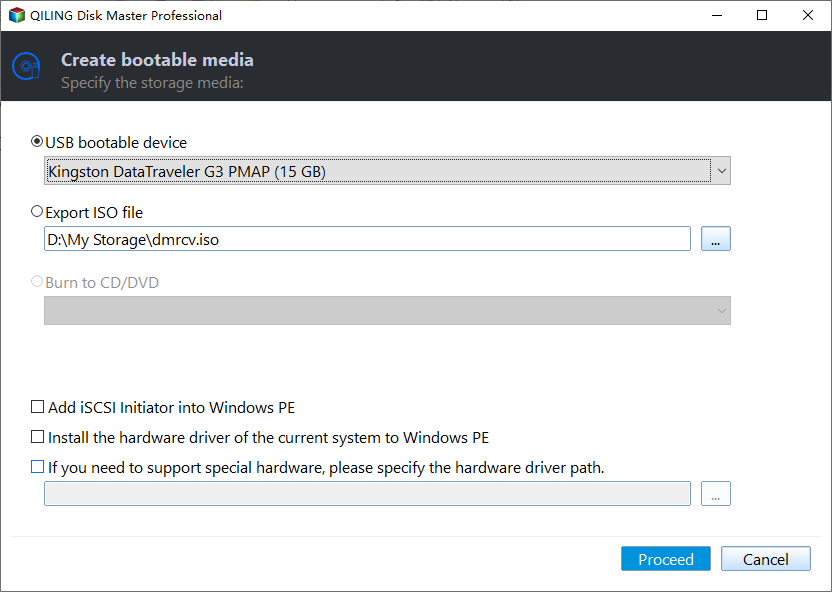
Step 2. Select the storage device for your bootable media, such as a USB drive, and click Next to proceed.
Boot your computer and system restore from backup image
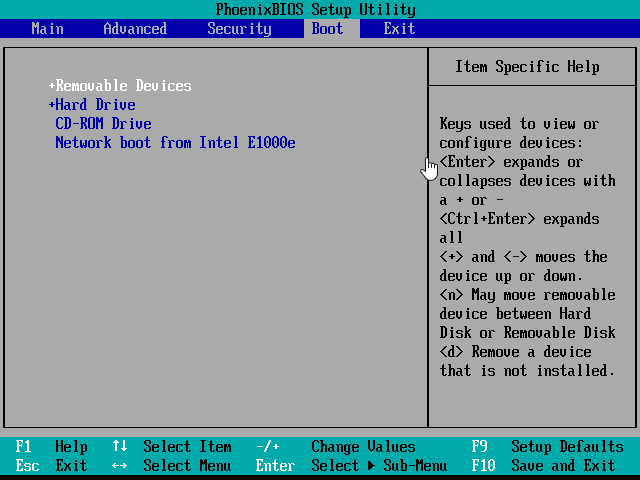
Step 1. To access the Windows PE environment, plug your USB bootable media into your computer, set the boot priority to the media, restart your computer, and connect a removable drive with a system image backup.
Step 2. To restore your system, click the "Restore and Select Image File" button. This will allow you to locate and select the system image file you created previously.

Step 3. Tick Restore this system backup and click Next.

Step 4. The operation summary will be displayed. Tick the box next to "Universal Restore" if your image is created on a different computer. Then, click the "Proceed" button.

If the system image is created on the original computer before it crashes, you can uncheck "Universal Restore" to avoid unnecessary complications.
Step 5. To resolve the issue, change the boot sequence in the BIOS to prioritize the system disk as the first option. Restart your computer and check if Windows 7 is successfully restored.
Written in the end
If you created a system restore point in advance, you can perform a system restore in safe mode on Windows 7. If not, you can try to repair your computer using a Windows 7 system repair disc, but this requires a CD/DVD and may not work. A more reliable option is to use Qiling Disk Master to restore your computer.
With Universal Restore, you can create bootable media to boot any computer, whether Windows 7, 8, 8.1 or 10/11, and restore system image backups created on different computers without boot issues.
If you only need to protect a few computers, this version should suffice. However, if you want to protect an unlimited number of computers within your company, you may want to consider the Qiling Disk Master Technician, which allows for network deployment and restoration of system images to multiple client-side computers from a server-side computer.
Related Articles
- How to Restore Windows 7 without Restore Point
- How to Run System Restore from Command Prompt Windows 7
- How to Do System Restore in Safe Mode Windows 10 Easily
- How to Backup Files in Safe Mode Windows 7/8/10
- Copy Folders and Subfolders Using Xcopy Command | 3 Ways🔥
Follow this guide to Restore Windows 7 without Restore Point How to Run System Restore from Command Prompt Windows 7 How to Do System Restore in Safe Mode Windows 10 Easily How to Backup Files in Safe Mode Windows 7/8/10 Copy. - How to Create Clonezilla Bootable USB in Windows [Quick & Easy]🔥
Use this guide for How to Create Clonezilla Bootable USB in Windows, with cloning or migration steps, boot checks, and tips to keep data safe during the move.
Products
Articles & Tutorials
- Data Recovery
- Data Backup
- File Recovery
- File Backup
- File synchronize
- System Backup and Restore
- Disk and Partition Clone
- Technical articles
- Disk Master Help
- Windows Deleted File and Disk Recovery Tutorials
- Windows File and Data Recovery Tutorials
- More Windows Tutorials for Install, Security, Files, and PC Tips
- Windows Boot, Repair, and Recovery Environment Tutorials
- Windows Backup Tutorials
- Windows Restore Tutorials
- Windows Clone and Migration Tutorials
- Windows Server Backup, Recovery, and Management Tutorials
- Windows Disk, Partition, and Storage Management Tutorials