Backup WD My Cloud to Amazon Drive or Other Clouds
Real Case about Sync My Cloud to Amazon Drive
You can use the Amazon S3 service to sync your WD My Cloud files. S3 is a cloud storage service that allows you to store and sync files across multiple devices. You can set up an S3 bucket and configure your WD My Cloud to automatically upload and sync files to the bucket. This way, you'll have a second backup of your files in case something happens to your drive.
Definitely, there is a way, it's to use third-party backup software to backup WD My Cloud to Amazon Drive. And I'll introduce the best free network backup software and include a step-by-step guide later.
Overview of Backing up WD My Cloud to Amazon Drive or Other Clouds
My Cloud The WD My Cloud was first introduced in 2013 and is a rebranding of the WD My Book with improved looks and interface. It's a network-attached storage device that allows users to store and access data, such as documents, photos, music, and videos, over a network connection.
Many My Cloud storage devices use single drives, but advanced versions have multiple drive bays, allowing for RAID configurations for data redundancy. However, there's still a risk of data loss, especially if the cloud crashes, making it crucial to have a backup on a different storage service like Amazon Drive.
Amazon Drive Is Shutting Down
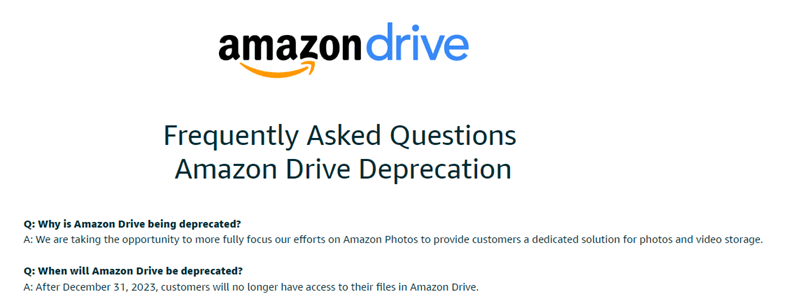
Users who have unlimited cloud storage may want to backup WD My Cloud to Amazon Drive, but Amazon will deprecate Amazon Drive on January 31, 2023, and focus more on Amazon Photos for photos and videos.
To prevent data loss, save your photos and videos on Amazon Photos and other files locally, and consider using cloud services like Amazon Photos, OneDrive, Google Drive, or Dropbox for added security. For more information, check the Amazon Drive Deprecation document.
Best Free Network Backup Software – Qiling Disk Master Standard
The best free NAS backup software is Qiling Disk Master Standard, which has an intuitive interface that allows users to quickly understand and run it smoothly. It provides two effective ways to make an exact copy of files: File Sync and File Backup, making it a reliable option for backing up files on My Cloud.
If you need to access or use your files frequently, I suggest using the File Sync feature, also known as one-way file synchronization, for your backup process. This allows you to enjoy certain settings during the backup process.
- Schedule Sync settings: You can schedule automatic backups on your WD My Cloud device, which can be set to run daily, weekly, or monthly, and retain multiple backups unless manually deleted.
- Sync only changes: This software initially syncs a full copy of files and then only saves changes to optimize time and storage usage.
- Sync deletions: The File Sync feature won't sync deletions unless you specifically enable it, and to do that, you need to turn on the option "Sync deletions in source directory to destination".
- Multiple ways to backup WD My Cloud: You can still backup your WD My Cloud data to various cloud services such as OneDrive, Dropbox, Google Drive, Qiling Cloud, or Amazon Drive, aside from Amazon Drive. Additionally, it's also possible to backup your WD My Cloud to external hard drives like HDD, SSD, flash drive, or CD/DVD.
For disaster recovery, you can use the File Backup or Cloud Backup feature, which compresses files or folders into image files that require restoration before use, making them a good option for keeping a copy for disaster recovery purposes.
Step by Step Guide: Backup WD My Cloud to Amazon Drive or Other Clouds
Before backing up your WD My Cloud to Amazon Drive/Photos or other cloud services, make sure to prepare accordingly. This includes taking necessary steps to ensure a smooth backup process.
- Enable Amazon Drive/Photos for synchronization.
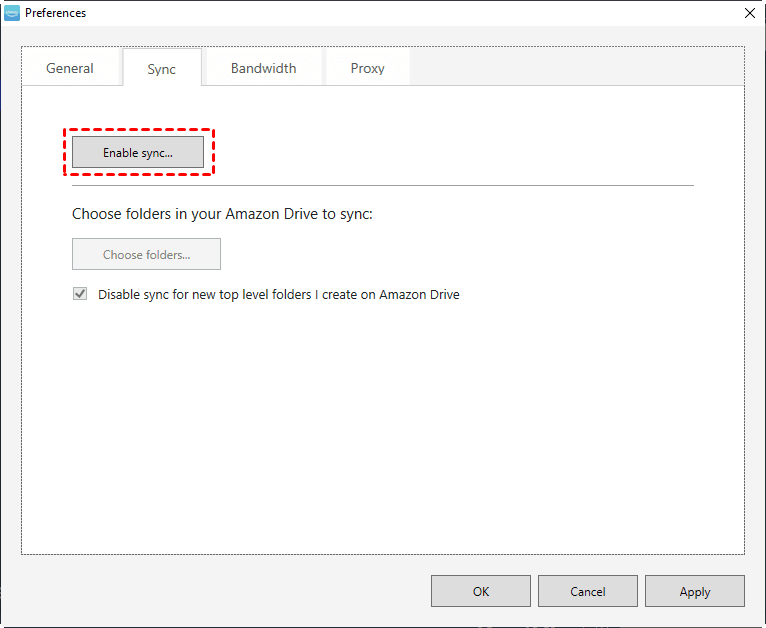
Download and install Amazon Photos, log in to your Amazon account, go to Settings and click Enable Sync under the Sync option.
This software will restart to sync your folders page, where you select both the Amazon Drive folder and local folder on your computer and click Proceed. After the task is completed, a desktop folder will be visible on your computer.
- To backup WD My Cloud to other clouds, you can download and set up the relevant cloud drive to sync your data.
- To add WD My Cloud to Backblaze, ensure your My Cloud is connected to the network. Then, you can add it by entering its IP address and select the files or folders you want to back up.
- To ensure your data is safely backed up, download and install the Qiling Disk Master Standard software, which is available for free. If you're a server user, you may want to consider the Qiling Disk Master Server version instead.
To backup or sync your WD My Cloud, follow these steps: After preparation, connect your WD My Cloud device to your computer, ensure it's turned on, and the drive is recognized by your computer. Next, download and install the WD My Cloud software from the official WD website. Follow the on-screen instructions to set up the software, and then select the backup or sync option depending on your preference.
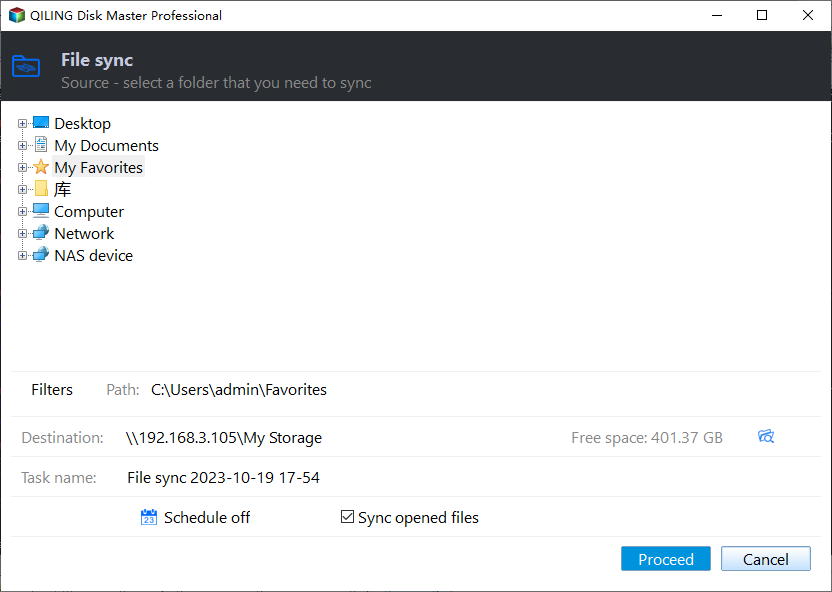
Step 1. Launch Qiling Disk Master Standard and click Backup > File Sync in turn.

Step 2. Select files or folders on WD My Cloud.
- Click on "Folder" on the main page of File Sync.

- Then, click Browse icon to access the next window.
- In the pop-To access files or folders on your My Cloud, click the "Add Share or NAS Device" button, enter the IP address, username, and password of your My Cloud, and then select the folder you want to back up.

Step 3. Click where the arrow points and select Amazon desktop folder as destination.
To backup WD My Cloud to OneDrive or other cloud drives:
To add a cloud drive, select the corresponding desktop folder (e.g. backup WD My Cloud to Google Drive) or click the inverted triangle below, select a cloud drive, and then choose Google Drive.
Step 4. To schedule a task to run automatically, click Schedule, then Sync, and select a daily, weekly, or monthly setting. This will allow the task to run automatically, freeing up your hands and ensuring the backup task is executed as expected. Additionally, ticking "Wake the computer to run scheduled tasks" will enable the computer to wake up and run the task even if it's in sleep mode.

Step 5. Confirm everything is OK and click Proceed.
Notes:
✘ Don't change the name of the source folder, or this software will stop syncing files.
✘The File Sync feature does not automatically sync deletions, but you can enable it by clicking Options and Sync the deletions in source directory to destination.
✘ The Sync method will keep multiple backups as long as you enable schedule sync.
✔ To sync your WD My Cloud with Amazon Drive or other cloud services, you can use File Sync, which offers both the fastest and safest sync methods. This allows for seamless synchronization between your local storage and cloud storage, ensuring your files are up to date across all platforms.
Written in the End
Backing up your WD My Cloud to Amazon Drive provides a complete copy of your files, allowing you to access them at any time and use them for disaster recovery. However, Amazon has announced that Amazon Drive will be shutting down, so it's essential to download your files from Amazon Drive to prevent data loss.
To ensure data security, you can choose to backup Amazon Drive to Amazon Photos or other clouds, such as Google Drive, and still use file sync software like Qiling Disk Master Standard to help you. This software allows you to schedule syncs and set options to run automatically and sync flexibly.
Related Articles
- Easy Steps to Sync QNAP NAS and Google Drive Cloud
Learn how to perform QNAP NAS and Google Drive cloud sync in two ways. The second way can sync multiple folders to backup precious data on the NAS and save local disk space meantime. - How to Backup Synology NAS to Cloud with Ease
Learn how to Backup Synology NAS to Cloud with Ease with clear steps, key checks, and practical tips. - Perform Synology NAS to NAS Sync with 4 Steps | 2020 Guide
Learn more about NAS to NAS sync and follow the simple steps to perform NAS to NAS sync to transfer a large amount of data, time-saving and safe. - How to Create QNAP to Dropbox Sync in Windows Easily
Learn how to Create QNAP to Dropbox Sync in Windows Easily with clear steps, key checks, and practical tips. - Restore from a System Restore Point in Windows 10, 11(4 Ways)
As long as you have a working restore point, you can restore from system restore point in Windows 10/11 when your computer has problems related to drivers, software or Windows Update. Get specific steps in this article. - How to Sync Changes Only with Robocopy in Windows 10/8/7?
Whether you want to sync changes only with robocopy or an easy way, you can get them. Hurry up and learn more below.
Products
Articles & Tutorials
- Data Recovery
- Data Backup
- File Recovery
- File Backup
- File synchronize
- System Backup and Restore
- Disk and Partition Clone
- Technical articles
- Disk Master Help
- Windows Deleted File and Disk Recovery Tutorials
- Windows File and Data Recovery Tutorials
- More Windows Tutorials for Install, Security, Files, and PC Tips
- Windows Boot, Repair, and Recovery Environment Tutorials
- Windows Backup Tutorials
- Windows Restore Tutorials
- Windows Clone and Migration Tutorials
- Windows Server Backup, Recovery, and Management Tutorials
- Windows Disk, Partition, and Storage Management Tutorials