Windows 10 Multiple Backups, 4 Ways Are Here
One backup is not enough
In Windows 10, you can use File History to save multiple versions of your files, but for system image backups, you can only have one backup task at a time, which can be modified or deleted to create a new one. However, you cannot run multiple backups simultaneously.
You should create separate backups for your personal files and system, and store them in multiple locations to avoid relying on a single backup drive that may fail. This ensures that your data is safe and can be recovered even if the primary backup is lost.
Here in this guide, I'll show you 3 methods to set up multiple backups in Windows 10. You can also have a try if you want Windows 10 backup to multiple drives, please go to the advanced way directly.
- Windows 10 allows users to configure automatic backups of their system and data to an external hard drive or network location. This can be done through the Settings app, where users can select the type of backup they want (system image, files only, or both), choose the location for the backups, and set a schedule for when the backups will be performed.
- Advanced way to create Windows 10 backup with multiple schedules
Three common ways to let Windows 10 keep multiple backups
To backup your data properly, you should save multiple backups on different locations. You can trick Windows 10 to save more backup tasks by changing the backup location, backing up files with different accounts, or setting multiple backup schedules with Task Scheduler.
Method 1: Manually change backup location
To temporarily switch the File History destination, you can connect another USB drive or network drive. Once connected, File History will automatically back up to the new location. After the backup is complete, you can switch it back to the original location, and File History will resume backing up to the original destination. This process allows you to create a backup on a different drive and then switch back to the original one.
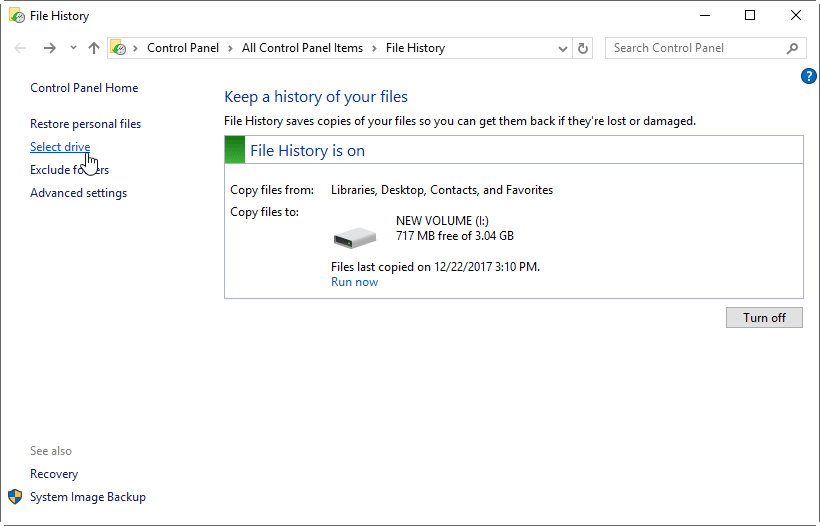
You can also use this method to backup to multiple drives with File History.
Method 2: Use different user account
You can have multiple user accounts, each with its own File History backup to a different external drive, allowing you to easily switch between backups by logging into the corresponding user account.
The File History backup should run automatically depending on your configured frequency, or you can manually start it on another drive if you prefer.
Method 3: Windows 10 multiple scheduled backup with Task Scheduler
To avoid the hassle of manually changing the backup location or user account for each scheduled backup, you can utilize the Windows Task Scheduler to run multiple scheduled backup tasks automatically. This allows you to set each task with a different backup target location, streamlining the process.
This guide uses the Windows 10 WBadmin feature to run an image backup. No prior knowledge of Wbadmin commands is required.
You can refer the steps below to set up multiple scheduled backups in Windows 10.
1. To open Task Scheduler, press Windows + R to open the Run window, type "taskschd.msc" and press Enter, or search for it in the Windows 10 search box.
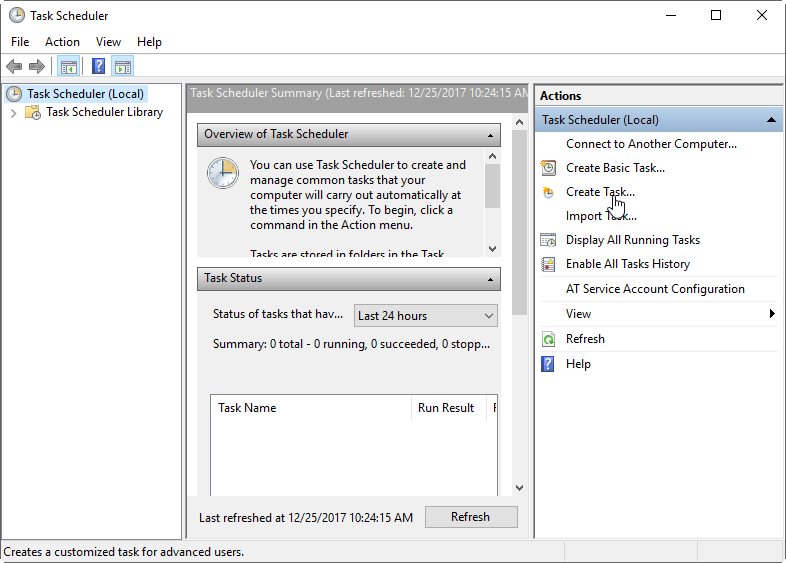
2. You can create tasks as needed by clicking on the "Create Task" button, allowing you to create multiple tasks at your convenience.
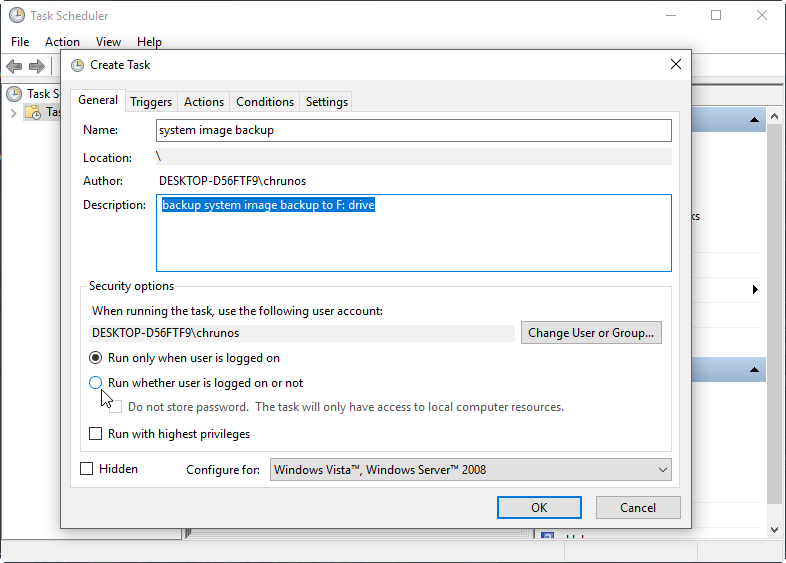
3. To create a new task, go to the General tab and enter a task name and description (if desired). Then, navigate to the Security option and select the option to Run whether user is logged on (if desired).
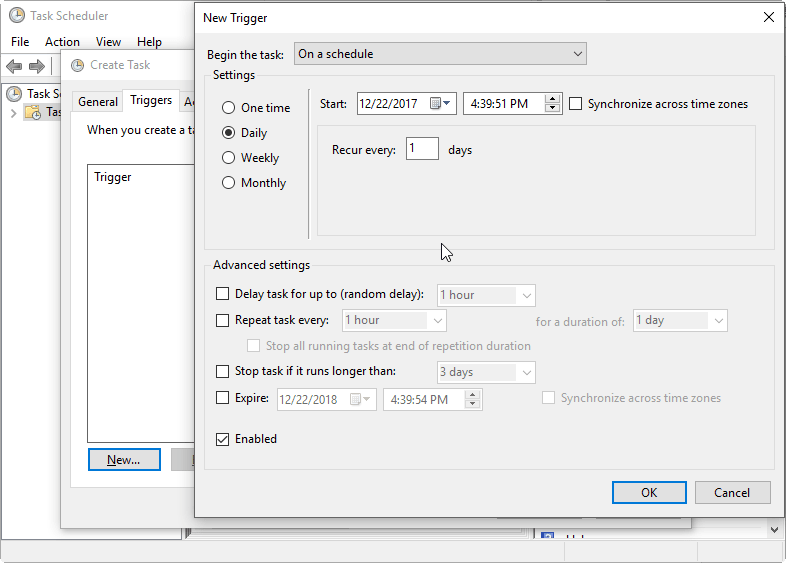
4. To create a new trigger, click the Triggers tab and then click New. This allows you to specify when the backup should be run.
5. To create a system image backup, click the Actions tab and then click New. In the Program/script box, type "wbadmin" and in the Add argument box, enter "Proceed -backupTarget:F: -allcritical" (without quotes) to create a system image backup on the F: drive. You can customize the command parameters to suit your needs.
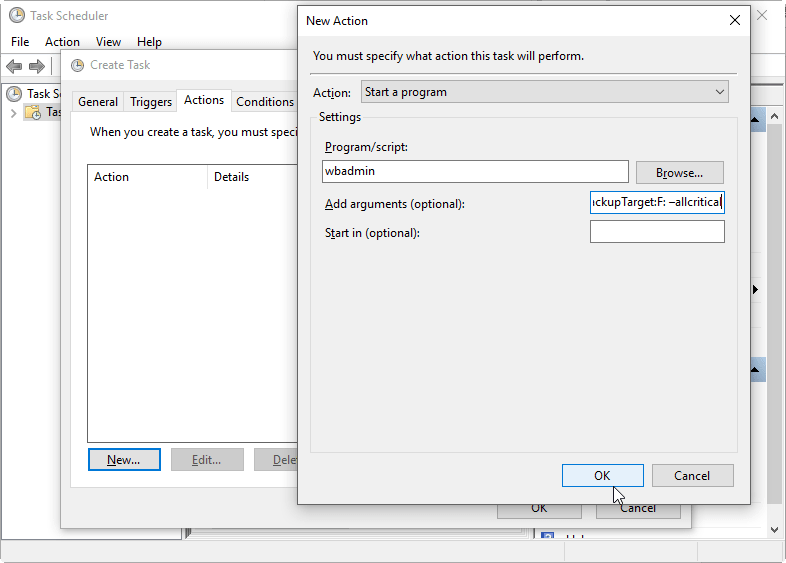
6. Click OK to save this scheduled task. You can need to type in your user password to complete.
To create a backup task in Windows 10, open the Control Panel, click on System and Security, and then click on Backup and Restore (Windows Backup). Click on Set up backup, select the drive you want to backup, and choose the type of backup you want to create. You can choose to backup your entire computer, or just specific files and folders.
Advanced way to create Windows 10 backup with multiple schedules
Qiling Disk Master Standard is a free Windows backup and restore tool that offers various backup options, including File Backup, System Backup, Disk Backup, and Partition Backup.
- Multiple schedule backups. It allows for easy scheduling of daily/weekly backups, followed by incremental or differential backups to conserve backup disk space.
- Supports multiple backup drives. Windows 10 allows you to back up your files to multiple drives, including internal hard drives, external hard drives, USB flash drives, network shares, and NAS devices.
Qiling Disk Master offers users the ability to create multiple backups, including email notification and compression options, making it a convenient tool for users to manage their backups with ease.
1. Download this free tool and run it on your computer. Click Backup and select one type of backup based on what you want to include in the backup. Here, System Backup is selected.

2. System Backup will automatically include the needed backup source for system restore. You just need to select a location to save the image backup file, and if choosing Disk Backup or File Backup, specify the backup source first.

3. To enable scheduled backup, click on "Schedule" and then "Backup" at the bottom of the page. This allows you to set up backups to run at a specified time on a daily, weekly, or monthly basis.

4. To view and adjust other settings, click "Options". Then, click "Proceed" to initiate the backup process.
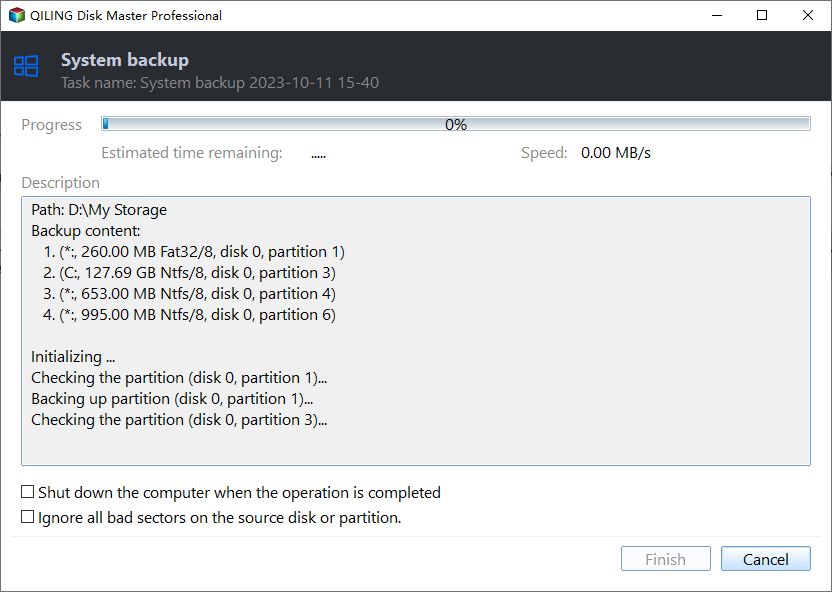
Note: The Scheme will automatically delete old image files to save disk space, a feature available in the advanced version, which can be upgraded to for more functionality.
Conclusion
To let Windows 10 backup to multiple drives, you can manually change the backup option, use a different user account, or utilize Windows Task Scheduler. However, these methods can be somewhat inconvenient. For a more efficient solution, consider using Qiling Disk Master.
Qiling Disk Master offers a range of powerful functions, including creating multiple scheduled backups to different locations. In addition, it allows you to create a bootable disk in case of system failure, enabling you to boot your computer and restore to a previous state of Windows. This tool provides a better way to protect your data and system.
Related Articles
- Set Up Automatic Backup Windows 10 to External Hard Drive
- Backup Windows 10 to USB Drive with Best Freeware
- 3 Ways for Windows 10 Backup to Network Drive/NAS
- How to Ghost Windows 10 64-bit/32-bit Computer Easily
Learn the key steps, checks, and practical tips for this related guide. - How to Set Up Windows Backup [You Must Know 2022]
To create multiple backups in Windows 10, you can use Qiling Disk Master to set up backup schedules with daily, weekly, or monthly options. It also supports incremental and differential backups to save storage space and time. - How to Stop OneDrive from Syncing in Windows 11/10 [ You Must know]
To manage backup disk space efficiently, Qiling Disk Master can automatically delete old backups based on quantity, time, or daily/weekly/monthly cleanup policies. This ensures your backup disk never runs out of space.
Products
Articles & Tutorials
- Data Recovery
- Data Backup
- File Recovery
- File Backup
- File synchronize
- System Backup and Restore
- Disk and Partition Clone
- Technical articles
- Disk Master Help
- Windows Deleted File and Disk Recovery Tutorials
- Windows File and Data Recovery Tutorials
- More Windows Tutorials for Install, Security, Files, and PC Tips
- Windows Boot, Repair, and Recovery Environment Tutorials
- Windows Backup Tutorials
- Windows Restore Tutorials
- Windows Clone and Migration Tutorials
- Windows Server Backup, Recovery, and Management Tutorials
- Windows Disk, Partition, and Storage Management Tutorials