Use Windows 10 WBadmin to Create System Image Backup
Use Windows 10 Wbadmin for system backup
Microsoft has shifted its focus from Backup and Restore (Windows 7) to File History and OneDrive, making the former harder to find. As a result, many users opt for Windows 10's wbadmin, a command-line tool that can create a system image, offering more flexibility than its predecessor.
The command "wbadmin enable backup" creates a daily backup by default, but specifying parameters can create a VSS copy backup without updating the history of backed up files. The resulting backup files are primarily Microsoft VHD files accompanied by XML configuration files.
Besides backup, it allows you to perform bare metal restore, individual file and folder restore, and system state restore. The restore process can only be executed in the recovery environment, requiring a Windows installation disc or recovery drive to boot the computer.
How to use Windows 10 Wbadmin start backup
You can set a whole hard drive or partition as the backup drive, and an external hard drive is recommended as a destination. You can also backup Windows 10 to a network drive or shared folder.
To start the Windows 10 Wbadmin starts backup, you need to learn the syntax first. The syntax for Wbadmin starts backup is typically in the following format: `wbadmin start backup -backuptarget:{target} -quiet -allCritical -systemState -vssFull -noVerify`, where {target} is the location where the backup will be stored, and other options can be used to customize the backup process. Once you understand the syntax, you can start the backup process by running the command in the Command Prompt or PowerShell.
Wbadmin start backup [-The command to backup a target with specific options is: backupTarget [{|}] [-include:] [-nonRecurseInclude:] [-exclude:] [-nonRecurseExclude:] [-allCritical] [-systemState] [-noVerify] [-user:] [-password:] [-noInheritAcl] [-vssFull | -vssCopy] [-quiet].
To view the available parameters and their meanings for the `wbadmin` command, type `wbadmin /?` and press Enter. This will list all the corresponding parameters and their meanings.
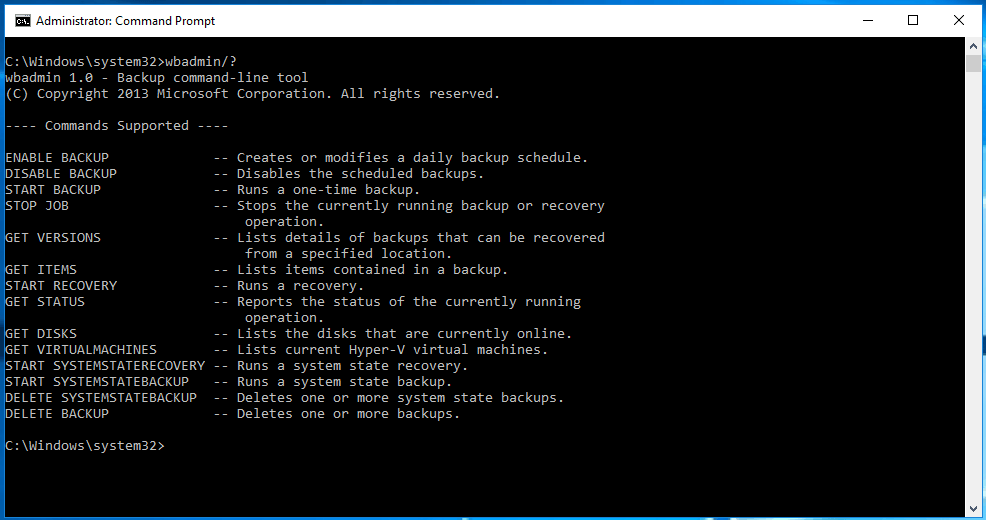
Through learning, you may understand the basic knowledge of wbadmin start backup. Next, I'll introduce you to the example of Windows 10 Wbadmin system backup.
1. To open the Command Prompt as an administrator, type "cmd" in the Windows 10 search box and choose "Run as Administrator".
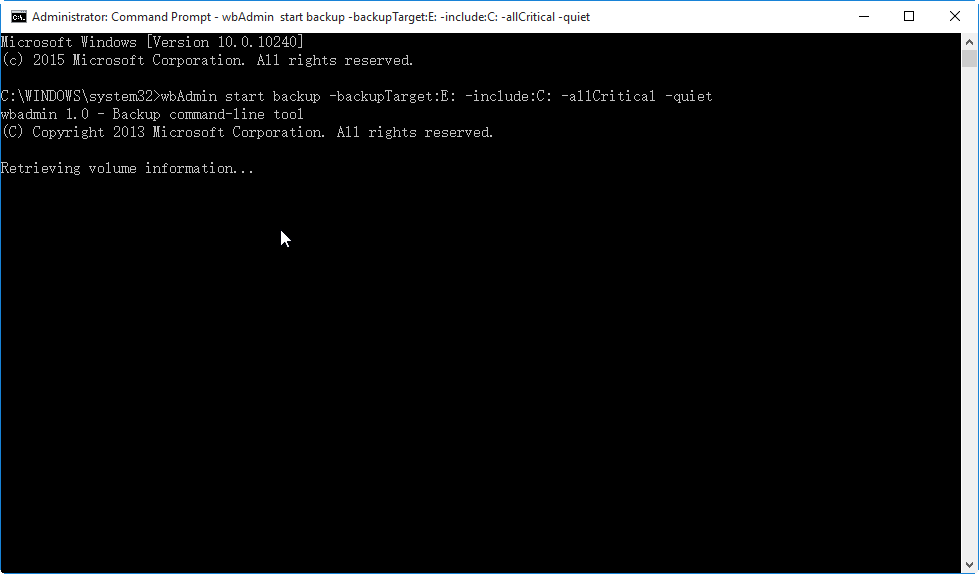
2. To backup the C: drive, including all critical volumes, to the E: drive without prompting, input the following command in the Command Prompt window and press Enter: `wbadmin.exe backup -backuptarget:E: -vsystem -allcritical -quiet`
Example: wbadmin start backup -backupTarget:E: -include:C: -allcritical -quiet
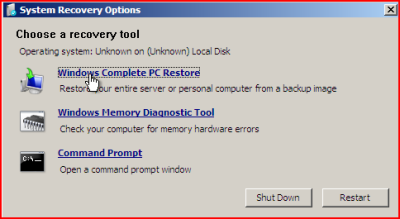
To restore a system backup, boot the installation disc or recovery drive, and go to System Image Recovery via Repair your computer > Troubleshoot > Advanced options.
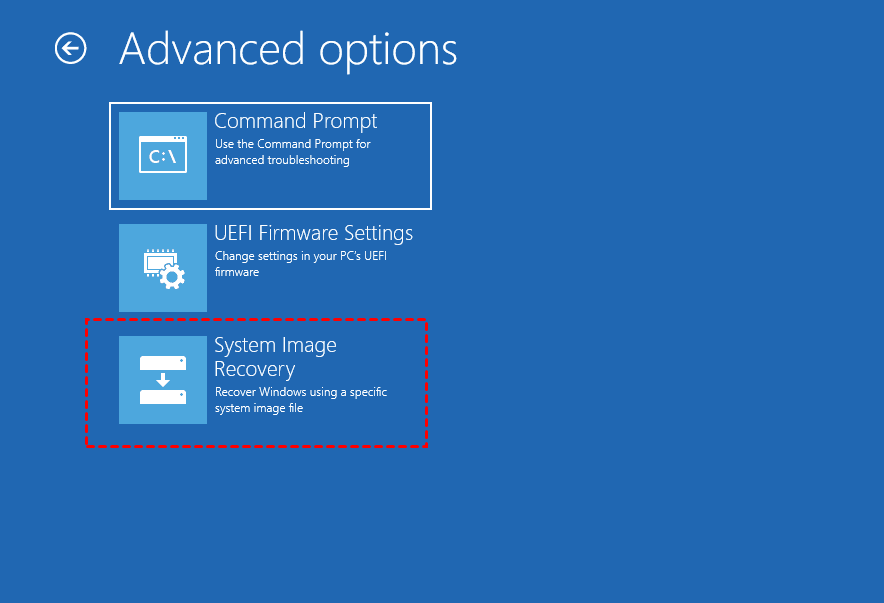
In Server 2008 and previous systems, it's called "Windows Complete PC Restore".
Running backups with the WBadmin command line on Windows 10 is convenient, but it comes with some restrictions.
- First, you can only backup partitions formatted with NTFS.
- Second, you cannot backup to critical volumes.
- You can only run one scheduled backup at a time and you can only keep one image file unless you change its file name every time the scheduled backup runs.
- ...
And there is the biggest question - the ordinary people cannot use it smoothly and may result in further data loss due to operation error. Thus, it's suggested to try GUI vesion of backup software. And I'll introduce you one such software.
Alternative to Windows 10 Wbadmin start backup (GUI-version)
Qiling Disk Master Standard is a good alternative to Windows 10 Wbadmin, simplifying backup software use and offering rich features for continuous data protection, also compatible with Windows 11, 8.1, 8, 7, XP, and Vista.
- The software supports various types of backups, including system backup, disk backup, partition backup, and file backup.
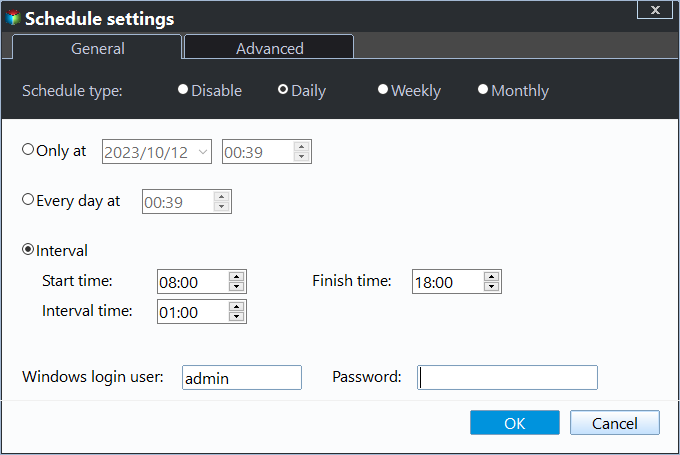
- It offers daily, weekly, and monthly schedule backup options, ensuring all changes are kept in a scheduled task.
- It minimizes disk space usage with incremental backup, normal compression, and automatic splitting features.
- It can create a bootable USB or CD/DVD to help boot a computer in case of an emergency.
- It is able to restore files or system within Windows 10.
To prevent running out of disk space on a system image, try using automatic backup cleanup in the advanced edition to limit the number of backups and free up space on the backup drive.
Download the free version at first and try it!
Easier way to create a system image backup in Windows 10
To backup the entire system using Qiling Disk Master, connect the target disk to your computer and ensure it's recognized. If the target disk has sufficient space, you can use the "System Backup" feature to include the operating system, installed programs, and personal data. This will create a comprehensive backup of your system, including all installed programs and personal data.
Step 1. Open Qiling Disk Master Standard, Click "Backup" and "System Backup".

Step 2. To backup Windows 10, click on the arrow next to the backup option and select the USB drive connected to your computer. Alternatively, you can also backup to an external hard drive, NAS, or network location.

Step 3 To create a Windows 10 system image, proceed by pressing the "Proceed" button. However, for daily use, it's recommended to set more advanced settings to ensure data safety.
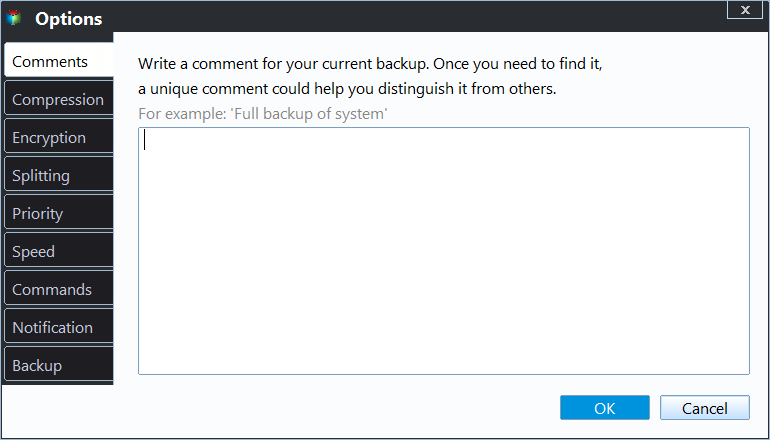
Click Options, you can compress a big system image into a smaller one with three compression levels, enable email notification to get the final result quickly, and more.
You can set Incremental Backup in the Backup Scheme, and also utilize differential backup and automatic backup cleanup options, such as by quantity, daily, daily/weekly/monthly, if you're currently using the professional version.
Besides backup, you can use it to restore system image to a new hard drive, but you'll need the "Universal Restore" feature on the professional version if the new hardware is different from the original.
For multiple computers, try Qiling Disk Master Technician or the techplus edition, which has an inbuilt Qiling Image Deploy tool that allows you to deploy system images to multiple computers over a network.

About commmand line version of Qiling Disk Master:
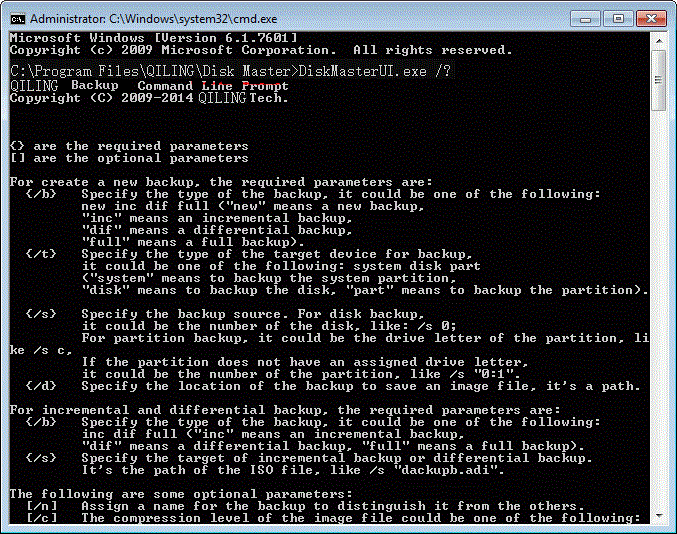
The command line version of Qiling Disk Master is similar to Windows 10 WBadmin, and you can run "DiskMasterUI.exe /?" in a command prompt to see all the parameters of Qiling Disk Master. Upgrading to the professional version is recommended if you want to perform certain actions.
Summary
If you want to create a system image, you can use Windows 10's built-in tool Wbadmin or Qiling Disk Master. However, Wbadmin is more suitable for IT professionals, so if you're an average user, you might prefer the GUI version of Qiling Disk Master, specifically the Standard edition.
With this software, you can automatically back up your system without taking up much disk space, thanks to its features that minimize backup disk space usage. Its advanced edition even allows you to delete backup files, making it a great option if you're using a smaller drive as a backup destination.
Related Articles
- Use Wbadmin in Windows Server 2016 for Backup and Recovery
This article will introduce you to 3 very classis examples of Windows Server 2016 wbadmin, which help you safely protect the system and data on it. For novices, try the easier way! - Create Files and Folders Backup with Wbadmin Command Line
Learn how to use Wbadmin command line to backup files and folders in a different system and restore files if needed. The easier way is included. - Step-by-step to Create Incremental Backup with WBADMIN Tool
If you don't clearly know Wbadmin incremental backup, keep reading this article, it helps you save much time and disk space, especially in a scheduled task. - How to Do Dell Factory Restore in Windows 7 Command Prompt
This tutorial shows you how to do Dell factory restore in Windows 7 Command Prompt and provides an alternative way to perform Dell factory restore efficiently. - How to Run/Boot Windows 10 from USB Drive
If you're looking to run or boot Windows 10 from a USB drive, you can follow a step-by-step guide to install Windows 10 on a USB drive. This process allows you to create a bootable USB hard drive that can be used to run Windows 10 on a PC whenever you want. - Disk Clone | Samsung Clone SSD to Larger SSD
Cloning is the most common method to copy data from one SSD to another larger SSD, and Samsung SSD users can apply the official cloning software - Samsung Data Migration to execute the cloning process. This method allows users to clone their data to a larger SSD, overcoming any limitations, and
Products
Articles & Tutorials
- Data Recovery
- Data Backup
- File Recovery
- File Backup
- File synchronize
- System Backup and Restore
- Disk and Partition Clone
- Technical articles
- Disk Master Help
- Windows Deleted File and Disk Recovery Tutorials
- Windows File and Data Recovery Tutorials
- More Windows Tutorials for Install, Security, Files, and PC Tips
- Windows Boot, Repair, and Recovery Environment Tutorials
- Windows Backup Tutorials
- Windows Restore Tutorials
- Windows Clone and Migration Tutorials
- Windows Server Backup, Recovery, and Management Tutorials
- Windows Disk, Partition, and Storage Management Tutorials