How to Do Dell Factory Restore in Windows 7 Command Prompt
About Dell factory restore
Dell computers have a Dell Factory Image Restore partition that allows you to restore the computer to its original factory settings. This should be used as a last resort when troubleshooting operating system problems, as it will erase all data, programs, and settings.
If you're unable to access Dell Factory Image Restore through Advanced Boot Options, you can try using Dell Command Prompt for factory restore instead. Some users may find that there is no Dell Factory Image Restore option available when attempting a Dell factory restore, but using Dell Command Prompt can provide an alternative solution.
How to factory reset Dell laptop/desktop in Windows 7 Command Prompt
Restoring your computer to its factory settings will erase all files and programs except those it came with, so it's essential to back up your crucial data before doing so. To run Dell factory restore via Command Prompt in Windows 7, you'll need to follow a specific process.
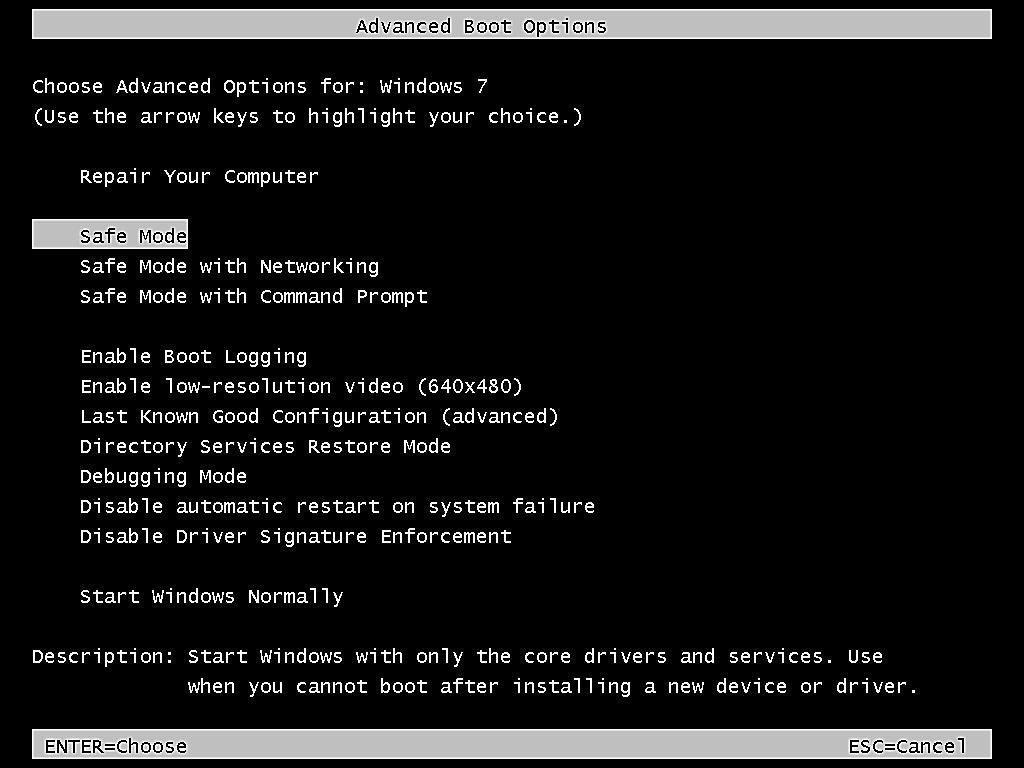
1. Press the F8 key on your computer keyboard every other second until the Advanced Boot Options window appears, and then turn on the computer.
2. Press the arrow key on the keyboard to select Safe Mode with Command Prompt and press Enter.
3. Log in as the administrator or as a user with administrator rights.
4. To restore your computer to a previous state, search for "cmd" from the Start menu, right-click the first result and choose "Run as administrator", then type "rstrui.exe" and press Enter in the Command Prompt.

5. The System Restore wizard will open automatically, and you can follow the on-screen instructions to complete the restore process, potentially reverting your computer to its factory settings by selecting an earlier restore point.
More flexible way to perform Dell factory restore🔥
To do factory restore for Dell computers, the powerful backup and restore software Qiling Disk Master Professional can also give you a hand.
- This feature allows you to create image backups for the entire system, a specific disk, partition, or even individual files, giving you flexibility and control over your data.
- You can restore a system image to the same computer or a different one, and the Universal Restore feature ensures secure boot on the new computer.
- You can create bootable media or a recovery environment to boot your computer in case of a boot failure, allowing you to troubleshoot and recover your system.
Download Qiling Disk Master now to have a try.
I'll show you how to do system restore from Command Prompt in Windows 7 using Qiling Disk Master as follows:
▶ Preparations:
- To restore your Dell computer to factory settings using Qiling Disk Master, ensure you've performed a system backup after receiving the computer. This will safeguard your data and allow for a smooth restoration process.

- You'll need to create bootable media to boot the Dell computer, as the system restore process will be completed under Windows PE environment.

▶ Detailed steps of Dell factory restore via Command Prompt:
Step 1. To boot your Dell computer from a bootable drive, you need to change the boot order in the BIOS settings. This process allows you to prioritize the bootable drive over the default operating system.
Step 2. Once your computer boots up, you will see the Qiling Disk Master. To access the Command Prompt, go to Tools > Windows shell command.
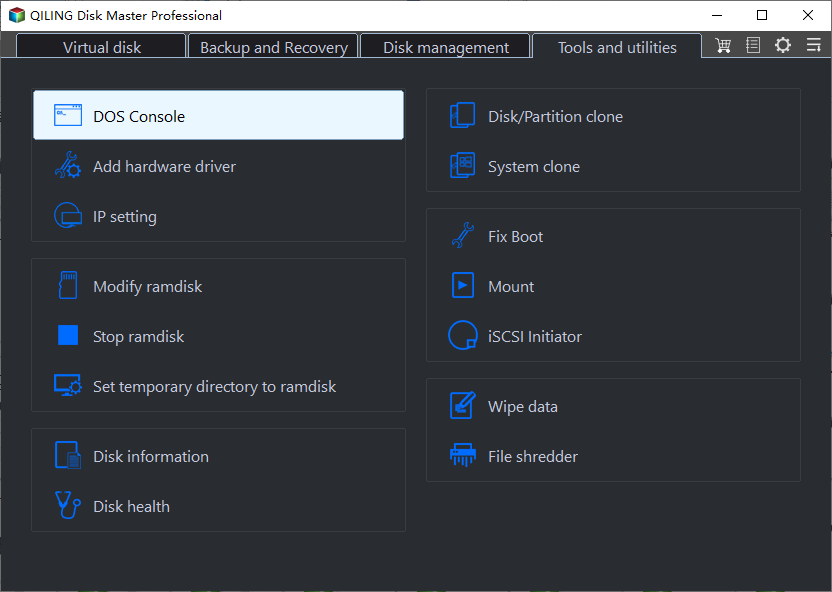
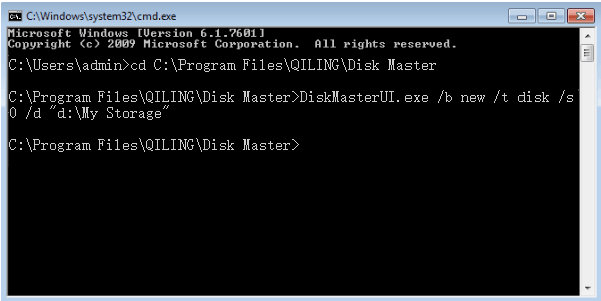
Step 3. Navigate to the Qiling Disk Master installation directory on your computer by typing cd C:\Program Files (x86)\Qiling Disk Master and pressing Enter, replacing "C:\Program Files (x86)\Qiling Disk Master" with the actual directory path where Qiling Disk Master is installed.
Step 4. To restore a system image, type `DiskMasterUI /r /t system /s "D:\systembackup1\systembackup1.fvd"` and press Enter, replacing the path with your own. This command will restore the system image saved in D:\systembackup1 to its original location.
Tips:
▪ The drive letters may change under a Windows PE environment. Running DiskMasterUI with the /l option before Step 4 will list disks on the computer, and running it with the /l[disknumber] option (e.g.
▪ To restore a system to other locations, use the parameter "/d" to specify the destination path. More information can be found in the Qiling Disk Master command lines.
Step 5. To exit Command Prompt, type exit and press Enter. You can then restart your computer later.
Note: To perform a Dell factory restore using GUI operations, go to Home, find the system backup task, expand its menu, and select Restore. Then, follow the wizard to complete the process.

Conclusion
To run Dell factory restore in Windows 7 Command Prompt, you can use rstrui.exe or Qiling Disk Master, which offers more benefits. The Professional version of Qiling Disk Master provides command line operations for IT experts and GUI operations for common users, and also features cloning, allowing you to clone hard drive via Command Prompt.
Related Articles
- How to Run System Restore from Command Prompt Windows 7
Learn how to Run System Restore from Command Prompt Windows 7 with clear steps, key checks, and practical tips. - Fix Windows Automatic Repair Loop using Command Prompt
Learn how to Fix Windows Automatic Repair Loop using Command Prompt with clear steps, key checks, and practical tips. - Easiest Way to Create Bootable Hidden Recovery Partition for Windows 7
This guide explains Easiest Way to Create Bootable Hidden Recovery Partition for Windows 7 with clear steps, key checks, and practical tips. - Bare Metal Restore in Windows Server 2008 (R2) | 2 Ways Inside
This guide explains Bare Metal Restore in Windows Server 2008 (R2) | 2 Ways Inside with clear steps, key checks, and practical tips. - [Backup Guide] To Solve Windows 10 Backup Starts then Stops
When you periodically back up selected folders onto an external hard drive using File History on Windows 10, you will click - A Beginner's Tutorial on How to Make Windows 10 Backup to External Hard Drive
Saving a computer backup on an external hard drive, USB flash drive, or an optical disc can be a wise move. Qiling Backup can help you create a Windows 10 backup to an external hard drive, following a guide that outlines the steps to take.
Products
Articles & Tutorials
- Data Recovery
- Data Backup
- File Recovery
- File Backup
- File synchronize
- System Backup and Restore
- Disk and Partition Clone
- Technical articles
- Disk Master Help
- Windows Deleted File and Disk Recovery Tutorials
- Windows File and Data Recovery Tutorials
- More Windows Tutorials for Install, Security, Files, and PC Tips
- Windows Boot, Repair, and Recovery Environment Tutorials
- Windows Backup Tutorials
- Windows Restore Tutorials
- Windows Clone and Migration Tutorials
- Windows Server Backup, Recovery, and Management Tutorials
- Windows Disk, Partition, and Storage Management Tutorials