(Solved) No Dell Factory Image Restore Option
- About No Dell Factory Image Restore Option
- Why Dell Factory Image Restore Option Missing?
- How to Solve No Dell Factory Image Restore Option
- Way 1: Enable Recovery Environment with Command Prompt
- Way 2: Restore Recovery Partition with Installation Disc
- How to Factory Reset a Dell Laptop
- Way 1: Use the Dell Factory Image Restore Option
- Way 2: Use Dell DataSafe Recovery and Emergency Backup
- Way 3. Use More Powerful OneKey Recovery Software
- Way 4: Use Universal Restore Software
- Conclusion
About No Dell Factory Image Restore Option
Many users are unable to find the Dell factory image restore option, often after upgrading from Windows 7/8.1 to Windows 10, or simply wanting to perform a Dell factory reset.
Case 1: Upgrade Windows 7 to Windows 10
I recently upgraded to Windows 10, half the things I relied on and use regularly have disappeared and what's left doesn't work very well. I've tried to downgrade back to windows 7 which worked perfectly for me before but that has apparently been removed during the Windows 10 upgrade. Help! Please!
Case 2: Factory Reset Dell computer
You're experiencing issues with your Dell computer, which won't boot, and you're looking for a one-key recovery option to restore it to its original state without reinstalling the operating system. However, it seems that the Factory Image Restore option is not available, and you're wondering why this might be the case.
Why Dell Factory Image Restore Option Missing?
If you're experiencing the "No Dell factory image restore option" problem, there are likely two main reasons behind it. Firstly, the issue might be due to the Dell factory image not being properly configured or updated, which can prevent the restore option from appearing. Secondly, the problem could be caused by a corrupted or outdated BIOS, which can also prevent the restore option from being accessible.
- The Dell recovery environment is not enabled. On some Dell systems, the Dell factory image restore option may not appear in the Windows Recovery Environment screen, affecting models such as Inspiron, OptiPlex, Alienware, Venue Pro, Precision Workstation, Vostro, and Latitude.
- The Dell recovery partition is damaged. In this scenario, the Dell Factory Image Restore option is available, but it's missing the essential oledlg.dll file, which is necessary for the process to complete.
- The Dell factory image restore option is not available in Windows 10.
How to Solve No Dell Factory Image Restore Option
Here are 3 options to fix the Dell factory image restore option missing in the Windows recovery environment:
- Enable recovery environment.
- Restore the recovery partition.
- Reinstall Windows 7.
Since Windows 7 has reached its end-of-life, we won't be covering the final method. If you're interested in learning more, you can refer to our guide on reinstalling Windows 7 without a CD. Now, let's get started with the process.
Way 1: Enable Recovery Environment with Command Prompt
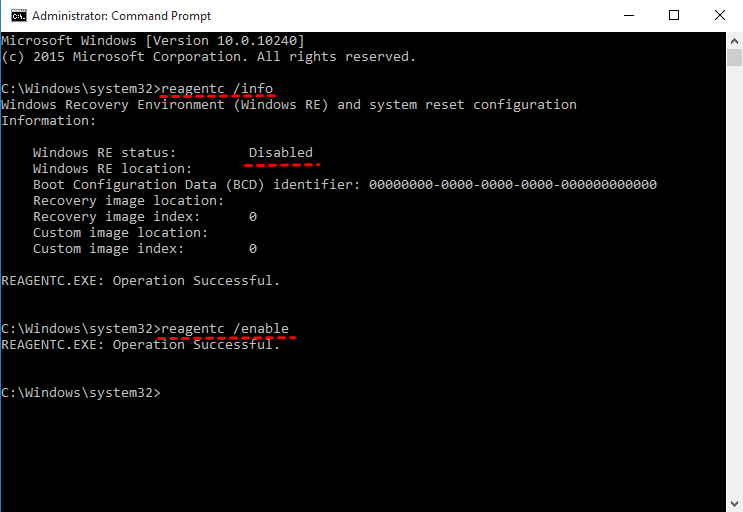
You can try to type "reagentc.exe /enable" with admin privileges in the Command Prompt to enable the recovery environment. If this works, you can attempt to restore your system.
1. To access Command Prompt as an administrator, type "cmd" in the search box, select "Command Prompt" and then choose "Run as administrator".
2. To check the status of the Reagent C /info command, type it and press Enter. This will display the Window RE status. If it's not enabled, the status will be "Disabled".
3. After running the command `reagentc /enable` and pressing Enter, if the process goes smoothly, you will see the message "REAGENTC.EXE: Operation Successfully".
Way 2: Restore Recovery Partition with Installation Disc
1. To install Windows, insert the installation disc and boot from it. Click Next until you see the option to "Repair your computer", and select it.
2. Select the operating system you are using (Windows 7) and click Next.
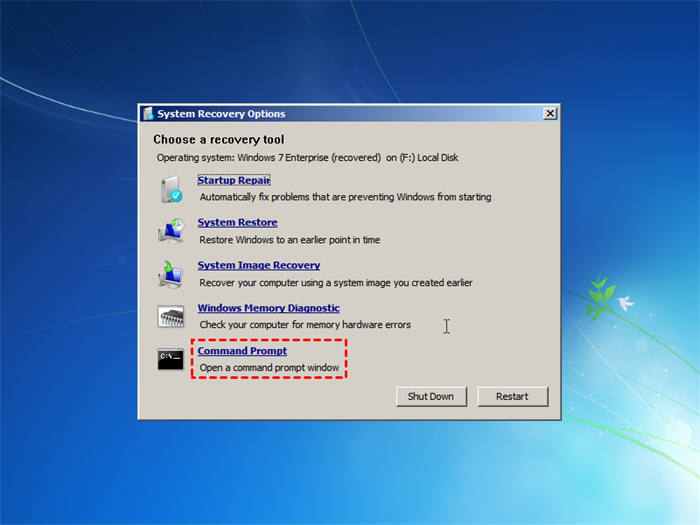
3. In the System Recovery Options window, select Command Prompt.
4. To restore the recovery partition, you need to format the hard disk first. Please type as follows and click Enter in order.
- diskpart
- list disk
- select disk n
- list partition
- select partition m
- format partition m
Note: The n and m parameters refer to the number of drives having issues and the recovery partition.
5. Now you can restore the factory image to this partition. Type as follow and hit Enter.
type this: imagex /apply d:\dell\image\factory.wim 1 c:\
Note: The d parameter is the location of your factory image, which should be replaced with your own.
How to Factory Reset a Dell Laptop
If you're unable to factory reset your Dell laptop using the Recovery Environment, don't worry! There are two other methods you can try:
Way 1: Use the Dell Factory Image Restore Option
Here is the first way to factory reset a Dell laptop. Please be sure the recovery environment is enabled and follow the steps below:
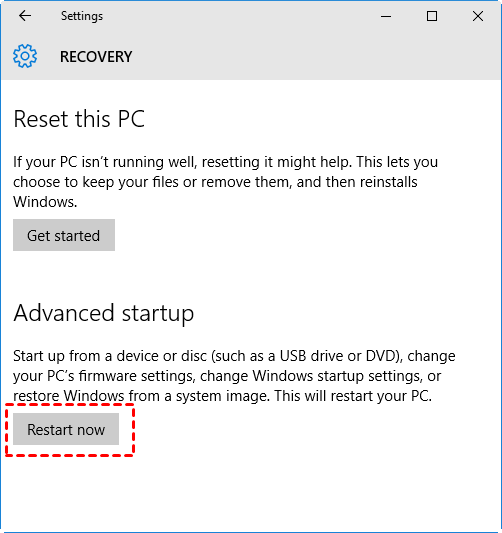
1. To restart your computer to the desktop, type "reset" and select "Reset this PC" from the System Settings.
2. click Restart now under Advanced Startup.
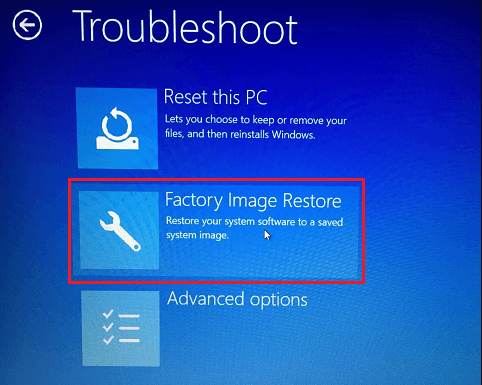
3. In the Windows recovery environment, select Troubleshoot > Factory Image Restore and follow the on-screen instructions to complete it.
Way 2: Use Dell DataSafe Recovery and Emergency Backup
If you're currently using Windows 7, you can still try Dell DataSafe Recovery and Emergency Backup.
1. Restart the computer and press F8 repeatedly to enter the Advanced Boot Options window. Select Fix Computer.
2. Select Keyboard Input Method.
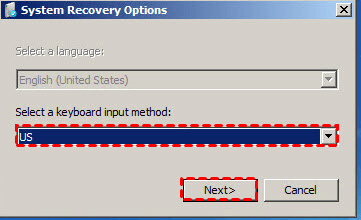
3. If there is an administrator password on the computer, you'll need to input it. Otherwise, you can simply select OK.
4. After entering the System Recovery Option, select Dell DataSafe Recovery and Emergency Backup.
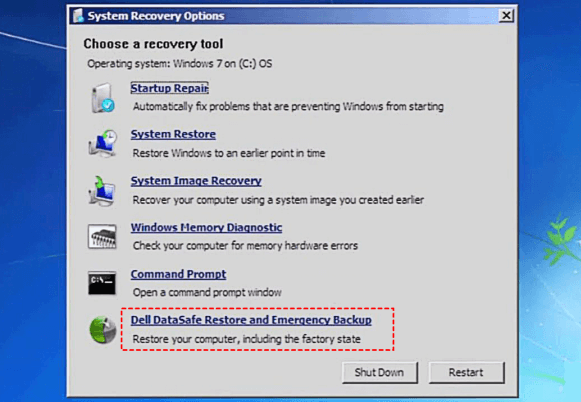
5. Select the "Restore computer and preserve my new or changed files" option, then follow the on-screen instructions to complete the system restore process, or choose "Select other System Backup and More Option" if the first option is not available.
Way 3. Use More Powerful OneKey Recovery Software
If your recovery image is damaged or unavailable, you won't find a Dell factory image restore option in the Windows recovery environment, so you can't use the previous methods. Instead, you can use a third-party software like Qiling Disk Master Professional to restore a user backup to your Dell laptop.
- With its OneKey System Backup, you can make a factory recovery partition the first time you get the computer, or create a user backup later to include everything you'll use.
- It allows daily, weekly, and monthly schedule backup to keep track of changes from the default backup or the previous one.
- The software is capable of compressing the backup image to a smaller size and encrypting it with a password.
- With its OneKey System Recovery, you can easily restore a Dell laptop to its factory settings or to a previous working state, and this feature is not limited to Dell computers, making it a useful tool for Lenovo desktop factory resets and other computer brands as well.
What are the two situations for restoring a Dell laptop?
If you have a backup image, either a factory image or user backup, you can restore your Dell laptop. The user backup includes the operating system, applications, drivers, personal data, and more, minimizing data loss in case of a disaster.
>> If not, please create one first. Please be sure your computer is working well. You can refer to "Disk Master".
Please download reliable software - Qiling Disk Master and start this recovery.
1. Install and launch Qiling Disk Master, then click on OneKey System Recovery.

2. If you have backed up the system using Qiling Disk Master and want to restore it, you can use the image file in the Qiling Disk Master partition to restore the system. This process involves using the image file to restore the system to its previous state.

Note: If you back up the system to another location and have the devices containing the system image connected in advance, then select the second option.
3. This software will restore the system to its original location by default, but you can choose a different location manually. Once you've selected the desired location, click "Proceed" to restore the Dell laptop.

Way 4: Use Universal Restore Software
If you don't have a backup image, you'll need to create one. However, if your computer is unresponsive, you can't create a system image for the current PC. In this situation, a universal restore software like Qiling Disk Master Professional can be used to help you.
Qiling Disk Master offers users a Universal Restore feature, which allows them to restore their system to a new computer with different hardware, and automatically installs necessary drivers for a successful boot.
If your computer is not bootable, download Qiling Disk Master Professional and use it to create a bootable USB or recovery environment to access the software without booting into Windows.
1. Insert the bootable USB, change the boot priority to USB, wait until Qiling Disk Master is loaded, then click "Restore" and "Select Image File" to manually select the image file.

2. To restore the entire backup image, select it and click Next.
Note: If the hard drive in the Dell laptop is damaged, prepare a new hard drive in advance and select "Restore system to other location" at this step.
If you selected to restore the system to a different location, you'll need to choose a restore path in this step. This path will receive the system image. Click "Next" to proceed.

4. Before proceeding, the software will automatically preview the operation to be executed and ensure there are no issues. If your computer has different hardware, the Universal Restore feature will be checked by default. Make sure it is checked and then click Proceed to restore the system image to a new Dell computer.
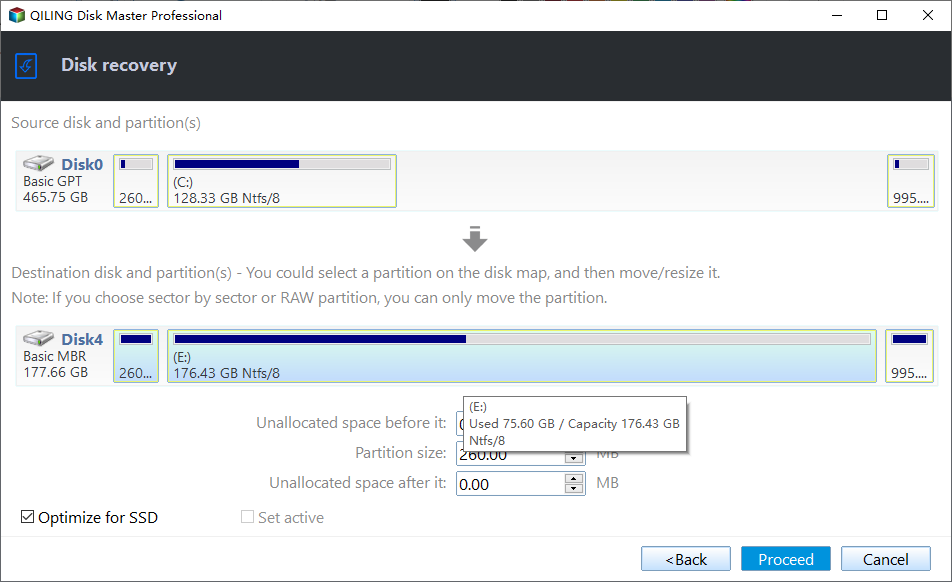
Note: If you're restoring a system image to a new SSD, enable the SSD Alignment feature. This improves the SSD's reading and writing speed and extends its lifespan.
Conclusion
To resolve the issue of the no Dell Factory Image Restore option in the recovery environment and factory reset a Dell laptop, you can simply fix it by using the recovery environment. Alternatively, you can also try other methods such as using a Dell recovery USB drive, using a third-party software like Qiling Disk Master, or using the Windows Recovery Environment if the Dell recovery environment is not available. Each method has its own advantages and disadvantages, and you can choose the one that best suits your situation.
The last two methods are safer for data security. They include the operating system, installed programs, drivers, and data. The main difference is that Qiling Disk Master supports dissimilar hardware restore, making it a good option for protecting unlimited PCs or customizing the UI, with its Technician or Customization edition.
Related Articles
- Top 5 Ways to Windows 10 Recovery Environment Missing
- How to Create A Dell Recovery USB in Windows 10 and Restore System from It
- Fix Dell Backup and Recovery Not Working in Windows 10/8/7
- Windows Server 2016 Upgrade or Migrate to 2019/2022
Check solutions about Windows Server 2016 upgrade to 2019 or 2022. You can also get methods to upgrade Windows Server 2016 or migrate server 2016 to 2019/2022. - Clone Windows 10 OS to New SSD Without Reinstallation
You can use Qiling Disk Master software to clone Windows 10 to a new SSD, upgrading your system disk and optimizing computer performance. If you encounter issues due to misoperations, such as 'not enough unallocated space on the target disk', troubleshoot with detailed user guides. - How to Cloud Backup for Windows 7 | 2022 Detailed Guide
Learn how to back up Cloud Backup for Windows 7 | 2022 Detailed Guide with practical steps, storage tips, and safer recovery planning.
Products
Articles & Tutorials
- Data Recovery
- Data Backup
- File Recovery
- File Backup
- File synchronize
- System Backup and Restore
- Disk and Partition Clone
- Technical articles
- Disk Master Help
- Windows Deleted File and Disk Recovery Tutorials
- Windows File and Data Recovery Tutorials
- More Windows Tutorials for Install, Security, Files, and PC Tips
- Windows Boot, Repair, and Recovery Environment Tutorials
- Windows Backup Tutorials
- Windows Restore Tutorials
- Windows Clone and Migration Tutorials
- Windows Server Backup, Recovery, and Management Tutorials
- Windows Disk, Partition, and Storage Management Tutorials