Fix Dell Backup and Recovery Not Working in Windows 10/8/7
About Dell Backup and Recovery
Dell Backup and Recovery Basic is a preinstalled application on new Dell Windows 7 or Windows 8 devices, designed to protect digital documents and memories. It allows for backup and recovery, and the paid edition enables creating a system image and rescue disk for booting and restoring the computer to a previous date.
Upgrading to Windows 10 may cause Dell Backup and Recovery to stop working, prompting a message that requires an upgrade to the Premium edition to perform backups.
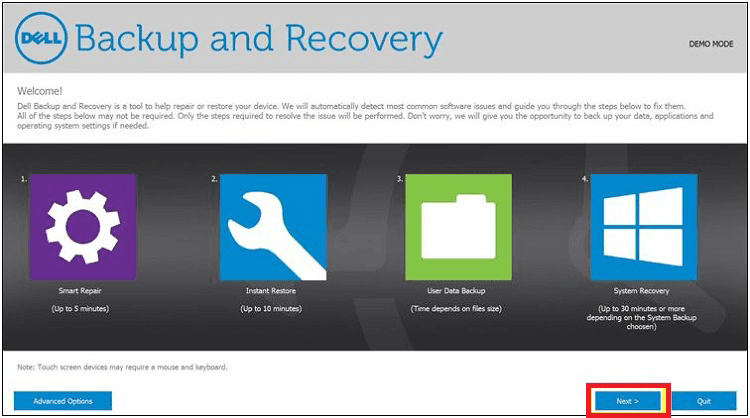
Fix Dell Backup and Recovery not Working in Windows 10/8/7
The Dell Backup and Recovery tool may experience issues, including going on strike, and not working properly after a Windows update. If this is the case, users can try resolving the issue on their own by following certain tips.
1. Update Dell Backup and Recovery to the latest version on your Windows 10 PC to avoid compatibility issues and ensure proper functionality. Users who haven't updated might experience errors and degraded functionality.
2. Right-click on your computer, select "Device Manager", expand Disk drivers, right-click on your disk and choose "Update Driver Software..." to update Windows Device drivers.
3. If the Dell Backup and Recovery tool is not working in Windows 10/8/7, you can contact the Dell support team for tech support.
Free Alternative to Dell Backup and Recovery
If all the above methods fail, you may try Qiling Disk Master Standard, which offers a more impressive performance compared to Dell Backup and Restore.
- Paid features of Dell Backup and Recovery, such as creating system image backups and continuous data backups, are now available for free with Qiling Disk Master.
- Qiling Disk Master offers a range of features that complement Dell Backup and Recovery, including incremental backup, disk clone, and more.
- Qiling Disk Master supports all laptop and desktop brands running Windows 11, 10, 8.1/8, 7, Vista, XP.
To create a system image backup with Qiling Disk Master, follow the steps below.
Step 1. Download Qiling Disk Master and launch the software.
Step 2. To back up your system, click on the "Backup" option and select "System Backup" from the available choices. This allows you to create a backup of your entire system, or you can choose to back up specific disks, partitions, or files based on your needs.

Step 3. Select a destination location for the system image, which can be a USB drive, external hard drive, SSD, cloud drive, or other storage options.

Step 4. You can click Schedule Backup to create system image automatically. At last, click Proceed and wait for the process done.

If you encounter an error while creating a rescue disk with Dell Backup and Recovery, you can use Qiling Disk Master to create a rescue disk instead. To do this, go to the Home tab, click on Tools, select Create Bootable Media, and follow the instructions to create a bootable USB drive.
If you can't boot into your computer, you can still restore it to a previous state using a system image backup by booting from a USB drive.
Conclusion
If Dell Backup and Recovery is not working in Windows 10/8/7, try the methods outlined above to resolve the issue. If none of these work, you can consider using a more comprehensive backup tool like Qiling Disk Master, which can protect your system, files, and disks at all times.
Related Articles
- How to Recover System If No Dell Factory Image Restore Option?
If you have problems fixing the "no Dell Factory Restore option" issue, please continue to read below and learn the reasons & solutions. And the methods to factory reset a Dell laptop is also included. - Fixed: F11 System Recovery Not Working in Windows 7/8/10
You will learn how to easily fix F11 HP system recovery not working error with 3 solutions in this article. And, a safer way to protect system. - How Do I Backup My Dell Laptop with Windows 10?
In this article, you are going to backup Dell laptop with Windows 10 using Dell Backup and Recovery alternative. Here are 3 alternative backup software, but the last one is the best free. - What Is the Recovery Key for Lenovo Laptop?
This guide explains What Is the Recovery Key for Lenovo Laptop with clear steps, key checks, and practical tips. - How to Restore Lenovo G50 to Factory Settings?
Restore Lenovo g50 to factory settings with recovery partition under the help of Lenovo OneKey Recovery or Qiling Disk Master. - How to Use Lenovo G50-30 OneKey Recovery
You will learn how to use Lenovo G50-30 onekey recovery for backup and recovery. And one more powerful software is included.
Products
Articles & Tutorials
- Data Recovery
- Data Backup
- File Recovery
- File Backup
- File synchronize
- System Backup and Restore
- Disk and Partition Clone
- Technical articles
- Disk Master Help
- Windows Deleted File and Disk Recovery Tutorials
- Windows File and Data Recovery Tutorials
- More Windows Tutorials for Install, Security, Files, and PC Tips
- Windows Boot, Repair, and Recovery Environment Tutorials
- Windows Backup Tutorials
- Windows Restore Tutorials
- Windows Clone and Migration Tutorials
- Windows Server Backup, Recovery, and Management Tutorials
- Windows Disk, Partition, and Storage Management Tutorials