How to Use Lenovo G50-30 OneKey Recovery
Introduction to Lenovo G50-30 Onekey Recovery
The Lenovo G50-30's OneKey Recovery tool is version 8.0, similar to other Lenovo IdeaPad models, and is applicable to Windows 10/11 or Windows 8/8.1. This is in contrast to its earlier version 7.0, which was only compatible with Windows 7.
Lenovo OneKey Recovery allows you to create a system backup and use it to restore your OS, especially in case of an accident, and it also comes with a factory image recovery partition, enabling you to factory reset your Lenovo PC even without a user backup.
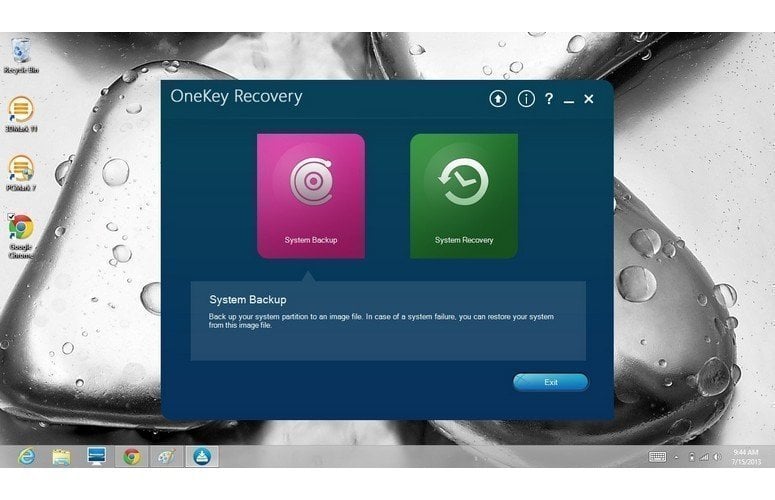
How to Use Lenovo G50-30 Onekey Recovery for Protection
As Lenovo G50-30 says, you can use it to backup system and recover. Then, I'll show you how to use Lenovo G50-30 Onekey Recovery step by step in the following.
Backup System with Lenovo G50-30 Onekey Recovery
Step 1. To access Lenovo OneKey Recovery and create a system backup, double-click the icon or navigate to "Start" > "All programs" > "Lenovo" > "Lenovo OneKey Recovery". Select "System Backup" from the options.
Step 2. Select a destination to save system image file.
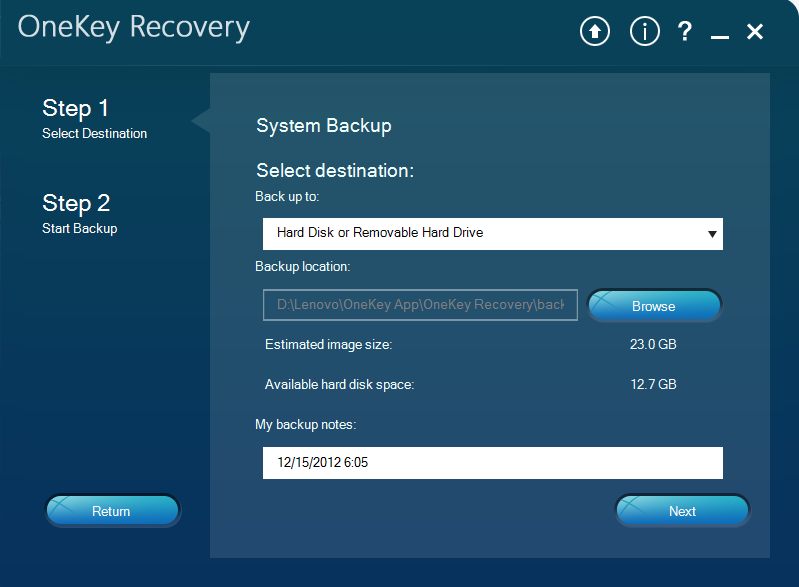
Step 3. Confirm the operation and click "Start" to make a recovery partition for Lenovo computer.
Tip: If you store a system image to a USB flash drive, it's recommended to move important data out or back up files beforehand. This ensures that your data is safe and won't be affected by the system image process.
Lenovo G50-30 Onekey Recovery Factory Reset
Step 1. To access the recovery mode on a Lenovo G50-30, start by turning it off. Next, press and hold the Novo Button, which is usually located on the side or top of the laptop, and turn it back on. This will open the Novo Button Menu. From there, select "System Recovery" to enter Lenovo OneKey Recovery.

Step 2. If you haven't created a user backup, select "Restore from initial backup" and then click Next.

Step 3. Confirm the operation and click Start to restore your device from a factory image backup.
More Powerful Lenovo G50-30 Onekey Recovery Software
You can use Lenovo G50-OneKey Recovery software, which is preinstalled on some computers, can protect them, but its errors, such as system incompatibility, damaged partitions, and non-functional Novo buttons, can be frustrating. Additionally, users who build their own computers from scratch don't have this software preinstalled, making it necessary to find alternative recovery solutions.
To avoid data loss, it's recommended to choose a more powerful software to backup the system, such as Qiling Disk Master, which allows you to backup the system to a recovery partition or other locations like an external hard drive, USB flash drive, CD/DVD, etc.
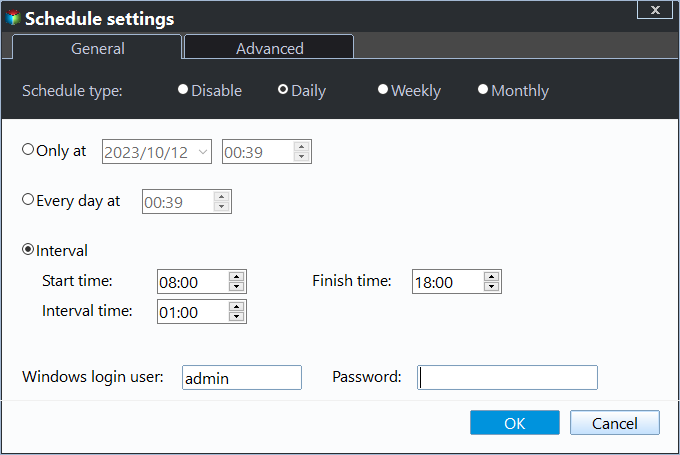
You can enjoy various useful features during the backup process, such as encryption and compression, as well as a daily, weekly, or monthly scheduler. The scheduler feature is particularly helpful in continuously protecting your computer by backing up changes made between previous and next backups.
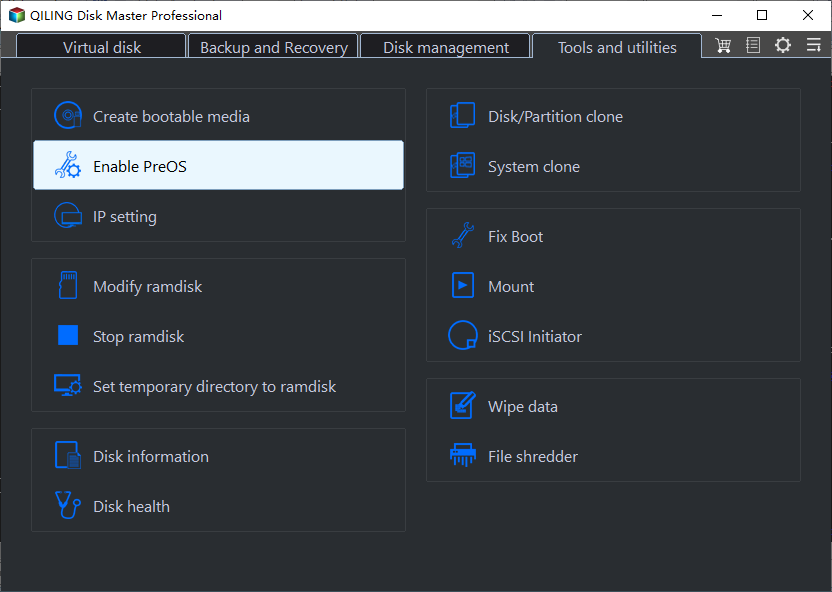
The software allows you to select the boot menu to boot your computer from it, and also gives you the option to directly add a boot menu at the system startup.
This software can be used on Lenovo computers and other brands like Asus, Dell, HP, and Sony, and supports all Windows systems, including Windows 11, 10, 8, 7, XP, Vista, and Windows Server 2022, 2019, 2016, 2012, and 2008.
Want to protect your computer with a more powerful software instead of just backing up one state of it? Download Qiling Disk Master and give it a try, or for advanced users, consider its Technician or Customization edition.
Summary
Lenovo G50-OneKey Recovery is a helpful tool for backing up systems and recovering from issues like virus attacks or software problems, but it sometimes requires human intervention and may not work as expected.
Qiling Disk Master is a third-party software that provides one key recovery, allowing users to backup their system and offering extra features such as daily backups, making it a wise choice for system recovery.
Related Articles
- How to Use Lenovo G50 Recovery Key for Factory Reset
Use Lenovo g50 recovery key to enter into recovery environment. Either press F12 when starting up computer or directly press novo button next power port. - How to Restore Lenovo G50 to Factory Settings
Restore Lenovo g50 to factory settings with recovery partition under the help of Lenovo OneKey Recovery or Qiling Disk Master. - Incremental Backup Archive Bit and Backup Methods
Incremental and differential backup methods, often used in conjunction with archive bit, are compared and contrasted in this article. The archive bit, a flag used to track file changes, is also discussed in relation to these. - How to Deploy Windows 7/XP/10 Image over Network in the easiest way?
Learn how to Deploy Windows 7/XP/10 Image over Network in the easiest way with clear steps, key checks, and practical tips. - Top 9 Best Backup Software for Windows
Learn how to back up Top 9 Best Backup Software for Windows with practical steps, storage tips, and safer recovery planning. - Top 3 Best Cloning Software for HDD and SSD
Use this guide for Top 3 Best Cloning Software for HDD and SSD, with cloning or migration steps, boot checks, and tips to keep data safe during the move.
Products
Articles & Tutorials
- Data Recovery
- Data Backup
- File Recovery
- File Backup
- File synchronize
- System Backup and Restore
- Disk and Partition Clone
- Technical articles
- Disk Master Help
- Windows Deleted File and Disk Recovery Tutorials
- Windows File and Data Recovery Tutorials
- More Windows Tutorials for Install, Security, Files, and PC Tips
- Windows Boot, Repair, and Recovery Environment Tutorials
- Windows Backup Tutorials
- Windows Restore Tutorials
- Windows Clone and Migration Tutorials
- Windows Server Backup, Recovery, and Management Tutorials
- Windows Disk, Partition, and Storage Management Tutorials