How to Use Lenovo G50 Recovery Key for Factory Reset
What Is the Lenovo G50 Recovery Key?
Lenovo, like other computer brands, has its own recovery partition, which can be accessed using a specific key. For Lenovo products, such as the Lenovo G50, Lenovo IdeaPad, Lenovo Y510p, and Lenovo Yoga 2, you can use the F12 key or the Novo button (usually located beside the power button or at the top left corner) to access the system recovery environment.
After restoring from the initial backup, you can either restore from the initial backup or users' backup. Restoring from the initial backup, also known as a factory reset, will give you a fresh version of the operating system and preinstalled programs from Lenovo, but will delete all programs and data added afterwards.
How to factory reset Lenovo G50 with recovery Key
The system recovery process will take some time, so please keep the power connection on. Otherwise, the process may fail. Then, get the steps below.
Step 1. To access the Novo Button Menu, restart your computer and press the Novo button (located next to the power port) repeatedly or click it directly. This will take you to the System Recovery Menu, where you can select "System Recovery".
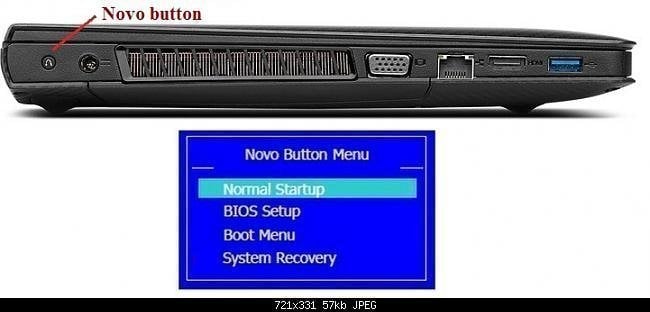
You can also open Lenovo OneKey Recovery by searching for it on the start menu and selecting "System Recovery", which will then reboot into the recovery environment.

Step 2. In the OneKey Recovery window, select "Step 1" and then "Restore from initial backup" to perform a Lenovo G50 factory reset, or if you haven't created a system image beforehand.

If you've made a system backup before, select "Restore from user's backup" which contains all the data on the system partition at the time of your backup.
Step 3. Then comes to Step 2. Confirm restoration and click "Start" to do Lenovo G50 factory reset.
More powerful one key recovery software to protect Lenovo G50
Lenovo OneKey Recovery may not work on Lenovo G50 due to the Novo button being unresponsive and showing a black screen, making it difficult to factory reset the computer.
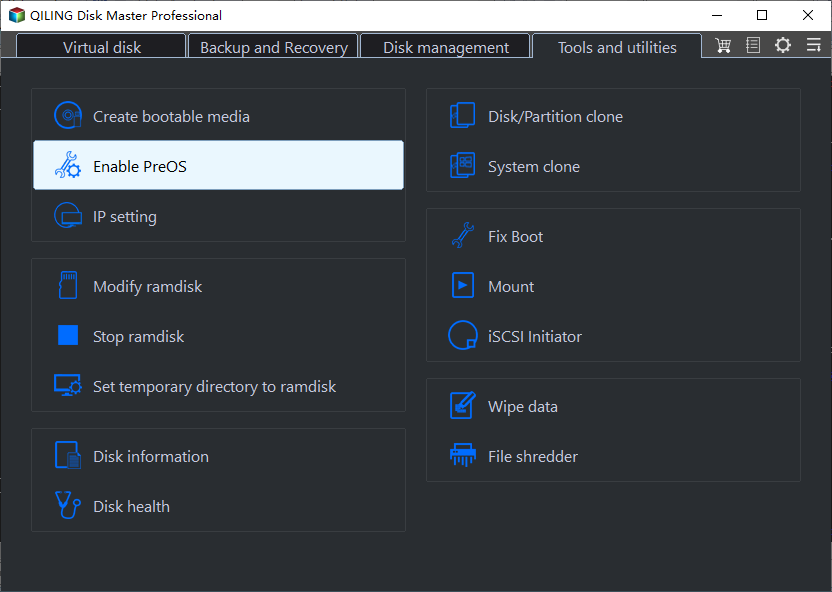
You can try Qiling Disk Master to backup Lenovo G50. It allows you to backup the system to its own partition or another location, and the backup image is saved to a hidden recovery partition if you choose the first option, ensuring you don't lose data due to accidental deletion.
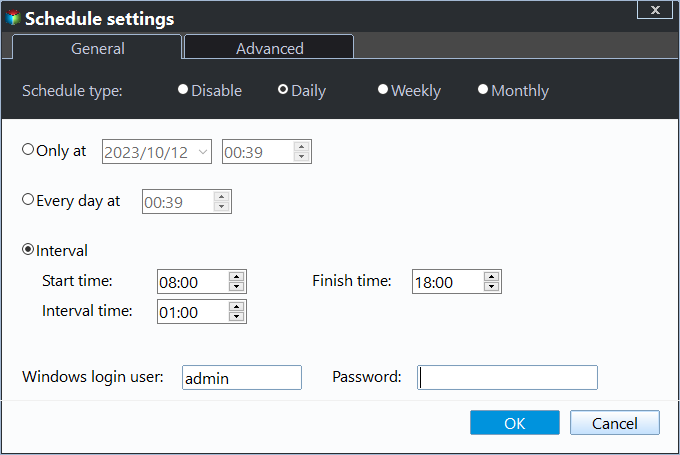
It provides a daily, weekly, and monthly scheduler for backing up changes since the last backup, with the option to compress or encrypt the backup if desired.
You can use the OneKey System Recovery feature on your Lenovo G50 to factory reset the device if needed, and it also offers a specified recovery disk "A" and "F11" to enter into recovery environment.

Summary
If Lenovo G50 factory reset isn't working due to issues with the Lenovo G50 recovery key, F12, or Novo button, a more powerful software like Qiling Disk Master can be used to help perform the reset.
The recommended method stores the backup image on a newly created partition without assigning a drive letter, making it inaccessible in File Explorer and thus safer. This approach also unlocks other features, including backup options, scheduling, and recovery keys ("F11" or "A").
Related Articles
- How to Use Lenovo G50-30 OneKey Recovery
You will learn how to use Lenovo G50-30 onekey recovery for backup and recovery. And one more powerful software is included. - How to Use Lenovo One Key Recovery in Windows 7, 8, 10, 11
In this article not only will you learn how to download Lenovo recovery, but also the best way on how to use Lenovo Onekey Recovery to protect system and data on it and recreate partition or image when Lenovo OneKey Recovery not working. - Creating Windows 10 System Image to an External HDD | 2 Ways
This article will guide you through the process of creating a system image to an external HDD in a step-by-step manner, providing two easy methods to complete it. - How to Make An Image File from SD Card on Windows 10/8/7
Learn how to make an image file from SD hard on Windows 11/10/8/7. Qiling Disk Master provides you with the easiest way to create image of SD card. - Download Best EZ Gig IV Cloning Software Alternative - Qiling Disk Master Home
If EZ Gig IV cloning software fails, gets stuck, freezes, or doesn't recognize the drive, Qiling backup software is the best alternative. It can easily clone a hard disk in Windows 10/8/7 and other versions for backup, hard drive upgrade, or system & data transfer. - Top 5 Best Hard Drive Cloning Software of 2022
Follow the advice of the top five best hard drive cloning software for Windows 11, 10, 8.1, 8, and 7, and choose your favorite to learn how to clone a hard drive, HDD, SSD, USB drive, or migrate Windows OS to HDD/SSD without reinstalling.
Products
Articles & Tutorials
- Data Recovery
- Data Backup
- File Recovery
- File Backup
- File synchronize
- System Backup and Restore
- Disk and Partition Clone
- Technical articles
- Disk Master Help
- Windows Deleted File and Disk Recovery Tutorials
- Windows File and Data Recovery Tutorials
- More Windows Tutorials for Install, Security, Files, and PC Tips
- Windows Boot, Repair, and Recovery Environment Tutorials
- Windows Backup Tutorials
- Windows Restore Tutorials
- Windows Clone and Migration Tutorials
- Windows Server Backup, Recovery, and Management Tutorials
- Windows Disk, Partition, and Storage Management Tutorials