How to Create Image of SD Card in Windows 11, 10, 8, 7
The Need to Make Image of SD Card
Creating an image of your SD card is useful no matter how the card is used. An SD card image gives you a backup copy, makes cloning easier, and lets you restore the card's data, configuration, and settings to a known point in time.
- Your SD card may stop working. System files and important data stored on an SD card can be corrupted by updates, security issues, or mishandling, but a backup image lets you recover them.
- Set up multiple SD cards. To save time and effort, you can create an image of one SD card, which includes all the data and settings, and then clone it onto other SD cards. This way, all the cards will have the same configuration and data, making it easier to maintain consistency across multiple devices.
- Testing and development. Creating images of SD cards allows developers and tinkerers to experiment with different configurations, knowing they can revert to a known working state by restoring the image. This process enables them to try new setups without risking the loss of important data or functionality.
Best Free SD Card Image Maker in Windows
If you're looking for a quick, easy, and free way to make an image of your SD card, Qiling Disk Master Standard is a practical option. This Windows backup tool can create an SD card image with minimal effort.
- Qiling Disk Master allows you to create a bootable SD card image on your Windows computer with just a few clicks, making it easy to transfer data to your SD card without any hassle.
- This software enables users to save images to various storage devices, including hard drives, external hard drives, USB flash drives, and network shares, among others.
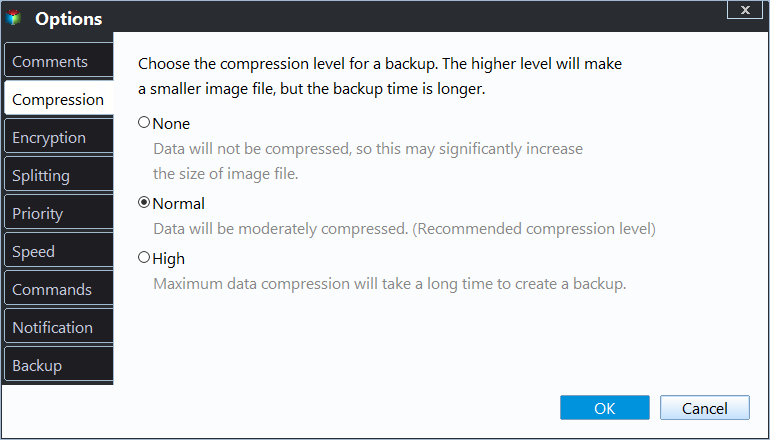
- The software allows you to select the level of compression for the image, which helps reduce the file size and save storage space at the destination.
- It supports automatic backup, such as daily, weekly, and monthly backup.
Qiling Disk Master Standard features a user-friendly interface that allows you to complete tasks in just a few clicks, without interrupting your work. The backup process is seamless and easy to navigate, making it simple to get started.
How to Make an Image of an SD Card Step by Step
To start, download and install Qiling Disk Master Standard on your computer. If you're using Windows Server, use Qiling Disk Master Server instead. Once installed, connect your SD card to your computer and make sure Windows can detect it.
Step 1. Select the Disk Backup option.
Click Backup and choose Disk Backup.

Step 2. Select the SD card to be backed up.
Name the task and click Disk to choose your SD card.

Step 3. Select a destination path.
To proceed, click on the destination box and select one of the two available options: either "Select a local path" or "Add Share or NAS Devices". Choose the one that suits your needs.

Step 4. Launch the backup process.
To begin creating an image from the SD card, click Proceed.

◑ Notes:
- To set up compression for backups, click on the "Options" tab and select a suitable compression level under the "Compression" section.
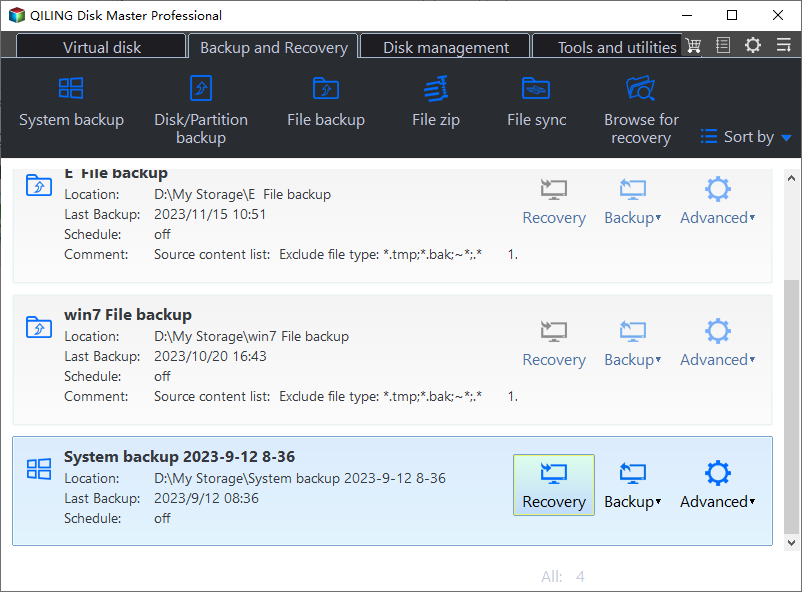
- To restore a backup image, go to Home, find the backup image, and click Restore.
★ More useful features in advanced version
If you need these features, you may upgrade to the Professional edition.
- Encrypt the image to protect your data from unauthorized access.
- To create a recovery environment and restore an image file without booting Windows, you can use a tool like Windows PE or a third-party recovery software. Windows PE is a lightweight version of Windows that can be booted from a USB drive or CD/DVD, allowing you to access your system files and restore an image file without needing to boot into Windows.
- To optimize storage space, enable backup schemes and set up automatic cleanup on the target drive.
Conclusion
You can easily create an image from an SD card in Windows 11/10/8/7 using Qiling Disk Master Standard. It's a simple process that allows you to transfer files from PC to SD card as a backup, in addition to creating the image.
Qiling Disk Master can help you back up your Windows system, entire hard drive, individual partitions, or selected files. It also supports system recovery, disk cloning, and data protection, so you can restore your system or storage device to a previous working state when needed.
Related Articles
- Two Easy Methods for Mobile SD Card Backup
You will find the top 2 easy ways to create mobile SD card backup with the step-by-step guide. - How to Backup SD Card to Computer and Protect Security?
Backing up dozens of data on SD card to computer is time-consuming. If you are upset, you can follow this article. I will show you how to backup SD card to computer in a very short time. - The Best Way to Backup Raspberry Pi SD Card in Windows
Follow this guide to The Best Way to Backup Raspberry Pi SD Card in Windows, with backup options, storage tips, and recovery precautions. - How Do Server Users Move Documents Folder from C to D Drive in 2022
This guide explains How Do Server Users Move Documents Folder from C to D Drive in 2022 with clear steps, key checks, and practical tips. - Full Backup vs Differential Backup
Full backup and differential backup have both similarities and differences. This article gives you a quick overview of how they work. - How to Ghost Windows 10 Operating System and Applications Easily?
Learn how to Ghost Windows 10 Operating System and Applications Easily with clear steps, key checks, and practical tips.
Products
Articles & Tutorials
- Data Recovery
- Data Backup
- File Recovery
- File Backup
- File synchronize
- System Backup and Restore
- Disk and Partition Clone
- Technical articles
- Disk Master Help
- Windows Deleted File and Disk Recovery Tutorials
- Windows File and Data Recovery Tutorials
- More Windows Tutorials for Install, Security, Files, and PC Tips
- Windows Boot, Repair, and Recovery Environment Tutorials
- Windows Backup Tutorials
- Windows Restore Tutorials
- Windows Clone and Migration Tutorials
- Windows Server Backup, Recovery, and Management Tutorials
- Windows Disk, Partition, and Storage Management Tutorials