Incremental Backup Archive Bit and Backup Methods
What Is Archive Bit in Incremental Backup
The Archive Bit is a file attribute that indicates whether a file has been modified since the last backup, used by backup software to determine which files need to be backed up during an incremental backup process. It is a single binary value, typically stored as part of a file's metadata.
Types of Backups:
● A full backup is the most basic and comprehensive backup method, where all data is sent to another location, ensuring a complete copy of all files, folders, and data is stored safely and securely.
● Incremental backup: A type of backup that only saves the files that have changed since the last backup, making it a more efficient and space-saving option compared to full backups.
● Differential backup backs up only the copies of all files that have changed since the last full backup, allowing for faster and more efficient backups compared to full backups.
How Incremental Archive Bit Works
Full Backup: When a full backup is performed, the Archive Bit is set to 1 for all files, indicating they have been backed up, making every file "archived" after the full backup.
Incremental Backup: During an incremental backup, the backup software scans files on the source system. If a file's Archive Bit is set to 1, it means the file has been modified since the last backup, so the software backs up these modified files and resets the Archive Bit to 0 once the backup is complete, signifying that the file has been "archived" again.
The Archive Bit is used to mark files that have changed since the last backup, making incremental backups more efficient by only including changed files, saving time and storage space compared to full backups.
Incremental vs Differential Backup Archive Bit
The main difference between incremental and differential backups lies in how they utilize the Archive Bit to determine which files to include in each backup. Incremental backups only include files that have been modified since the last backup, using the Archive Bit to track changes.
✤ Incremental Backup:
Incremental backup saves files changed since the last backup, resetting the Archive Bit to 0 after completion. This means a full restore requires the initial full backup plus all subsequent incrementals.
✤ Differential Backup:
A differential backup captures all changes since the last full backup, unlike an incremental backup, and the differential archive bit remains set after backup. This means that to restore, you would need both the full backup and the latest differential backup.
Incremental and differential backups are two types of backups that differ in their approach to capturing changes since the last backup. Incremental backups focus on recent changes since the last full backup, making them more storage-efficient but requiring a full restore from the last full backup to access older data. Differential backups, on the other hand, capture changes since the last full backup, making them easier to restore but taking up more storage space.
In Windows Server Backup, you can set up a scheduled backup that includes incremental backups. This means that the backup will only save the changes made since the last backup, making it more efficient and reducing storage space usage.

How to Create Incremental Backup Using Robocopy with Archive Bit in Windows
To create an incremental backup using the Archive Bit in Windows, utilize the built-in Robocopy tool, which is a command-line utility that allows you to copy files and folders with options to control the behavior, including using the Archive Bit to include files that have been modified since the last backup.
To create an incremental backup using the Archive Bit, start by identifying the files that have changed since the last backup. The Archive Bit is a flag that Windows sets on files that have been modified, and it can be used to determine which files need to be backed up.
1. To open the Command Prompt, press the Windows key + R, type "cmd" and press Enter.
2. Navigate to the directory where Robocopy is located, typically C:\Windows\System32, in the Command Prompt.
3. To perform an incremental backup using the Archive Bit, use the Robocopy command with the appropriate switches. The following command copies only changed files from the source to the destination:
- Replace SOURCE with the path of the source directory you want to back up.
- Replace DESTINATION with the path of the backup destination.
- The /MIR switch ensures that the destination will mirror the source, including deleted files.
- The /XO switch ensures that only changed files since the last backup are copied.
4. Press Enter and review the incremental backups.
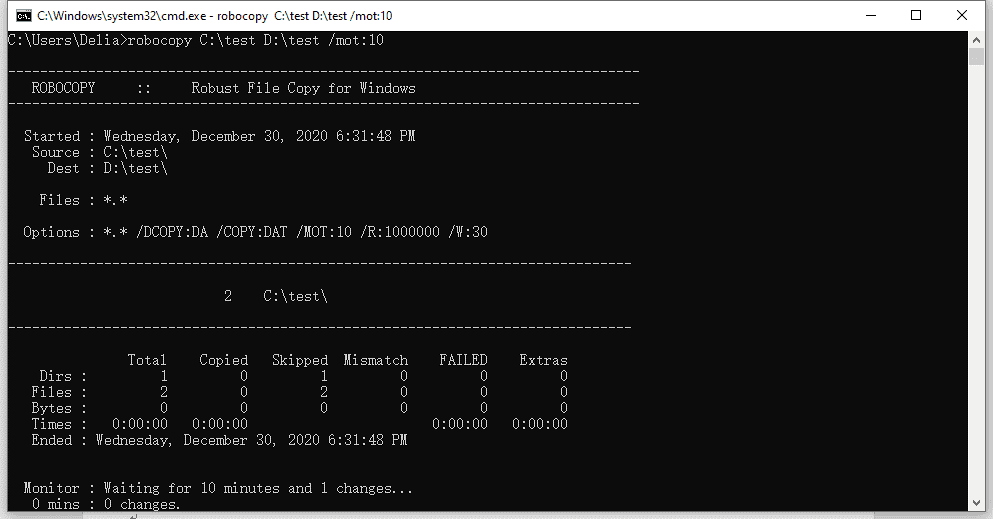
Note: To ensure a smooth backup process, designate a specific location, such as an external drive, network location, or cloud storage, to store your backup files. This will serve as your backup destination.
Efficient Incremental Backup Creation: Your Ultimate Guide
Incremental backup optimizes storage space and reduces backup time by continuously backing up data without duplicating unchanged files, safeguarding your data against unexpected threats and ensuring business continuity, efficiently implemented with Qiling Cyber Backup.
📢 Space Efficiency: Qiling Cyber Backup only backs up changed or new files, saving storage space while maintaining data integrity.
🚩 Effortless Setup: Qiling Cyber Backup provides a user-friendly interface that allows both beginners and IT professionals to easily configure and manage incremental backups.
✍ Automated Scheduling: Automated schedules for incremental backups allow your data to be continuously protected without requiring manual intervention.
🎈 Versatile Storage Options: Qiling Cyber Backup allows you to store your incremental backups on various destinations, such as external drives or network locations, providing flexibility and redundancy.
FAQ About Incremental Backup Archive Bit
Q: Are there any drawbacks to using incremental backups?
A: Incremental backups can be problematic if the archive bit isn't properly managed, potentially leading to skipped backups or wasted storage space. Additionally, restoring from incremental backups requires the last full backup plus all subsequent incremental backups, which can be time-consuming if there are many incremental versions.
Q: Can I manually reset the archive bit?
A: Yes, you can manually reset the archive bit using the `attrib` command in Command Prompt (e.g., `attrib -a *.*` to clear the archive bit for all files in a directory). This is typically done after a successful backup to ensure that only newly changed files are included in the next backup.
Q: Is the archive bit used in all backup systems?
A: While the archive bit is still used in some legacy systems and smaller-scale backup solutions, modern backup systems often employ more advanced techniques like block-level tracking or change journaling to determine which files need to be backed up. These methods are more reliable and efficient than relying solely on the archive bit.
Q: How can I ensure the integrity of my incremental backup strategy?
A: Regularly test your backup and restore processes to verify that backups are being created correctly and that data can be restored successfully. Monitor your backup logs for any errors or unexpected behavior, and keep your backup software up to date to ensure compatibility and security.
Conclusion
Incremental backup using the Archive Bit was a historical approach to identify changed files, but considering modern backup solutions, a contemporary method like Qiling Cyber Backup is advisable for better data integrity, automation, and security. However, for historical purposes, the detailed steps of using Robocopy, a backup tool that utilizes the Archive Bit, to create incremental backups in Windows can be followed.
Related Articles
- How to Recover Deleted Files from HP Laptop in Simple Ways?
Learn how to Recover Deleted Files from HP Laptop in Simple Ways with clear steps, key checks, and practical tips. - How to Recover Deleted Files from PS4 Easily
Learn how to Recover Deleted Files from PS4 Easily with clear steps, key checks, and practical tips. - How to Recover Permanently Deleted Pictures from Laptop Easily
Learn how to Recover Permanently Deleted Pictures from Laptop Easily with clear steps, key checks, and practical tips. - Restore Deleted Files in Windows 10/8/7 for Free
If you find your important files deleted accidentally, don't stress out until you try these 4 methods to restore deleted files in Windows 11/10/8/7. - Windows Server 2008/2012/2016 Backup: Restore from Network Location
If you have trouble performing Windows Server Backup 2012 restore from network location, please read this article patiently to get the way to restore system sucessfully. - Best Windows Server Backup Alternative - Qiling Disk Master
This article will introduce you to Windows Server Backup and the best Windows Server Backup alternative - Qiling Disk Master Server as well as steps to backup Windows Server 2019 or 2022 in simple steps.
Products
Articles & Tutorials
- Data Recovery
- Data Backup
- File Recovery
- File Backup
- File synchronize
- System Backup and Restore
- Disk and Partition Clone
- Technical articles
- Disk Master Help
- Windows Deleted File and Disk Recovery Tutorials
- Windows File and Data Recovery Tutorials
- More Windows Tutorials for Install, Security, Files, and PC Tips
- Windows Boot, Repair, and Recovery Environment Tutorials
- Windows Backup Tutorials
- Windows Restore Tutorials
- Windows Clone and Migration Tutorials
- Windows Server Backup, Recovery, and Management Tutorials
- Windows Disk, Partition, and Storage Management Tutorials