How to Recover Permanently Deleted Pictures from Laptop Easily
Scenario
How do I recover permanently deleted pictures from my laptop?
Deleted photos permanently. How can I retrieve photos that I mistakenly deleted? The system asked whether I wanted to permanently delete them and I clicked 'yes'! They were too large to go to recycle bin and therefore the restore option has not worked!!! Please help!
- Question from Reddit.com
Accidentally deleting important documents, pictures, or videos from your laptop or desktop can be frustrating. If the deleted files are still in the Recycle Bin, it's easy to recover them. However, if they've been permanently deleted and can't be found in the Recycle Bin, don't worry - there are ways to recover them from your PC. Just read on to find out how.
2 ways to recover permanently deleted pictures from laptop
After experiencing data loss, stop using your laptop immediately to prevent deleted files from being overwritten. Then, you can use one of the following solutions to retrieve your lost pictures/photos.
Solution 1: recover permanently deleted pictures with a backup
If you've made a backup with File History on Windows 10, you can recover deleted photos from your laptop by following these steps. If you're running Windows 7, you can refer to a different guide. To recover deleted photos, go to the File History settings and select the backup location.
1. To restore files with File History, tap the Search button on the taskbar, type "file history" in the search box, and select "Restore your files with File History" from the search results.
2. In the pop-up window, click through libraries, folders, and files to find the pictures you want to restore.
3. To restore a previous version of a file, go back in time by selecting a previous date and time from the File History timeline. This will allow you to restore a file to a specific point in time, undoing any changes made since then.
4. Click the "Restore" button to restore your desired version of the pictures.
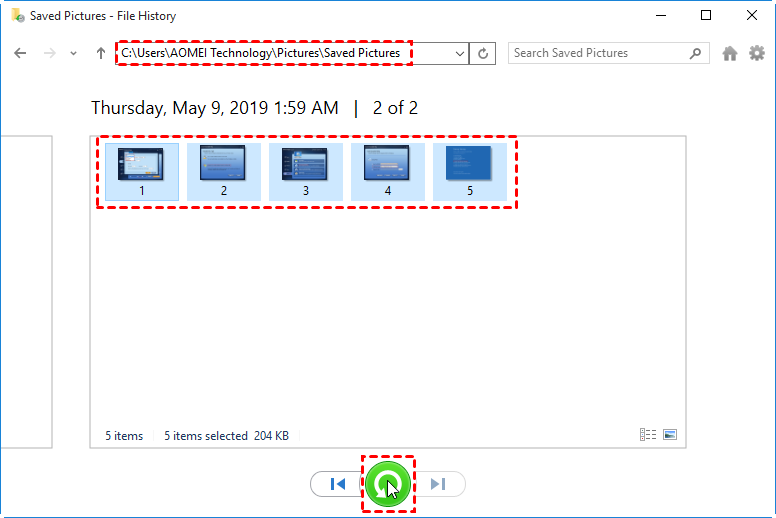
Note: If Windows detects a naming conflict with the items you're trying to restore, you'll be prompted to choose how to handle the conflict. You can either replace the files in the destination folder, skip the files, or let Windows decide for each file individually.
5. Close File History.
Solution 2: recover permanently deleted pictures using photo recovery software
If you haven't got a backup, you will have no choice but to seek help from professional photo recovery software to get your permanently deleted pictures/photos back.
Deep Data Recovery is a powerful tool that can recover various file types, including photos, videos, audio, Office documents, folders, emails, and more, from Windows 11, 10, 8, 7, and Windows Server computers.
To recover permanently deleted photos from hard drives, follow these steps using Deep Data Recovery.
Step 1. Install and run Deep Data Recovery on your PC. Select the partition that includes your needed pictures before they were lost. Then click Start Scan.

Step 2. Search your desired image files or wait to see all the deleted and Raw files after Quick Scan and Deep Scan.

Step 3. Go to the Deleted Files/Raw files folder, click Recover to restore selected pictures, and save them in a new path.

Best picture/photo backup software for free🔥
It's often more efficient and cost-effective to recover deleted photos from a laptop with a backup, highlighting the importance of regular backups. Additionally, I recommend using a more advanced backup utility, such as Qiling Disk Master Standard, for enhanced protection.
This freeware offers four types of backup: System/Disk/Partition/File Backup, meeting different needs. It also features scheduling, allowing daily, weekly, or monthly backup tasks. Additionally, incremental and differential backups can be done to improve efficiency. The best part? It's completely free! Just download it to give it a try.
To backup your pictures/photos, you can:
1. To avoid losing important pictures or photos, create a backup of your files by saving them as an image file. This way, if you accidentally delete them, you can restore them from the backup image.

2. Perform file sync to copy files to another location, and if lost, copy them back directly from the synced copy.

To sum up
You can easily recover permanently deleted pictures from your laptop using either a backup or a specialized data recovery utility. Qiling Disk Master, for example, can not only be used as photo backup software but also as a free SSD migration tool, making it a handy tool to have. Don't hesitate to try it out!
Related Articles
- How to Recover Deleted Files from HP Laptop in Simple Ways?
Learn how to Recover Deleted Files from HP Laptop in Simple Ways with clear steps, key checks, and practical tips. - How to Recover Deleted Files in Windows 7 without Backups?
Learn how to Recover Deleted Files in Windows 7 without Backups with clear steps, key checks, and practical tips. - Computer Crashed: How to Recover Files
Recovering files can be the only way to get your data back or greatly reduce loss after computer crashed. Please try all the possible ways. In addition, you still need to protect computer from crash by creating a disk backup immediately. - Backup Active Directory on Server 2019 – Learn Top 2 Ways Here
Backing up Active Directory 2019 can be achieved in two simple ways. Windows Server Backup can be used to create a backup of the directory, or a third-party tool can be utilized to complete the task. - P2V Windows 10 | The Simplest Way to Convert Physical to Virtual
P2V Windows 10 has plenty of benefits. But if you're not computer savvy, the process may seem complicated and confusing. Therefore, I'd like to provide a very easy solution to convert physical machine to virtual machine. - Can I Use Recimg Windows 10 to Create a Custom Recovery Image
This guide explains Can I Use Recimg Windows 10 to Create a Custom Recovery Image with clear steps, key checks, and practical tips.
Products
Articles & Tutorials
- Data Recovery
- Data Backup
- File Recovery
- File Backup
- File synchronize
- System Backup and Restore
- Disk and Partition Clone
- Technical articles
- Disk Master Help
- Windows Deleted File and Disk Recovery Tutorials
- Windows File and Data Recovery Tutorials
- More Windows Tutorials for Install, Security, Files, and PC Tips
- Windows Boot, Repair, and Recovery Environment Tutorials
- Windows Backup Tutorials
- Windows Restore Tutorials
- Windows Clone and Migration Tutorials
- Windows Server Backup, Recovery, and Management Tutorials
- Windows Disk, Partition, and Storage Management Tutorials