Backup Active Directory on Server 2019 – Learn Top 2 Ways Here
Importance to backup Active Directory 2019
Active Directory is a critical component in any Windows network, and when it crashes, the entire organization comes to a halt. Without a protection or backup strategy, the risk of data loss and downtime is significant, putting the entire organization in danger.
This article provides a guide to Active Directory backup best practices, allowing you to restore your Server 2019 AD in case of a failure, such as a non-functioning Windows Server 2019 task scheduler.
Active Directory backup best practices – 2 ways
To enable Windows Server 2019 Active Directory backup, you have two easy options. Firstly, you can use the built-in Windows Server Backup tool to create a backup of your Active Directory database. Alternatively, you can use a third-party backup software that supports Active Directory backup, such as Qiling Disk Master. This methods allow you to schedule regular backups and ensure the integrity of your Active Directory environment.
- Way 1. Backup Windows Server 2019 AD via Windows Server Backup
- Way 2. Backup Windows Server 2019 AD via Qiling Disk Master Server
Way 1. Backup Windows Server 2019 AD via Windows Server Backup
Windows Server Backup (WSB) is a built-in backup and recovery tool for Windows Server environments, replacing NTBackup in Windows Server 2008. With WSB, you can back up the entire server, specific volumes, or the system state, providing a flexible and convenient way to protect your server data.
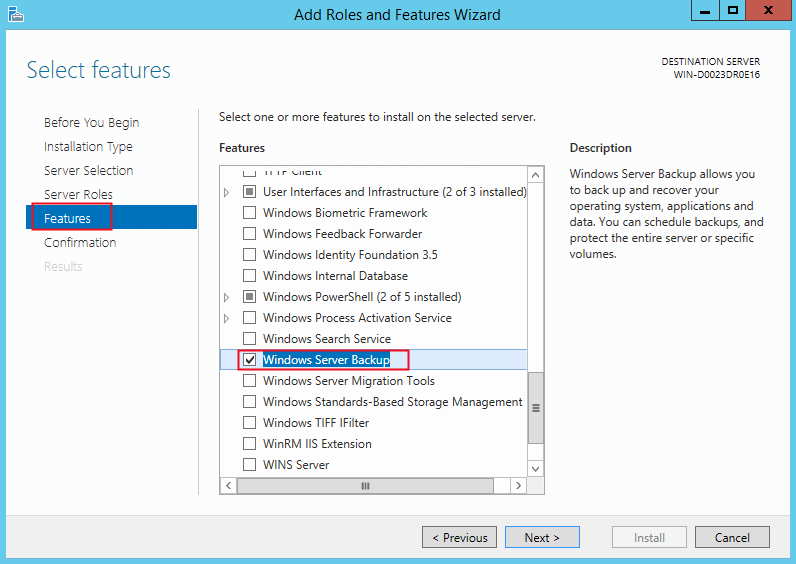
1. To install Windows Server Backup on your selected computer, go to Server Manager, click on Dashboard, then Manage, and finally Add Roles and Features. From there, follow the wizards to install the necessary components.
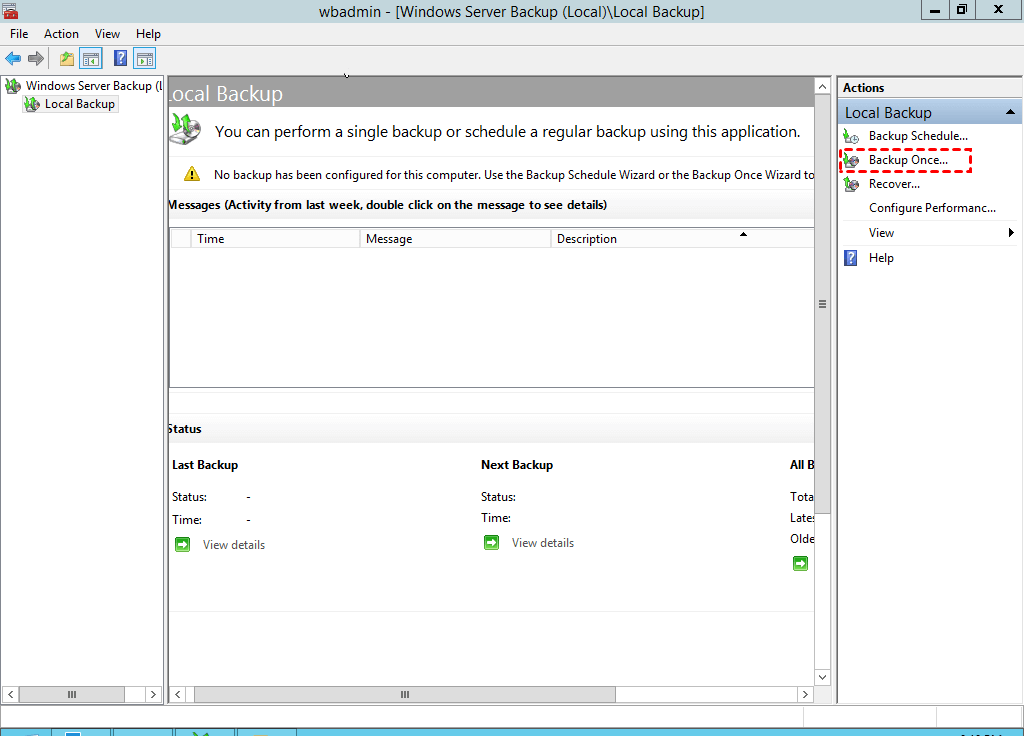
2. To backup your Server, go to Server Manager > Tools > Windows Server Backup, right-click Backup Once under the Local Backup tab.
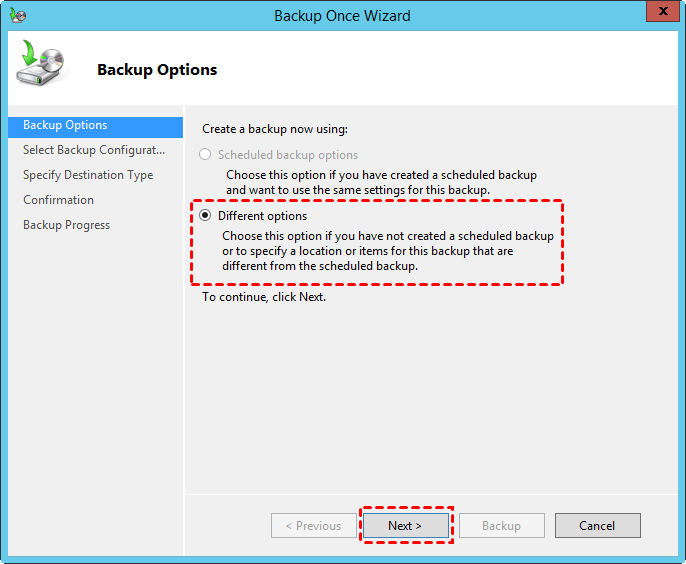
3. Choose the backup options: Different options, and hit Next.
4. To select the custom type for creating an image backup for Windows Server, choose the data you want to create an image backup for.
5. Click Add Items, choose System state to create system image backup for Windows Server 2019.
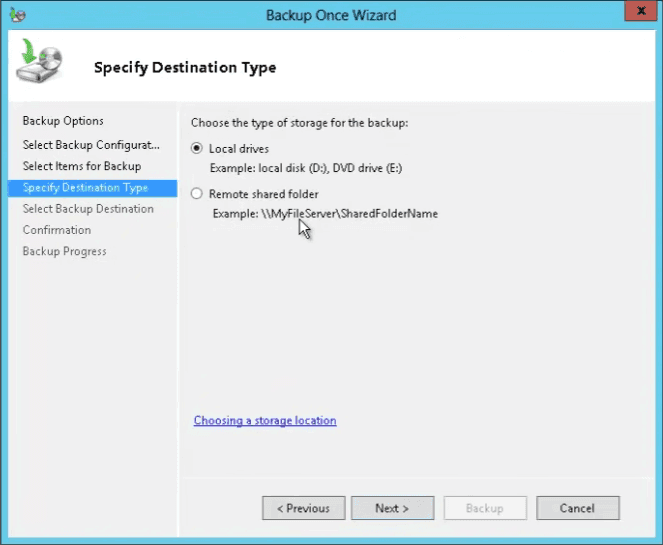
6. Now choose a backup destination: select Local drives and press Next.
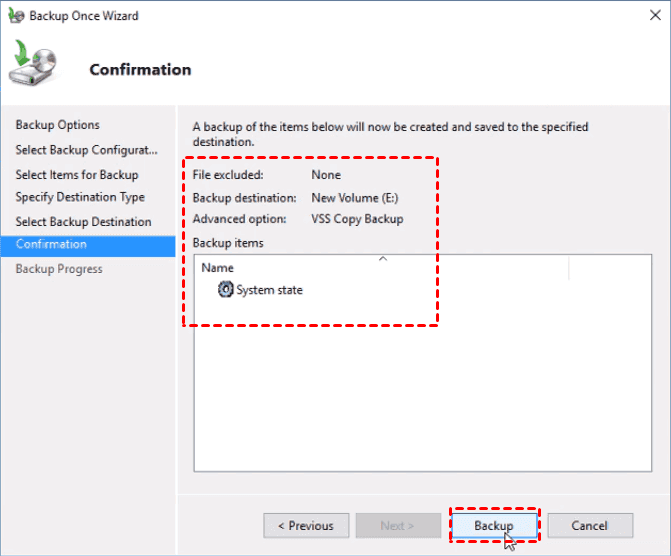
7. Preview the settings and click Backup to backup Windows Server.
Due to the complexity and restrictions of Windows Server Backup, it's recommended to try alternative backup software, such as Qiling Disk Master Server, which offers a more efficient and user-friendly experience.
Way 2. Backup Windows Server 2019 AD via Qiling Disk Master Server
Due to the limitations of Windows Server Backup, a third-party backup software like Qiling Disk Master Server can be a suitable alternative. This specialized backup software for servers offers multiple backup features to meet all your demands concerning server backups.
✚ You can back up any type of data, such as files, folders, partitions, disks, or even entire systems, to various destinations like local disks, external hard drives, USB drives, CDs/DVDs, network shares, NAS, or cloud storage.
✚ Qiling Disk Master allows you to schedule daily, weekly, monthly, or event-based backup tasks, with options for full, differential, or incremental backups, unlike Windows Server Backup.
✚ The tool provides a range of functionalities, including the ability to create a Windows Server 2019 bootable USB, and also offers a Qiling PXE Boot Tool that enables booting multiple computers from a network. This feature can be particularly useful for IT professionals and system administrators who need to deploy software or updates to multiple machines simultaneously.
✚ It supports various Windows operating systems, including Windows 11, 10, 8.1, 8, 7, Vista, XP, and Windows Server 2022, 2019, 2016, 2012, 2008, and 2003.
To try Qiling Disk Master Server, simply click the button below to download a 30-day free trial. This will allow you to experience the features and functionality of the software firsthand.
Step 1. Install and launch Qiling Disk Master, then click on Backup and select System Backup.

Step 2. The system partition(s) are automatically selected, and you need to choose a destination path to store the server backup image.

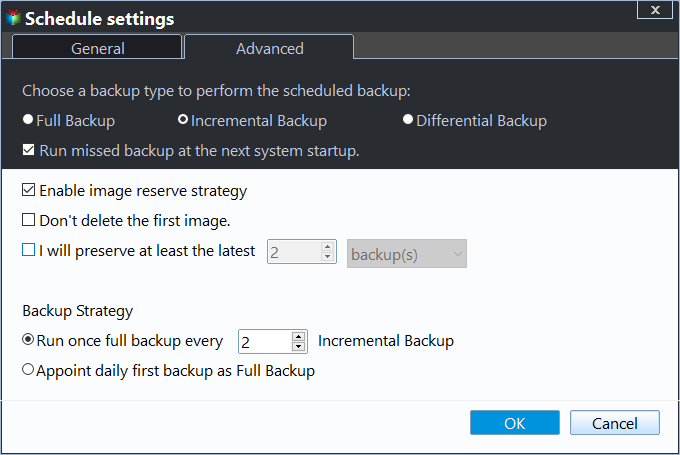
Step 3. To schedule a system backup, click the "Schedule Backup" button at the bottom left and select "Enable Schedule Backup" to set the backup frequency, such as daily, weekly, or monthly, or trigger it by events like USB plug-in.

Step 4. In the Schedule Backup window, you can choose to run full, incremental, or differential backups, and also enable automatic backup cleanup to free up disk space by removing old backups.
Step 5. Confirm the operations and click Proceed.

FAQs about backup Active Directory 2019
1. Windows Server Backup has limitations, including only being able to select entire volumes for backup, not individual files and folders, and only backing up local volumes, not network shares. The Backup Schedule Wizard offers limited options, only allowing for daily or more frequent backups, and does not have the ability to automatically delete old backups, which can consume significant storage space.
To restore Active Directory from a Windows Server Backup, open Windows Server Backup, select "Recover", choose "This Server" for the backup location, and select the desired backup. Then, follow the on-screen instructions to complete the restore process. Once the restore is complete, the Active Directory will be restored to its state at the time of the backup.
A server backup includes all necessary components to protect Active Directory and restore it, covering the raw database, DNS information, SYSVOL volume/share, Group Policy, and its environment.
To sum up
You can use either Windows Server Backup or Qiling Disk Master Server to backup Active Directory 2019, but due to WSB's limitations, Qiling Disk Master is a more flexible and user-friendly option that can also help resolve Windows Server 2019 slow file sharing issues. Its powerful features make it worth trying.
Related Articles
- How to Use Windows Server Backup for Active Directory Backup
Backing up Active Directory is important for Windows Server users. Learn how to backup Active Directory 2008/2012/2016 efficiently in this article. - How to Backup Files in Windows Server 2019 Easily (2 Ways)
Learn how to Backup Files in Windows Server 2019 Easily (2 Ways) with clear steps, key checks, and practical tips. - File History vs. Backup and Restore | Which Is Better?
Windows has two inbuilt backup and recovery utilities: File History and Backup. Both tools offer benefits and drawbacks, and a comparison between them is warranted. - HiDrive vs Google Drive: Ultimate Comparison in 2024🏆
The debate between HiDrive and Google Drive ultimately comes down to a single choice. To help you decide, we've thoroughly compared both options in this post, weighing their features and benefits to determine which one is better suited to your needs. - Restore or Reset NTFS Permissions in Windows 10 Effectively (5 Ways)
This article provides 5 effective ways to backup and restore NTFS permissions, reset NTFS permission to default, or achieve similar tasks, offering helpful solutions for users who need to manage NTFS permissions. - How to Solve System Restore Points Gone in Windows 10?
If you see no system recovery options available when you boot into Recovery Mode, you can find a solution to fix it.
Products
Articles & Tutorials
- Data Recovery
- Data Backup
- File Recovery
- File Backup
- File synchronize
- System Backup and Restore
- Disk and Partition Clone
- Technical articles
- Disk Master Help
- Windows Deleted File and Disk Recovery Tutorials
- Windows File and Data Recovery Tutorials
- More Windows Tutorials for Install, Security, Files, and PC Tips
- Windows Boot, Repair, and Recovery Environment Tutorials
- Windows Backup Tutorials
- Windows Restore Tutorials
- Windows Clone and Migration Tutorials
- Windows Server Backup, Recovery, and Management Tutorials
- Windows Disk, Partition, and Storage Management Tutorials