How to Use Windows Server Backup for Active Directory Backup
Quick Navigation:
- The necessity of backing up Active Directory
- Backup Active Directory with Windows Server Backup
- Easier way to backup and restore Active Directory
- Conclusion
The necessity of backing up Active Directory
Active Directory (AD) is a directory service developed by Microsoft for Windows domain networks, included in most Windows Server operating systems as a set of processes and services. It allows users to manage permissions and access to networked resources.
It is necessary to backup Active Directory 2008/2012/2016 because:
- To avoid accidentally deleting a user account or Organizational Unit (OU) in Active Directory, it's essential to have a backup of AD. This will enable you to recover those objects easily, should you make a mistake.
- The Active Directory database may become corrupted due to server updates, but having a backup allows you to restore it to its normal state.
Choosing the right Active Directory backup tools is crucial for ensuring business continuity and minimizing downtime in case of a disaster. With numerous options available, it's essential to select a tool that meets your organization's specific needs and requirements. Qiling Disk Master Server offers comprehensive backup and recovery capabilities for Active Directory, along with cloud-based services like Azure Backup and AWS Backup.
Backup Active Directory with Windows Server Backup
Windows Server Backup (WSB) is a backup and recovery tool introduced in Windows Server 2008. To back up Active Directory (AD), a full server backup is typically performed, and WSB needs to be installed separately before doing so, as it is not installed by default, such as in Windows Server 2012 R2.
▶ Install Windows Server Backup
1. Open Server Manager and click Add roles and features.
2. On the Add Roles and Features Wizard, click Next.
3. On the Installation Type screen, leave the default Role-based or feature-based installation and click Next.
4. On the Server Selection screen, click Next. On the Server Roles screen, click Next.
5. On the Features screen, select Windows Server Backup and click Next.
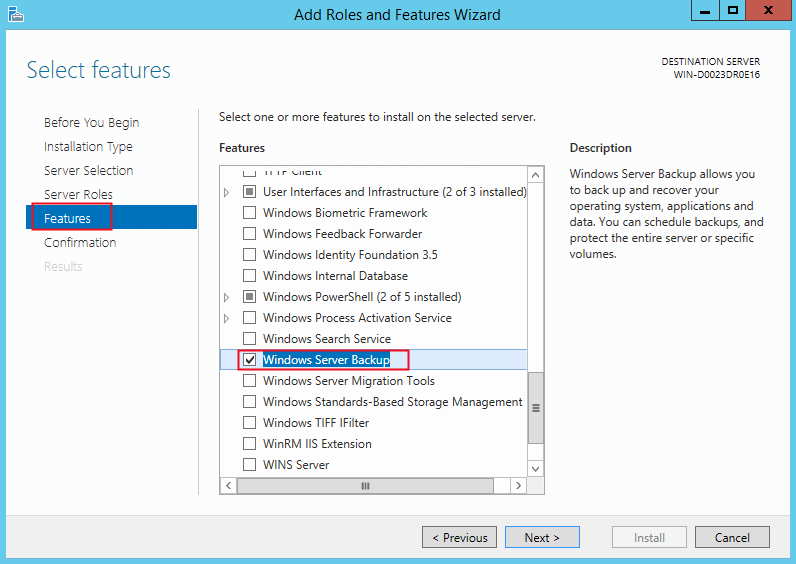
6. Click Install. Wait for the installation process to be completed. Click Close to exit the Add Roles and Features Wizard.
▶ Backup Active Directory with Windows Server Backup
1. Open Server Manager, click Tools in the upper-right column and select Windows Server Backup.
2. Click Local Backup. On the Action menu, click Backup once.
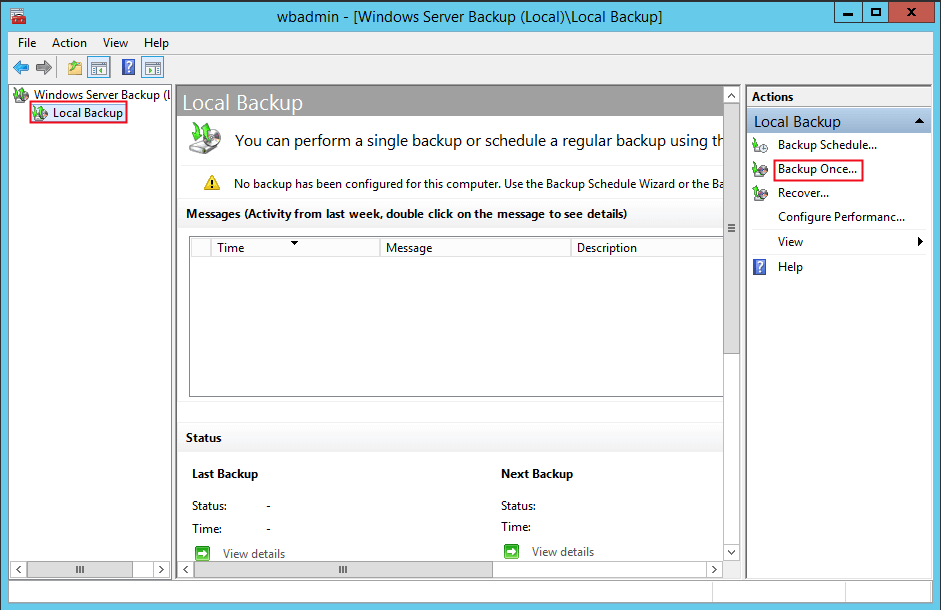
3. In the Backup Once Wizard, click Different options on the Backup options page, then click Next.
4. On the "Select backup configuration" page, click "Full server (recommended)" and then click "Next".
5. On the "Specify destination type" page, click "Local drives" or "Remote shared folder", and then click "Next".
6. On the "Select Backup Destination" page, choose the backup location. If you selected a local drive, choose a local drive; if you selected a remote share, choose a network share.
Notes:
▪ If you get an error stating that no backup storage location is available, you'll need to exclude one of the selected volumes or add a new volume or remote share.
▪ If you receive a warning that the selected volume is also included in the list of items to backup, you can choose to remove it by clicking OK.
7. On the confirmation screen, click Backup, then Close to exit the Backup Once Wizard after the backup process has completed.
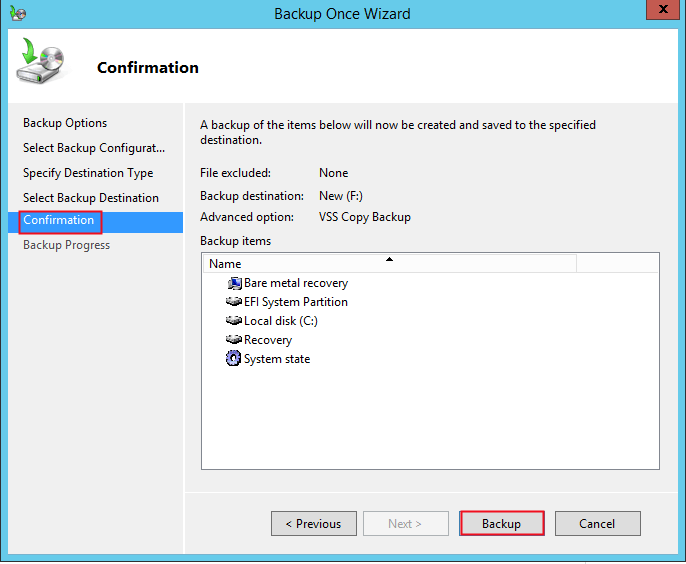
8. Close Windows Server Backup.
When backing up Active Directory with Windows Server Backup, you may need to choose a different recovery method if issues arise. If the problem is related to the system, a non-authoritative restoration is required. This involves performing a normal system-state restoration and then booting the server.
If you've inadvertently deleted an object in Active Directory, an authoritative restore is the way to go. To do this, follow the same steps as a non-authoritative restore, but before rebooting, run the Ntdsutil command with the necessary options. This will ensure the correct restoration of the deleted object.
You can use the built-in Windows Server Backup (WSB) feature to create a backup of your Active Directory, but it's indeed complicated and error-prone. A simpler way to backup and restore Active Directory is to use the Windows Server Backup feature in conjunction with the Active Directory Recycle Bin. The Recycle Bin allows you to recover deleted objects, and you can use WSB to create a backup of your Active Directory database, which can be used to restore the database in case of a disaster. This approach is more straightforward and less error-prone than using WSB alone.
Easier way to backup and restore Active Directory
Qiling Disk Master Server, a specialized backup software for servers, can help you follow best practices for backing up Active Directory.
- The software supports both Windows PC and Windows Server operating systems, covering a wide range of versions including Windows 11/10/8.1/8/7/Vista/XP for PCs and Windows Server 2022/2019/2016/2012/2008/2003 and others for servers.
- The software provides four types of backup: System/Disk/Partition/File Backup, allowing users to backup the full server through system backup and then restore Active Directory via system restore.
- To recover selective files in AD, you can mount the system image to a virtual partition using the "Explore Image" feature, and then retrieve the needed files from the virtual partition.
To backup Active Directory via Qiling Disk Master Server, follow these steps:
Step 1. Download the free trial of Qiling Disk Master Server and follow the installation wizard to finish the installation process, which will be completed in a short time.
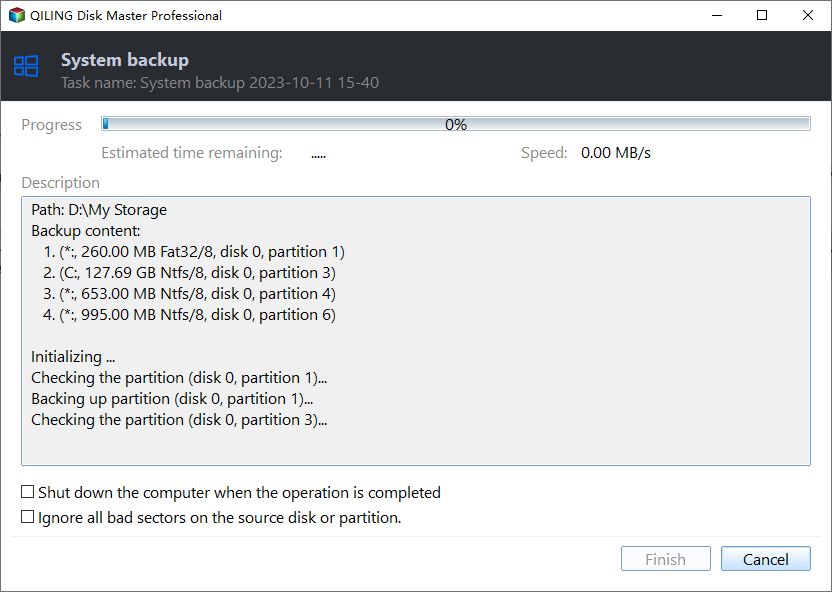
Step 2. Launch the Qiling Disk Master Server, then click on "Backup" and choose "System Backup" from the options.

Step 3. The system partition(s) has been automatically selected. Please choose a location to save the backup files.

Step 4. Confirm the operation and click "Proceed".
💛 Helpful tips:
There are more backup settings you can use to make your backup hassle-free.
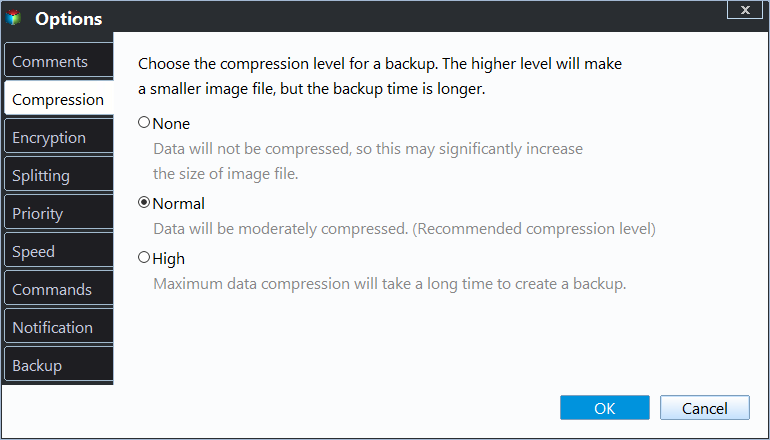
>> Options: You can customize your backups by encrypting, compressing, and splitting them based on your specific needs. This allows you to tailor the backup process to your requirements, ensuring that your data is protected and manageable.
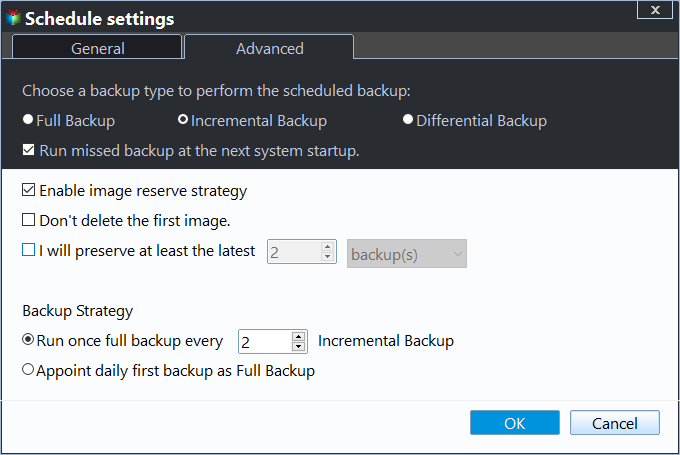
>> Schedule Backup: You can set the backup task to run automatically at fixed intervals, such as daily, weekly, or monthly.

>> Backup SchemeYou can select the backup method (full, incremental, or differential) and also set up automatic deletion of old image files to free up disk space for new backups.
Conclusion
You can use Windows Server Backup for Active Directory backup, but Qiling Disk Master Server provides an easier way with its user-friendly interface and simple steps. It can also help with issues like Windows Server Backup not deleting old backups and running Windows Server 2016 repair. Try the free trial of Qiling Disk Master Server!
Related Articles
- Create System State Backup for Windows Server 2012
- Use Wbadmin Start Systemstatebackup to Backup Your Computer
- Alternative Way to Create Restore Point in Windows Server 2008 (R2)
- How to Create System Repair Disk on USB for Windows 7/8/10?
Learn the key steps, checks, and practical tips for this related guide. - How to Erase M.2 SSD on Windows 10/11 – Securely and Completely
This article will tell you how to erase M.2 SSD in the safest way possible. The erasure software can provide you with data protection and prevent any data leakage incidents from occurring. - How to Factory Reset a Laptop in Windows 10/8/7?
Learn how to Factory Reset a Laptop in Windows 10/8/7 with clear steps, key checks, and practical tips.
Products
Articles & Tutorials
- Data Recovery
- Data Backup
- File Recovery
- File Backup
- File synchronize
- System Backup and Restore
- Disk and Partition Clone
- Technical articles
- Disk Master Help
- Windows Deleted File and Disk Recovery Tutorials
- Windows File and Data Recovery Tutorials
- More Windows Tutorials for Install, Security, Files, and PC Tips
- Windows Boot, Repair, and Recovery Environment Tutorials
- Windows Backup Tutorials
- Windows Restore Tutorials
- Windows Clone and Migration Tutorials
- Windows Server Backup, Recovery, and Management Tutorials
- Windows Disk, Partition, and Storage Management Tutorials