Computer Crashed? How to Recover Files Is Not A Problem
Quick Navigation:
- What does computer crash really mean?
- Computer crashed, how to recover files: when your computer slightly crash
- Computer crashed, how do I recover files: When your computer completely crash
- Protect computer from crash
- The way forward
What does computer crash really mean?
A system crash, also known as a crash, is a serious computer failure where the operating system or a program stops working unexpectedly, often resulting in a complete system shutdown or unbootability.
For computer programs like Microsoft Office, issues can arise from errors within the program itself or conflicts with other software. The program may suddenly freeze, and after a brief pause, it may prompt you to either wait or exit the program.
If a program is essential to the operating system, such as the registry, the computer system may crash or freeze, resulting in a kernel panic or fatal system error.
Then, why computer crashes suddenly? It's likely to be:
1. Corrupted system registry files.
2. Disorganized files.
3. Malicious software.
4. Too little available memory.
5. Device driver.
6. Power surges.
7. Hardware problem like overheating.
Computer crashed, how to recover files: when your computer slightly crash
When you say your computer crashes, it may not have completely shut down. In this case, you can still boot it up from an installation disc or recovery drive and copy files from the hard drive in the crashed computer.
If your hard drive is damaged, you can try to recover data by disconnecting it and connecting it to another computer via a USB to SATA cable, or by installing it internally as a second drive in a desktop computer.
If your computer is experiencing issues, you can try to recover it without losing your data. One method is to boot your computer from a USB drive or CD/DVD with a recovery operating system, such as Windows Recovery Environment or a Linux live CD.
Way 1: Recover files from dead computer: Use Last known good configuration option
The last known good configuration is an option on the Boot Menu that allows you to start your computer with the previously working settings, which won't delete any data.
Step 1. To access the Advanced Boot Options window, start your computer, press the F8 key repeatedly before the Windows logo appears, and select the desired option from the menu.
Step 2. Select Last Known Good Configuration option and press Enter.
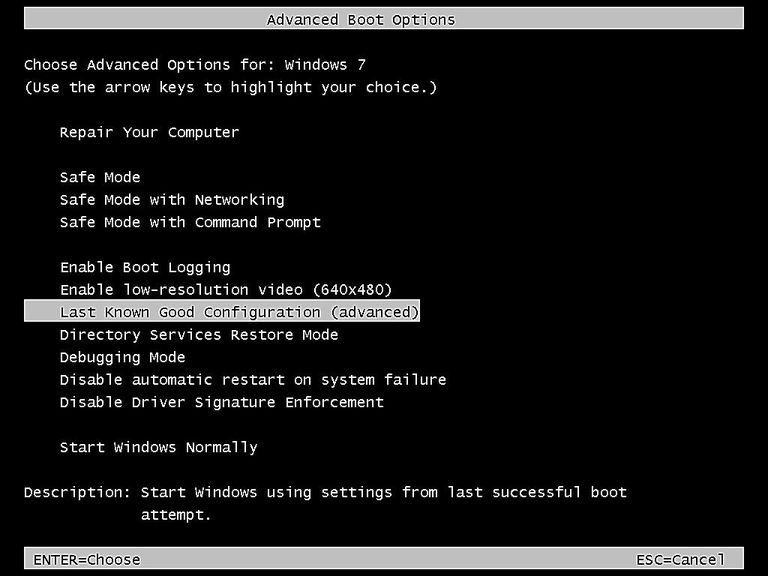
Step 3. Wait for your computer to start and check if the problem is solved.
Way 2: Recover files after computer crash using safe mode
Safe mode is a diagnostic mode of a computer operating system, used to troubleshoot and fix problems, including rogue security software, by loading only essential system files and drivers, and disabling non-essential ones. It's a good starting point when your computer is experiencing issues.
Step 1. Enter the Advanced Boot Options window, select Safe Mode.
Step 2. Shutdown and restart the computer, then see if the problem is solved.
Way 3: Recover files from crashed computer by system restore in safe mode
System restore can restore your computer to an early date, including Windows files and settings, and is particularly useful if your computer crashes due to bad software or drivers, and can be done in safe mode to avoid problems in normal mode.
Step 1. To start your computer in safe mode, press the F8 key repeatedly. Then, navigate to the Start menu, select "All Programs," followed by "Accessories," then "System Tools," and finally "System Restore" to access the system restore window.
Step 2. After identifying the restore point, choose the recommended restore option and click Next. If the recommended restore point at that time is not working properly, you can still select Choose a different restore point.
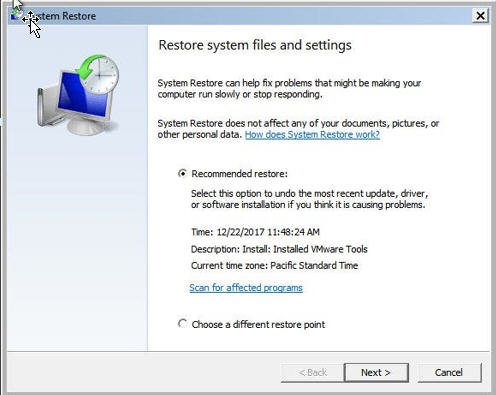
Step 3. Confirm the settings are correct and click Finish.
Computer crashed, how do I recover files: When your computer completely crash
If your computer completely crashes, you may be able to recover your files if only the operating system is damaged. You can try copying files from the crashed hard drive to a different computer, which can help you salvage your data.
To recover lost data, you can use the help of data recovery software like Deep Data Recovery, a free and open-source utility that can recover lost data storage partitions and/or make non-booting disks bootable again, typically caused by faulty software, certain types of viruses, or human error.
In addition, if you create a system image in advance, you still can choose to restore system image to new hard drive and then use it to boot your computer. I'll introduce both of them in details later.
Way 1: Recover files from crashed computer using Deep Data Recovery
Here you can use professional data recovery software- Deep Data Recovery to recover files after Windows crashed. You'll need a USB cable and a working computer.
Step 1. Take out your hard drive and then connect it to a working computer via USB cable.
Step 2. Download the reliable data recovery software Deep Data Recovery, and open it.
- Note:✎...
- To recover files from a hard drive, you must install data recovery software on a separate device, not the drive itself, to avoid overwriting the data.
Step 3. Select the partition you want to scan and click "Start Scan".

Step 4. The software performs a fast and deep scan of your drive, allowing you to preview recoverable files after the scan.

Step 5. Search for specific file names, filter files by size, type, and date modified, select the desired files, and click "Recover" to retrieve them.

With the help of free data recovery software, you can restore your files, but most of these tools have limitations and may not retrieve all types of lost data unless you have comprehensive software.
Using comprehensive data recovery software can be expensive and requires a professional's help to avoid causing further media damage or permanent data loss.
Considering the limitations, users may want to restore files from a backup, which would include all files, including any changes made later if a scheduled task was set for them.
If you're using Qiling Disk Master, you can follow the recovery process outlined next. If you use a different backup software or a built-in tool, you can search online for a step-by-step guide.
Way 2: Restore files from backup using Qiling Disk Master Standard
Qiling Disk Master Stanard is a free backup software for Windows that allows users to backup important files or folders, as well as the entire system, disk, or partition, to prevent data loss.
- To keep track of changes better, it's suggested to create a schedule for automatic backups, which can be set to daily, weekly, or monthly.
- This software allows you to create backups of your files and restore them if needed, providing a safety net in case of unexpected events like computer crashes.
- To restore the entire computer, you need a system backup or disk backup, and also create a bootable USB on a working computer to boot the failing one.
Without further ado, let's start to restore files.
Step 1. Insert the hard drive containing the file backup into a working computer, ensuring it's detected. Next, download and install Qiling Disk Master Standard, then launch the program. Click on "Restore" and select the "Select Task" option.

Step 2. In the Restore window, select file backup image and then click Next.
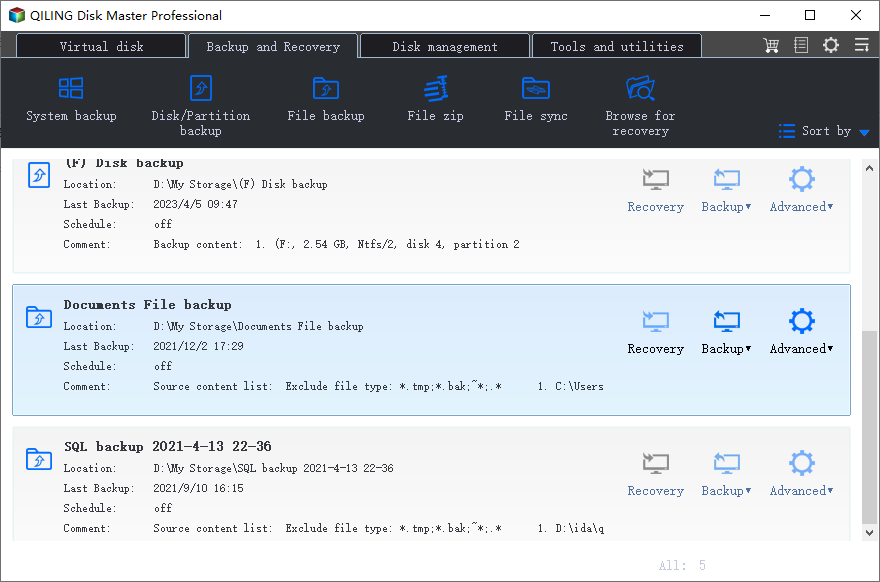
Step 3. In the Image Information window, select the desired folders at the left panel and specific files at the right side, if necessary, and restore files from previous backups by clicking the inverted triangle at the upper right corner. Click Next to proceed.
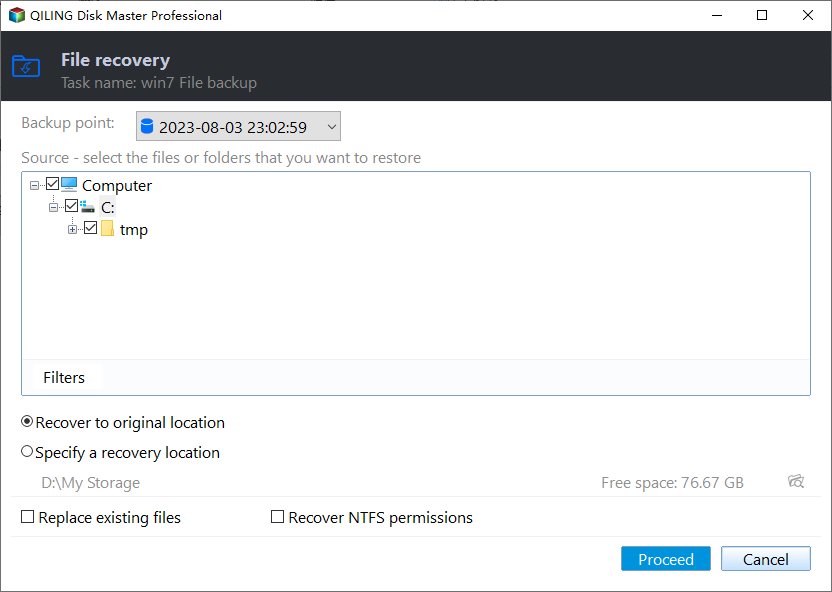
Step 4. Select a path to save your files. If it's an external hard drive, please connect it first.
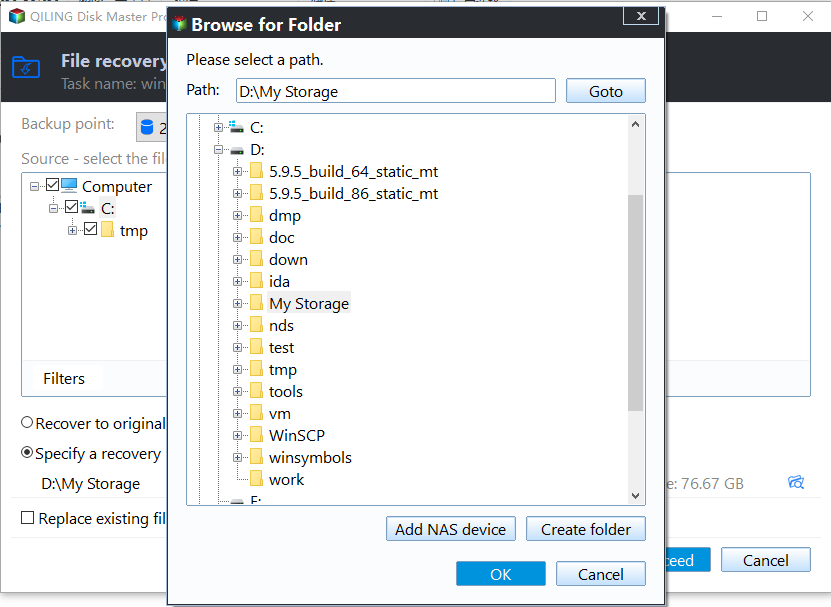
Step 5. Click Proceed to restore files from backup.
In addition to the previous methods, you can also restore files using the Explore Image feature under the Tools tab, which will save all files to their original location or allow you to select a new location to store them.
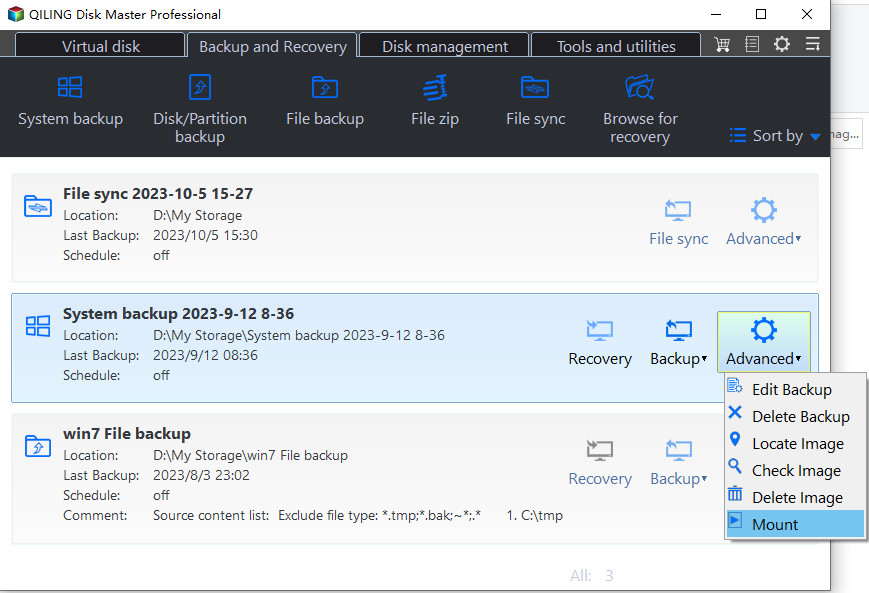
When you don't have a file backup, a system backup is really useful. The system backup will mount all partitions on the system image and assign a drive letter to each one. This allows you to view them in Windows Explorer and manually copy any files you want to another location.
Protect computer from crash
To protect your data or operating system, it's essential to create a backup. If you don't have a file backup, please create one immediately by following the necessary steps. Additionally, you can also create a system image backup to ensure your entire operating system is safely stored. This will give you peace of mind and prevent potential data loss in case of a system crash or other issues.complete system backup or entire disk backup with corresponding backup solutions.
Step 1. Prepare an external disk for data storage. Then, launch Qiling Disk Master Standard, select Backup and File Backup in order.

Step 2. To initiate a backup, click on "Files" or "Folder" to choose the files or folders you want to backup. Next, select the prepared disk as the backup destination.

Step 3. You will see options such as Options, Schedule, and Schedule. The core of continuous data protection is Schedule, which you should click and select daily, weekly, or monthly backup, as well as incremental backup.
Options: You can make a comment, enable email notification, set command, enable compression level, and more.
Schedule Backup: The event triggers and USB plug-in features are only available on the professional or higher version of Qiling Disk Master, and may require an upgrade to access.
Backup SchemeThis feature allows you to set the backup method to either incremental or differential backup, and also schedule the deletion of old backups that are older than a specified number of days.

Step 4. Click Proceed after your confirmation. The selected files and folders will be backed up at a regular basis.
Other helpful tips to avoid computer crash
To minimize the risk of a computer crash or system crash, you can take prevention measures ahead of time, such as backing up your data regularly, updating your operating system and software to the latest versions, and running virus scans and malware removal tools to protect against cyber threats. This proactive approach helps prevent data loss and ensures system stability, allowing you to work efficiently and avoid costly downtime.
1. Delete all unused files, unnecessary files or cookies files regularly.
2. Defragment your system on a regualr basis.
3. Do not run too many programs at the same time.
4. Make sure you have enough disk space.
5. Keep your virus protection software up-to-date.
6. Upgrade your operating system and patches to the latest version.
7. Always use a surge protector.
8. Do not open emails or files from strangers.
The way forward
Computer crashes can be devastating, especially when valuable files are lost. While recovery methods can help retrieve some data, they may not be enough to safeguard your files or operating system.
To safeguard your data and operating system, create a schedule for backing up your files and system. This way, even if your computer crashes, you'll have the most recent backup, including data and programs, before the incident. Qiling Disk Master is a good option, as it's user-friendly and packed with features.
For IT maintenance and support engineers, Qiling Disk Master Technician or TechPlus can be used, allowing the software to be copied to a removable device, enabling direct execution on target computers without installation, making it convenient for repairing computers for others, such as friends or customers.
Related Articles
- How to Recover Files from a Crashed Hard Drive in Windows 7/8/10
You will learn how to recover files from a crashed hard drive quickly using hard drive data recovery software - Qiling Disk Master Standard or TextDisk. - Solved: How to Recover Data from Corrupted Windows OS
This guide explains Solved: How to Recover Data from Corrupted Windows OS with clear steps, key checks, and practical tips. - How to Recover Permanently Deleted Pictures from Laptop Easily
Learn how to Recover Permanently Deleted Pictures from Laptop Easily with clear steps, key checks, and practical tips. - How Do I Backup My Mods Skyrim?
This guide explains How Do I Backup My Mods Skyrim with clear steps, key checks, and practical tips. - All the Acer eRecovery Management Problems: How to Fix It Easily
You will learn the potential causes of Acer eRecovery Management problems and 5 solutions to fix them easily. And you can learn an overall solution to fix them once and for all. - Acer eRecovery Management Restore Failed Solutions
This essay will gather several common situations with acer erecovery management restore failed problem and give some solutions. - PC Crashing Randomly in Windows 10
Fix random Windows 10 crashes by checking hardware, drivers, updates, disk health, memory, heat, and backups.
Products
Articles & Tutorials
- Data Recovery
- Data Backup
- File Recovery
- File Backup
- File synchronize
- System Backup and Restore
- Disk and Partition Clone
- Technical articles
- Disk Master Help
- Windows Deleted File and Disk Recovery Tutorials
- Windows File and Data Recovery Tutorials
- More Windows Tutorials for Install, Security, Files, and PC Tips
- Windows Boot, Repair, and Recovery Environment Tutorials
- Windows Backup Tutorials
- Windows Restore Tutorials
- Windows Clone and Migration Tutorials
- Windows Server Backup, Recovery, and Management Tutorials
- Windows Disk, Partition, and Storage Management Tutorials