How to Restore Lenovo G50 to Factory Settings (2 Ways)
Why Rebuild Lenovo G50 to Factory Settings
Accidents can happen unexpectedly, leading to system crashes and data loss. If you're unable to boot into Windows, a factory reset may be necessary. Fortunately, software like Lenovo OneKey Recovery or third-party tools like Qiling Disk Master can provide a solution.
Then, how to format Lenovo G50-70 laptop to its default settings? Keep reading below and learn 2 useful methods.
#1: Factory Reset Lenovo G50 via Lenovo OneKey Recovery
Before starting, move important data from the C drive to a safe location or back it up, as everything on the C drive will be overwritten. If the system can't boot, you'll need a bootable USB to access it.
1. Open Lenovo OneKey Recovery.
If the computer is open, select "System Recovery" in Lenovo OneKey Recovery to reboot into the boot menu.
If you're unable to enter the BIOS settings, try powering on your computer and repeatedly pressing the F12 key before the operating system starts. Alternatively, press the onekey recovery button (usually located next to the power port) when the system is booting up. When the boot menu appears, select "System Recovery" and press Enter to access a recovery environment where you can restore your system to its factory settings.
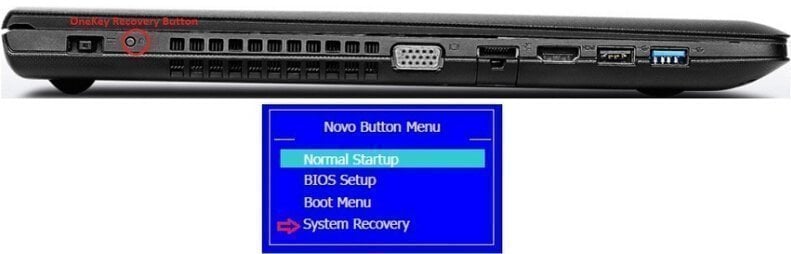
Note: If you've set a password for OneKey Recovery, you'll need to enter the password to access the OneKey Recovery environment. If you incorrectly enter the password three times, it will give up and attempt to boot into your normal operating system.
2. Select "Restore from initial backup" in Lenovo OneKey Recovery step 1.

3. In Lenovo OneKey Recovery step 2, confirm the operation and click "Start" to initiate the process of restoring the Lenovo g50 to its factory settings.
Tips:
- Keep power supply during this operation, or restoration will fail.
- After performing a hard reset on your Lenovo G50, you'll be prompted to set up your language and regional options, create a user account and password, and complete other initial setup steps. Please follow the on-screen instructions to complete these tasks.
#2: Restore Lenovo G50 to Factory Settings with Powerful Alternative
Besides Lenovo OneKey Recovery, you can also use Qiling Disk Master to reset Lenovo g50 laptop to factory settings, provided you have a recovery partition created at the first time or later. This allows you to restore everything, including OS, drivers, system reserved partition, EFI system partition, installed programs, and data on the system partition, if you have a backup created before your computer stopped working.
To restore Lenovo G50 to its factory settings, you can access the software directly, or use F11 or A key, or boot menu at system startup. You can then choose to restore the system to its original location or another location, depending on where you backed it up to.
1. In Qiling Disk Master main interface, choose "OneKey System Recovery".

2. If you back up system to Qiling Disk Master partition (on system disk), select the first option; otherwise, select the second option. For example, if you back up system to Qiling Disk Master partition (on system disk), select the first option.

3. Confirm the operation and click "Start Restore" to reset Lenovo G50 laptop to factory settings.

Compare and Conclusion
Lenovo OneKey Recovery and Qiling Disk Master are both excellent programs to restore a Lenovo g50 to its factory settings, but the choice between them depends on the situation. If you need to restore your laptop to its original state, Lenovo OneKey Recovery is the better option. However, if you're looking for a more comprehensive disk management tool, Qiling Disk Master is a better choice.
- To create a Lenovo OneKey Recovery disk, select Lenovo OneKey Recovery for Windows 7 or Lenovo OneKey Recovery 8.0 for Windows 8/8.1/10, depending on your operating system. If Lenovo OneKey Recovery is not available, you can use Qiling Disk Master as an alternative.
- For other brands of computers, such as Acer, Dell, HP, Samsung, Sony, Toshiba, or Asus, Lenovo OneKey Recovery is not available. Instead, you can use their built-in recovery software, or alternative software like Qiling Disk Master.
- To schedule backups on a Lenovo computer and restore without losing data, using Qiling Disk Master is the best option, as it allows for daily, weekly, and monthly scheduling.
Qiling Disk Master can be applied to nearly all brand computers and Windows PC & Server systems, allowing you to reset your system without losing your operating system. This means you can get a fresh new Windows system without any data loss, making it a safe and secure option. For added data security, using a third-party tool like Qiling Disk Master is recommended.
Related Articles
- Lenovo G50 Recovery Key: Press F12 Enter Recovery Environment
Use Lenovo g50 recovery key to enter into recovery environment. Either press F12 when starting up computer or directly press novo button next power port. - How to Use Lenovo G50-30 OneKey Recovery
You will learn how to use Lenovo G50-30 onekey recovery for backup and recovery. And one more powerful software is included. - Windows Server 2012 R2 Restore OS and Files from Backup
This guide explains Windows Server 2012 R2 Restore OS and Files from Backup with clear steps, key checks, and practical tips. - Your PC Ran into a Problem Loop – Fixes for Windows 10/8.1/8
Owing to driver update, system file corruption or a memory issue, your computer may be stuck at a blue screen with error message: your PC ran into a problem loop. - Top 3 Best Download Free Backup Tools Work with A Restore Tool
Backup tools work with a restore tool is a term that Windows users search a lot. Check the backup tools list and examples in the article and select a suitable backup and restore tool according to your needs. - How to Backup USB to OneDrive [Bidirectional Way]
Back up USB drive files to OneDrive with manual upload, sync, or backup software methods for safer cloud copies.
Products
Articles & Tutorials
- Data Recovery
- Data Backup
- File Recovery
- File Backup
- File synchronize
- System Backup and Restore
- Disk and Partition Clone
- Technical articles
- Disk Master Help
- Windows Deleted File and Disk Recovery Tutorials
- Windows File and Data Recovery Tutorials
- More Windows Tutorials for Install, Security, Files, and PC Tips
- Windows Boot, Repair, and Recovery Environment Tutorials
- Windows Backup Tutorials
- Windows Restore Tutorials
- Windows Clone and Migration Tutorials
- Windows Server Backup, Recovery, and Management Tutorials
- Windows Disk, Partition, and Storage Management Tutorials