Windows Server 2012 R2 Restore OS and Files from Backup
- Why perform Windows Server 2012 R2 restore from backup?
- Popular software for Windows Server 2012 R2 system backup and restore
- Free server backup software - Windows Server Backup
- Reliable and powerful server backup software - Qiling Disk Master Server
- Delicate enterprise backup software - Qiling Backup
- How to perform system restore in Windows Server 2012 R2
- Use Window Server Backup to do Windows Server 2012 R2 system restore
- Use Qiling Disk Master to perform Windows Server 2012 R2 restore from backup
- Use Qiling Backup to perform Windows Server 2012 R2 system recovery
- How to make the new disk bootable
- Summary
Why perform Windows Server 2012 R2 restore from backup?
There are two common methods to get Windows Server 2012 R2 working normally: reinstalling Windows Server 2012 R2 or restoring from a backup. However, these methods have some controversy surrounding them.
- Reinstall Windows: Reinstalling Windows Server 2012 R2 from scratch is considered the safest method, especially if your computer is infected with viruses or you want to factory reset. However, this approach has a drawback: it will erase all installed programs, specific drivers, and personal data, requiring you to reinstall everything from scratch.
- Restore OS from backup: This method creates a backup of the entire system, including the operating system, installed programs, drivers, and personal data, allowing for a complete restoration of the system and all its components.
To ensure data security, the second method of resetting Windows is recommended over reinstalling it, as it preserves personal files and settings. However, if the system is infected or needs to be reset to default settings, reinstalling Windows is a better option.
Popular software for Windows Server 2012 R2 system backup and restore
To successfully restore Windows Server 2012 R2 from a backup, it's recommended to create a backup image in advance using a server backup software that integrates with restore features. We'll introduce three options: a free software and two reliable and powerful alternatives, each with its own features and capabilities, so you can choose the one that best suits your needs.
Free server backup software - Windows Server Backup
Windows Server comes with a free backup software called Windows Server Backup, which allows you to create various types of backups, including full backups, bare metal backups, and system state backups. Many users choose to use this software to create a system image backup in Windows Server 2012 R2, and then perform a system restore to recover their server computer and data in case of a failure.
To boot your computer and perform a system restore from the recovery environment, you need an installation disc or Windows Server 2012 R2 recovery drive.
The system image created by Windows Server Backup can only be used on the computer it was created on, and it cannot be used across different versions of Windows, such as from Windows Server 2012 to Windows Server 2012 R2, requiring a full reinstall.
Reliable and powerful server backup software - Qiling Disk Master Server
You can use a reliable and powerful Windows Server 2012 R2 backup software, Qiling Disk Master Server, to perform system restores from backup in simple steps and ensure successful booting. With it, you can easily recover your system in case of any issues, and it provides a convenient and efficient way to manage your Windows Server 2012 R2 backups.
- To restore Windows to its original settings, choose to restore system within Windows or from the recovery environment. This process will revert the operating system to a previously saved state, typically before a recent software update or installation.
- To create a boot repair disk, you can use a tool like Rufus for Windows or a Linux distribution, and a USB drive with at least 4GB of free space. The process involves downloading the desired operating system's installation media or a third-party tool like Boot Repair, creating a bootable USB drive using the downloaded image, and then using the USB drive to boot the computer.
- If your Windows Server 2012 R2 system fails and you don't have a system image, you'll need to reinstall the operating system on new hardware. This can be done by installing the operating system on the new hardware, then joining the new hardware to the domain and reconfiguring any necessary settings. Alternatively, you can use a third-party backup solution to recover the system image to the new hardware.
- If you don't have a backup of your files in Windows Server 2012 R2, you can try to restore them from a system backup. A system backup typically includes all system files and settings, but may also include user files and data.
Delicate enterprise backup software - Qiling Backup
Qiling Backup is a convenient and reliable solution for centralized backup management of all Windows operating systems, providing the best enterprise backup software.
- Qiling Disk Master Standard enables you to create system/disk/partition backup for multiple Windows PCs and Servers, supporting Windows 11/10/8.1/8/7 and Windows Server 2022/2019/2016/2012 (R2)/2008 (R2).
- You can schedule a backup task to run daily, weekly, or monthly using the full, incremental, or differential backup method. This allows for regular and efficient data protection and recovery.
- You can restore the backup image to the same computer or a different computer.
- If your backup has multiple versions, you can restore from any point in time you desire.
How to perform system restore in Windows Server 2012 R2
Here are three practical methods for Windows Server 2012 R2 system restore: you can use the built-in System Restore feature, a third-party backup software like Acronis, or a cloud-based backup service like Microsoft Azure Backup. To use System Restore, go to Control Panel > System and Security > System Protection, and follow the prompts to create a restore point or restore your system to a previous state.
Use Window Server Backup to do Windows Server 2012 R2 system restore
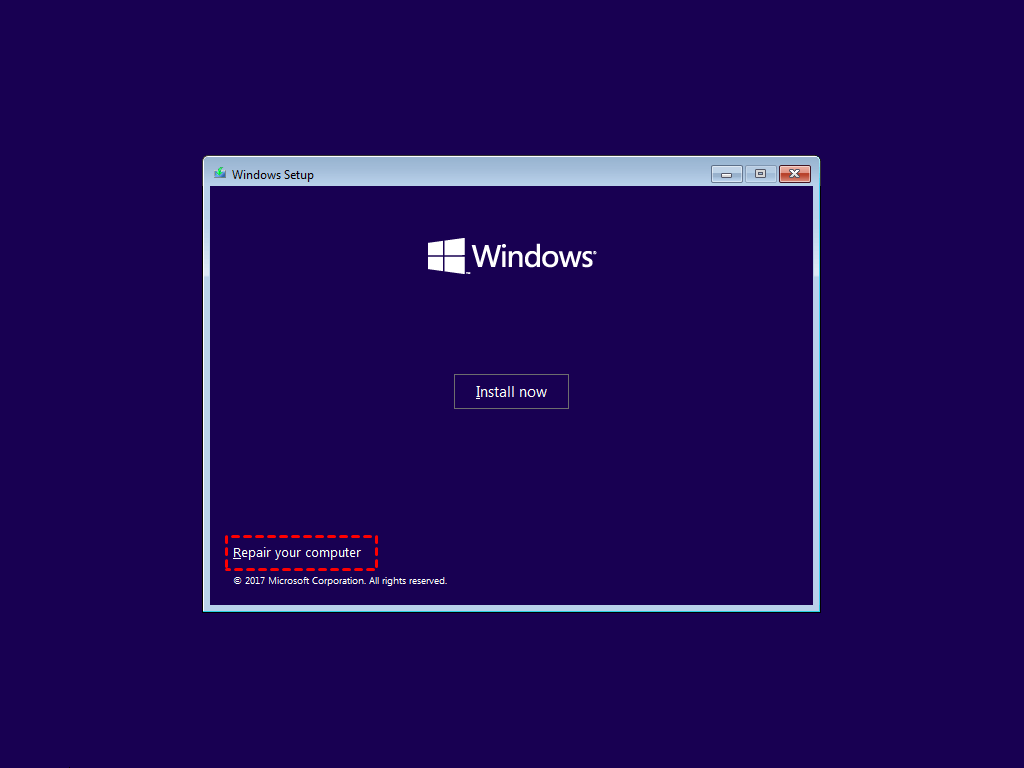
Step 1. To repair your Windows Server 2012 installation, insert the installation disc or Windows Server 2012 recovery disk and boot from it. Once loaded, select the "Repair your computer" option.
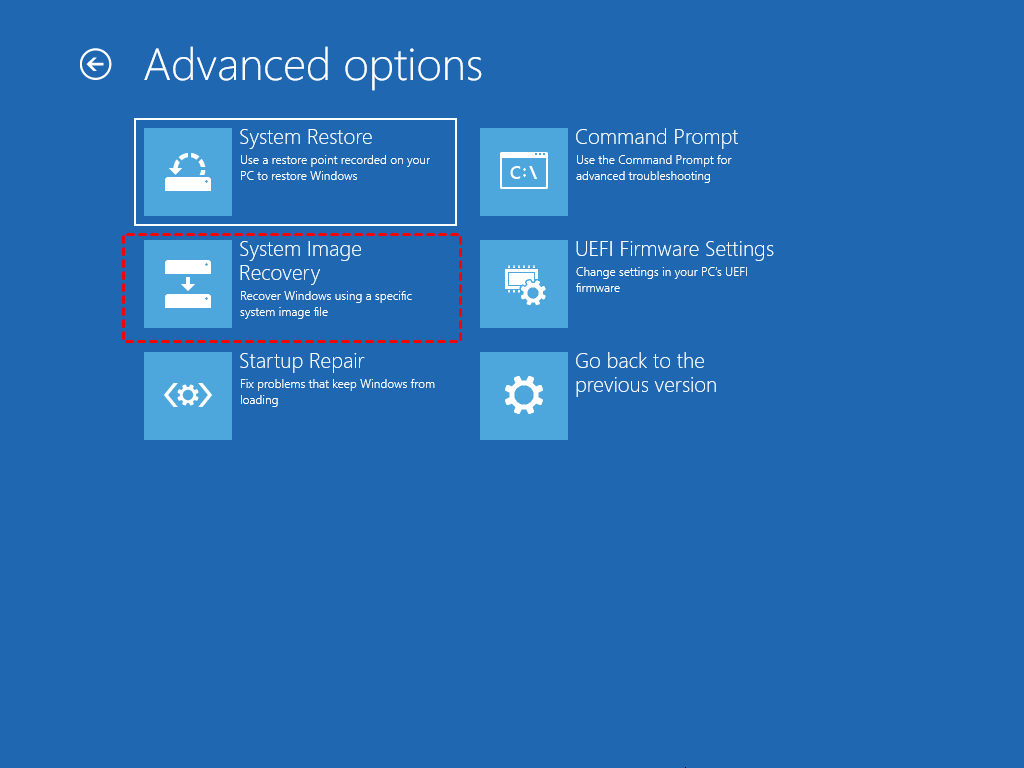
Step 2. Select Troubleshoot > Advanced Options > System Image Recovery.
Step 3. Select the operating system - Windows Server 2012 R2.
Step 4. It is recommended to use the latest available system image for recovery. If the latest image is damaged or you prefer to use a different backup, select it from the available options.
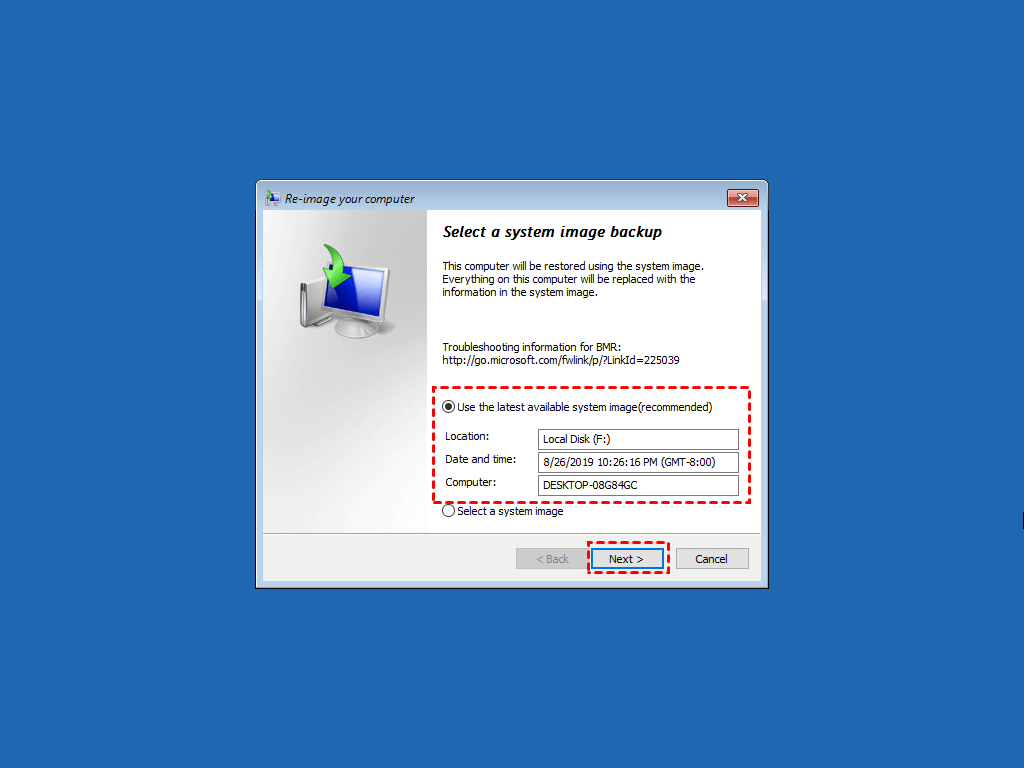
Step 5. After completing the backup and restore process, follow the on-screen instructions to install drivers, repartition and format the disk, and click "Next" and "Yes" to complete the process. Wait until the Windows Server 2012 restore is complete and the server boots from the new installation. All system settings, drivers, installed programs, and data from the old server will be preserved.
Actually, system restore fails in some situations:
- Windows Server Backup does not support restoring system images to a computer with different firmware.
- Windows Server Backup does not support restoring system images to a hard drive with different partition styles, such as MBR and GPT.
If you find yourself in a situation where you need to back up your Windows Server 2012 R2, I recommend trying the best backup software available for the next part.
Use Qiling Disk Master to perform Windows Server 2012 R2 restore from backup
To restore Windows Server 2012 R2 using Qiling Disk Master Server, you need a backup image created by the same tool. If you don't have one, you can create it on another working computer and then restore it on the troubled one, using the Universal Restore feature to ensure bootability.
If Windows Server 2012 R2 won't boot, you can create a recovery disk on another computer using the Create Bootable Media feature. This allows you to troubleshoot and potentially fix the issue with the non-booting server.
Besides, there is something you need to pay attention to:
- Be sure you backup files on the target disk. The restore process will erase all data on the specified drive.
- Check the capacity of both disks and ensure the target disk has enough space to retrieve data from the backup disk, as insufficient space may cause a system restore failure.
- If the source and target disks have different partition styles, you'll need to switch the boot mode to match after restoring from a backup, typically changing to MBR for Legacy BIOS and GPT for UEFI mode.
If you've already created a system image for your computer, we can proceed with the Windows Server 2012 R2 recovery process. If not, you'll need to create a system image first, which you can do by downloading the software and following the steps outlined in my previous article on imaging a Windows Server backup.
Step 1. To use the Qiling Disk Master Server, open the software and click on the "Backup" tab page, followed by selecting the task.

Step 2. Select the system image backup from the list, then click "Next".

Step 3. Select Restore the system backup and click Next.

Step 4. If your old disk is damaged, please select "Restore system to other location" and choose a new hard drive or partition for the system to be restored to.

Step 5. To confirm the Windows Server 2012 R2 recovery, click Proceed at the Operation Summary interface.

Tips:
- During the System Restore process, you can choose to shut down your PC or restart it once the process is complete.
- When migrating to a new server, this software automatically checks the Universal Restore feature and installs all required drivers to enable computer booting.
- To deploy images to multiple servers, the easiest way is to use the Qiling Image Deploy tool, which is available in the premium Qiling Disk Master Technician or Qiling Disk Master TechPlus editions.
If your computer can't boot, you'll need to boot it from a previously created recovery disk first. The steps are the same, but in a different environment.
Use Qiling Backup to perform Windows Server 2012 R2 system recovery
To perform a Windows Server 2012 R2 system restore, first download Qiling Backup and manage Windows Server Backup storage for Server 2012 R2. Then, follow the steps below to restore the system.
Step 1. Run and log in Qiling Backup.
Step 2. To restore a system backup task, click the three dots on the system backup task you created and select "Restore".
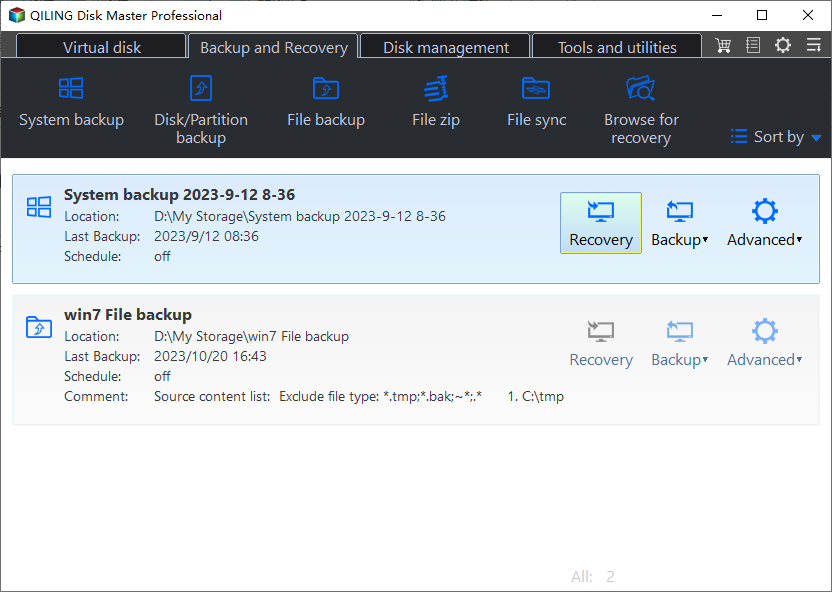
Step 3. I've selected the restore content, including the restore version and restore method. I've chosen the latest version and Restore the entire system.
Step 4. If you're restoring a system image to the same device, the "Restore to original location" option is selected by default. Click "Proceed" to start the system recovery process.
Note: If you're restoring a system image to a different device, start by adding the target device, which is the device you want to restore the system image to, by clicking on "Source Device" > "Windows" > "Add Windows Device".
How to make the new disk bootable
Step 1. Restart your computer to BIOS and set the new disk as the first boot device.
Step 2. To resolve the issue, go to the BIOS Mode under the Boot tab and check if it matches with the disk type. If not, switch to Legacy BIOS or UEFI.
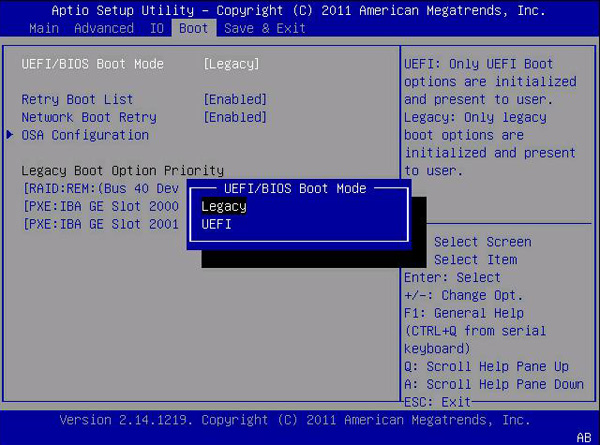
Step 3. Save changes and exit to boot from the new disk.
Summary
You can choose from three methods to perform a Windows Server 2012 R2 restore from backup: Windows Server Backup, Qiling Disk Master Server, or Qiling Backup. All three options work on the same computer. If you need to migrate to a new server, Qiling software may be a better choice, as it ensures a secure boot when restoring a system image from MBR to GPT or vice versa.
You can still use the same method to restore Windows Server 2016, 2019, or 2022 from backup, even on new hardware, effortlessly. Alternatively, if you're migrating systems on the same machine, you can simply clone the hard drive, which still works on 2016, 2019, 2022, and other previous systems. For more features, check out the edition comparison page.
Related Articles
- Top 2 Ways to Create Windows Server 2012 (R2) Restore Point
A restore point allows you to restore system to the previous state. This article will show you how to create Windows Server 2012 restore point with two ways. - Restore Windows Server 2012 Backup from Network Location
If you have trouble performing Windows Server Backup 2012 restore from network location, please read this article patiently to get the way to restore system sucessfully. - Windows Server 2012 Wbadmin Backup and Restore Tutorial
This article is to illustrate how to use Windows Server 2012 Wbadmin or an easier alternative to backup, restore or delete images. Get it now! - [Newly Updated] How to Download and Backup Facebook Photos
We will teach you how to back up Facebook photos in two ways on this page. You can manually download photos from Facebook and back them up, or you can use professional file backup software to keep Facebook photos automatically. - Tutorial | Windows 7/8/10 System Image Backup and Restore
Learn how to create and restore a Windows 7 system image backup, protect the full system, and recover Windows after disk failure or serious errors. - 5 Free Backup Software for Windows Server 2003
This guide explains 5 Free Backup Software for Windows Server 2003 with clear steps, key checks, and practical tips.
Products
Articles & Tutorials
- Data Recovery
- Data Backup
- File Recovery
- File Backup
- File synchronize
- System Backup and Restore
- Disk and Partition Clone
- Technical articles
- Disk Master Help
- Windows Deleted File and Disk Recovery Tutorials
- Windows File and Data Recovery Tutorials
- More Windows Tutorials for Install, Security, Files, and PC Tips
- Windows Boot, Repair, and Recovery Environment Tutorials
- Windows Backup Tutorials
- Windows Restore Tutorials
- Windows Clone and Migration Tutorials
- Windows Server Backup, Recovery, and Management Tutorials
- Windows Disk, Partition, and Storage Management Tutorials