5 Quick Solutions to Windows Server 2012 Backup Disk Full
Content of this article:
- Need help: Windows Server 2012 (R2) backup disk full
- Method 1: Windows Server 2012 Backup Delete Old Copies using vssadmin
- Method 2: Wbadmin Delete Old Backup | System State Backup
- Method 3: Wbadmin Delete Old Backup | Non-System State Backup
- Method 4: Windows Server Backup Clean Up Old Backups using shadow Copies
- Method 5: Windows Server 2012 Backup and Cleanup using Qiling Disk Master Server
- Wrapping things up
Need help: Windows Server 2012 (R2) backup disk full
I use Windows Server Backup on Windows Server 2012 to create a schedule backup, with a 3TB hard drive as my backup drive. However, I recently received an alert that the free space on the backup disk is low, and if ignored, the old backups will be overwritten by new ones, so I chose to ignore it.
You received an alert that a scheduled backup didn't finish successfully due to a lack of space on the disk, resulting in error code 2155348326.
To resolve the issue, you can try the following: 1. Check the backup settings to ensure that the option to overwrite old backups is enabled. 2. If the option is enabled, check if there are any issues with the disk space or if the disk is full. 3. If the disk is full, you may need to free up space by deleting old backups or moving them to a different location. 4. If you want to keep recent backups, you can consider implementing a rotation policy to automatically delete old backups after a certain period of time.
Windows Server Backup has a feature called automatic disk usage management that automatically reuses the space occupied by older backups when creating new ones.
Windows Server 2012 backup will automatically delete backups to free up space for new backups, but this won't happen if the backup disk space is less than 1/8 of the total space, causing the backup drive to become full.
At this time, you need to delete old backup manually. And I will introduce 5 useful ways to help you, please keep reading below to learn them.
Method 1: Windows Server 2012 Backup Delete Old Copies using vssadmin
Windows Server Backup stores backup versions in volume shadow copies using VSS, retaining the state of the storage volume as a "backup version" or "point-in-time" of the backup. This means you can delete the shadow copies where the backup exists.
Step 1. Open cmd as administrator and type the following command to get the backup versions.
wbadmin get versions -backuptarget: (Please replace the with its drive letter.)
Step 2. Delete old backup version using the following command.
vssadmin delete shadows /for=x: /oldest (Please replace the x with drive letter of the backup drive.)
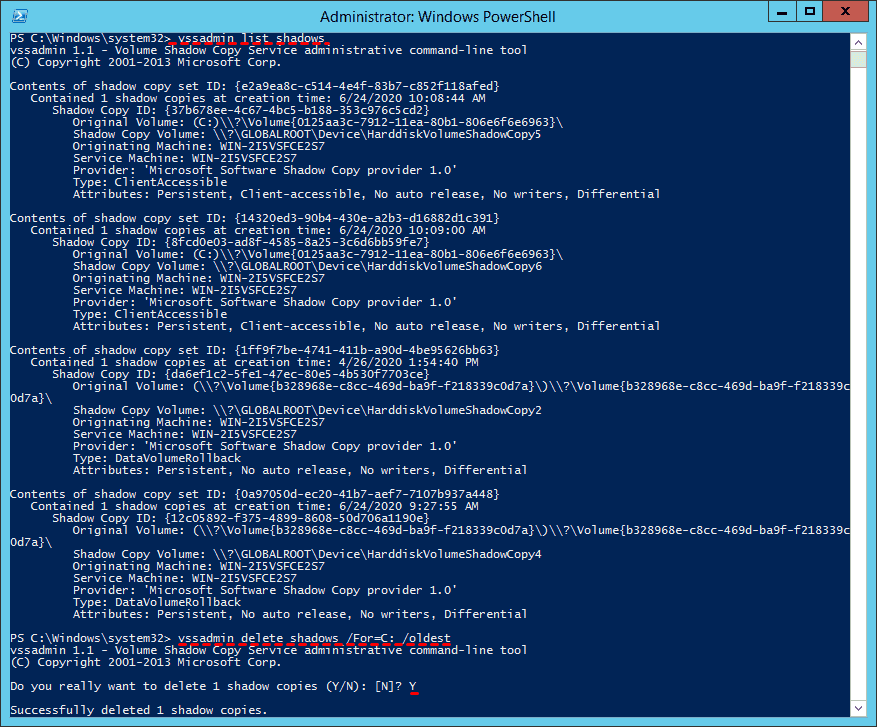
Step 3. Type exit to leave this window.
In Windows Server 2012(R2), you can use diskshadow to delete old backup copies by running the command "diskshadow delete shadows oldest x" where x is the number of oldest backups to delete, starting from the oldest. This approach allows you to free up space by removing older backup versions. To avoid deleting important backups, it's recommended to start from the oldest backup and work your way forward, rather than deleting backups in the middle of the sequence.
Method 2: Wbadmin Delete Old Backup | System State Backup
In Windows Server 2012(R2), the wbadmin command can be used to delete system state backups created by Windows Server Backup (WSB). The command allows for specifying the backups to delete using three different parameters: -version, -keepVersions, and -deleteOldest. This enables administrators to selectively remove backups based on their version or retention requirements.
Step 1. Learn the meaning of deletion parameters you will use.
[-version]: To delete specific version(s)
[-keepVersions]: To delete all backups but the specified ones
[-deleteOldest]: To delete the oldest backup.
Step 2. Open cmd and run as administrator. Then, delete backup copies with the following commands.
To delete a backup created on a specific date and time, type the command "wbadmin delete systemstatebackup -version: date-time" in the command prompt, replacing "date-time" with the actual date and time of the backup you want to delete. For example, to delete the backup created at 18:25 on 06/08/2019, you would type "wbadmin delete systemstatebackup -version: 06/08/2019-18:25".
To delete all system state backups, except the latest 3 backups, input "wbadmin delete systemstatebackup -keepVersions:3".
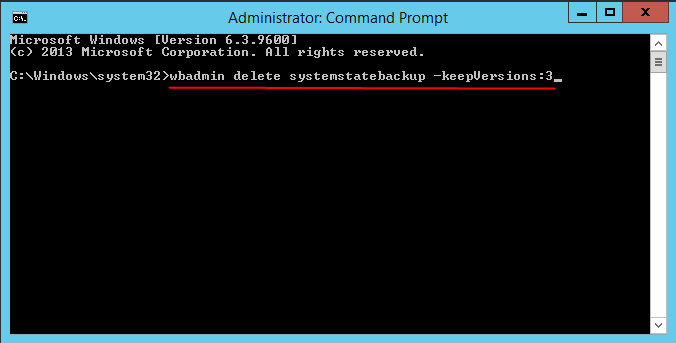
To delete the oldest system state backup stored on disk E, copy and paste the command "wbadmin delete systemstatebackup -backupTarget:E: -deleteOldest".
Note: -The `backupTarget` parameter only needs to be specified when locating backups that are not of the local computer.
Method 3: Wbadmin Delete Old Backup | Non-System State Backup
The Wbadmin command line can also be used to delete non-system state backups, but this feature is only available on Windows Server 2012 and later versions.
Step 1. Run cmd as admministrator. Then, you can start to delete backup copies with the following command.
To delete backup created at 06:25 06/08/2019, type as:
wbadmin delete backup -keepVersions:11/10/2015-06:48 -BackupTarget:F:machine:WIN-9814GD4FH95
Note: -A backup machine is only necessary when you have backed up many computers to the same location, allowing for a central point of management and retrieval of data.
Step 2. Wait untill the process is 100% completed, click X to exit.
Method 4: Windows Server Backup Clean Up Old Backups using shadow copies
Except for deletion, changing the usage space of shadow copies also help. The detailed steps are below, please try it yourself.
Step 1. Assign a drive letter for your backup drive if it does not have. Then, go to File Explore.
Step 2. Right-click the backup drive and select Manage Shadow Copies.
Step 3. Change the maximum size for the Shadow Copies, such as, 15%.
Method 5: Windows Server 2012 Backup and Cleanup using Qiling Disk Master Server
Windows Server Backup not deleting old backups is an issue that can be frustrating for users, but a feasible solution is to manually delete the old backups. However, a more efficient approach would be to use a professional software that integrates backup and deletion capabilities, making the process smoother and more manageable.
I recommend using Qiling Disk Master Server, which not only schedules backups for systems, disks, partitions, and files but also manages backup disk space to ensure there's always enough space for backups.
To fix Windows Server 2012 backup disk full, you can follow these steps: First, check the disk space usage and identify the culprit behind the full disk. Then, delete old backups to free up space, or consider moving them to a different storage device. If the disk is still full, you can try deleting temporary files and system logs to clear up space.
Step 1. Connect the backup drive and ensure it can be detected. Download and install Qiling Disk Master Server.
Step 2. Launch this software, you will see its deep-blue screen. Click Backup and System Backup subsequently, it will automatically select the boot-related drive(s) required to start Windows.

Step 3. Click where the arrow point and then select Computer or This PC to select the backup drive.

Step 4(Required). Then, you need to set the schedule backup and backup retention.
Click Schedule and select daily/weekly/monthly to backup your system automatically.
To summarize, you can use event triggers to automate backups at specific system events, such as startup, shutdown, logon, or logoff.
This software allows for automatic backup of a flash drive when it is plugged in, eliminating the need for manual intervention.
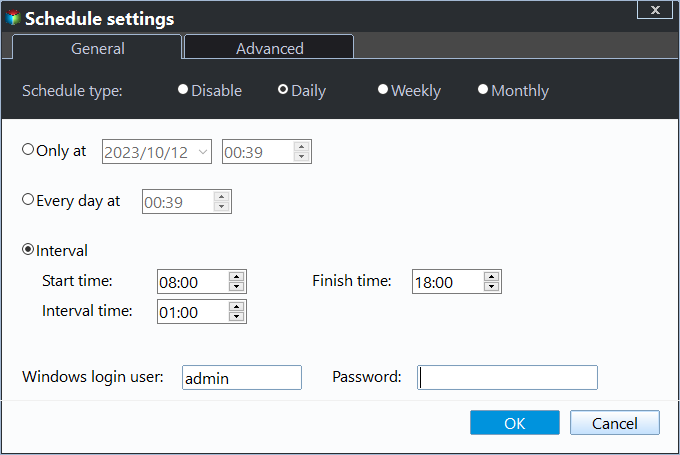
Under the Backup Scheme tab, set the backup methods and backup retention.
Select incremental or differential backup to backup only changes, saving disk space and reducing backup time.
To enable automatic backup cleanup in Windows Server 2012, click on "Enable Automatic Backup Cleanup" and select a backup retention option, such as by quantity, time, or daily/weekly/monthly, to automatically delete old backups.

Step 5. After that, you will go back to the System Backup main page. Confirm all the selected items and click Proceed to backup and cleanup.
Wrapping things up
"Windows Server Backup failed due to not enough space on disk" may be caused by the backup disk having less than 1/8 of its own space available. To resolve this, you can either manually delete old backups using the command line or consider using a professional backup software that integrates automatic deletion of old backups.
For most users, learning and using the command line can be complicated, making it more practical to use GUI-based backup software like Qiling Disk Master Server to fix Windows Server 2012 backup disk full issues. This type of software allows you to set a schedule and backup retention once, and then it will handle everything, eliminating the need to worry about the process.
If you want to backup unlimited PCs and servers within one company, consider using Qiling Disk Master TechPlus, which supports all features in Qiling Disk Master Server and allows for billable technical support as a service to unlimited clients. Download it to try it out now!
Related Articles
- Create Windows Server 2012 (R2) Backup to USB Drive with an Easier Way
This article will introduce how to create Windows Server 2012 backup to USB drive or other external hard drives with detailed steps. - How to Do Windows Server 2012 Backup Schedule Weekly Step by Step
Learn how to Do Windows Server 2012 Backup Schedule Weekly Step by Step with clear steps, key checks, and practical tips. - How to Delete Backup Files in Windows 10 When Backup Disk Full
Learn how to Delete Backup Files in Windows 10 When Backup Disk Full with clear steps, key checks, and practical tips. - How to Create Bootable USB from ISO Windows 11
This is a full guide on how to create bootable USB from ISO Windows 11. This article covers 3 ways to help you create a Windows 11 bootable USB from ISO using Qiling Disk Master, Windows Media Creation Tool, and Rufus. - Secure Hard Drive Eraser: Totally Wipe Hard drive in Windows 10, 8, 7
Here, we bring a secure hard drive eraser, which completely erases everything from a hard drive in Windows 10, 8, 7, providing a secure way to dispose of old or unwanted hard drives. - Fix Healthy Primary Partition RAW Problem with Top 3 Ways in Windows 7/8/10
If you find the healthy primary partition becomes RAW in Windows 11, 10, 8, 7, you can try the following methods to solve the Windows partition RAW problem successfully.
Products
Articles & Tutorials
- Data Recovery
- Data Backup
- File Recovery
- File Backup
- File synchronize
- System Backup and Restore
- Disk and Partition Clone
- Technical articles
- Disk Master Help
- Windows Deleted File and Disk Recovery Tutorials
- Windows File and Data Recovery Tutorials
- More Windows Tutorials for Install, Security, Files, and PC Tips
- Windows Boot, Repair, and Recovery Environment Tutorials
- Windows Backup Tutorials
- Windows Restore Tutorials
- Windows Clone and Migration Tutorials
- Windows Server Backup, Recovery, and Management Tutorials
- Windows Disk, Partition, and Storage Management Tutorials