Backup Disk Full | How to Delete Backup Files in Windows 10
What Happens When the Backup Disk is Full
Windows 10 allows you to create system image backups and save previous versions of files, ensuring data security and enabling recovery to an earlier state in case of system failures.
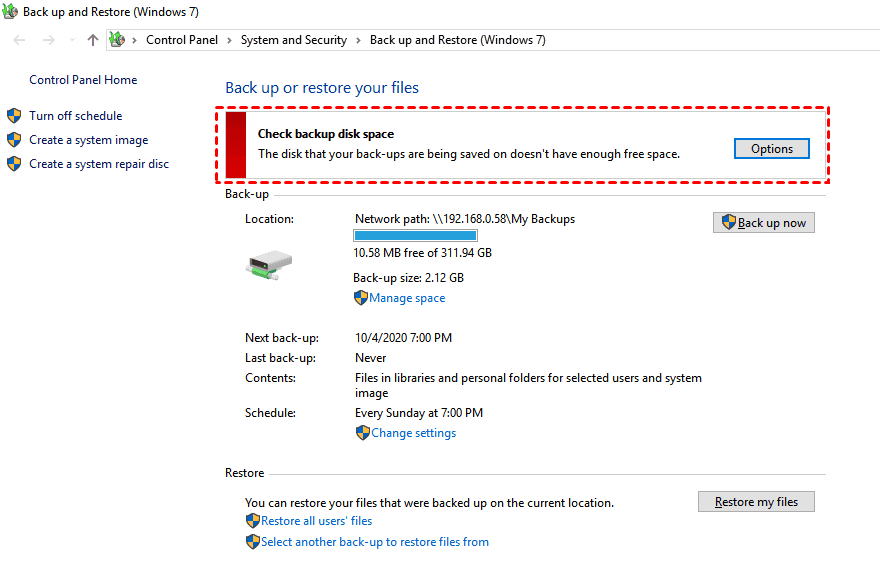
If the backup disk is full, no backups can be created, leaving files and system at risk, so it's essential to manage backup files and free up space in Windows 10/11.
How to Delete Backup Files and Free up Disk Space
Windows 10/11 offers various backup features to safeguard your system and files. You may have enabled system protection to create system restore points, set up automatic image backup tasks with Backup and Restore (Windows 7), or utilized File History to back up your files.
To avoid running out of disk space due to backup methods, consider deleting obsolete files and implementing a backup plan that doesn't consume too much space.
To protect your operating system and files better, and automatically delete backup files, you can use the built-in Windows feature called "System Protection" in Windows 11, 10, 8, and 7. This feature allows you to create a system image and system restore point, which can be used to restore your system to a previous state in case of a problem. You can also use the "Backup and Restore (Windows Backup)" feature to create a backup of your files and system, and set it to automatically delete old backup files.
How to delete Windows image backup in Windows 10
To delete Windows image backup, use the following steps:
1. To access the old image backup tool, start by clicking the "Start" button, then navigate to "Settings" > "Update & Security" > "Backup" > "Go to Backup and Restore (Windows 7)".
2. Click on Manage Space.
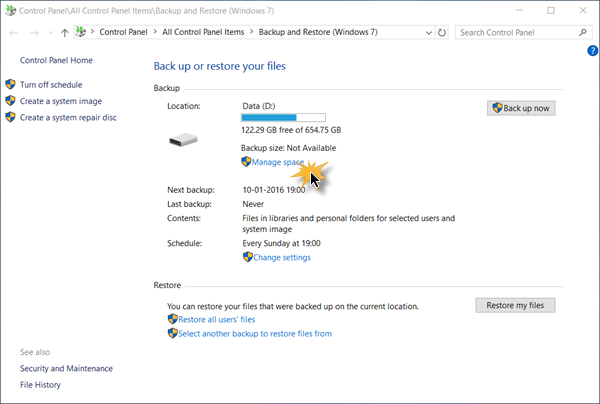
3. Click the "View backups" button to select any image backup files to delete.
After deleting some of the previous image backups, you can also change how Windows manages the previous image backups. Click on Change Settings, and then you have two choices:
- Let Windows manage the space used for backup history
- To optimize storage space on your device, keep only the latest system image and minimize space used by backup. This means that you should only keep the most recent backup of your system, and not multiple versions of it.
The default backup option is to save all backups. If your backup disk always gets full, you can change to only saving one system backup.
How to delete system restore points in Windows 10
Windows 10 System Restore Points allow you to undo unwanted system changes and restore protected files to the previous version, but they can also take up a lot of space, so you can delete all or some of them if needed.
To delete all restore points:
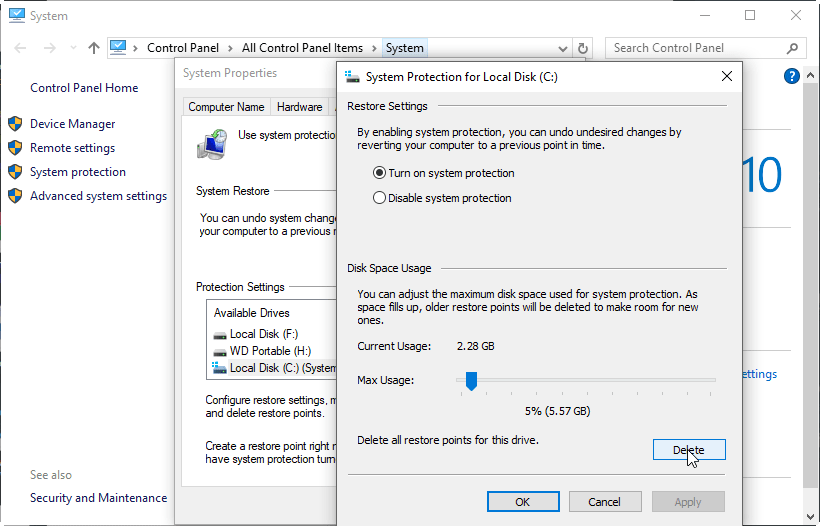
1. To create a restore point, go to the Start menu, type "system protection" in the search bar, and select the result "Create a restore point." This will open the System Protection window, where you can click the "Create" button to create a new restore point.
2. Click Configure…
3. Click the "Delete" button and confirm the option to delete all restore points on the selected drive.
To delete all but the most recent restore point (recommended):
1. Right click on the C: drive, select Properties, and then Disk Cleanup. If you want to delete restore points on other drives, right click on them and repeat the process.
2. Click Clean up system files and wait for the calculating.
3. Click the "More Options" tab, then click "Clean up".
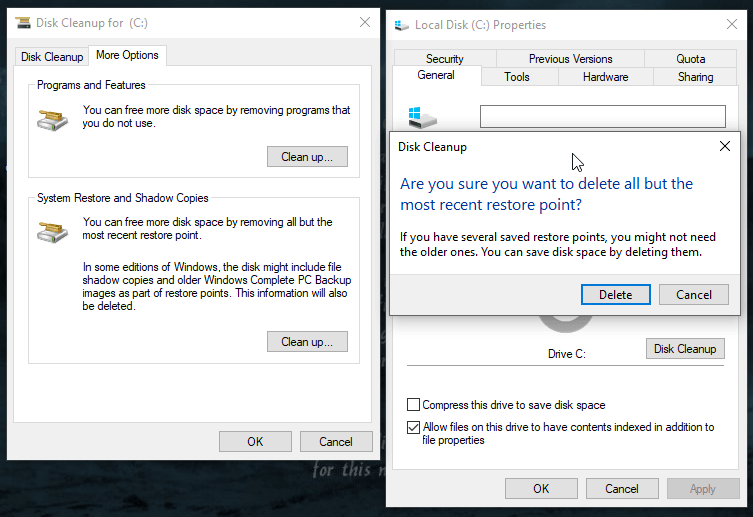
4. In a pop-up confirmation window, click Delete to delete all but the most recent restore point.
How to cleanup File History in Windows 10
You can change the Windows 10 File History setting to automatically delete old versions, preventing your backup disk from filling up with all versions forever.
To delete File History backup versions, ensure your backup drive is connected and File History is turned on. This will allow you to access and delete backup versions.
To cleanup file history, use the steps below:
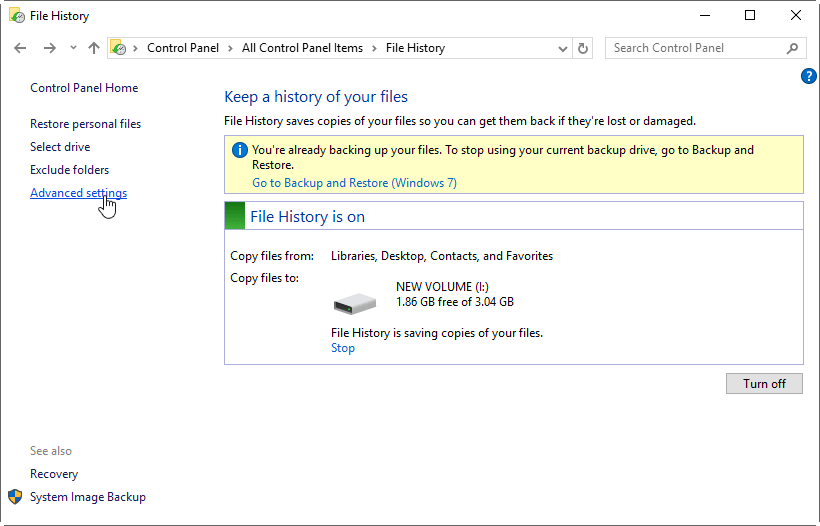
1. To access Advanced settings in File History, open the Control Panel and select File History. From there, click on the "Advanced settings" option. This will allow you to configure additional settings for File History.
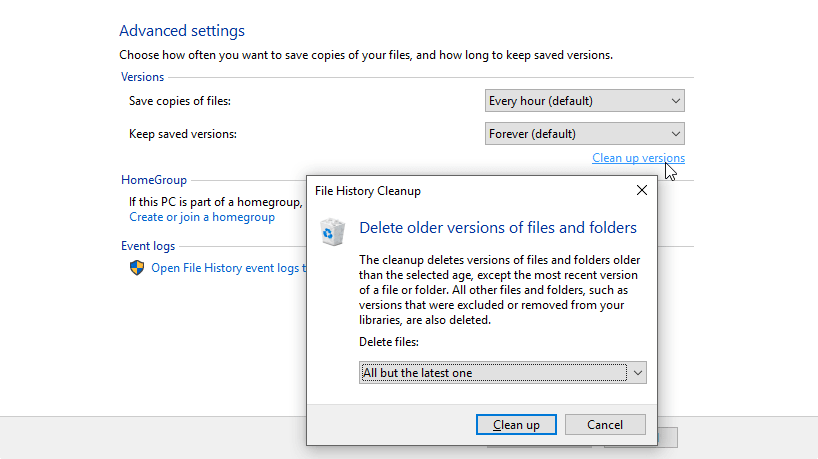
2. In the next screen, you will have the option to change how long saved versions are stored, with the choice to keep them for 3 months or so, and the option to clean up versions immediately.
Windows backup features are designed to free up disk space when needed, but managing backup files can be a hassle. If handled properly, the backup disk should never run out of space. However, if manual deletion of backup files becomes too time-consuming, consider using an alternative backup program that offers a more flexible way to manage backup disk space.
Better Way to Auto Create and Delete Backup Files
Qiling Disk Master Professional is a comprehensive backup and restore tool for Windows PCs, offering advanced features to optimize data protection.
▪ This system includes all necessary backup options, such as file backup, system backup, partition backup, and disk backup.
▪ Besides conventional full backup, it supports scheduled incremental and differential backup to back up only changed data and save backup disk space.
▪ The software provides various backup cleanup schemes to automatically delete previous backup files based on certain criteria, such as quantity, time, or available space, ensuring that the backup disk does not run out of space.
▪ When it comes to restoration, you can restore files or the operating system to any backup point you want, or even restore the system to a different computer with the Universal Restore feature.
To create and delete backup files in Windows 10/11, choose a backup option, select a schedule and retention scheme, and click Proceed. When the backup amount reaches the set number, it will automatically delete backup files.
🔰Backup Options:
Based on what you want to include in the backup, you can perform system backup, disk backup, partition backup, files and folders backup, and all of these types support schedule backup and auto deletion.

⏱Backup Schedule:
When choosing schedule triggers, you can select a specific time daily, weekly, or monthly, or have the backup run upon an event. If you want the backup to run when no user is logged on, choose the option "running scheduled backup using Task Scheduler" under the Advanced tab.

💾Backup Cleanup:
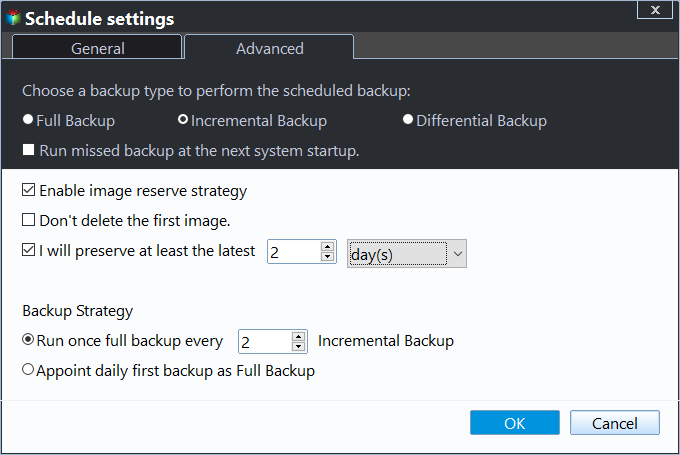
After setting up a scheduled backup, you can enable Automatic Backup Cleanup to automatically delete old backup files, keeping the remaining backup images recoverable. This feature helps free up disk space by automatically deleting old backup files based on the backup scheme you've set up.
✍Tips:
- Unlike file-Qiling Disk Master can backup files that are currently in use due to its shortly level backup feature.
- Incremental backups rely on previous backups, making them useless if deleted, so it's essential to create a full backup before deleting incremental ones. In contrast, differential backups are based on the last full backup and can be deleted as long as the full backup remains intact, making them valid even if incremental backups are deleted.
- If you get confused, just use the built-in backup schemes and it will take care of your backups and disk space, so you will not worry about Windows 10 backup disk full. Qiling Disk Master also provides File Sync and Disk Clone features to protect your data.
Conclusion
To solve the backup disk full problem in Windows 10/11 computers, you can delete backup files created by Windows Backup and Restore, Restore Point, and File History, or use a tool like Qiling Disk Master for a more intelligent mechanism to delete obsolete backups.
To protect unlimited computers within your company, you can also use Qiling Disk Master Technician, which allows you to deploy or restore system image files on server-side computers to multiple client-side computers over the network using its built-in Qiling Image Deploy tool.
Related Articles
- Windows 7 Backup Disk Full, How to Manage Backup Disk Space?
- The Solution to Windows Server Backup Disk Full
- Wbadmin Delete Backup for Windows Server 2016/2012/2008
- How to Do Disk Backup for Windows 10?
- How to Backup Windows 10 to External Hard Drive (Fastest)?
- How to Run a Disk Defragment on Windows 10, 8, 7?
Fragmentation will make your hard drive do extra work, slowing down your computer. In this article, you will know what is disk fragmentation, what is defragmentation and how to run disk defragmentation on Windows 11, 10, 8, 7.
Products
Articles & Tutorials
- Data Recovery
- Data Backup
- File Recovery
- File Backup
- File synchronize
- System Backup and Restore
- Disk and Partition Clone
- Technical articles
- Disk Master Help
- Windows Deleted File and Disk Recovery Tutorials
- Windows File and Data Recovery Tutorials
- More Windows Tutorials for Install, Security, Files, and PC Tips
- Windows Boot, Repair, and Recovery Environment Tutorials
- Windows Backup Tutorials
- Windows Restore Tutorials
- Windows Clone and Migration Tutorials
- Windows Server Backup, Recovery, and Management Tutorials
- Windows Disk, Partition, and Storage Management Tutorials