How to Create a System Restore Point in Windows 10 Easily? [2 Ways]
- Is it necessary to create system restore point in Windows 10?
- How to create a system restore point in Windows 10?
- 1. How to create a system restore point in Windows 10?
- 2. How to go back to a restore point in Windows 10?
- 3. Frequently asked questions about Windows 10 restore point
- A better way to create Windows 10 backup image
- Conclusion
Is it necessary to create system restore point in Windows 10?
Windows 10 is a powerful system that can sometimes go wrong due to various issues like viruses, incorrect operations, or faulty updates. If you've tried to troubleshoot these problems yourself, you may have come across the term "System Restore Point," which is a feature that allows you to revert your system to a previous state when everything was working properly.
In Windows 10, 8, and 7, the System Restore function creates a snapshot of system configuration and settings in the Windows Registry, often referred to as a "restore point", but not a traditional backup.
If you've created system restore points in Windows 10, you can easily restore your computer to an earlier point, thereby fixing Windows problems without losing important data.
Now let's see how this works.

How to create a system restore point in Windows 10?
In Windows 10/8/7, creating a system restore point is a straightforward process that is almost identical across all versions. You can manually create a system restore point, or, if system protection is enabled, you can even set it up to automatically create restore points at regular intervals.
In Windows 10, system protection is disabled by default, but can be enabled to automatically create system restore points when significant changes occur, such as installing updates or programs.
If you're looking for a more powerful and flexible Windows 10/8/7 backup and restore solution, consider using a free alternative that allows you to customize what to backup and when. This option enables you to schedule automatic daily, weekly, or monthly backups, giving you more control over your data protection. In contrast, the built-in restore points are only created when system changes are detected.
- 1. How to create a system restore point in Windows 10?
- 2. How to go back to a restore point in Windows 10?
- 3. Frequently asked questions about Windows 10 restore point
- A better way to create Windows 10 backup image
1. How to create a system restore point in Windows 10?
Step 1. Open the System Properties window. Two ways to do it.
- Right-To access System Protection, click on "My Computer" or "This PC", then click on "Properties", and finally click on "System protection" from the pop-up window.
- To create a restore point, type "create a restore point" in the search box and select it from the list of results, then click on the "System Protection" tab.
Step 2. To enable system protection, click the Configure button. Then, enable the "Turn on system protection" option.
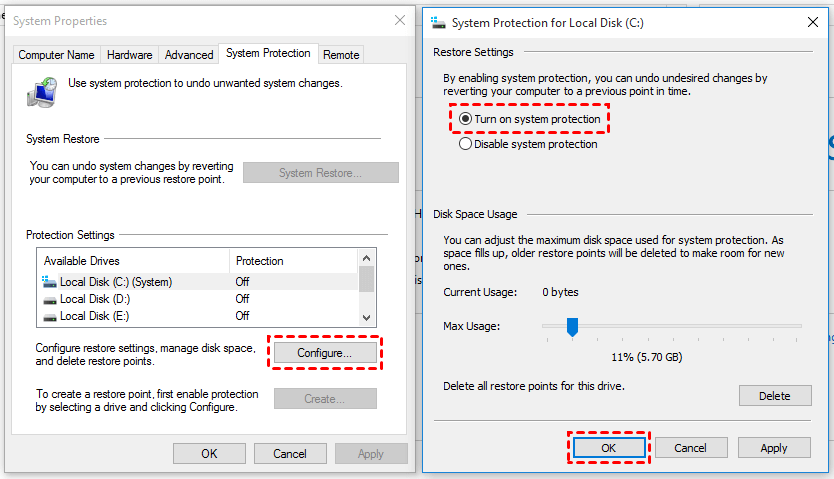
Now that you've turned on System Protection, Windows 10 will automatically create a system restore point each time system changes are made.
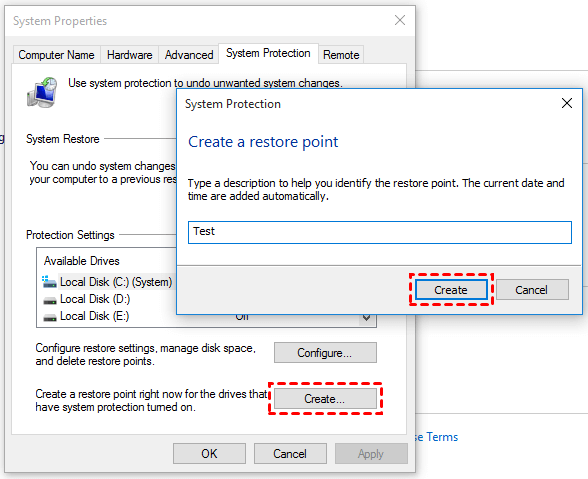
Step 3. To manually create a restore point, return to the System Properties window, click Create, name the restore point, and then click Create.
Note:
◆ If you're experiencing issues with using System Restore, you can try troubleshooting solutions to resolve the problem. To fix the issue, you can try running the System File Checker (SFC) tool, which scans and replaces corrupted system files.
◆ You can also follow these steps to create Windows 8 restore point or Windows 7 restore point.
2. How to go back to a restore point in Windows 10?
When something goes wrong on the computer, you can use the restore point to bring it to an earlier working status. There are two main approaches: using System Restore to revert to a previous point, or using a backup to restore the entire system to a previous state.
Method 1. The direct way to perform the system restore
If you can still log into Windows, you can try resetting your password directly.
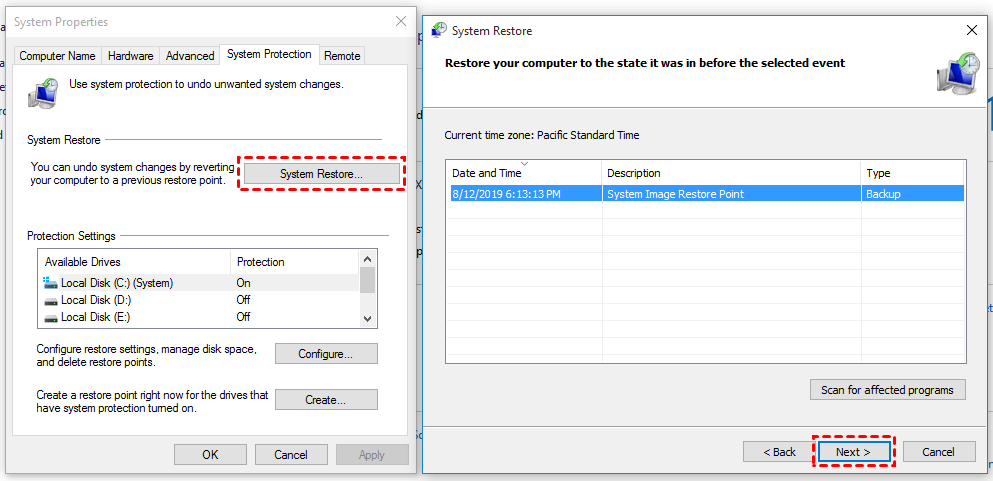
Step 1. Open System Properties window with above mentioned steps.
Step 2. To restore your computer, click on "System Restore" and then click "Next". Select the desired restore point and click "Next" again. You can also click "Scan for affected programs" to see what changes might occur. Finally, follow the wizard to complete the restore process.
Method 2. Perform system restore via advanced options from boot
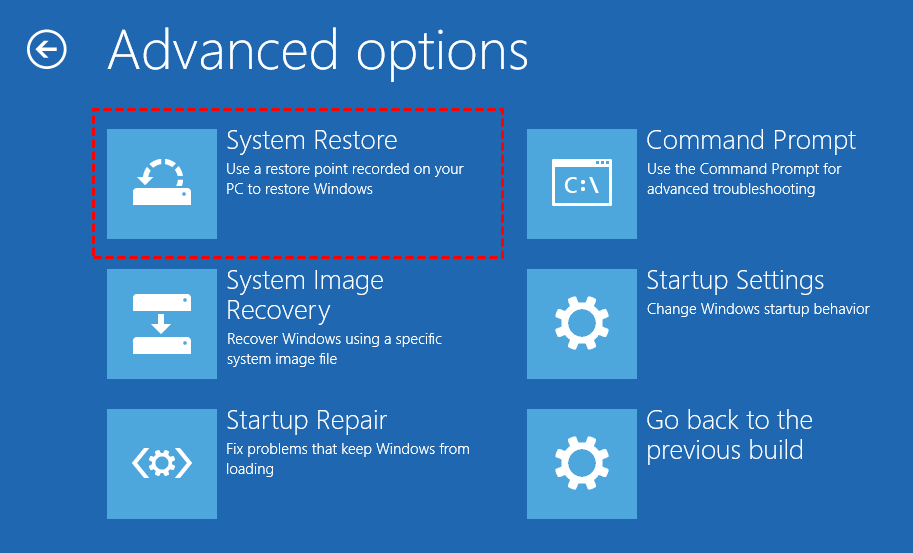
If you're having trouble logging into Windows, you can also perform System Restore from boot. To do this, restart your computer and press the F8 key as soon as it starts to boot. This will take you to the Advanced Boot Options screen.
Step 1. To enter the Windows Recovery Environment, start your PC, press the power button as soon as the Windows logo appears, and keep pressing the power button to perform a hard shut. Repeat this process two more times to successfully enter the Windows Recovery Environment.
Step 2. When the recovery screen appears, select Advanced options, click Troubleshoot, then Advanced options, and finally System Restore to run the restore.
Note: To perform System Restore in Windows 8, follow the same process as Windows 7, entering the recovery environment and selecting System Restore among System Recovery Options, despite the different interface.
3. Frequently asked questions about Windows 10 restore point
Now you've known how to create a system restore point in Windows 10 and the way to perform the restore. In addition to this, I've also listed some other things you might want to know:
How to find restore points in Windows 10?
To view all existing restore points, press the Windows + R keys together, type "rstrui" in the Run box, click OK to open System Restore, then click Next to list all restore points, and click Cancel to close the window if you don't want to restore.
To locate the system restore point files physically, they are stored in the System Volume Information folder under the root directory of the system drive, which is typically hidden by default. To access this folder, you need to display hidden files and folders, which can be done by following a specific procedure.
How to delete restore points in Windows 10?
If you want to delete all restore points, you can go to the System Properties window where you can create a restore point and click Configure. Click Delete button to delete all restore points for this device.
To delete all but the most recent restore point, right-click on a local drive, select Properties, then Disk Cleanup, choose Clean up system files, go to the More Options tab, and click Clean up... under the System Restore and Shadow Copies section.
A better way to create Windows 10 backup image
If the system restore point isn't convenient or flexible enough, a powerful backup and restore freeware called Qiling Disk Master Standard may be a better option. It offers comprehensive features to protect important data at every level and works well on Windows 10/8.1/8/7/XP/Vista.
- Various Backup Solutions - The software can backup not only the entire system but also specific files, partitions, and even the entire disk, providing a comprehensive backup solution.
- Schedule Backup - This tool allows you to schedule automatic backups on a daily, weekly, or monthly basis, saving you time and effort, and ensuring your data remains up-to-date.
- Different Backup Modes - It allows you to make full backup as well as incremental/differential backup, which can save your storage space.
- The interface is easy to use, making it accessible even for those who are new to the software.
How to create system image backup with Qiling Disk Master:
Step 1. Download, install and launch Qiling Disk Master Standard.
Step 2. To back up your system, go to the Backup tab and select System Backup. If you have other data to protect, you can also choose File Backup, Partition Backup, or Disk Backup accordingly.

Step 3. The system partitions will automatically be selected as the source. You'll then choose a path (local disk, external hard drive, USB flash drive or network) to save the image.

Step 4. Before proceeding, you can schedule a automatic backup plan, or click options to set the compression level, enable email notification, etc.

Note: The Scheme will automatically delete older backups, but this feature is only available in advanced editions. You can upgrade to a higher version to access it.
Step 5. You can find the System Restore point in the Home tab once all is done. If something goes wrong, you can use System Restore to revert your Windows 10 to this saved point.
Conclusion
To create a system restore point in Windows 10, you can use the built-in utility or an alternative like Qiling Disk Master. The built-in utility allows you to easily create a restore point, which can be useful in case of system errors or when you need to roll back changes. Qiling Disk Master is another option that can help you backup your system and restore it when needed, making it a convenient alternative to the built-in utility.
Qiling Disk Master offers complete backup and restore features, as well as practical tools such as creating bootable media and PXE booting multiple computers via network. It's an all-around data protection solution for Windows users.
Related Articles
- 3 Ways to Fix The Restore Point Could Not Be Created
- How to Repair Windows 10 without CD or USB Quickly?
- Top 3 Windows 10 Backup Options to Protect Your Data
- How to Create Restore Point in Windows 7 Automatically?
- How to Make a Copy of a Word Document
Learn the key steps, checks, and practical tips for this related guide. - How to Make an HP BIOS Recovery USB
There are times that you need to update BIOS (short for Basic Input Output System). However, in case to avoid data loss, it's better to back up the data first. Here we will tell you how to make an HP BIOS recovery USB.
Products
Articles & Tutorials
- Data Recovery
- Data Backup
- File Recovery
- File Backup
- File synchronize
- System Backup and Restore
- Disk and Partition Clone
- Technical articles
- Disk Master Help
- Windows Deleted File and Disk Recovery Tutorials
- Windows File and Data Recovery Tutorials
- More Windows Tutorials for Install, Security, Files, and PC Tips
- Windows Boot, Repair, and Recovery Environment Tutorials
- Windows Backup Tutorials
- Windows Restore Tutorials
- Windows Clone and Migration Tutorials
- Windows Server Backup, Recovery, and Management Tutorials
- Windows Disk, Partition, and Storage Management Tutorials