How to Repair Windows 10 without CD or USB Quickly?
The Need to Repair Windows 10 without CD
Your Windows 10 computer won't load or crashes frequently? It's likely that you need to repair your device to get it running smoothly again.
You can repair Windows 10 without a CD by booting from the Windows Recovery Environment (WinRE) or by using the Windows 10 installation media from a USB drive. To do this, you'll need to create a bootable USB drive with the installation media, which can be downloaded from Microsoft's website. Once you have the USB drive, you can boot from it and access the Windows Recovery Environment, where you can troubleshoot and repair your Windows 10 installation.
This guide will show you how to repair Windows 10 without a CD or USB, and without losing any data. You'll learn how to use Startup Repair in Windows 10 without a CD to fix boot problems, and discover other methods to get your device up and running smoothly.
Part 1. Launch Startup Repair to Repair Windows 10 without CD
If your computer is stuck during boot, you can launch the Startup Repair tool, a native Windows 10 repair tool, to help troubleshoot and resolve the issue.
Solution 1. Direct Way to Launch Startup Repair in Windows 10
If you can boot your computer, you can try running the Startup Repair by going to the Start menu, clicking on "All Programs" or "Programs," then selecting "Accessories," "System Tools," and finally "System Restore." Alternatively, you can type "system restore" in the search bar and follow the prompts to complete the process.
Step 1. To access the Advanced Startup environment, start your PC, press the power button as soon as the Windows logo appears, and immediately perform a hard shut by keeping the power button pressed. Repeat this process two more times.
Step 2. Choose Advanced options when the recovery screen appears. Then click Troubleshoot > Advanced options > Startup Repair.

Fixing common Windows 10 boot issues can take anywhere from a few seconds to several minutes.
Solution 2. Use Bootable USB to Launch Startup Repair in Windows 10
If your computer won't run Startup Repair or can't boot up, you can try using a bootable USB drive created from a healthy computer to boot yours instead.
Note: To ensure the process is done safely, backup your USB flash drive in advance to avoid data loss.
◆ Create Bootable Media
To create a bootable USB quickly, I recommend using Qiling Disk Master Standard, a free PC backup tool. This allows you to create a bootable media that can boot any version of Windows OS.
Step 1. Download, install and launch the tool.
Step 2. Click Tools and then select Create Bootable Media.

Step 3. Select a type of bootable media you want to create and click "Proceed" to continue, with the Windows PE bootable disc being recommended for better performance.

◆ Boot Your Computer
Step 1. Insert the bootable USB drive.
Step 2. Make your computer boot from the USB drive.
- Turn on your computer and press the BIOS key (usually Esc/Delete/F2) to access the BIOS.
- Press the arrow key to select the Boot menu and then choose Removable Devices.
- To move the selected boot device to the top of the boot list, use the "+" key.
- Hit Enter to boot your device.
Step 3. Click Repair your computer option.
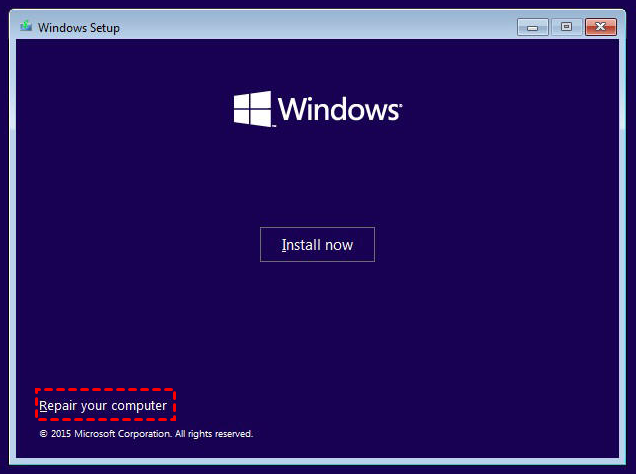
Step 4. Click Troubleshoot > Advanced options > Startup Repair to make it.
If your Windows 10 PC is experiencing startup issues, you can try launching Startup Repair without a CD using two methods. The first method involves booting your PC from the Advanced Startup Options menu, while the second method involves booting from the Windows Recovery Environment. If your PC doesn't have a startup problem, you'll receive a message stating that Startup Repair couldn't repair your PC. In this case, you can explore other methods to repair your Windows 10 PC.
Part 2. Other Methods that Can Help You Repair Windows 10 without CD/USB
Method 1. Perform a System Restore
If you've created a system restore point before, you can try to repair Windows 10 without a CD by performing a system restore, which can help restore your computer to an earlier date that worked well.
Step 1. Go to Windows 10 Advanced Startup Options menu.
- To perform a hard reset, start your PC, press the power button as soon as the Windows logo appears, and keep pressing it to shut down the PC. Repeat this process two more times.
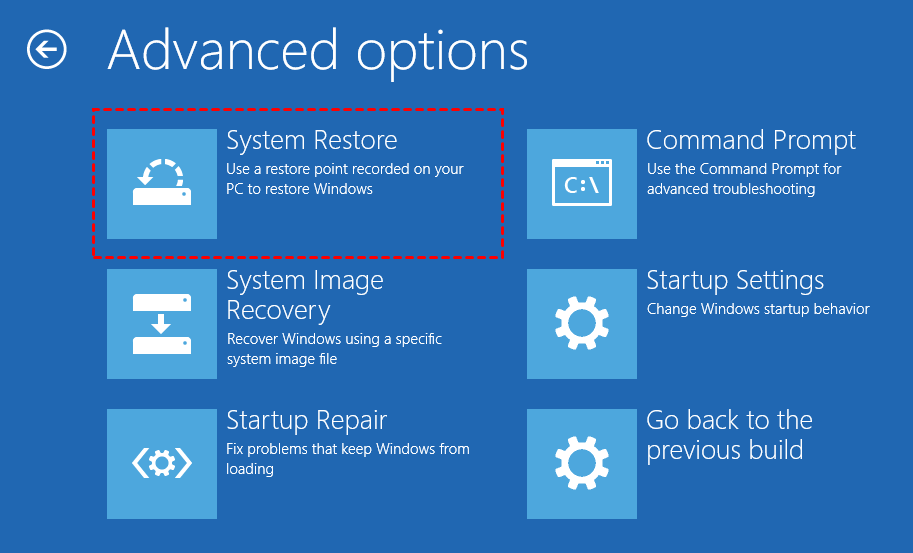
- Click Advanced options when the recovery screen appears. Then click Troubleshoot > Advanced options.
Step 2. Click System Restore and your computer will reboot.
Step 3. Select your username and enter your password.
Step 4. Select a restore point and follow the prompts to make it.
Method 2. Run SFC Scan
If some system files are lost or corrupted, you may encounter Windows boot problems or find that the system is not working correctly. You can run the System File Checker (SFC) scan to repair missing or corrupted system files.
Step 1. Type "cmd" in the search box > right-click Command Prompt and choose "Run as administrator".
Step 2. Type "sfc /scannow" and press Enter.
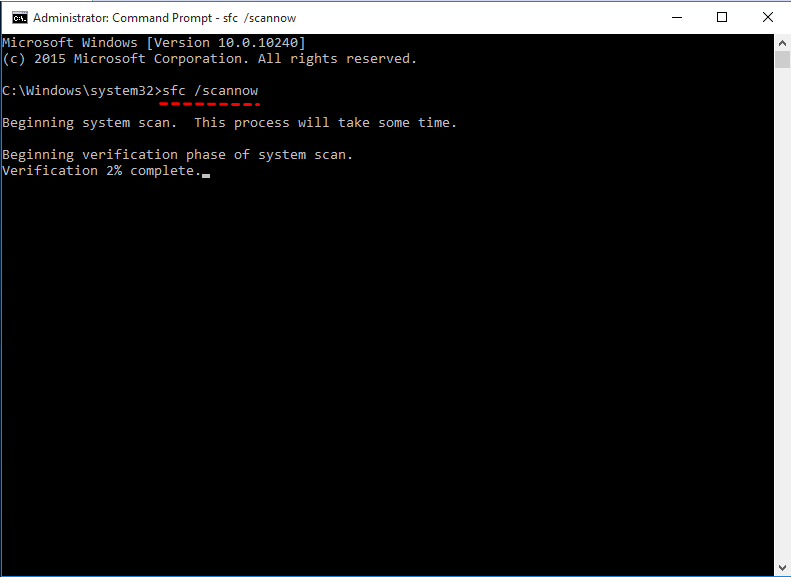
If your computer has a problem, the system will try to fix it. After that, you can reboot your computer and check if your problem has been solved.
Method 3. Try BootRec Commands
To fix Windows 10 boot problems, you can also run the BootRec tool through the Command Prompt. This tool can be used to repair or rebuild the BCD (Boot Configuration Data) store, which can help resolve issues with the boot process.
Step 1. Run Command Prompt as administrator.
Step 2. Type "bootrec.exe" and hit Enter to open BootRec tool.
Step 3. Type the following commands one by one. Please remember to hit Enter after typing each command line.
- Bootrec /fixmbr
- Bootrec /fixboot
- Bootrec /rebuildbcd
Method 4. Reset PC
If your PC is running poorly, you can try resetting it. This process will restore your computer to its original state, before any software was installed. You can choose to either keep or remove your personal data during the process, effectively giving you a fresh start similar to a clean Windows 10 installation.
To reset your PC, go to Start, then Settings, followed by Update & security, then Recovery. Click Get started under Reset this PC, and choose either Keep my files or Remove everything.
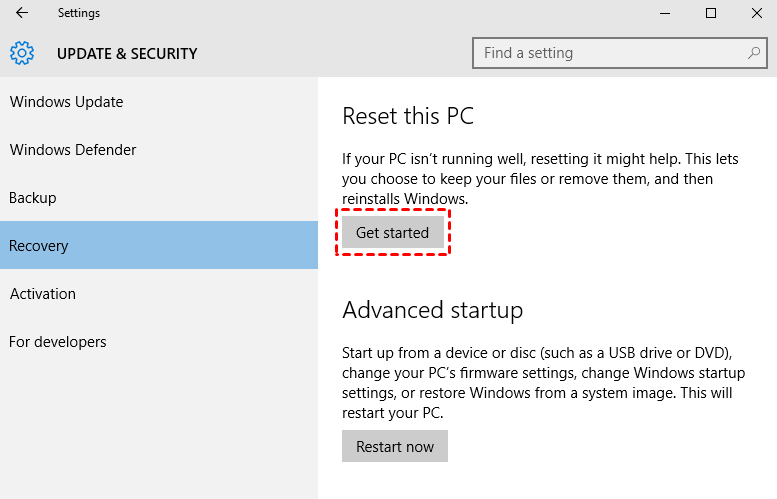
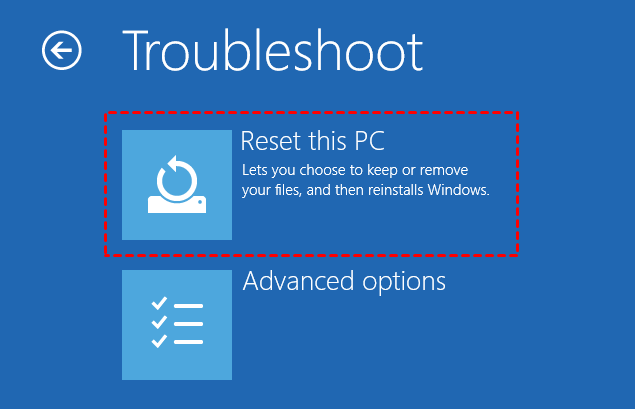
If your computer can't boot, you can access the WinRE, follow the steps in Method 1 to do so. Once the recovery screen appears, click on "Reset this PC".
Method 5. Reinstall Windows 10
If all the above methods can't help you repair Windows 10 issues, you may need to reinstall the operating system. Before doing so, make sure to back up your data to avoid loss. You can also refer to a guide on how to reinstall Windows 10 without losing data for more information.
Conclusion
If you're experiencing issues with your Windows 10 installation and don't have a CD or USB drive to create a bootable recovery environment, there are alternative methods to repair your system. You can try using the built-in System Restore feature, which can revert your system to a previous point when it was working properly. Alternatively, you can use the Windows Recovery Environment (WinRE) by booting into Safe Mode and accessing the WinRE menu. If these methods don't work, you can also try using the Command Prompt to run system files and registry repairs. If all else fails, you can try reinstalling Windows 10 from scratch.
To be prepared, it's a good idea to set up scheduled backups for your Windows 10 computer and have a bootable disc or USB drive ready. This way, if your computer ever experiences issues and can't boot up, you can use the bootable drive to boot your device and restore it to its previous state, minimizing downtime and potential data loss.
Related Articles
- Top 3 Windows 10 Backup Options You Should Know
- How to Do Incremental and Differential Backup in Windows 10?
- 2 Quick Ways to Restore Folders in Windows 10
- Top 2 Disk Wiping Software for Windows 11/10/8/7
Restore lost folders in Windows 10 with two practical methods, including built-in recovery options and file recovery software for deleted or missing folders. - Powerful Cloner: Clone OS to New Hard Drive without Reinstallation
If you need to clone an OS to a new hard drive on Windows 11, 10, 8, or 7, you can refer to this post for a safe and easy way to do so. - How to Convert NTFS to FAT32 without Losing Data?
You can convert NTFS to FAT32 without losing data using Qiling NTFS to FAT32 Converter, which allows you to change the file system without formatting.
Products
Articles & Tutorials
- Data Recovery
- Data Backup
- File Recovery
- File Backup
- File synchronize
- System Backup and Restore
- Disk and Partition Clone
- Technical articles
- Disk Master Help
- Windows Deleted File and Disk Recovery Tutorials
- Windows File and Data Recovery Tutorials
- More Windows Tutorials for Install, Security, Files, and PC Tips
- Windows Boot, Repair, and Recovery Environment Tutorials
- Windows Backup Tutorials
- Windows Restore Tutorials
- Windows Clone and Migration Tutorials
- Windows Server Backup, Recovery, and Management Tutorials
- Windows Disk, Partition, and Storage Management Tutorials