2 Quick Ways to Restore Folders in Windows 10
The need to restore folder in Windows 10
You had accidentally deleted a folder containing important documents using the "Shift + Delete" shortcut, which bypassed the recycle bin and permanently deleted the files. This means the documents are now unrecoverable using standard methods and you'll need to rely on data recovery software or a professional service to attempt to recover the lost files.
You can retrieve a deleted folder on your Windows 10 computer, as the deleted files aren't truly gone, but rather marked as available space, waiting to be overwritten. To increase the chances of recovery, stop using your computer immediately. As long as the deleted folder hasn't been overwritten, it's most often recoverable. To learn the methods to restore it, keep reading.
How to restore folder in Windows 10?
Method 1. Restore deleted folder in Windows 10 without software
You can try to restore folders with the built-in utility - Previous Versions, which is available in Windows 10/8/7, to restore files to a previous version, including deleted files.
Step 1. Navigate to the location (folder or drive) where the folder was stored before being deleted.
Step 2. Right-click the drive or the folder, and then select Properties.
Step 3. Click the Previous Versions tab and then you will see all the available versions.
Step 4. Check and select the right version you want to restore. Click Restore to get the folder back.
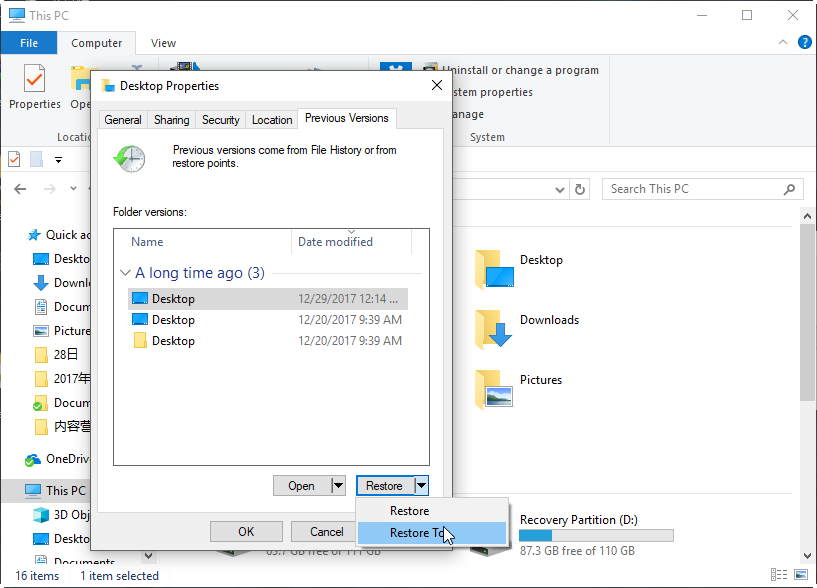
Note: To access the Previous Versions feature in Windows 10, you need to have it turned on. If you haven't set it up yet, you can do so and then try using it. Alternatively, if you're unable to access Previous Versions, you can try using a data recovery tool to recover your lost data.
Method 2. Restore deleted folder in Windows 10 via data recovery software
If the Previous Versions utility can't help you or you have no correct backup, then data recovery software is the way to go.
MyRecover, a professional PC data recovery tool, can help you retrieve over 200 types of deleted files, including pictures, videos, audio files, documents, and compressed files, with minimal effort.
Deleted files can retain their original directory, format, and filename, making it easier to recover deleted folders.
To restore a deleted folder in Windows 10 using the tool, follow these steps: Open the tool, select the folder you want to restore, choose the restore point, and click "Restore" to bring the folder back to its original location. Alternatively, you can also use the "Browse" option to select the folder location on your computer and then click "Restore" to restore the folder. Once the restore process is complete, you can verify that the folder has been successfully restored by checking its contents and location.
Step 1. To recover deleted folders, download and launch the app, then select the source drive where the deleted folders were located and click Start Scan.

Step 2. The metadata, such as size, date modified, size, path, etc., can help quickly identify and target the desired files.

Step 3. To recover deleted files, click on "Deleted files" or "Raw files", select the desired files, and then click "Recover" to easily retrieve them.

Get an easy way to backup your files in Windows 10
While it's technically possible to restore deleted folders without a backup, the process is often time-consuming and not always successful. Moreover, data loss can be caused by various factors beyond accidental deletion, such as system crashes, hard drive failures, or virus infections, making it difficult to predict when disaster will strike. Having a backup in place can provide peace of mind and help you quickly recover your important files and data in case of unexpected events.
If you're looking for a hassle-free and flexible way to backup your computer, Qiling Disk Master Standard is a great option. This free computer backup tool allows you to easily safeguard your important files and data.
- It enables you to do system/disk/partition/files backup & recovery.
- This software enables users to schedule custom backups, which are then automatically performed on a daily, weekly, or monthly basis, depending on the user's preferences.
How about give it a try? Just download Qiling Disk Master Standard on your Windows 10 PC and follow the steps below to make a backup in minutes. Here we take File Backup as an example.
Step 1. Open Qiling Disk Master > Click Backup and then choose File Backup.

Step 2. Name the task > Click Files or Folders > to choose the files/folders you want to backup.

Step 3. To save the backup image, select the desired location and click Schedule to set the task, then click Proceed to confirm.

Notes:
1. To set the compression level of the backup, click on Backup Options.
2. In Qiling Disk Master Professional, the Scheme feature allows you to automatically remove old backup images, freeing up storage space. You can try the free trial version to experience it firsthand.
Conclusion
To restore a deleted folder in Windows 10, you can use the Windows Previous Versions feature or a data recovery tool. If you have a backup image, it's usually easier to restore deleted files from there. However, if you don't have a backup, a data recovery tool can help. To avoid this situation in the future, consider making regular backups with a tool like Qiling Disk Master to keep your data safe.
Related Articles
- Quick Fix: No Restore Previous Versions Option
- How to Recover Lost/Deleted Files in Windows 10? (3 Ways)
- Workaround | Restore NTFS Permissions in Windows Easily
- How to Install Windows 11 Without Microsoft Account
Learn the key steps, checks, and practical tips for this related guide. - Full Guide to Export Outlook 2016/2013/2010 Emails to PST
If you are in need of exporting Outlook emails to a PST file, read this article to get a stepwise guide. To backup your Outlook folders more easily, you may pick the best Outlook backup software. - How to Backup Old Emails in Outlook: A Comprehensive Guide
Learn how to Backup Old Emails in Outlook: A Comprehensive Guide with clear steps, key checks, and practical tips.
Products
Articles & Tutorials
- Data Recovery
- Data Backup
- File Recovery
- File Backup
- File synchronize
- System Backup and Restore
- Disk and Partition Clone
- Technical articles
- Disk Master Help
- Windows Deleted File and Disk Recovery Tutorials
- Windows File and Data Recovery Tutorials
- More Windows Tutorials for Install, Security, Files, and PC Tips
- Windows Boot, Repair, and Recovery Environment Tutorials
- Windows Backup Tutorials
- Windows Restore Tutorials
- Windows Clone and Migration Tutorials
- Windows Server Backup, Recovery, and Management Tutorials
- Windows Disk, Partition, and Storage Management Tutorials