Full Guide to Export Outlook 2016/2013/2010 Emails to PST
Scenarios of exporting Outlook emails to a PST file
The Export feature in the Outlook desktop app allows you to copy Outlook folders to a PST file. This is useful for email backup, archiving, migration to another device, or moving messages to another Outlook account.
- Move emails from one email account to another email account.
- Transfer Outlook emails from one PC to another PC or Mac by exporting a PST file and importing it on the new device.
- Make periodic backups.
Follow the steps below to export Outlook emails to a PST file.
- How to export Outlook 2016/2013/2010 mailbox to PST
- Backup Outlook folders with best Outlook backup software
How to export Outlook 2016/2013/2010 mailbox to PST
Before exporting, you can use Mailbox Cleanup to check mailbox size, remove unnecessary items, and keep only the content you want to save.
- In Outlook, choose File > Tools > Mailbox Cleanup.
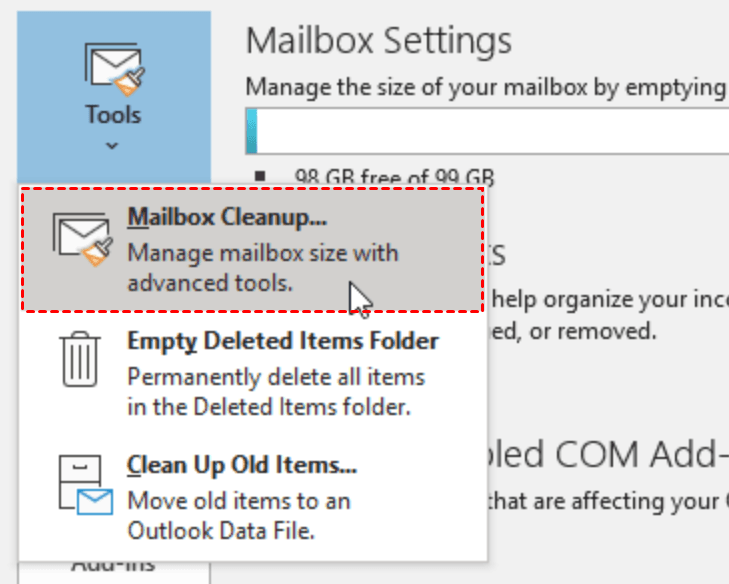
- Do any of the following:
- View the total size of your mailbox and the size of each folder.
- Find items older than a certain date or larger than a certain size.
- Archive items by using AutoArchive.
- View the size of your Deleted Items folder and empty your Deleted Items folder.
- Check the size of the Conflicts folder and remove unnecessary items if it takes up too much space.
After cleaning up the mailbox, use the Import/Export Wizard to export an Outlook folder to a PST file.
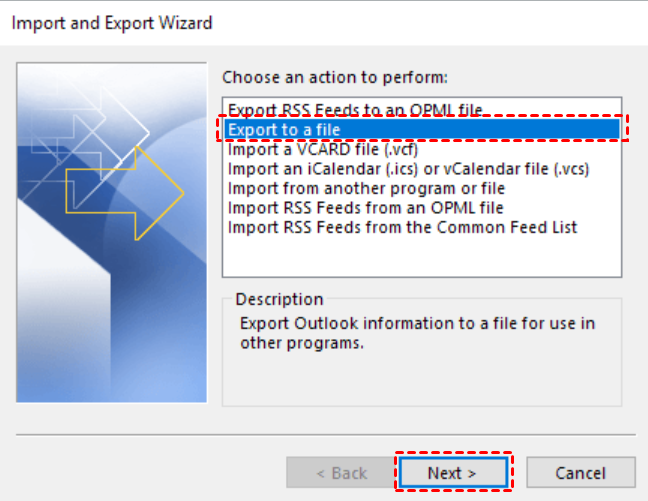
- In Outlook, click File > Open & Export > Import/Export.
- Click Export to a file, and then click Next.
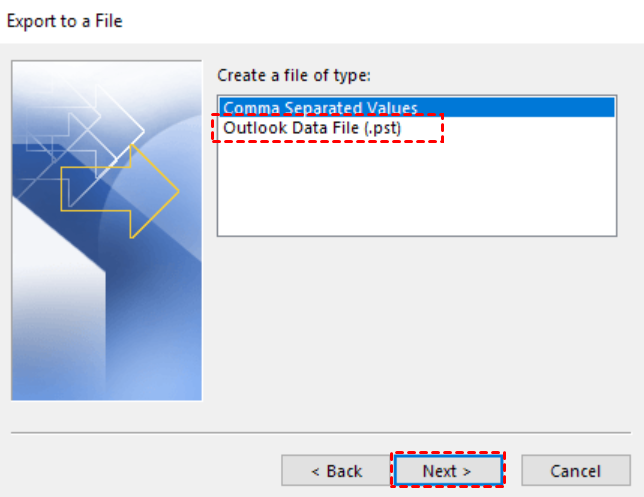
- Click Outlook Data File (.pst), and click Next.
- Select the email folder under the target account, click Next, and check Include subfolders as necessary.

Note: To export your Outlook Inbox to a PST file, select the Inbox folder, as exporting multiple folders at once is not allowed. If you also want to export the Sent folder, you'll need to repeat the export process separately.
- Save the backup file to the default location or select another location by clicking Browse. You can also name the backup file as desired. Finally, click Finish.
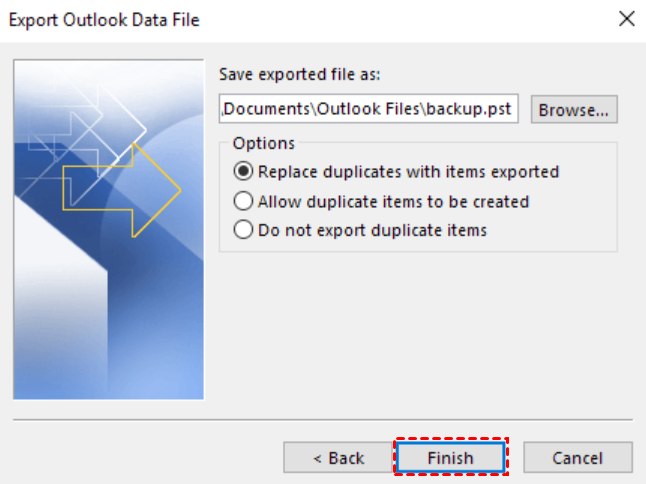
Note: Don't export your PST file to OneDrive and ensure automatic sync isn't syncing to a OneDrive location, as OneDrive will block syncing for Outlook PST files.
- Enter and confirm a password to protect sensitive files, then click OK to start the export process.
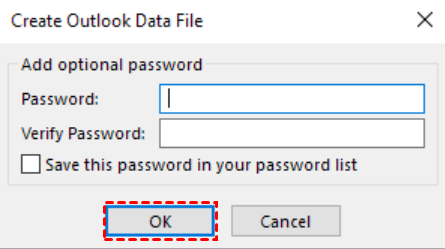
Note: If you don't want to password protect the PST file, leave both fields empty and click OK.
Troubleshoot: Outlook not exporting all emails
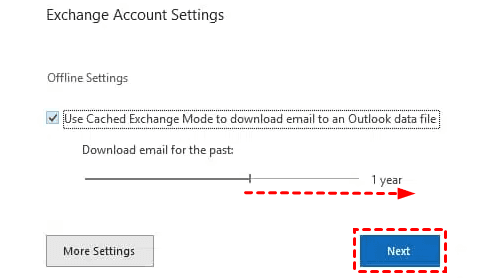
When exporting an Exchange account to a local PST file, it actually exports to an OST file instead. If not all emails are cached to the OST file, not all emails will be exported.
To resolve this issue, first cache all emails from the Exchange server to a local OST file by going to File > Account Settings, double-clicking your Exchange account, and setting the "Mail to keep offline" slider to All.
Backup Outlook folders with best Outlook backup software
To create a backup for your Outlook folders, you can turn to the best Outlook backup software, Qiling Disk Master Professional, which offers all-around backup solutions.
- It allows you to backup various data in Outlook, including contacts, emails, notes, calendars, and tasks.
- The software supports various email accounts, including Outlook, Gmail, Hotmail, and any other account added to the Outlook client.
- Various backup devices are supported, including external hard drives, USB flash drives, NAS devices, and cloud drives.
- You can automatically backup your email data using the "Schedule Backup" feature.
- You can run incremental or differential backups to only save data that has changed since the last backup. This helps save storage space and time.
Download Qiling Disk Master now and learn how to backup Outlook emails with Qiling Disk Master as follows:
- Add the email account you want to backup to Outlook.
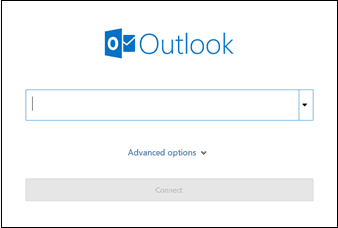
- If you're adding your first email account, go to Start > Outlook, enter your email address and click Connect.
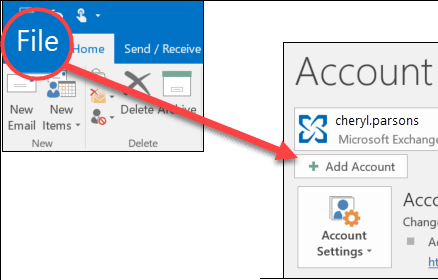
- To add an additional email account, go to Start > Outlook > File > Add Account. This process is the same as adding the first email account.
- Install and launch Qiling Disk Master on your PC, click Backup, then select File Backup.

- Click "Add Outlook Data" and select the Outlook folders you want to back up.

Note: You can select multiple folders at once.
- Select a destination path to save the backup image.

- Customize your backup task, set a schedule and backup scheme if needed, then click Proceed to start backing up your Outlook data.

Conclusion
Now you know how to export Outlook emails to a PST file, which is useful for moving emails between accounts or archiving selected folders. If you need periodic Outlook data backup, Qiling Disk Master can back up Outlook folders automatically on a daily, weekly, or monthly schedule.
Choose Outlook Export for a manual PST file and Qiling Disk Master for regular email backups with flexible destinations.
Related Articles
- How to Backup or Export Entire Outlook Mailbox Easily
You will learn how to backup entire Outlook mailbox to PST file or other location. This article also includes two useful methods to backup individual or multiple emails. - How to Extend C Drive in Windows 10 without Formatting? [3 Ways]
To extend the C drive in Windows 10 without formatting, there are three methods you can use. The first method involves using the built-in Disk Management tool to shrink a different drive and then extend the C drive. - How to Install Windows 10 on New SSD without CD or USB?
To install Windows 10 on a new SSD without a CD or USB, follow these steps. First, ensure your computer can boot from the SSD, then create a bootable Windows 10 installation media using the Media Creation Tool on another computer. - [Full Guide] How to Move Steam Games to External Hard Drive
Learn how to move Steam games to external hard drive on Windows 10/11. Step-by-step guide to transfer games without re-downloading, free up disk space, and run Steam games from external drives.
Products
Articles & Tutorials
- Data Recovery
- Data Backup
- File Recovery
- File Backup
- File synchronize
- System Backup and Restore
- Disk and Partition Clone
- Technical articles
- Disk Master Help
- Windows Deleted File and Disk Recovery Tutorials
- Windows File and Data Recovery Tutorials
- More Windows Tutorials for Install, Security, Files, and PC Tips
- Windows Boot, Repair, and Recovery Environment Tutorials
- Windows Backup Tutorials
- Windows Restore Tutorials
- Windows Clone and Migration Tutorials
- Windows Server Backup, Recovery, and Management Tutorials
- Windows Disk, Partition, and Storage Management Tutorials