How to Extend C Drive in Windows 10 without Formatting? [3 Ways]
"Can I extend C drive without formatting?"
"I have 150 GB on my C drive, but now it is almost full, and my Windows 10 computer is slowing down now. So I want to add more space into it to extend the space of C drive. But in Disk Management the "Extend Volume" is greyed out. I googled this problem and knew that I need to delete the next D partition. But the D drive contains lots of important data I don't want to lose, So, does anyone know how to extend C drive in Windows 10 without formatting or deleting a second partition on the disk? Thanks!"
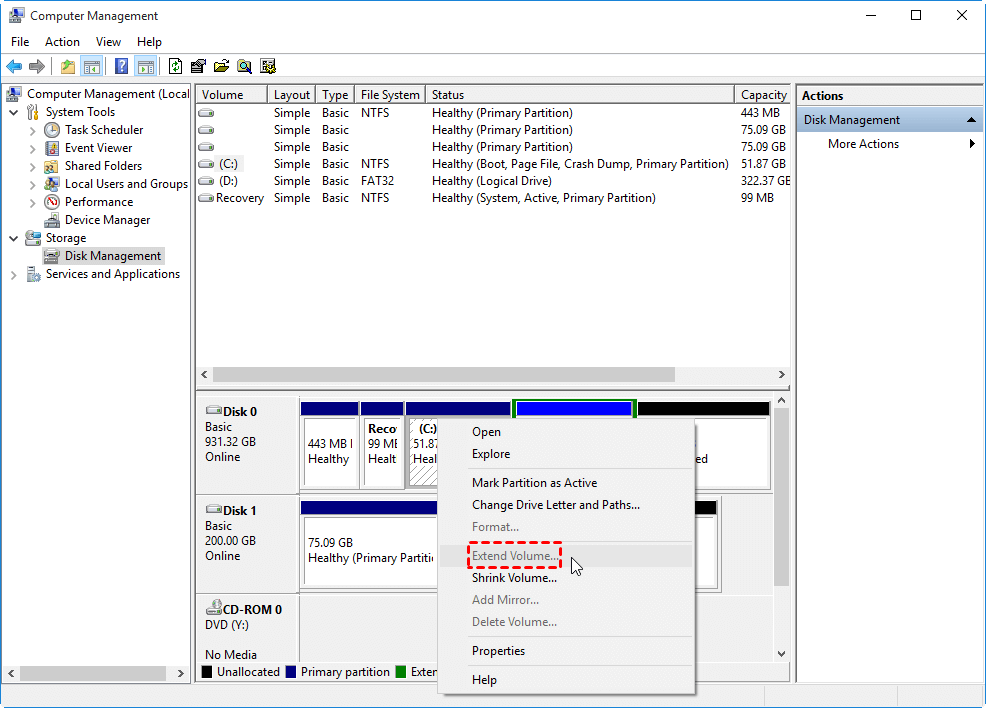
To extend the C drive space, the "Extend Volume" feature in Windows Disk Management can be used if there is unallocated space adjacent to the NTFS partition. However, if there is no unallocated space next to the partition, deleting the adjacent partition and backing up its data is necessary to free up space.
☞ Note: If you don't plan to change the size of partition C, you can free up space on C drive by moving installed apps to another drive.
3 Ways: extend C drive space without formatting in Windows
Considering the limitations of Disk Management, we recommend using Qiling Disk Master Professional, a versatile partition manager that can extend both NTFS and FAT32 partitions. This software offers a "Resize Partition" feature that can increase C drive size using contiguous unallocated space, as well as three more flexible methods to increase space in C drive without formatting. You can download its Demo version and take a free trial to explore its capabilities.
- Method 1. Merge non-adjacent unallocated space into C drive
- Method 2. Allocate free space from another partition to C drive
- Method 3. Extend C drive without a reboot
Method 1. Merge non-adjacent unallocated space into C drive
If the unallocated space is available but not adjacent to the C drive, you can merge the non-adjacent unallocated space and C partition using the "Merge Partition" feature to combine them into a single contiguous partition.
1. Install and run Qiling Disk Master Professional, then right-click the C drive and select "Move/resize Partitions".
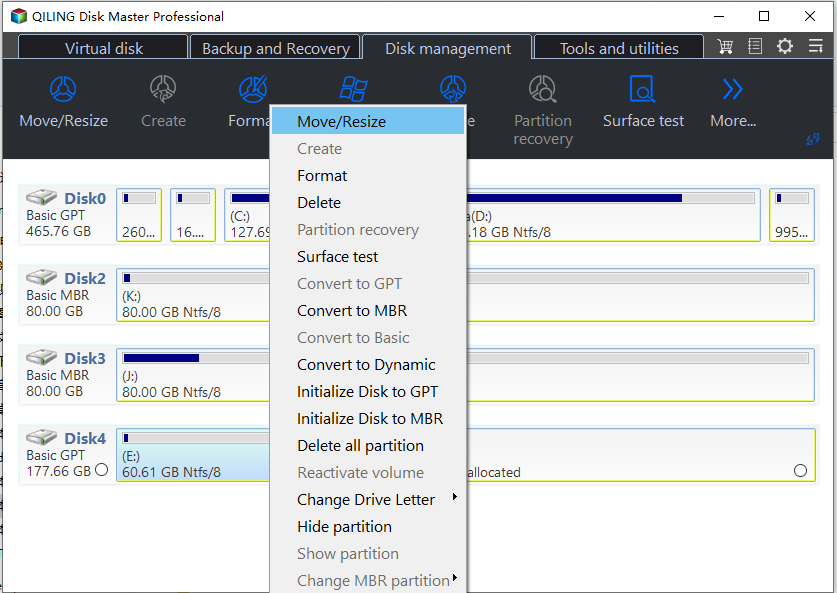
2. Drage to the unallocated space.
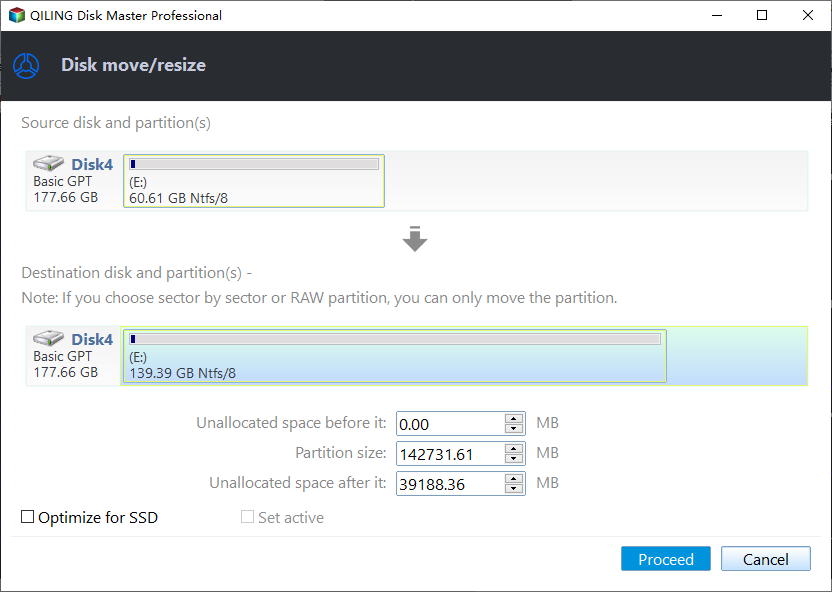
3. Click "Proceed" to commit the pending operation.
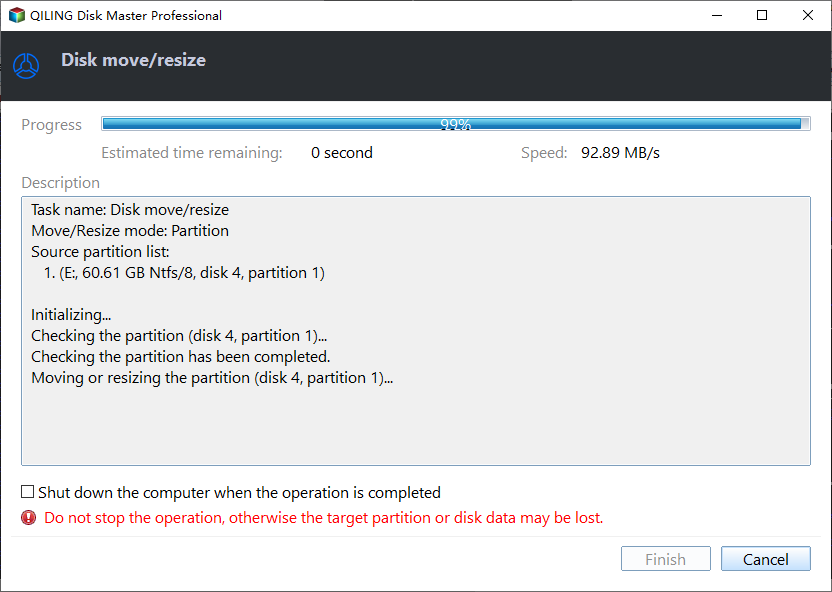
Method 2. Allocate free space from another partition to C drive
If there is no unallocated space on the same disk, you can use this method to directly assign some unused space from other partition to C drive. This involves shrinking the other partition, freeing up space, and then expanding the C drive to use the newly freed space.
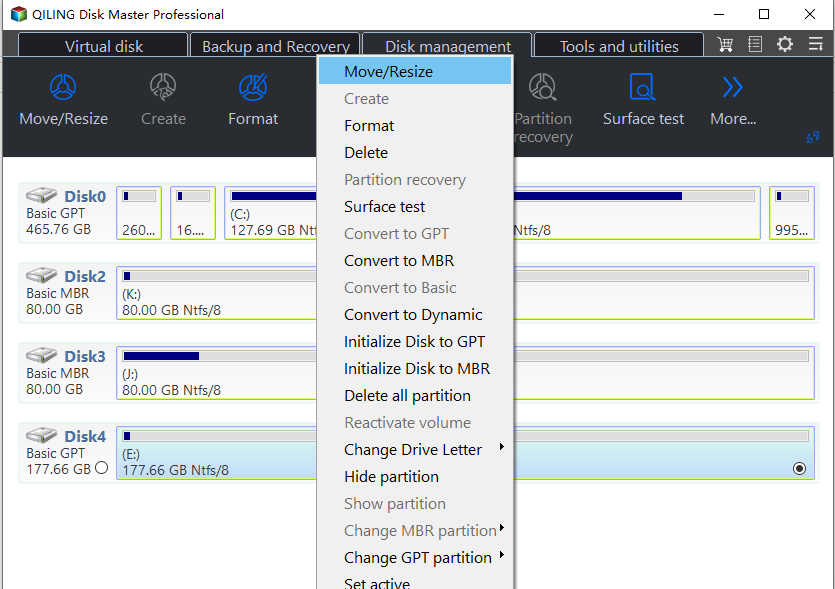
1. Right-click the D drive or other partitions with available free space and select "Move/Resize".
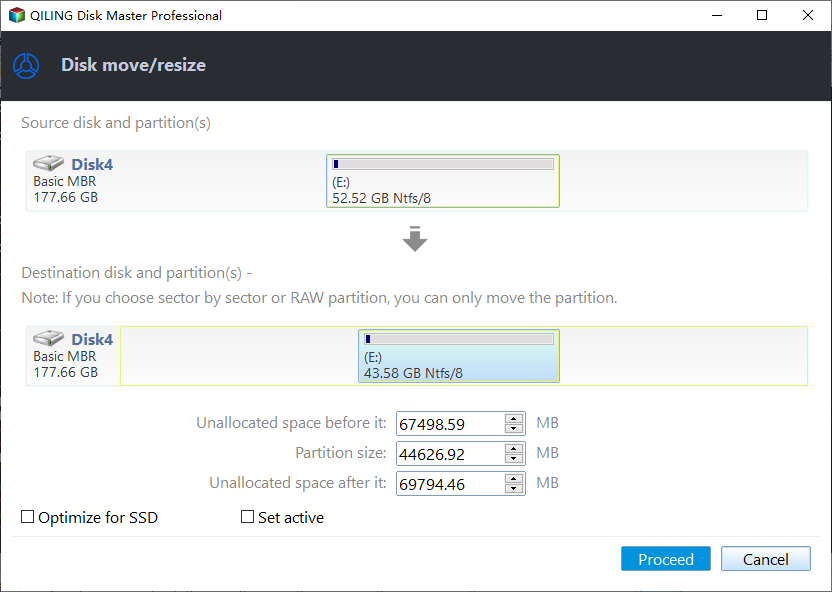
2. In this window, you can choose to allocate a specific amount of free space from the D drive to the C drive.
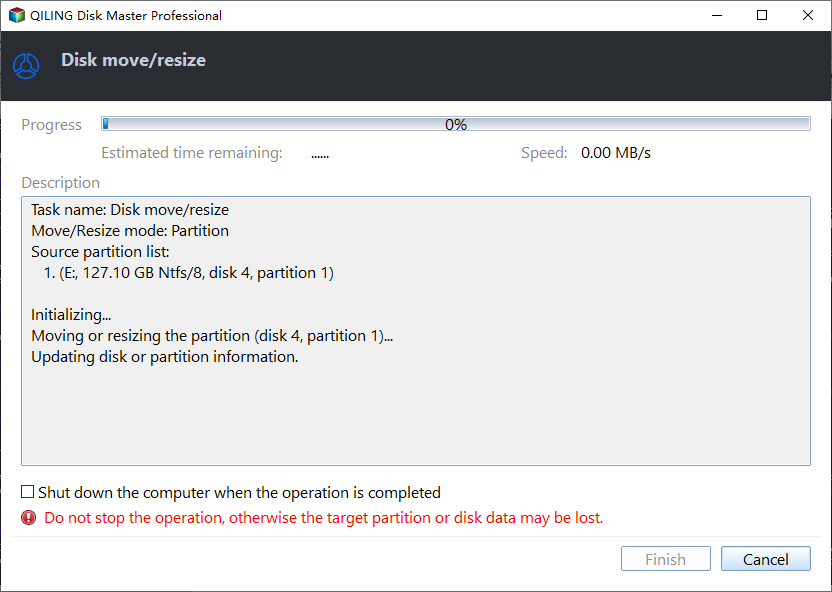
3. Hit on "Proceed" to execute the pending operation.
Method 3. Extend Partition Wizard
Qiling Disk Master Professional offers an "Extend Partition Wizard" feature that allows extending an NTFS system partition without rebooting the computer.
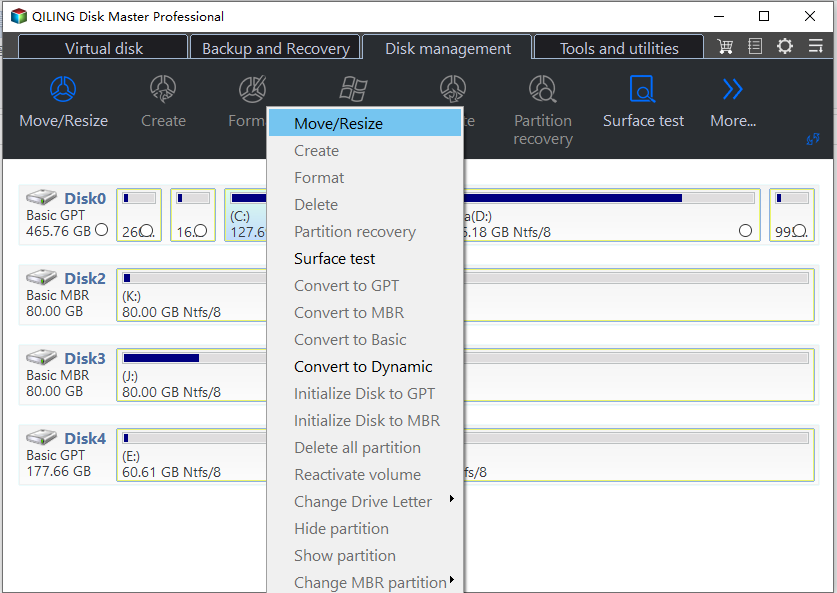
1. Click the "Wizard" option on the menu bar and select "Extend Partition Wizard" to proceed with extending the partition.
3. Select the partition from which you plan to take some free space to C drive and click "Next".
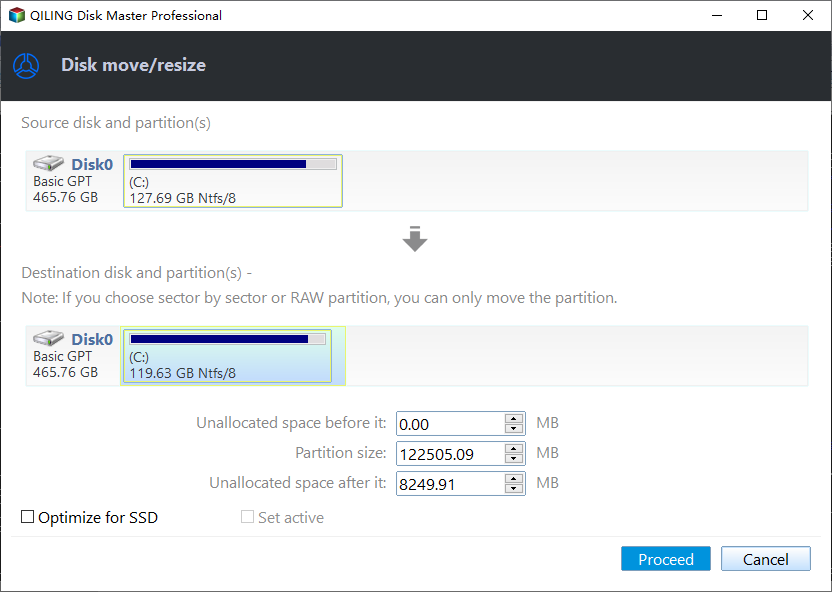
4. To extend the C drive, move the slider bar or enter an exact value into the "Partition New Size" box to increase the size of the C drive partition. This will allocate more space to the C drive, allowing you to use the additional space for files and programs.
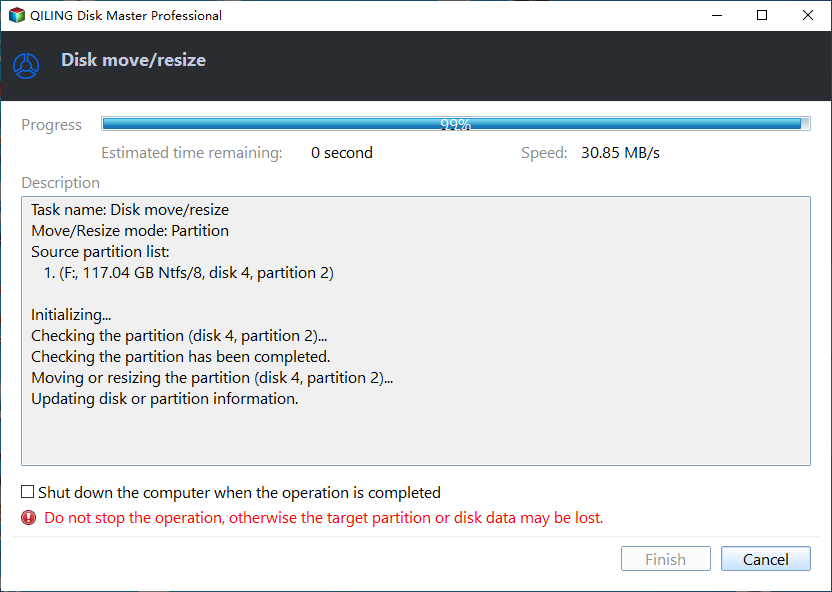
5. Preview and confirm these operations. And click "Proceed" > "Yes" to start.
Summary
To extend the C drive in Windows 10 without formatting or deleting partitions, you can use Qiling Disk Master Professional, which makes the process as easy as possible. This software not only allows you to resize partitions but also offers other useful functions, such as cloning an MBR disk to GPT, migrating the OS to an SSD, recovering deleted partitions, and converting MBR and GPT without deleting partitions.
If you're planning to extend your system partition on a Windows Server computer, Qiling Disk Master Server can help you achieve that and enjoy the benefits of a larger system partition.
Related Articles
- Effective C Drive Full Windows 7 Solutions
This guide explains Effective C Drive Full Windows 7 Solutions with clear steps, key checks, and practical tips. - NTFS VS. FAT32: What's the Difference and Which is Better?
In this post,we share much information about NTFS and FAT32 file systems and make an elaborate comparison. Besides, you can also learn how to realize the NTFS and FAT32 conversion without formatting or losing data. - Solved: Paragon Migrate OS to SSD Not Working
If Paragon fails to migrate your OS to an SSD, there's a free alternative that can successfully do the job. - Quick Workaround to Paragon Migrate OS to SSD Stuck
This guide explains Quick Workaround to Paragon Migrate OS to SSD Stuck with clear steps, key checks, and practical tips. - Get the Best XXCopy Alternative for Free Here!
This guide explains Get the Best XXCopy Alternative for Free Here! with clear steps, key checks, and practical tips. - How to Successfully Zero Fill Hard Drive from Bootable USB for Free?
Learn how to Successfully Zero Fill Hard Drive from Bootable USB for Free with clear steps, key checks, and practical tips.
Products
Articles & Tutorials
- Data Recovery
- Data Backup
- File Recovery
- File Backup
- File synchronize
- System Backup and Restore
- Disk and Partition Clone
- Technical articles
- Disk Master Help
- Windows Deleted File and Disk Recovery Tutorials
- Windows File and Data Recovery Tutorials
- More Windows Tutorials for Install, Security, Files, and PC Tips
- Windows Boot, Repair, and Recovery Environment Tutorials
- Windows Backup Tutorials
- Windows Restore Tutorials
- Windows Clone and Migration Tutorials
- Windows Server Backup, Recovery, and Management Tutorials
- Windows Disk, Partition, and Storage Management Tutorials