Easy and Effective Solutions to C Drive Full in Windows 7
- Scenario: My local disk C full in Windows 7
- Why is C drive full Windows 7?
- 7 solutions to C drive full in Windows 7, 8, 10
- │Solution 1. Disable Hibernation
- │Solution 2. PerformDisk Cleanup
- │Solution 3. Turn off System Restore
- │Solution 4. Uninstall some unnecessary programs
- │Solution 5. Move Apps from C drive to another larger drive
- │Solution 6. Merge unallocated space into C drive
- │Solution 7. Allocate free space from other partitions to C drive
- In Sum
Scenario: My local disk C full in Windows 7
Your C drive is full, but you've only used 20 GB, so you're missing around 50 GB of free space. To free up more space, consider deleting unused files, uninstalling unnecessary programs, and checking for any large files or folders taking up space. You can also try checking for any system files or updates that might be consuming space. If you're still struggling, consider upgrading your storage or using cloud storage to free up space on your C drive. Would you like some specific steps to get started?

Why is C drive full Windows 7?
The C drive can become full due to default program installations and system usage, leading to issues like freezes and crashes, even if Windows has been migrated to an SSD.
7 solutions to C drive full in Windows 7, 8, 10
Since C drive full problem will directly affect the computer boot and running speed, it is important to learn how to solve this issue. And according to Microsoft news, people who use Windows 7/8/10 can free upgrade to Windows 11. But the system drive must have 64GB of free space. Thus, here, we would like to share seven effective solutions to C drive full Windows 7.
- Solution 1. Disable Hibernation
- Solution 2. PerformDisk Cleanup
- Solution 3. Turn off System Restore
- Solution 4. Uninstall some unnecessary programs
- Solution 5. Move Apps from C drive to another larger drive
- Solution 6. Merge unallocated space into C drive
- Solution 7. Allocate free space from other partitions to C drive
│Solution 1. Disable Hibernation
Hibernate is enabled by default, which saves the content of your computer's memory to the hard disk, resulting in large hibernate files taking up space. To free up disk space, you can disable Hibernate.
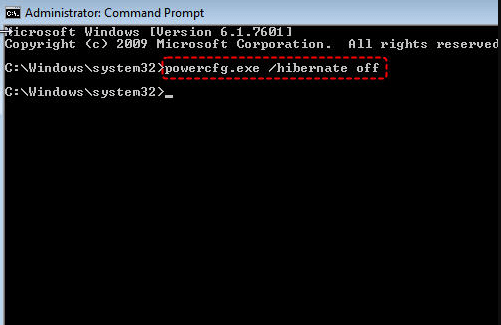
To disable hibernation on Windows, click the "Start" button, type "cmd" and open the Command Prompt as an administrator. Then, type "powercfg.exe /hibernate off" and press Enter. This will disable hibernation on your system.
│Solution 2. PerformDisk Cleanup
Disk Cleanup is a tool that allows you to remove temporary files and other unnecessary data that cannot be deleted through Windows File Explorer, providing a solution to a full C drive.
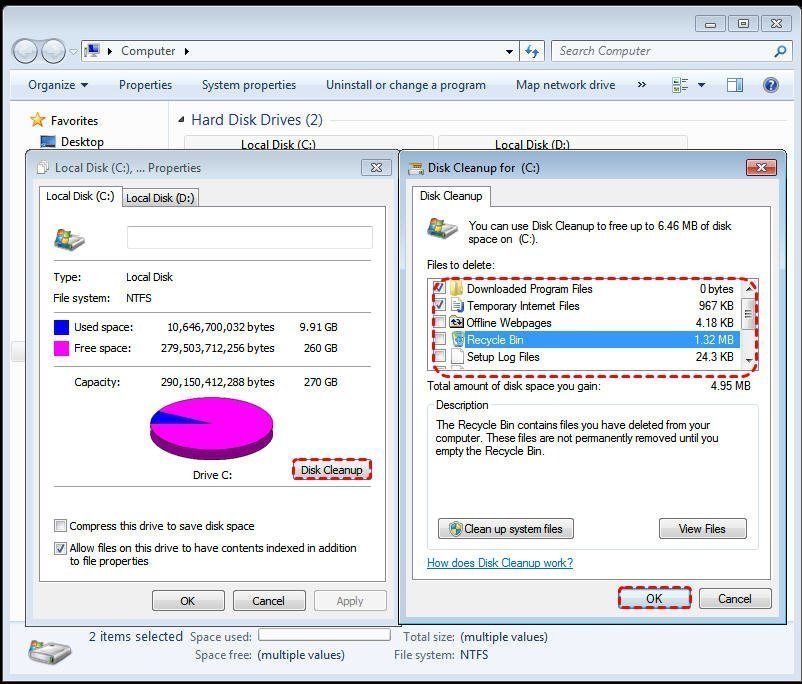
1. Right click the C drive in File Explorer, select "Properties", and then click "Disk Cleanup" in the window that appears.
2. Windows will scan your C drive and calculate how much space you can free from this drive. It will then present you with a list of files and folders that are taking up space and give you the option to delete them.
3. To delete files from a drive, select the files you want to delete, then click "OK" to confirm the deletion.
│Solution 3. Turn off System Restore
System Restore is a feature in Windows that allows you to restore the operating system to a previous state in case of system failure. However, it takes up significant disk space, so disabling it can free up some storage space.
1. Right-click "Computer" and click "Properties".
2. In the left pane click "System Protection".
3. To disable System Protection on the C drive, select the C drive, click on "Configure" from the menu.
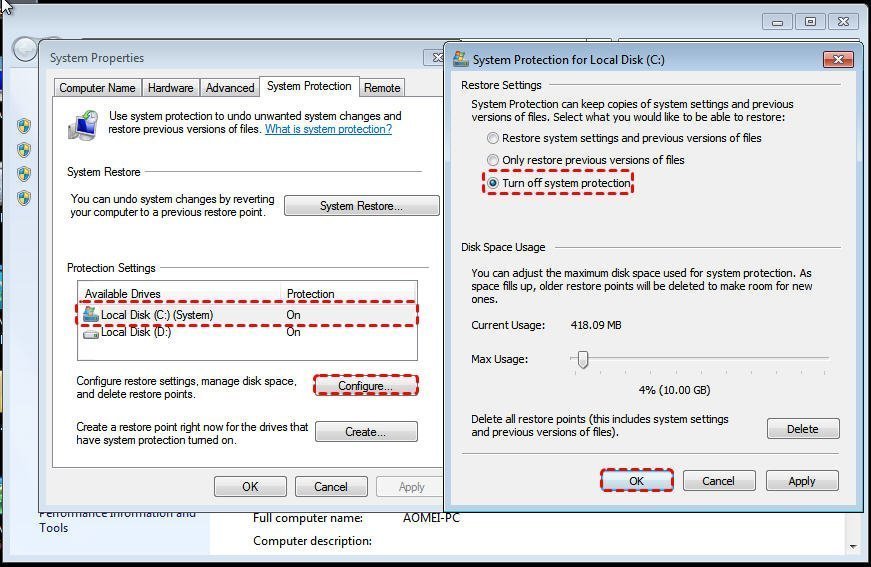
4. Select the option "Turn off system protection" and click "OK".
│Solution 4. Uninstall some unnecessary programs
To free up space on your computer, you can uninstall unused programs, which often take up a lot of space. To do this, go to the "Start" menu, then click on "Control Panel", followed by "Uninstall a program" under the "Programs and Features" section. From there, right-click on the program you want to remove and select "Uninstall".
│Solution 5. Move Apps from C drive to another larger drive
Many users are reluctant to uninstall useful programs to alleviate the problem, as most of the applications on their computer are necessary and useful to them.
Moving applications from the C drive to another drive, like the D drive, is not as simple as transferring personal files such as documents or photos. To transfer apps, a professional app mover is required, and we recommend using Qiling Disk Master Professional. Its demo version can be downloaded and tried out.
│Solution 6. Merge unallocated space into C drive
Besides freeing up disk space, you can also try to extend C drive to make it bigger. This can usually be done using the Disk Management tool by right-clicking on the C drive and choosing "Extend Volume", but only if there is an adjacent unallocated space behind the C drive. Otherwise, the "Extend Volume" option will be greyed out.
Qiling Disk Master Professional can easily merge unallocated space into the system partition, even if it's behind the C partition, in just three steps, making up for the shortcomings of Disk Management.
1. To start, install and open Qiling Disk Master Professional. Then, right-click the C drive and choose "Disk management" from the menu, followed by selecting "Move/resize Partition" to proceed with the process.
2. In this window, select the C drive and another unallocated space.
3. You need to click "Proceed" to commit the pending operation, which will require a reboot after it's completed.
Notes:
▸If there is no unallocated space on the same disk, you can create a new partition on a different disk or expand the existing partition by allocating more space from the same disk.create unallocated space Qiling Disk Master allows you to resize, shrink, or delete partitions on a disk using its "Shrink Partition" and "Delete Partition" features. This enables users to free up space on their disk by reducing the size of a partition and then using the reclaimed space for other purposes, or completely removing a partition to eliminate any associated data and make room for new storage needs.
▸To merge partitions, you can combine two adjacent partitions into a larger one, but only merge a data partition into the system boot drive, not the other way around.
│Solution 7. Allocate free space from other partitions to C drive
You can directly allocate free space from another partition (such as D partition) to C drive, providing a simpler, quicker, and more convenient solution to a full C drive on Windows 7.
1. In the main interface of Qiling Disk Master Pro, right-click the D partition and select "Move/resize".
2. Here, you will know how much free space available on the D partition, and you can decide how much space you want to allocate to the C drive.
3. Click "Proceed" to execute this operation.
If your system disk is full, you can use the "Disk Clone Wizard" to upgrade the smaller system disk to a larger disk.
In Sum
If your C drive is full in Windows 7, don't worry! There are 7 different solutions you can try, even if you have no computer background. You can use these solutions yourself, and if you need more comprehensive functions for your disks, consider using Qiling Disk Master. This software is also compatible with Windows Server 2008/2012/2016/2019, and you can use Qiling Disk Master Server for those systems.
Related Articles
- C Drive Full, D Drive Empty-What Should You Do?
If your C drive is full D drive is empty, you can delete D drive and extend C drive. If your C drive is full but D is nearly empty, you can transfer the free space from D drive to C drive or move apps from C drive to D drive. This post offers the complete details. - C: Drive Is Full, How to Empty It? (5 Methods)
Find out what is using disk space and free storage with safe cleanup methods. - How to Solve C Drive is Full in Windows 10/8/7?
The issue C drive full windows 10 is a headache and can bring you quite a lot of trouble. If you want to find out where those extra files come from and the solution to this issue, this should be the right article for you. - What Should I Do When Computer Freezes? (7 Options)
The computer freezes always to make users annoyed. Fortunately, you can find some effective solutions to fix it from here. - Professional Clone Software for Windows Server 2003/2008/2012/2016/2019
Pick the most reliable and professional Windows Server clone software to clone hard drive to new drive or SSD in Server 2003, 2008, 2012, 2016 and 2019 with simple clicks. - Complete Guide to Upgrade Windows Server 2019 to 2022
You can learn how to upgrade Windows Server 2019 to 2022 step by step as well as protect your Windows Server 2022 in the best way. Please read on.
Products
Articles & Tutorials
- Data Recovery
- Data Backup
- File Recovery
- File Backup
- File synchronize
- System Backup and Restore
- Disk and Partition Clone
- Technical articles
- Disk Master Help
- Windows Deleted File and Disk Recovery Tutorials
- Windows File and Data Recovery Tutorials
- More Windows Tutorials for Install, Security, Files, and PC Tips
- Windows Boot, Repair, and Recovery Environment Tutorials
- Windows Backup Tutorials
- Windows Restore Tutorials
- Windows Clone and Migration Tutorials
- Windows Server Backup, Recovery, and Management Tutorials
- Windows Disk, Partition, and Storage Management Tutorials