Complete Guide to Upgrade Windows Server 2019 to 2022
Overview of Windows Server 2022
Microsoft has been integrating more Azure features into Windows Server OS, making it more "cloud-aware", and this is especially evident in Windows Server 2022, the latest version, which also comes with other benefits.
- Windows Server 2022 is more cloud-friendly and has all the features that Microsoft offers with Azure, unlocking potential with Windows Admin Center.
- Windows Server 2022 offers a new set of security features that are unlocked by having a Trusted Platform Module (TPM) 2.0.
- The tool still focuses on container space, specifically Kubernetes, the most powerful and popular container orchestration platform, and provides Active Directory identities for containers using group-managed service accounts.
How to Upgrade Windows Server 2019 to 2022 Step by Step
Windows Server 2022 is a more secure version compared to Windows Server 2019, making it a preferred choice for many users. If you're not familiar with upgrading from 2019 to 2022, the process involves an in-place upgrade, which can be done by following the steps outlined in the following contents carefully.
Before in-To upgrade from Windows Server 2019 to 2022, you'll need to prepare by backing up your data, updating your server's version of .NET Framework, and ensuring your server's hardware meets the minimum requirements for Windows Server 2022.
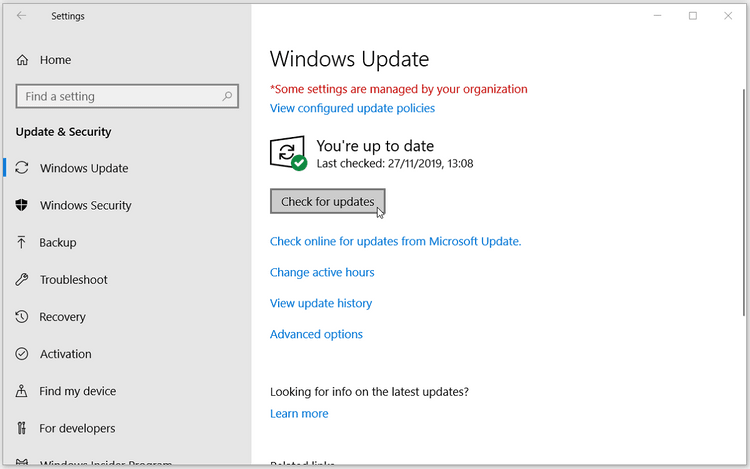
- Be sure the current operating system is up-to-date. To check for updates on Windows Server 2019, navigate to Settings, then Update & Security, and click on "Check for updates". If the system is up-to-date, simply close the window. However, if updates are available, proceed with installing them to ensure the server is running with the latest version.
- Check the Windows Server 2022 system requirements To install Windows Server 2022, your computer must meet the following system requirements: 64-bit CPU, 2 GB RAM, 32 GB free disk space, and a compatible graphics card. Additionally, the system must have a 64-bit UEFI firmware and support for Secure Boot. Furthermore, the computer must have a compatible processor, such as Intel Core i3 or i5 or AMD Ryzen 3 or 5.
- Backup Windows Server 2019 in advance before upgrading Windows Server 2019 to 2022 for free For detailed steps, you can refer to best way below.

To start upgrading from Windows Server 2019 to Windows Server 2022, follow the steps below.
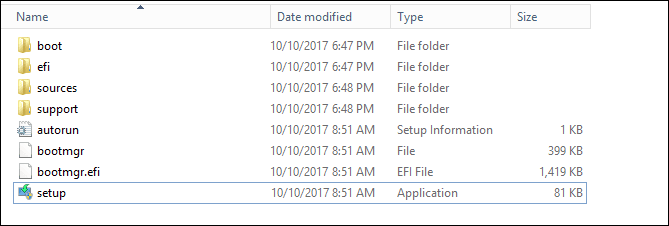
Step 1. To update Windows Server 2019 to 2022, log in to the server, download the media file from Microsoft, and then double-click the Setup.exe file to initiate the update and installation process.
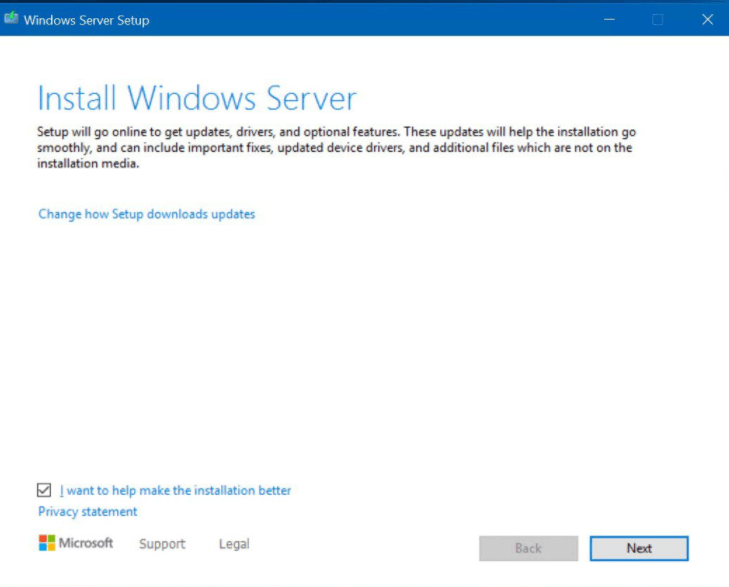
Step 2. In the Install Windows Server window, click "Change how Setup downloads updates" and select "Download updates, drivers and optional features" to proceed.
Step 3. Input the product key of the current server and click Next.
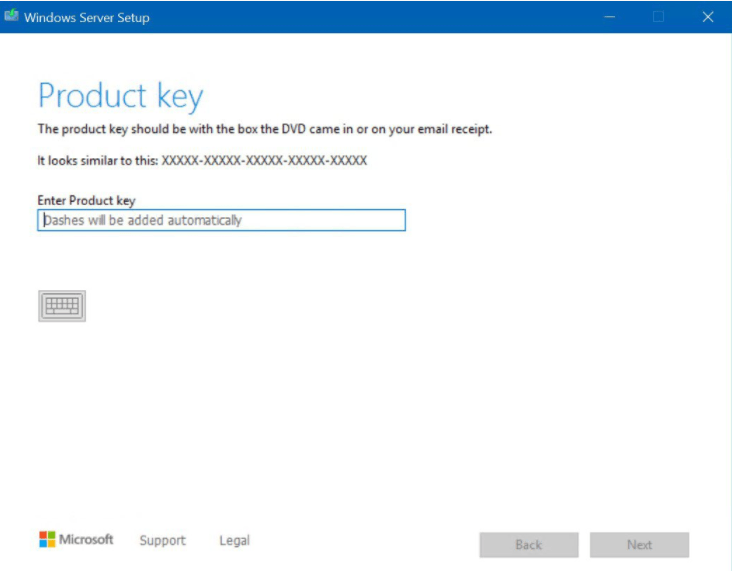
Tip: If you don't know the product key, check the official mail or the Windows Server Product Key Box, as it's usually listed there and sent to your email when you purchased Windows Server 2019.
Step 4. Select the edition of Windows Server 2022, which need to be the same as 2019, and then click Next.
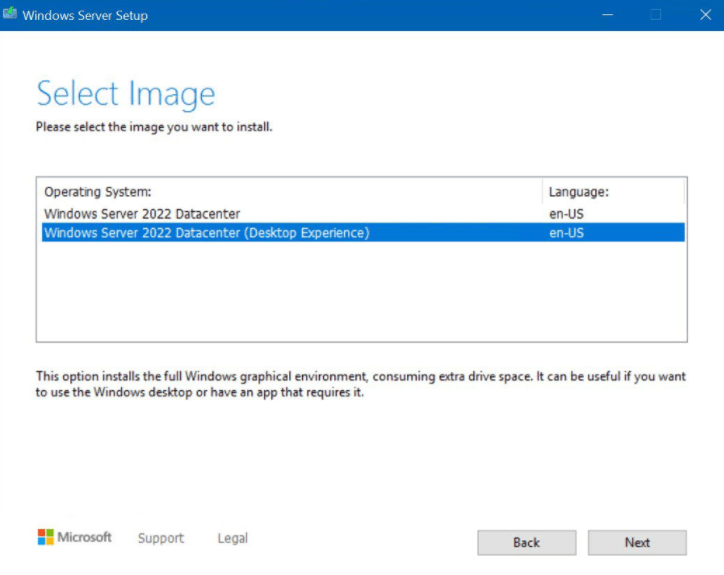
Note: The product key only activates the same version of operating system when you perform an in-place upgrade to a new one.
Step 5. Read the Applicable notices and license terms then click Accept to move on.
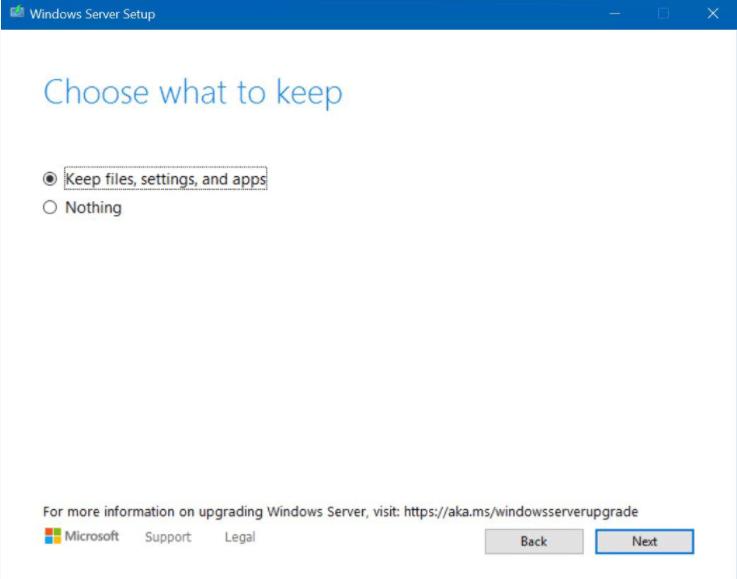
Step 6. Select Keep personal files and apps and then select Next. If you don't choose the right version, the first option will be unavailable.
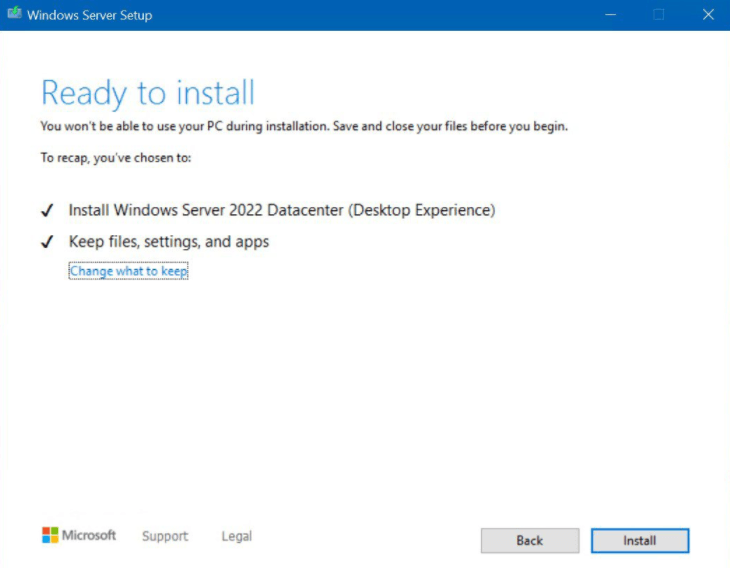
Step 7. After Windows Server Setup analyzes your device, it will prompt you to proceed with your upgrade by selecting Install.
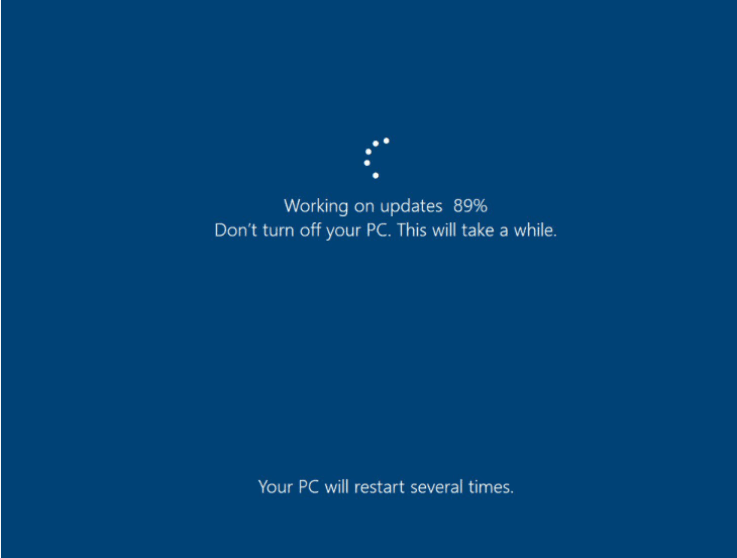
Step 8. The server upgrade process begins, displaying its progress on the screen, and upon completion, it will automatically restart.
Best Way to Protect Your Windows Server Safely
To ensure better data security, it's recommended to back up your Windows Server with professional backup software every time you make significant changes to your hard drive or operating system. This way, if any issues arise, you can restore your system using the backup, allowing you to continue using your Windows Server normally and preventing data loss.
Qiling Disk Master Server offers five backup solutions to meet different needs, allowing users to choose system, disk, partition, files or folders, or cloud backup based on their preferences, and enjoy various advantages.
- Schedule backup: It allows you to schedule automatic backup in Windows Server in daily, weekly, monthly, event triggers and USB plug-in.
- Backup methods: The feature enables incremental backup in a scheduled task, which only backs up changed files to minimize space usage. Alternatively, differential backup can be used to ensure availability.
- Backup destinations: You have various storage options, including local disk, external hard disk, USB drive, CD/DVD, network or NAS, cloud storage, and more.
- System compatibility: you can use it in Windows Server 2022/2019/2016/2012(R2)/2008(R2)/2003, etc.
To back up your Windows Server safely, you can follow a graphic tutorial. Additionally, to protect any computer, you can create a portable version of the software, supported by the TechPlus edition, and run it at any time.
Step 1. Download Qiling Disk Master Server, install it, and open it. You can click Backup > System Backup.

Step 2. To save the image backup of Windows Server, you need to select a backup destination where the image backup will be saved, and the system partitions and boot-related partitions will be selected by default.

Step 3. Confirm your operations and click Proceed to backup Windows Server and protect your data safely.

Notes:
- Options: You can add comments to the backup task, as well as encrypt, split, and compress Windows Server 2022 backup files. Additionally, you can set up email notifications for the backup process.
- Schedule Backup: You can schedule backups to run at different frequencies, such as daily, weekly, or monthly, or tie them to specific events like system shutdown. Alternatively, you can use a plug-and-pull backup method, where you simply plug in a USB drive to initiate a backup.
- Backup Scheme: Qiling Disk Master can save or directly free up disk space using its backup and cleanup methods. For backup, users can choose between Full, Incremental, and Differential Backup options. For cleanup, the software offers methods by quantity, time, daily, weekly, or monthly to help manage disk space.
- You can automatically delete old backup images to free up space using one of the clean-up methods.
Complete Data Protection for All Enterprise Data
Qiling Disk Master is a professional and easy-to-use enterprise backup software that enables users to backup all Windows Servers, PCs, VMs, and MS databases on a web console, making it a great choice for ultimate data protection in an enterprise setting.
All data included: It supports various backup types, including disk, partition, system, VMware, Hyper-V, and MS SQL backups.
Incremental Windows Backup: It supports incremental and differential backup, which allows users to only backup newly added data or changed data, saving time and space by not having to backup the entire dataset each time.
Role management: With the admin account, you can create sub-accounts with varying permissions for your team members to perform backup tasks.
Automatic task execution: Once you set up a backup schedule, later backups will run automatically in the background.
Here you can click the download button to install the Qiling Disk Master Trial version for a 30-day free trial period.
FAQs on upgrade Windows Server 2019 to 2022
1. What are the benefits of upgrading from Windows Server 2019 to Windows Server 2022?
Answer: Upgrading to Windows Server 2022 provides improved security, enhanced performance, better app support, and updated management tools, ensuring compatibility with the latest hardware and software advancements.
2. What are the system requirements for upgrading to Windows Server 2022?
Answer: Before upgrading to Windows Server 2022, ensure that your hardware meets the minimum system requirements, which include processor specifications, RAM requirements, available disk space, and compatibility with specific hardware components.
3. What is the recommended upgrade path for transitioning from Windows Server 2019 to Windows Server 2022?
Answer: Microsoft provides guidance on the recommended upgrade path from one version to another, taking into account factors like server configurations, installed roles/features, and compatibility with third-party applications.
4. Is it possible to perform an in-place upgrade from Windows Server 2019 to Windows Server 2022?
Answer: An in-place upgrade allows you to upgrade your existing Windows Server 2019 installation to Windows Server 2022 without losing data or settings, but it's crucial to perform thorough backups and compatibility checks beforehand to avoid potential issues.
5. What precautions should be taken before upgrading to Windows Server 2022?
Answer: To upgrade to Windows Server 2022, make sure to back up your data and system configuration first, and verify that all critical applications and services are compatible with the new operating system. Testing the upgrade in a controlled environment can help identify and address any potential compatibility issues beforehand.
6. Are there any licensing considerations when upgrading to Windows Server 2022?
Answer: Depending on your licensing agreement with Microsoft, you may be eligible for free or discounted upgrades to Windows Server 2022. Review your licensing terms and consult with your licensing provider or Microsoft representative to understand any potential implications or requirements for the upgrade.
7. What post-upgrade steps should be taken to ensure a smooth transition to Windows Server 2022?
Answer: After completing the upgrade, thoroughly test critical services, applications, and functionalities to ensure everything works as expected. Also, review and update security settings, configure backup and recovery options, and closely monitor system performance in the initial period. Regularly install Microsoft updates and patches to maintain system security and stability.
Summary
Upgrading Windows Server 2019 to 2022 can be done with a step-by-step guide, which is outlined in this article. To ensure a smooth process, it's crucial to follow the instructions carefully. Additionally, creating a backup image for Windows Server before and after the upgrade is essential, as it's a major change that could result in data loss if not done properly.
Qiling Disk Master is a suitable backup software, allowing you to back up any desired items in its server edition and restore the system to a new hard drive or computer if needed. The techplus edition also enables the restoration of a system image to multiple computers over a network using Qiling Image Deploy.
Related Articles
- 3 Ways to Backup Windows Server 2012, 2016, 2019
In this post, you will get 4 effective methods to create image backup in Windows Server, which apply to Windows Server 2008(R2), 2012(R2), 2016, 2019, 2022, etc. Let's get started! - 2 Ways to Create System Image Backup in Windows Server 2016
You will learn two easy ways to create a system image for Windows Server 2016, namely using Windows Server Backup, Qiling Disk Master Server and Qiling Disk Master. Get the stepwise guide below. - Preparations for Windows Server 2016 in-Place Upgrade
This article focuses on how to prepare for Windows Server 2016 upgrade and upgrade Windows Server 2012 to 2016 step by step. No data loss. - How to Install Windows 11-Step by Step Guide
This article will guide how to install Windows 11 and find the best software to protect your Windows Server 2022. Please read on. - Free MBR to GPT Converter in Windows 10/8/7|Freeware Download
In this post, we will share you with 3 free MBR to GPT converters. Two are Windows built-in tools and the third is a piece of software, which can convert MBR to GPT without losing data for free in Windows 11,10, 8, 7. - Tricks to Free Space on System Partition on Your PC
If you're running low on space on your system partition in Windows 10, 8, or 7, There are some tricks to help you effectively free up space on your system partition. -
Install Windows Server 2022 Safely
Prepare backups, boot media, drivers, and partitions before installing Windows Server 2022.
Products
Articles & Tutorials
- Data Recovery
- Data Backup
- File Recovery
- File Backup
- File synchronize
- System Backup and Restore
- Disk and Partition Clone
- Technical articles
- Disk Master Help
- Windows Deleted File and Disk Recovery Tutorials
- Windows File and Data Recovery Tutorials
- More Windows Tutorials for Install, Security, Files, and PC Tips
- Windows Boot, Repair, and Recovery Environment Tutorials
- Windows Backup Tutorials
- Windows Restore Tutorials
- Windows Clone and Migration Tutorials
- Windows Server Backup, Recovery, and Management Tutorials
- Windows Disk, Partition, and Storage Management Tutorials