Easily Create Windows Server 2012 Incremental Backup | 2 Ways
Does Windows Server 2012 Do Incremental Backups Automatically?
Since Windows Server 2008 R2, Microsoft has made managing backups easier. By default, Windows Server Backup creates incremental backups that behave like full backups, allowing you to recover any item from a single backup without taking up full backup space. Additionally, Windows Server Backup automatically deletes older backups to free up disk space for newer ones, eliminating the need for user intervention.
Microsoft's backup rule states that Windows Server Backups can appear as full backups, but may actually be incremental backups that act like full backups, allowing for independent restoration while only taking up incremental backup space.
Windows Server Backup may not meet the needs of all users, as it can be slow and inflexible. Fortunately, users have the option to set up backups manually, choosing between full backups or incremental backups, allowing them to tailor their backup strategy to their specific needs.
Windows Server Backup Incremental vs Differential vs Full
In Windows Server 2012, there are three primary backup types to protect your server: full backup, incremental backup, and differential backup. These backup types serve distinct purposes in the backup and restore process. Each type has its own benefits and can be used in various scenarios to ensure your data is properly safeguarded.
In Windows Server, it's essential to understand the backup rules for different backup types, which include:
- Full Backup The tool helps you backup all the data you specified on a location.
- Incremental backup saves changes since the last backup, making it faster and more storage-efficient than full backups, ideal for environments with tight backup time or storage constraints.
- Differential backup A differential backup saves changes since the last full backup, using less backup image and disk space than a full backup, but slightly more than an incremental backup. Its biggest advantage lies in recovery, making it a useful option for those who need to quickly restore data.
As for restoring data from these backups, you should know the differences:
- Only created full backup: To restore your data, you can use the full backup, which will take the least amount of time.
- Created incremental backups: The restore time will be the longest if you restore all the data with the full backup and all the chained incremental backups.
- Created differential backups: You can use the full backup or any of the differential backups in the backup task, as they are independent of each other, and the restore process will not be affected.
In Windows Server Backup, only full and incremental backups are available, but you can also consider third-party software for differential backups, which offer more independence and faster restores.
Create Server 2012 Incremental Backup in Windows Server Backup
In Windows Server 2012, Server 2016, Server 2019, Server 2022 and so on, you could choose to perform incremental backup following the steps listed below:
After installing Windows Server Backup, open the Windows backup software to proceed with the configuration.
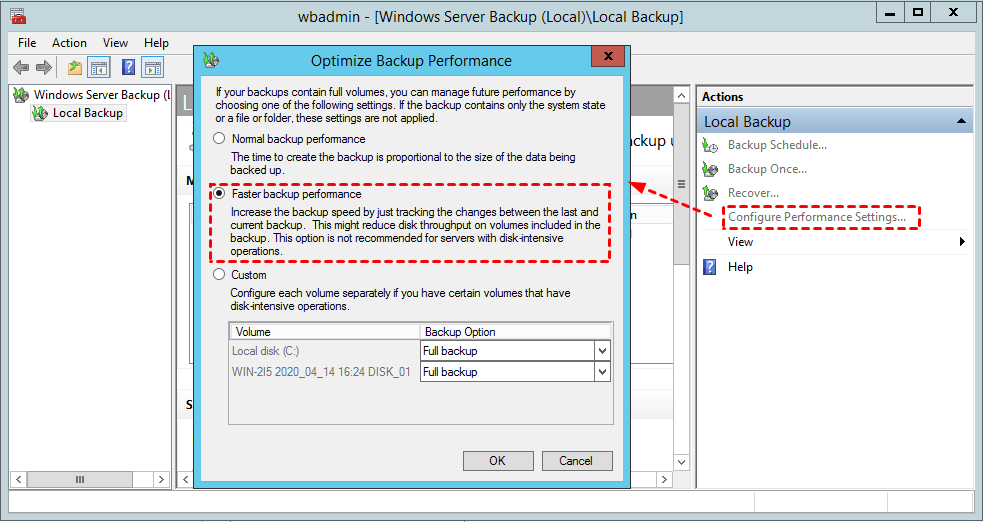
1. To optimize the performance of your local backup, click on the Configure Performance Settings... option under the Local Backup tab, and then select the Faster backup performance option. Click OK to apply the changes.
★Tips:
❀ The Faster backup performance option allows for incremental backups, tracking changes since the last backup and improving backup speed.
❀ You can choose the "Custom" option and select "Incremental backup" for all the volumes you'd like to back up.
2. To create a new incremental backup in Windows Server 2012, 2012 R2, 2016, 2019, 2022, click on the Backup and Restore (Windows) option, then click on Backup Schedule... or Backup Once..., and follow the on-screen prompts to create a new incremental backup.
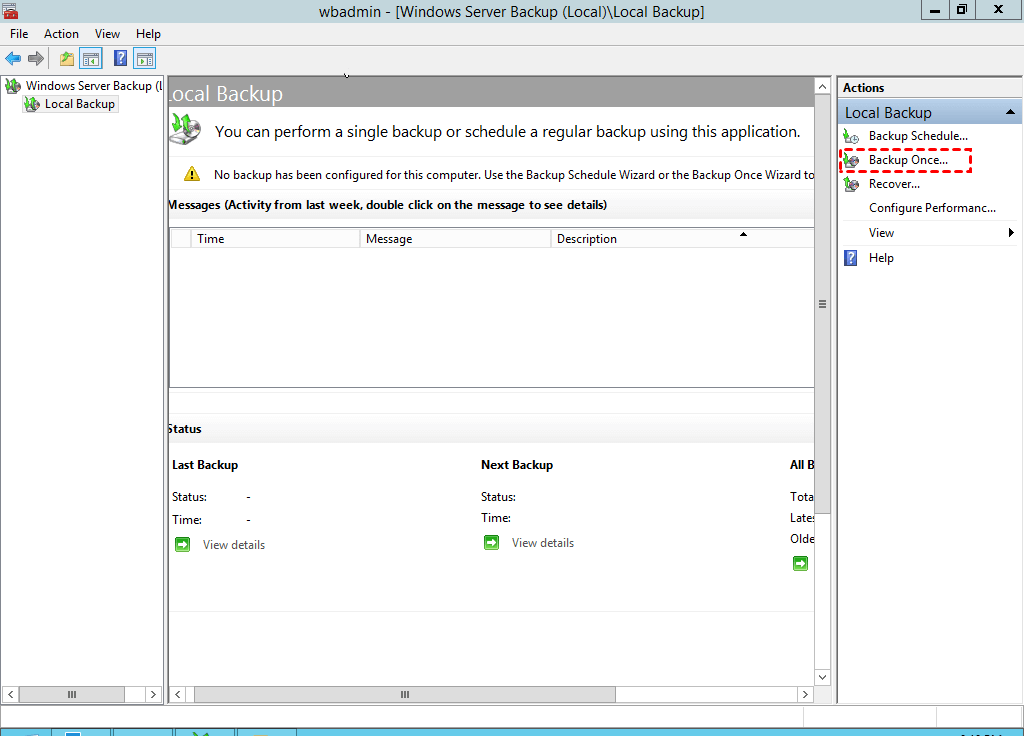
With Windows Server Backup, you can create various types of backups, including bare metal recovery, incremental backups, file backups, and more.
However, Windows Server Backup has some restrictions:
- Windows Server Backup will not reduce the storage space of shadow copies to 1/8 below the target volume size if the target disk is full, preventing backups from being stored on it.
- Removable media, including items like tape, CDs, and USB flash drives, is not supported.
- If you back up to a shared network folder, whether it's a one-time backup or a scheduled backup, only the most recent backup will exist.
Besides, You may find Windows Server not performing increment backups, unable to automatically delete old backup images, etc. A Windows Server Backup alternative for doing incremental backup in Windows Server 2012 is Qiling Disk Master Server, which provides a more efficient and feature-rich solution for backing up data in Windows Server environments.
Always Create Windows Server 2012 Incremental Backup Efficiently
Considering these reasons above, it's highly recommended to try the best Windows Server backup software - Qiling Disk Master Server, which can backup everything from individual files and folders to partitions and complete servers, and supports a wide range of backup devices.
You can create full, incremental, and differential backups in Windows Server 2003 to 2022, and SBS 2003 to 2011, with customizable schedules and automatic old backup deletion.
To get started, download Qiling Disk Master Server first. For creating Windows Server 2012 Incremental backups on multiple server computers, try Qiling Disk Master Technician Plus edition.
To create a Windows Server 2012 incremental backup, follow these steps: Take a full backup of the system drive to a network share location, then set up a scheduled task to run a Windows Server Backup command-line tool (wbadmin) to create incremental backups. This will save space by only backing up changes made since the last backup, and can be easily restored if needed.
Step 1. To perform a Qiling Disk Master Server backup, select the Backup option from the main menu, followed by Disk Backup.

Step 2. To choose the disk to back up in Windows Server 2012, click on "Disks" and then select the desired disk. Once selected, press the "Next" button to proceed.

Note: You can backup multiple disks simultaneously by adding all the disks you want to backup at once, but note that you need to restore each disk image individually, not all at once.
Step 3. Hit triangle icon and choose Add Share or NAS Device.

Step 4. To set up Windows Server 2012 incremental backups, you need to specify the network path (IP address of the network location) and select a shared folder on it to save the backups. This involves entering the IP address of the network location in the designated field and selecting the shared folder where the backups will be stored. This allows the backup process to save the incremental backups to the designated network location, ensuring they are safely stored and easily accessible for future reference.

Step 5. To schedule a backup, click Schedule Backup, enable it, and choose a frequency such as daily, weekly, or monthly. This will enable incremental backups by default, with each backup set consisting of one full backup and six incremental backups. Alternatively, you can select differential backup under Backup Scheme when backing up Windows Server 2012.

★There are some other optional settings you could set up:
❀ Options The tool allows you to perform various operations on incremental backups, including commenting on them, encrypting them, splitting them into smaller files, and compressing them to save space.enable email or SMS notification, etc.
❀ Backup Scheme permits you to enable Backup Scheme To automatically delete old backup images, you can set up a system to keep only the latest backup sets, or backups from a specific time period, such as the last 7 days, or different types of backups at different times. This allows you to maintain a desired level of backup retention while freeing up storage space by removing older, unnecessary backups.
Step 6. To create a Windows Server 2012 incremental backup, tap "Proceed" to initiate the process safely. Alternatively, choose "Add the schedule and Proceed now" to backup Windows Server 2012 immediately.
For the first backup, it will create a full backup after clicking Proceed, and then it will create incremental backups at the next specified time. This process applies to Windows Server 2016, 2019, 2022, and other versions.
Summing It Up
To create a Windows Server 2012 incremental backup, you can use either Windows Server Backup or Qiling Disk Master Server. Windows Server Backup is a free solution that's worth trying, offering a simple and intuitive interface. However, Qiling Disk Master Server provides more backup types and is more flexible to use, making it a popular choice among millions of users worldwide due to its reliable performance.
The biggest advantage is that it will always create Windows Server 2012 incremental backup successfully and save disk space. This tool also offers differential backup and automatic deletion of old backup images, breaking the limitation of only increasing but not decreasing. Additionally, it can be used to transfer files between Windows Servers.
Related Articles
- Windows Server Backup: Differential & Incremental Backup
Understand how Windows Server Backup differential backup works (although Microsoft calls it incremental backup) and get the methods to take differential or incremental backup in Server 2008, 2012, 2016, etc. - Create Windows Server Backup Incremental to Network Share with Ease
Learn how to Create Windows Server Backup Incremental to Network Share with Ease with clear steps, key checks, and practical tips. - Set Windows Server 2012 Backup Schedule Weekly Step by Step
This guide explains Set Windows Server 2012 Backup Schedule Weekly Step by Step with clear steps, key checks, and practical tips. - How to Easily Disable Bitlocker Encryption in Windows 11 (8 Ways)
You can learn what is Bitlocker encryption and how to disable Bitlocker encryption in Windows 11 as well as a better way to password your file. Please read on. - How to Backup a NAS Server in Windows 11, 10, 8, 7
Storing data on a NAS server is a very popular way, and in order to make sure the data safe, you'd better backup NAS server to another place. Learn how to backup a NAS for you. - How to Backup D Drive in Windows 7/10 (Free and Easy)
Learn how to Backup D Drive in Windows 7/10 (Free and Easy) with clear steps, key checks, and practical tips.
Products
Articles & Tutorials
- Data Recovery
- Data Backup
- File Recovery
- File Backup
- File synchronize
- System Backup and Restore
- Disk and Partition Clone
- Technical articles
- Disk Master Help
- Windows Deleted File and Disk Recovery Tutorials
- Windows File and Data Recovery Tutorials
- More Windows Tutorials for Install, Security, Files, and PC Tips
- Windows Boot, Repair, and Recovery Environment Tutorials
- Windows Backup Tutorials
- Windows Restore Tutorials
- Windows Clone and Migration Tutorials
- Windows Server Backup, Recovery, and Management Tutorials
- Windows Disk, Partition, and Storage Management Tutorials