How to Backup Multiple Drives at Once in Windows 10
The case: need to backup multiple drives in Windows 10
You're correct that File History can only back up one drive at a time. You can use File History to back up your main drive, and then use the built-in Backup and Restore (Windows Backup) feature to back up your other internal drives to your USB HDD. Alternatively, you can use a third-party backup software to back up all your drives at once.
For most users, there are multiple drives on their computer, each serving a specific purpose. Some have one drive for system files and another for data, while others have separate drives for work files, entertainment applications, or even just system files. This setup allows users to keep their system and data organized, and easily manage and prioritize their various digital needs.
To protect your operating system, you can create a backup of your C drive, which will allow you to easily recover your computer in case of system issues, such as the Windows 10 update KB5001649 problem.
In Windows 10, you can use the built-in Backup and Restore (Windows Backup) feature to backup multiple drives at once, or use a third-party backup software like Qiling Backup to backup all internal drives with one click. This way, you can save time and effort by backing up all your data in one go.
Method 1: Backup multiple drives with Qiling Backupuper
Qiling Disk Master Standard is the best free backup software for Windows, offering all-around backup solutions for Windows 11/10/8.1/8/7/Vista/XP.
- There are five types of backup available: System Backup, Disk Backup, Partition Backup, File Backup and Cloud Backup, allowing you to choose the one that best suits your needs.
- The software allows users to backup data to multiple destinations, including external hard drives, USB flash drives, and Synology NAS devices.
- To set an automatic backup in Qiling Disk Master, use the "Schedule Backup" feature.
To backup a disk with multiple partitions simultaneously, you can use the Disk Backup feature. This allows you to select the entire disk, including all its partitions, and create a backup of the entire disk.
★ Backup multiple drives on one hard disk
1. To create a backup of your disk using Qiling Disk Master, download, install, and launch the software. Then, select the "Backup" option from the main menu, followed by "Disk Backup" to initiate the backup process.

2. You can name the backup task using the "Task Name" field, then select the disk containing all the drives you want to backup.

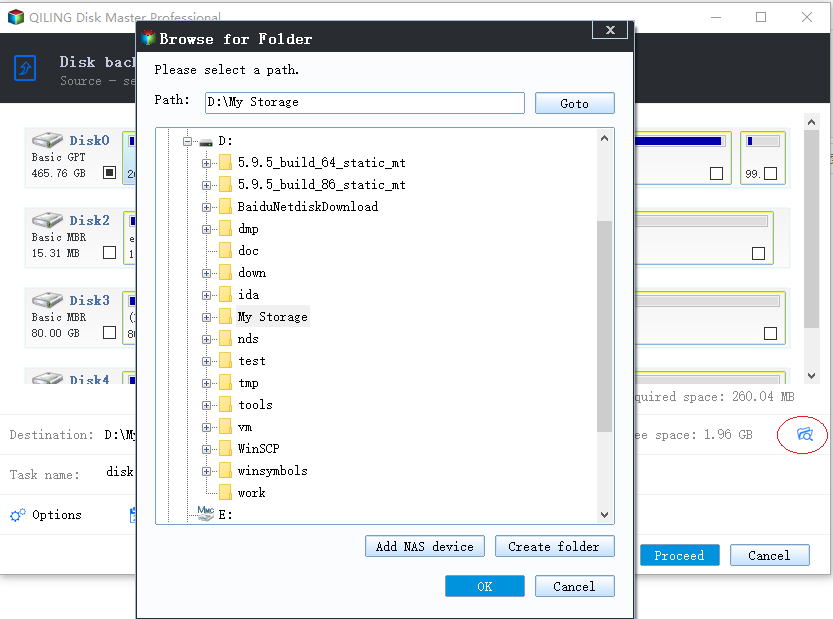
3. To store the backup image, select a destination path, preferably on an external hard drive or network location, to ensure the image file remains unaffected by system errors.

4. Click "Proceed" to begin the backup process.

★ Backup several drives from different disks
1. Run Qiling Disk Master, select the "Backup" option, and then choose "Partition Backup".
2. Name the task to distinguish it from other backup tasks using the "Task Name" field. Then, click "Add Partition or Volume".
3. To backup your data, select the drives you want to backup by clicking on them, then click the "Add" button.
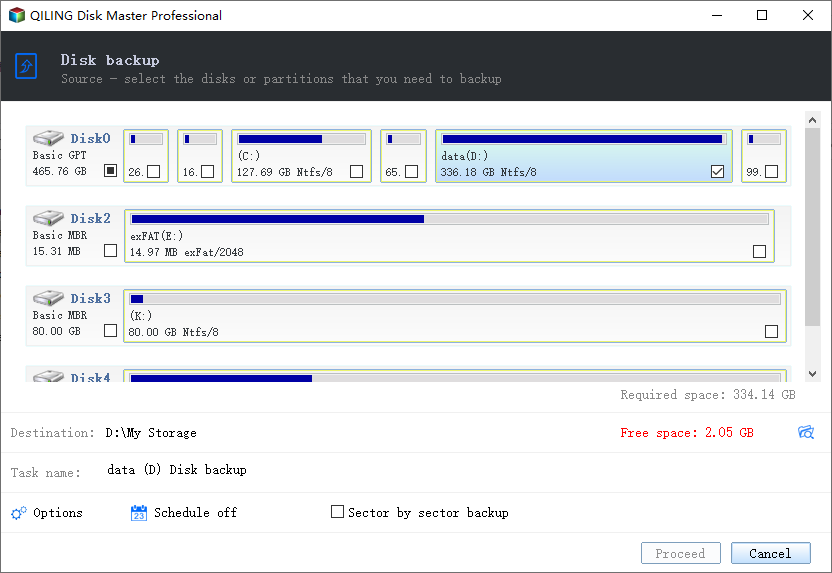
4. Select a destination path to store the backup image.
5. Click "Proceed" and wait for the process to be done.
✍Tips:
◉ If you've used the Disk Backup feature, you can restore all your drives from a single disk backup image when you experience data loss.
◉ If you used Partition Backup to back up your drives, you can only restore the drives individually from the partition backup image.
★ Bonus tip: Windows 10 backup to multiple drives
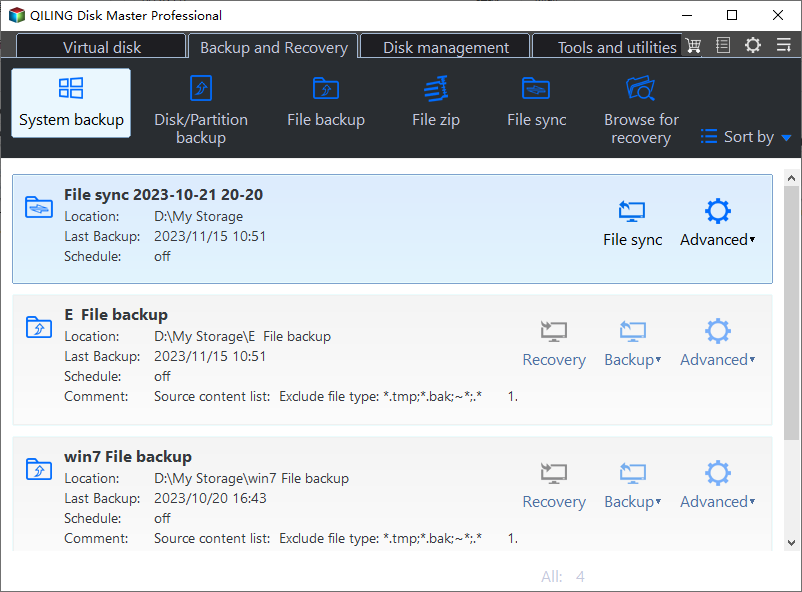
To backup Windows 10 OS to multiple drives, use Qiling Disk Master. Click on "Backup" > "System Backup", and the program will automatically select the source data. Then, simply choose different drives as the destination locations.
Method 2: Backup multiple drives with Backup and Restore
To backup multiple drives at once on Windows 10, follow the guidance below. Windows 10 has inherited the Backup and Restore tool from Windows 7, which allows you to backup multiple drives simultaneously.
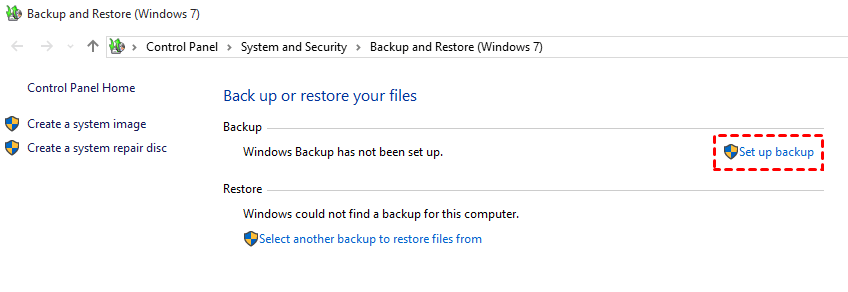
1. To access the Backup and Restore feature, click the Start button, then navigate to Settings, followed by Update & Security, then Backup, and finally Backup and Restore (Windows 7).
2. In the popup window, click Set up backup.
3. Select a backup location to store the backup files and click Next.
4. To create a custom backup, select the "Let me choose" option and click "Next".
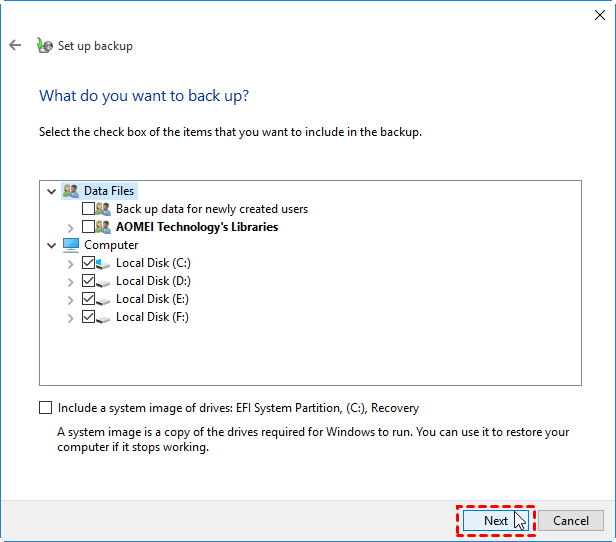
5. Select the drives you want to backup and click Next.
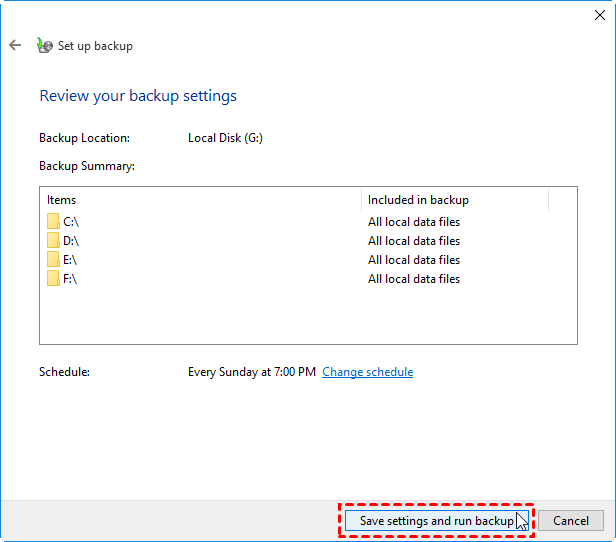
6. To schedule the backup task, it will automatically run every Sunday at 7:00 PM. You can modify the schedule by clicking "Change Schedule" or disable it if needed, and then click "Save settings and run backup" once you've confirmed your settings.
✎ Tips:
You can restore your files on the backed up drives later by going to Backup and Restore (Windows 7) > Restore my files. To restore the whole drive, select a folder named "Backup of C:" and the like.
Conclusion
Both Qiling Disk Master and Backup and Restore allow Windows 10 to back up multiple drives at once, and can also be used to back up multiple drives simultaneously on Windows 7. However, Qiling Disk Master offers a greater range of backup options, including "Disk Backup" to back up an entire disk containing multiple drives and "Partition Backup" to back up multiple drives from different disks.
Qiling Disk Master is a powerful tool that allows for easy hard drive transfer, and its clone feature makes it even more useful, making it a great option for those in need of a reliable hard drive transfer software.
Related Articles
- 3 Workarounds to Setup Multiple Backups in Windows 10
- Backup Multiple Hard Drives to One External Drive Automatically
- Best Way to Auto Backup Multiple Computers to One External Drive
- RAID VS AHCI: Which Is Better? [Complete Guide]
RAID vs. AHCI, if you're still wondering which one is better, you can learn the differences between them and help you make the right choice through this article. - Factory Reset Dell Laptop for Windows 10 without Password – 2 Ways Included
This article tells you how to factory reset Dell laptop for Windows 10 without password. Read on for more details. - 2 Methods to Fix Master Boot Record (MBR) in Windows 10
This guide explains 2 Methods to Fix Master Boot Record (MBR) in Windows 10 with clear steps, key checks, and practical tips.
Products
Articles & Tutorials
- Data Recovery
- Data Backup
- File Recovery
- File Backup
- File synchronize
- System Backup and Restore
- Disk and Partition Clone
- Technical articles
- Disk Master Help
- Windows Deleted File and Disk Recovery Tutorials
- Windows File and Data Recovery Tutorials
- More Windows Tutorials for Install, Security, Files, and PC Tips
- Windows Boot, Repair, and Recovery Environment Tutorials
- Windows Backup Tutorials
- Windows Restore Tutorials
- Windows Clone and Migration Tutorials
- Windows Server Backup, Recovery, and Management Tutorials
- Windows Disk, Partition, and Storage Management Tutorials