How to Easily Disable Bitlocker Encryption in Windows 11 (8 Ways)
- Need to Disable Bitlocker Encryption in Windows 11
- How to Disable Bitlocker Encryption in Windows 11
- Way 1. Disable BitLocker Encryption by Control Panel
- Way 2. Disable BitLocker Encryption by Windows Services
- Way 3. Disable BitLocker Encryption by "This PC"
- Way 4. Disable BitLocker Encryption by System Configuration
- Way 5. Disable BitLocker Encryption by Command Prompt
- Way 6. Disable BitLocker Encryption by Registry Editor
- Way 7. Disable BitLocker Encryption by PowerShell
- Way 8. Disable BitLocker Encryption by Group Policy Editor
- Better Way to Password Protect Files on USB Drive in Windows 11
- Summary
Need to Disable Bitlocker Encryption in Windows 11
BitLocker encryption is a Windows security feature that protects data on a drive using an encryption key, requiring a password or recovery key to access the data, and is available in Windows 11 Professional, Enterprise, and Education editions.

Enabling Secure Boot in Windows 11 may inadvertently turn on BitLocker, which automatically encrypts your drive without asking for permission, but you can disable BitLocker drive encryption and cancel the encryption process if needed.
How to Disable Bitlocker Encryption in Windows 11
To disable BitLocker, you need to unlock your encrypted drive first. This can be done by entering your password or recovery key. Once unlocked, you can then proceed to disable BitLocker through various methods, including using the BitLocker control panel, command prompt, PowerShell, or by using third-party software. These methods can be used on Windows 11 to remove the encryption and regain access to your drive.
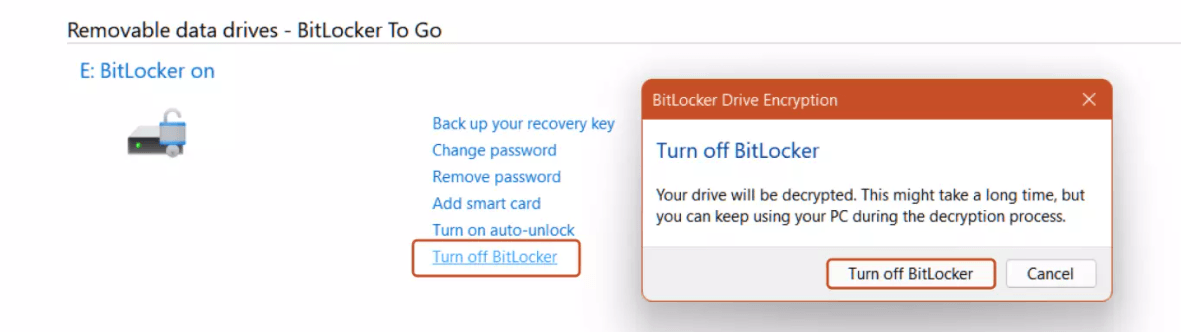
Way 1. Disable BitLocker Encryption by Control Panel
Step 1. Open the Control Panel from the Start menu.
Step 2. Click System and Security > BitLocker Drive Encryption Button.
Step 3. Click the Turn off BitLocker button.
Way 2. Disable BitLocker Encryption by Windows Services
Step 1. Press Win+R together to open the Run window, type services.msc and press the OK button.
Step 2. Scroll and double-click the BitLocker Drive Encryption Service option.
Step 3. To disable BitLocker encryption, set the startup type to Disabled and press the Apply button.
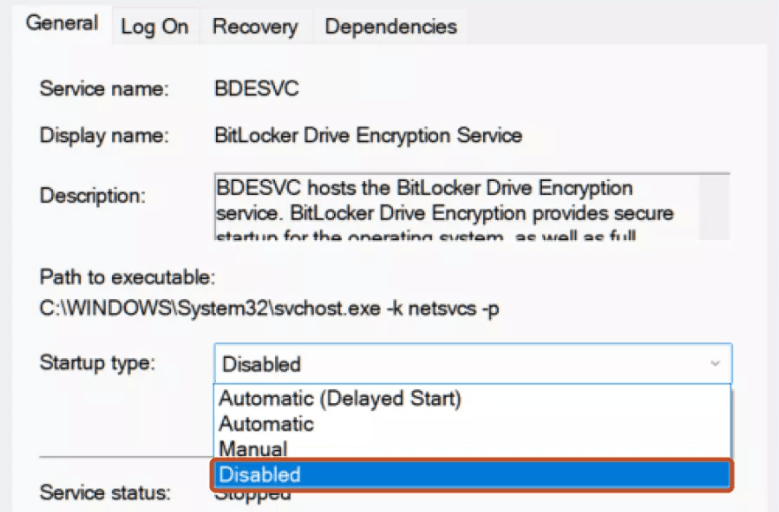
Step 4. Restart your computer to make changes take effect.
Way 3. Disable BitLocker Encryption by "This PC"
Step 1: Open the "This PC" app on your computer.
Step 2: Right-click the drive for which you want to disable BitLocker and select the Manage BitLocker option.
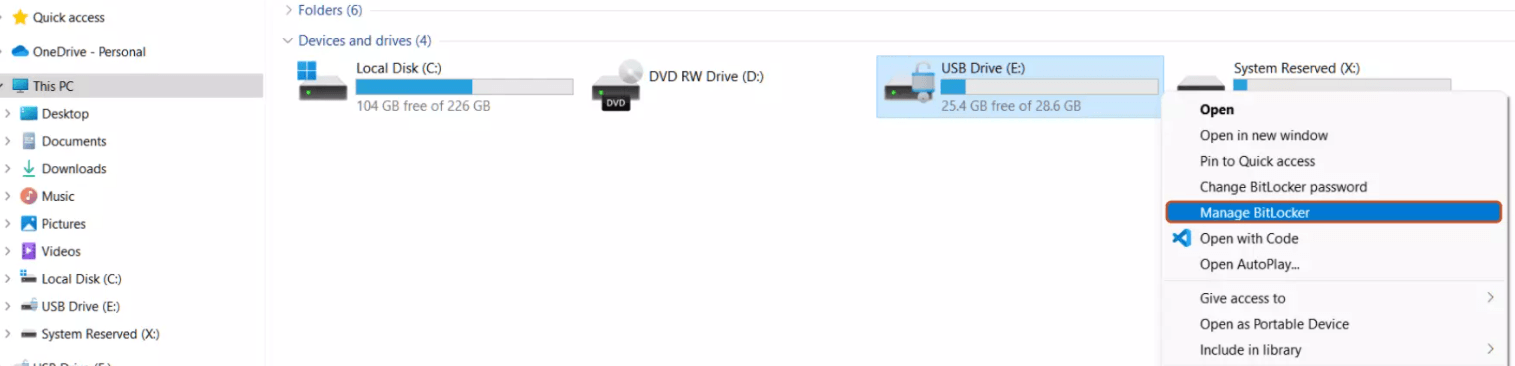
Step 3: Click the Turn off BitLocker button.
Way 4. Disable BitLocker Encryption by System Configuration
Step 1. Open the Run window, input msconfig, and hit the enter key.
Step 2. Select the Services tab from the top bar, uncheck the BitLocker Drive Encryption Service and click the Apply button.
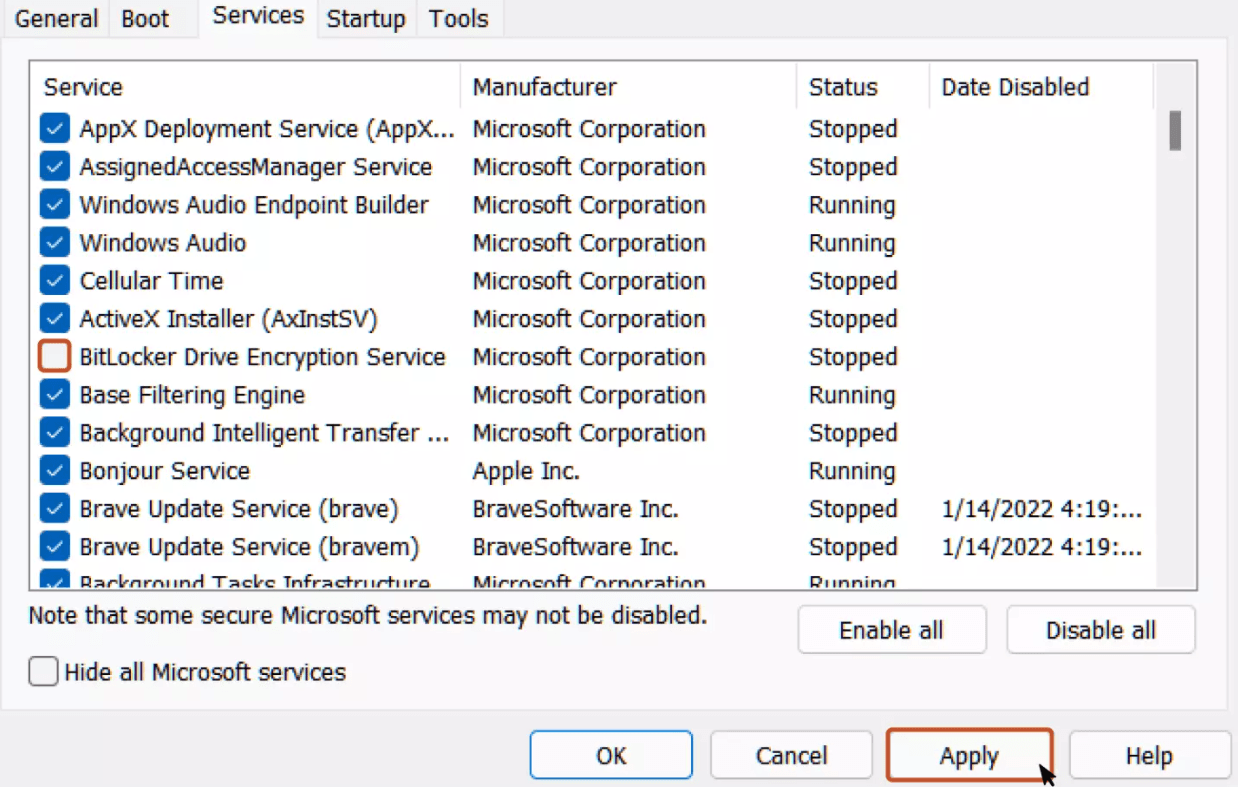
Step 3. Restart your computer and the next time, the BitLocker Encryption Service will be disabled.
Way 5. Disable BitLocker Encryption by Command Prompt
Step 1. Press Win+S and input cmd to search the Command Prompt, select Run as an administrator.
Step 2. To unlock the BitLocker Encrypted Drive, type the command:
manage-bde -unlock Drive-Name: -RecoveryPassword Recovery-Code
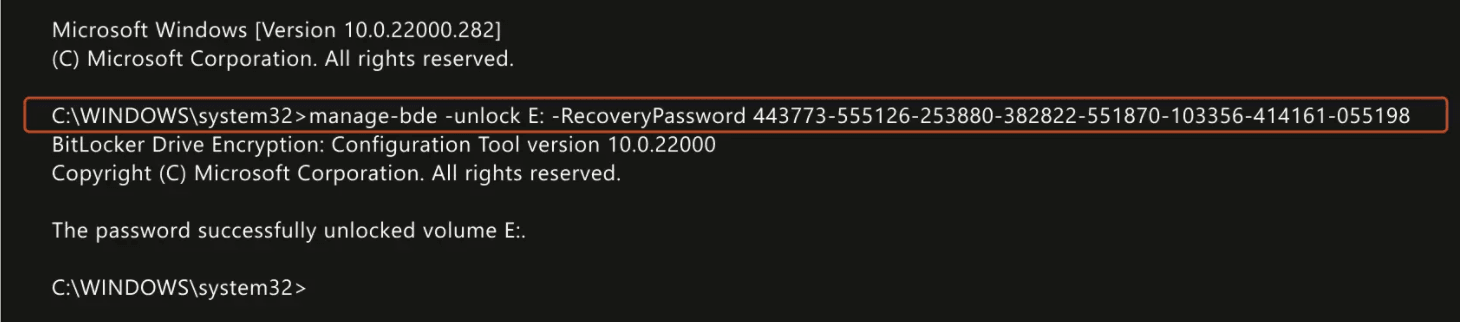
Step 3. To disable BitLocker using CMD, type the command:
manage-bde -off Drive-Name:
Note: To access a BitLocker encrypted drive, you need to replace the drive name with the drive letter of the encrypted drive and enter the recovery code that was generated or provided to you while encrypting the drive. The recovery code is a unique key that was created and stored securely, usually on a USB drive or in a password manager, to help you regain access to the encrypted drive in case you forget your password or encounter any other issues.
Way 6. Disable BitLocker Encryption by Registry Editor
Step 1. Open the Registry Editor from the Start menu.
Step 2. In the Registry Editor, navigate to the following path:
Computer\HKEY_LOCAL_MACHINE\SYSTEM\CurrentControlSet\Control\BitLocker.
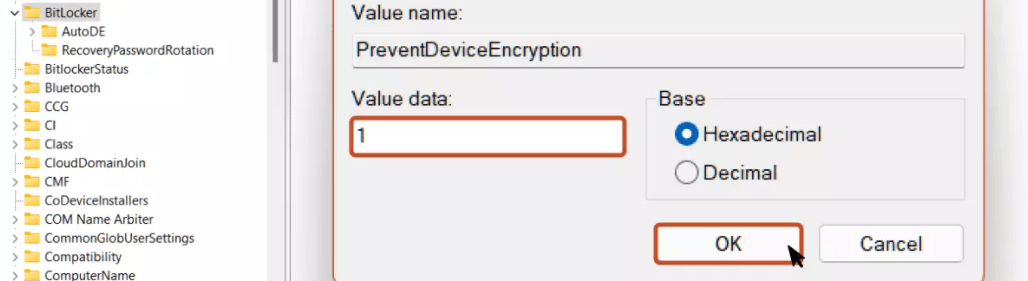
Step 3. Right-click the empty area on the right pane, add a new DWORD (32-bit) value, and name it as PreventDeviceEncryption.
Step 4. Open the DWORD value and set the value data from 0 to 1 in hexadecimal format and click the OK button.
Way 7. Disable BitLocker Encryption by PowerShell
Step 1. Run the PowerShell as an administrator from the Start menu.
Step 2. To disable BitLocker using PowerShell, type the command:
Disable-BitLocker -MountPoint Drive_Name:

Note: Replace the Drive_Name with the Drive Letter of BitLocker encrypted drive.
Way 8. Disable BitLocker Encryption by Group Policy Editor
Step 1. In the Start menu, type Group Policy Editor and hit the enter key.
Step 2. Navigate to the following path:
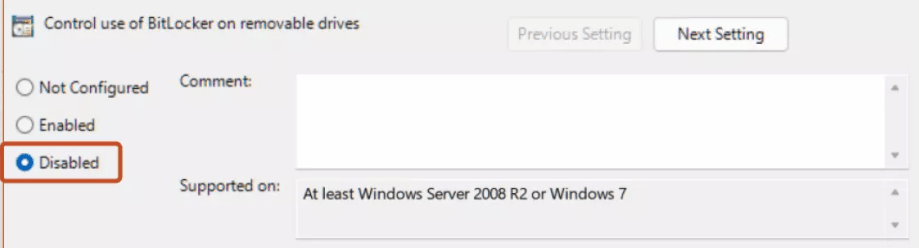
Computer Configuration > Administrative Templates > Windows Components > BitLocker Drive Encryption > Removable Data Drives To enable BitLocker on removable drives, go to Control Panel > System and Security > BitLocker. Click on the Turn on BitLocker button.

Step 3. Select the Disabled option and click the OK button.
Better Way to Password Protect Files on USB Drive in Windows 11
If you want to disable BitLocker encryption in Windows 11, but still want to encrypt your important files, you can try the secure backup software AOEMI Disk Master Professional, which allows you to encrypt your files without having BitLocker automatically encrypt your drive.
The software directly backs up files and encrypts them on a USB drive, allowing you to enter the password only when restoring the encrypted files, unlike BitLocker encryption which requires entering the password every time the USB drive is opened.
This software supports all Windows versions, including Windows 11, and many others such as Windows 10, 8.1, 8, 7, XP, and Vista. You can follow a graphic tutorial to password protect your important files in Windows 11.
You can download the trial version to try it free for 30 days, and if you want to continue using it, you can upgrade to the official version.
Step 1. Download Qiling Disk Master Professional, install, and open it. Then click Backup > File Backup.

Tip: If you're a Windows Server user, you can choose Qiling Disk Master Server.
Step 2. Click Files or Folder to select the files or folders you want to backup.

Step 3. Choose the USB drive as your destination.

Step 4. To password protect a specific file on the USB drive, click Options at the bottom, then General and select Enable encryption for backups, type and confirm a password, and click OK.
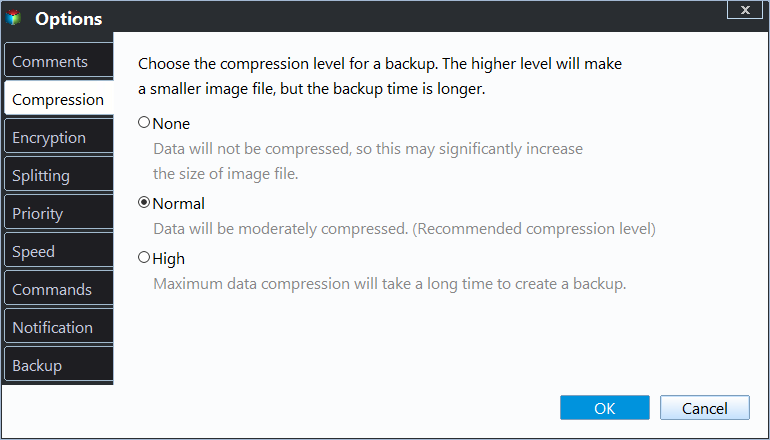
Step 5. Confirm all your operations and click Proceed to password protect the files on USB drive in Windows 11.

Notes:
- Schedule Backup: You can set a schedule to regularly backup your data to protect it, with options such as Daily, Weekly, Monthly, or triggering on specific events, as well as backing up when a USB device is plugged in.
- Backup Scheme: You can select various backup methods, such as full, incremental, and differential backups, and enable automatic cleanup of backups to conserve disk space.
Summary
To prevent Windows 11 from automatically encrypting USB drives using BitLocker, consider the following 8 methods. If you want to encrypt your files securely, you can use a backup software like Qiling Disk Master Professional to achieve this goal.
This software allows for direct file backup and encryption on a USB drive, requiring a password only upon file restoration, eliminating the need for repeated password entry when opening the USB. It supports all Windows 11 versions, as well as other Windows systems, with no version restrictions.
Aparavaru, this software is also great for cloning Bitlocker-encrypted disks, and it can successfully clone them in various Windows versions, including Windows 11/10/8.1/8/7. After cloning, you can boot from the cloned disk without any issues.
Related Articles
- How to Backup Encrypted Hard Drive with Best Free Software
To backup encrypted hard drive, you need a professional backup software. Follow this article and see how to backup encrypted hard drive. - Set Windows 10 Backup Encryption to Protect Data Easily
This guide explains Set Windows 10 Backup Encryption to Protect Data Easily with clear steps, key checks, and practical tips. - Password Protect USB Drive in Windows 10 Easily (2 Ways)
You can learn 2 easy ways to password protect USB drive in Windows 10, including Windows built-in feature and the professional third-party software. You can read on to know the detailed information. - Solved: Hard Drive Not Showing Full Capacity in Windows 10
You can find 4 solutions to hard drive not showing full capacity in Windows 10 in this article. - How to Recover Deleted Files in Windows 7 without Backups?
Learn how to Recover Deleted Files in Windows 7 without Backups with clear steps, key checks, and practical tips. - How to Refresh Windows 7 without Losing Data?
Learn how to Refresh Windows 7 without Losing Data with clear steps, key checks, and practical tips.
Products
Articles & Tutorials
- Data Recovery
- Data Backup
- File Recovery
- File Backup
- File synchronize
- System Backup and Restore
- Disk and Partition Clone
- Technical articles
- Disk Master Help
- Windows Deleted File and Disk Recovery Tutorials
- Windows File and Data Recovery Tutorials
- More Windows Tutorials for Install, Security, Files, and PC Tips
- Windows Boot, Repair, and Recovery Environment Tutorials
- Windows Backup Tutorials
- Windows Restore Tutorials
- Windows Clone and Migration Tutorials
- Windows Server Backup, Recovery, and Management Tutorials
- Windows Disk, Partition, and Storage Management Tutorials