How to Refresh Windows 7 without Losing Data?
Scenario
My Windows 7 PC runs into some problem, and I want to refresh it but I have no idea on how to do it. Can someone show me how to refresh my Windows 7 without losing data? Thank you!
Options to try before refreshing Windows 7
Some other options to repair your PC when your computer has problems include running the System File Checker (SFC) tool, running the Deployment Image Servicing and Management (DISM) tool, and using the Windows Recovery Environment (WinRE) to troubleshoot and repair issues with your operating system. These tools can help identify and fix problems with system files, registry entries, and other system components, and can often resolve issues without requiring a full system refresh.
- Last Known Good Configuration
You can boot into Safe Mode and select Last Known Good Configuration, which often solves booting and stability problems after installing or updating software, drivers, or Registry entries.
- System File Checker
If Windows is able to boot, use System File Checker to repair corrupted system files. You can type `sfc /scannow` in the command prompt to check and repair corrupted files.
- Startup Repair
Startup Repair can usually fix issues preventing Windows from starting, and can be used to repair a Windows 7 installation. To do this, access the Advanced Boot Options menu and select "Repair your computer", then choose "Startup Repair" at the system recovery options.
- System Restore
System Restore can restore your system to an earlier date when it was running normally, and it's turned on by default in Windows 7, allowing you to boot into Advanced Boot Options, select System Restore, and restore from a previous restore point.
Repairing your computer can help fix startup problems and file system errors, as well as test memory modules for defects. If these methods don't work, you may need to try refreshing Windows 7.
How to refresh Windows 7 without losing data?
In Windows 7, you can't refresh your PC like in Windows 8 or 10, but you can still do a repair install from boot or a nondestructive reinstall from your desktop.
To perform a nondestructive reinstall of Windows, you'll need a Windows installation DVD or ISO file, which will restore all system files to their original state without affecting personal data or installed programs.
Note: A non-destructive reinstall of Windows 7 may cause compatibility issues with some installed programs, so it's recommended to backup the whole disk before attempting.
To refresh Windows 7, including Ultimate and Premium versions, follow these steps: First, back up your important files and data to an external drive or cloud storage to prevent loss during the refresh process. Next, go to the Start menu, type "system restore" and select the "Create a restore point" option to create a system restore point.
Step 1. Boot your computer, and then insert the installation DVD or USB disk.
Step 2. If an AutoPlay window appears in Windows, select the "Run Setup.exe" option. Alternatively, open the DVD drive in Windows File Explorer, find the Setup.exe file, and double-click it to run the installation.
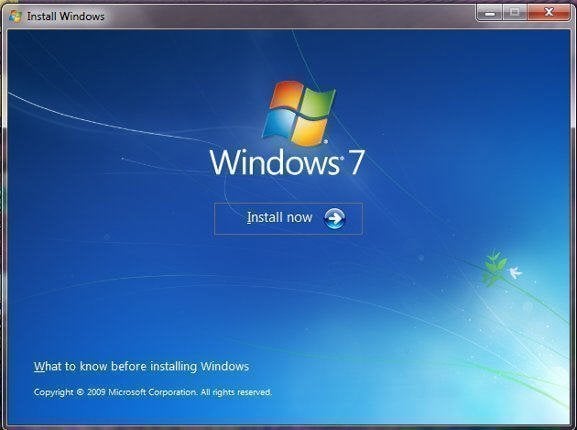
Step 3. Here you come to Windows 7 install page. Click Install now.
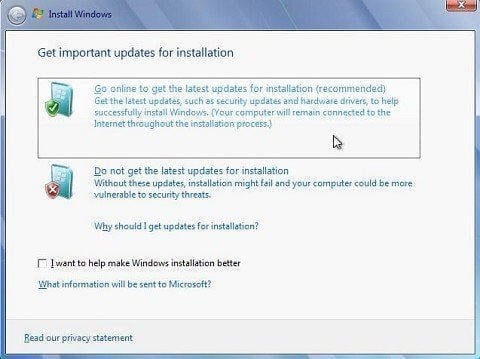
Step 4. In the next dialog "Get important updates for installation", click Go online to get the latest updates for installation.
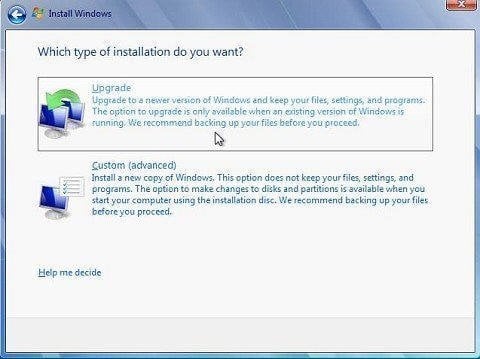
Step 5. In the window "Which type of installation do you want?", click Upgrade.
Step 6. If Product Key is needed, enter it and click Next.
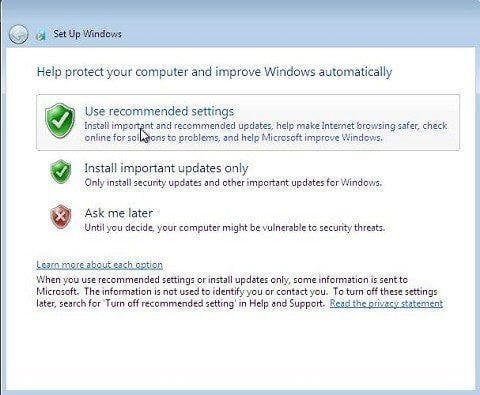
Step 7. At next Window, click Use recommended settings.
Step 8. Confirm your time and date settings, select your Windows current location and wait for the install finished.
You do not have to refresh Windows 7 to solve system issues
Creating a system image backup is a good idea to prevent system issues from happening again, as it allows you to easily restore your system to a working state without having to go through the hassle of reinstalling Windows 7, which can be a troublesome process, especially if you don't have an installation disk or product key handy. This way, you can avoid the hassle of reinstalling Windows and losing your programs and applications.
To enhance your backup experience, you can utilize the free Qiling Disk Master Standard, which offers a user-friendly interface and allows for scheduled backups to keep your data up to date. This tool also efficiently utilizes disk space by employing medium to high compression levels and incremental/differential backup features.
To create an image backup with Qiling Disk Master, simply follow these easy steps:
Step 1. Download, install and open this free backup software. At the home page, click the Backup tab and choose System Backup.

Step 2. Qiling Disk Master allows you to save backup images to various storage devices that Windows recognizes, such as external hard drives, cloud drives, NAS network locations, and local storage, giving you flexibility in choosing a destination for your backups.

Step 3. Click Schedule to configure scheduled backup settings if necessary, then click Proceed and wait for the process to be completed.
The backup will be created quickly, allowing you to easily restore your system in case of problems. You can even restore from a bootable disc if your PC won't boot. If your computer hardware fails, you can use Qiling Disk Master's advanced version to restore your system to a different computer with different hardware.
To protect unlimited computers within your company, you can use Qiling Disk Master Technician. It allows deploying or restoring system images on multiple client-side computers over a network using its built-in Qiling Image Deploy tool.
Conclusion
To refresh Windows 7 without losing data, you can simply restore from a backup, which is a more convenient and easier solution to system issues, or create a regular system image backup to ensure that you can factory reset Windows 7 without losing any data.
Related Articles
- 3 Ways to Reinstall Windows 10 without Losing Data
Sometimes, you may need to reinstall Windows 10/11 to solve system issues. This guide will show you how to reinstall Windows 10/11 without losing data step by step. - How to Reset or Refresh Windows 10 without Losing Programs
This article tells you how to refresh Windows 10 without losing programs and data. It seems a good idea to reinstall Windows 10 when serious system problem occurs. Read on to learn more. - How to Repair Windows 7 without Losing Data?
Try 6 solutions provided in this article to repair Windows 7 without losing data, it's easy to troubleshoot Windows 7 problems with the guide. - How to Restore Windows 7 without Restore Point
Learn how to Restore Windows 7 without Restore Point with clear steps, key checks, and practical tips. - Backup Laptop to External Hard Drive in Windows 10/8/7 for Free
To protect your laptop from data loss, you can backup laptop to external hard drive with Windows Backup tool or freeware. - Auto Backup PC Files to External Hard Drive in Windows 10/8/7
It's a wise move to backup comptuer to external hard drive in Windows 11/10. Learn how to do it automatically and try the best external drie backup software to simplify the process.
Products
Articles & Tutorials
- Data Recovery
- Data Backup
- File Recovery
- File Backup
- File synchronize
- System Backup and Restore
- Disk and Partition Clone
- Technical articles
- Disk Master Help
- Windows Deleted File and Disk Recovery Tutorials
- Windows File and Data Recovery Tutorials
- More Windows Tutorials for Install, Security, Files, and PC Tips
- Windows Boot, Repair, and Recovery Environment Tutorials
- Windows Backup Tutorials
- Windows Restore Tutorials
- Windows Clone and Migration Tutorials
- Windows Server Backup, Recovery, and Management Tutorials
- Windows Disk, Partition, and Storage Management Tutorials