How to Repair Windows 7 without Losing Data
If you're experiencing problems with your Windows 7, whether you want to repair it or reinstall it, it's essential to prioritize keeping your data safe and intact. Fortunately, there are 6 ways to repair Windows 7 without losing your valuable data, making it possible to resolve issues without compromising your files and settings.
1. Safe mode and Last Known Good Configuration
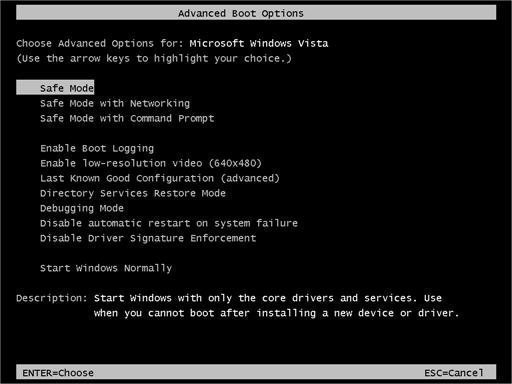
Press F8 at startup to enter the Advanced Boot Options menu, where you can select Safe Mode to repair corrupted files.
Immediately after the computer is powered on or restarted, repeatedly tap the F8 key.
After the computer displays hardware information and runs a memory test, the Advanced Boot Options menu will appear. You can select Safe Mode or Safe Mode with Networking using the arrow keys and press ENTER, or choose Last Known Good Configuration (Advanced) as an alternative.
2. Run Startup Repair
If Windows is having trouble starting, Startup Repair can often fix the issue. To access Startup Repair, go to the Advanced Boot Options menu and select "Repair your computer," then choose "Startup Repair." If this doesn't work, you can try running system restore in Windows 7.
3. Run System Restore
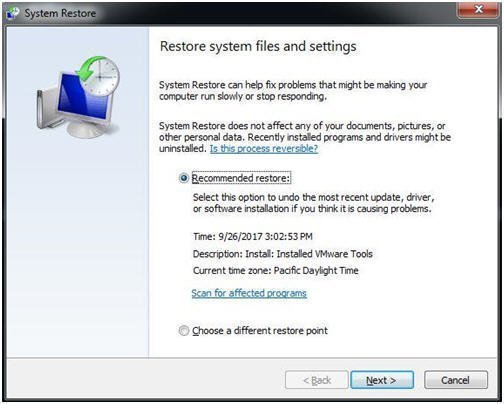
System Restore is enabled by default in Windows 7, creating restore points automatically. These restore points allow users to revert to a previous state, effectively undoing changes made to the system.
To fix a computer issue using System Restore, boot into the Advanced Boot Options, select System Restore, and choose a restore point. Click Next and follow the on-screen instructions to complete the system restore process.
4. Use the System File Checker tool to repair system files
Using the command prompt is also a good way to repair Windows 7 system files. System File Checker, a utility in Windows, allows users to scan for corruptions in Windows system files and restore corrupted files, effectively repairing Windows 7 without losing data.
- Run command prompt as administrator.
- To run the System File Checker (SFC) tool, open the Command Prompt as an administrator, type the command "sfc /scannow", and press Enter. This will scan and replace any corrupted system files with a cached copy.
The sfc /scannow command will scan all protected system files and replace corrupted files with a good copy.
5. Use Bootrec.exe repair tool for boot problems
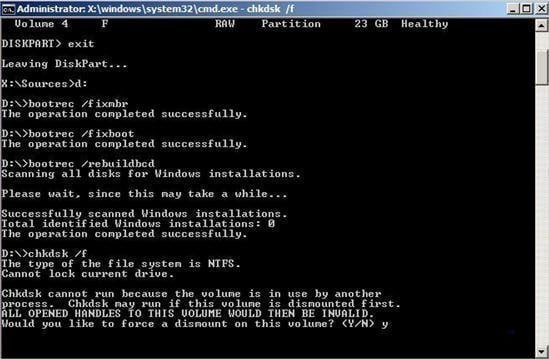
This tool can be used to repair the Master Boot Record (MBR), write a new boot sector, rebuild the Boot Configuration Data (BCD), and add missing Windows installations to the boot configuration.
Still, open the command prompt, write the following command in it and press Enter:
- Diskpart
- List volume
- Exit
- D(your windows drive letter)
- Bootrec /fixmbr
- Bootrec /fixboot
- Bootrec /rebuildbcd
- Chkdsk /f /r
- Y
If none of these methods work and you don't have a valid image backup, you should try to reinstall Windows 7.
6. Create a bootable rescue media
If your computer won't boot, you can create a recovery USB/DVD to repair Windows 7 using free software like Qiling Disk Master, which allows you to create bootable rescue media using USB or DVD/CD, or create an ISO image file to burn on any removable device.
To create bootable media:
1. Download Qiling Disk Master and launch the software.
2. Select Create Bootable Media under Tools tab.

3. To export the ISO file, select the storage device or specify the location path where you want to save the file, and then click Next to initiate the process.

To restore or repair your Windows 7, you can boot from the bootable media you created. If you have a system image backup created with Qiling Disk Master, you can use the bootable media to restore your system to its previous state. Simply boot from the media, and the system will be restored to its original configuration.
Connect the bootable media to the computer, start the computer, press a specific key (usually Del or F2) to boot into BIOS, press Shift and + to set the bootable media as the first boot option, and then select an image backup to restore the system.
Conclusion
If your computer is experiencing problems, you can try the methods mentioned above to repair Windows 7 without losing data. Even if your computer can't boot, you can use Qiling Disk Master to create a bootable media and boot into Windows, making it easy to restore your computer.
You can use Qiling Disk Master to create image backups of your computer, protecting it from potential issues like virus attacks, hard disk failures, and system crashes. This way, in case of unexpected problems, you can restore your computer to its previous state without any hassle.
You can protect unlimited computers within your company by using Qiling Disk Master Technician, which allows you to deploy or restore system image files on server-side computers to multiple client-side computers over a network using its built-in Qiling Image Deploy tool.
Related Articles
- Reinstall Windows 7 without Losing Files or Anything
Windows 7 has ended its life, so you can choose to repair Windows 7 with all the available methods or directly clean install newer system. - 3 Ways to Reinstall Windows 10 without Losing Data
Sometimes, you may need to reinstall Windows 10/11 to solve system issues. This guide will show you how to reinstall Windows 10/11 without losing data step by step. - Top 4 Solutions to Fix Startup Repair Loop in Windows 7
This guide explains Top 4 Solutions to Fix Startup Repair Loop in Windows 7 with clear steps, key checks, and practical tips. - How to Install Windows 11 on Pendrive and Run It Directly
Learn how to Install Windows 11 on Pendrive and Run It Directly with clear steps, key checks, and practical tips. - How to Create A Dell Recovery USB in Windows 10 and Restore System from It?
Read this detailed post to learn a step-by-step tutorial to know how to create a Dell Recovery USB. Here will give you 3 methods on how to create recovery bootable media and how to restore Windows 10 from the recovery USB. - Easily Create Windows (UEFI) Bootable USB Stick via Diskpart
Learn how to create UEFI bootable USB stick using Diskpart Commands (CMD) and Qiling Disk Master in Windows 7, 8.1, (and install Windows 7, XP using it if necessary).
Products
Articles & Tutorials
- Data Recovery
- Data Backup
- File Recovery
- File Backup
- File synchronize
- System Backup and Restore
- Disk and Partition Clone
- Technical articles
- Disk Master Help
- Windows Deleted File and Disk Recovery Tutorials
- Windows File and Data Recovery Tutorials
- More Windows Tutorials for Install, Security, Files, and PC Tips
- Windows Boot, Repair, and Recovery Environment Tutorials
- Windows Backup Tutorials
- Windows Restore Tutorials
- Windows Clone and Migration Tutorials
- Windows Server Backup, Recovery, and Management Tutorials
- Windows Disk, Partition, and Storage Management Tutorials