Repair Windows 7 or Reinstall Newer System on It without Losing Files
Can I reinstall Windows 7 without losing files?
You can still use Windows 7, but it's no longer supported by Microsoft and its life ended on January 14, 2020. However, you can pay for extended security updates until January 10, 2023.

If your computer is malfunctioning or not working, try available repair methods first. If that doesn't work, you can reinstall Windows 10 or 11 on an SSD and then restore files from a backup later.
Available repair methods to try before reinstall Windows
Before attempting these methods, you'll need to prepare a Windows 7 installation disc, as some of them require booting from it first. Make sure the installation DVD is a newer version of Windows 7 than your current system. If your installation DVD is very old, you can try uninstalling Windows 7 updates instead. Then, check the following methods to see if they work.
1. Use Last Known Good Configuration To resolve booting and stability issues, you can repeatedly press the F8 key during computer startup to access the Advanced Boot Options menu. From this menu, select the "Last Known Good Configuration (Advanced)" option. This will revert your system to its previous stable state, potentially resolving the booting and stability problems.
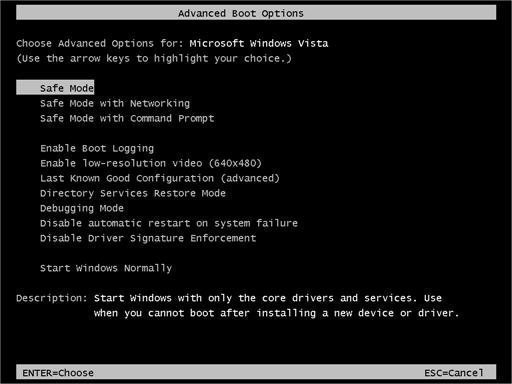
2. From the Advanced Options menu, you can select Safe Mode to repair some corrupted files.
3. If Windows 7 won't start normally but runs in Safe Mode, try a Clean Boot to see if a third-party software or driver is causing the issue.
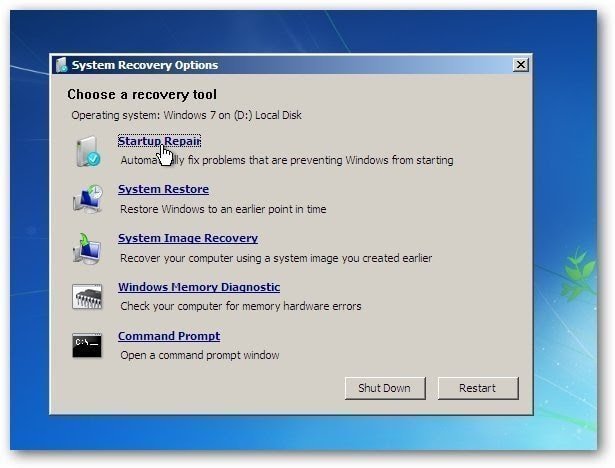
4. To repair Windows startup issues, go to the Advanced Boot Options menu, select "Repair your computer", and then choose "Startup Repair" from the system recovery options.
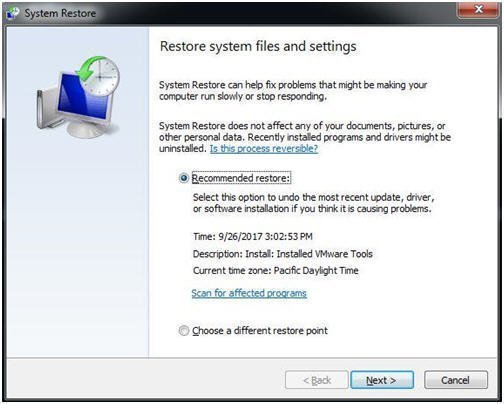
5. Run System Restore. This utility is usually turned on by default and creates restore points at regular intervals, allowing you to revert your system to a previous state in case of issues.
6. To run the check disk from the Command Prompt, follow these steps: From the System Recovery Options screen, select the last option Command Prompt. Then, type "chkdsk C: /f /r" and press Enter. The "/f" option forces a check of the disk, and the "/r" option scans for bad sectors and recovers readable information. This will perform a thorough check of the C: drive and attempt to recover any readable data from bad sectors.
If none of the above methods work, you may need to backup your files to an external hard drive and then reinstall a newer version of Windows, such as Windows 10 or Windows 11.
Backup files to external hard drive in Windows 7 for data security
Since Windows 7 has reached its end-of-life, it's recommended to reinstall a newer version of Windows, such as Windows 10 or Windows 11. Before doing so, it's essential to backup your files to an external hard drive using free backup software, such as Qiling Disk Master Standard, to ensure data safety. This software offers advantages, including, and then restore them from the backup after the reinstallation process is complete.
- All-in-one backup software: It supports backing up files, system, disk, and partition, allowing users to selectively choose what they want to back up.
- Backup files automatically, even for only changes: This backup software can automatically back up files on a daily, weekly, or monthly basis. It also supports incremental backups, which only saves changes made to files since the last backup, significantly reducing backup time and disk space usage.
- Rich backup destination: This software enables backing up files to various storage devices, including external hard drives, USB drives, network drives, and cloud storage services, with the option to back up to Qiling Cloud for users with a Qiling account.
- Other useful features: It enables the creation of a bootable USB drive, which can be used to boot a computer when needed, making it particularly useful in situations where the computer itself is not functioning properly.
Qiling Disk Master is an easy-to-use software that can be started immediately after installation, and it supports Windows 11/10/8/7/XP/Vista operating systems. For server users, Qiling Disk Master Server is also available.
- Launch this software, choose "Backup" and "File Backup" subsequently.

- To initiate a backup, select the desired files or folders to back up, and optionally enter a new task name to distinguish it from other backups.

✍ Tip: To simplify the process, it's recommended to place all files in a single folder, eliminating the need for manual selection each time. For a large number of files, consider saving them to a specific partition and then backing up that partition instead.
- Click the folder shaped button, select the connected external disk to store files, then click Proceed to execute the task.

Wait until the backup process completes, you will have a copy of your files. Thus, you don't need to worry about data loss.
This software allows you to automatically backup your files with options for daily, weekly, or monthly backups, and is recommended to be installed on a newly installed system to ensure data protection.

In advanced editions, you still enjoy "Event trigger", "USB plug in".
You can use a safer backup method called Differential Backup, which only backs up changed files, preventing backup disks from becoming full due to accumulated backups. This can be achieved by deleting backup files using methods such as By quantity, By time, or By daily/weekly/monthly cleanup. However, this feature is only available in the professional or higher editions.

You can choose to restore a system to dissimilar hardware, which allows you to avoid reinstalling programs and restoring files after reinstallation. This can be done by creating a system image or disk backup using corresponding backup functions, and then using a recovery environment like Qiling Disk Master to easily restore the system or other backups when needed.
Reinstall new version of system - Windows 10
Since your computer is running Windows 7, you'll need to download the Windows ISO file online and create a bootable USB drive using it, which should be at least 8GB in size. When creating the USB, select the option to use a USB flash drive.
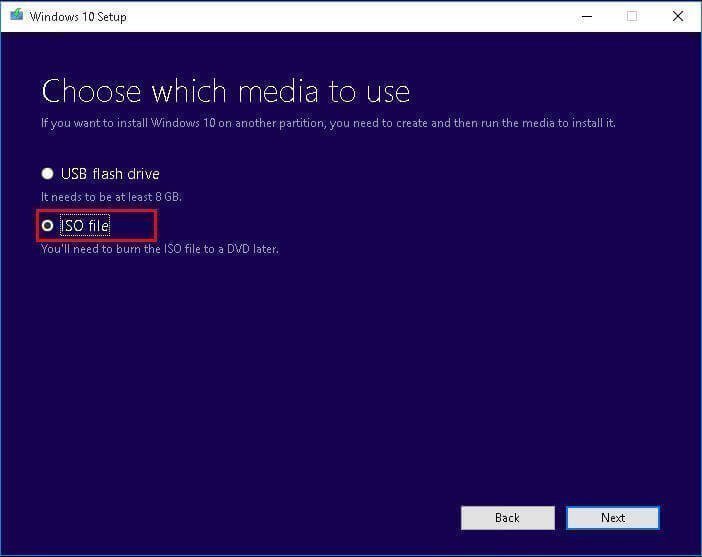
To install Windows 10 on a new computer, insert the USB drive into the computer, go to the BIOS and set it as the first boot option, save changes, and let the computer boot from it. Then, follow the steps below carefully.
1. Wait for Windows 10 installation files to load. Select your language and other preferences, then click Next and Install now.
2. Click I don't have a product key and Next. It will reactivate itself if you install the same edition of Windows 7, for example, upgrading Windows 7 Home to Windows 10 Home.
3. Select the operating system and click Next.
4. Accept the license terms and click Next.
5. Select Windows 10 installation type: Custom.
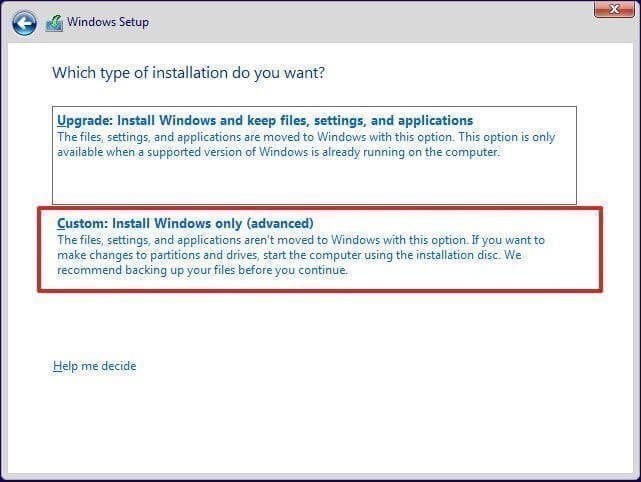
6. To install Windows 10, click on "Drive Options" and delete the system partition and other operating system-related partitions. Then, select the unallocated space and click "Next" to proceed with the installation.
Reinstall new version of system with Qiling Disk Master
Since your computer is running Windows 7, you'll need to download a Windows ISO file and create a bootable USB drive with it.
Step 1. Create a bootable USB with Qiling Disk Master.

Step 2. Boot your pc with Qiling Disk Master.

Step 3. Select Windows ISO file.
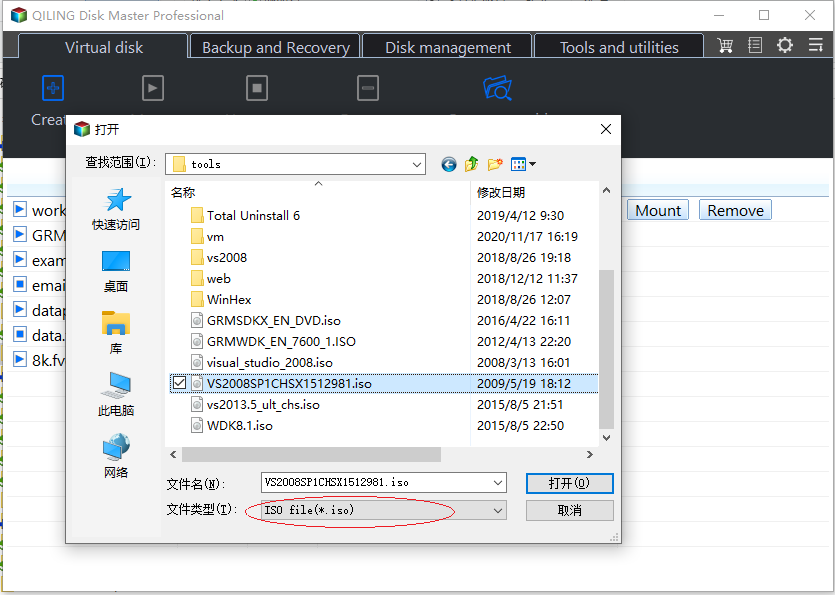
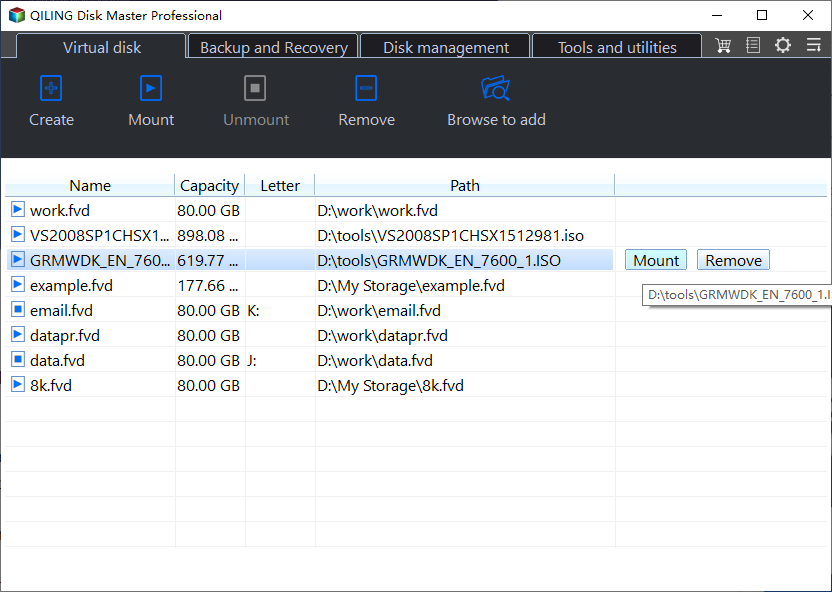
Step 4. Mount Windows ISO file.
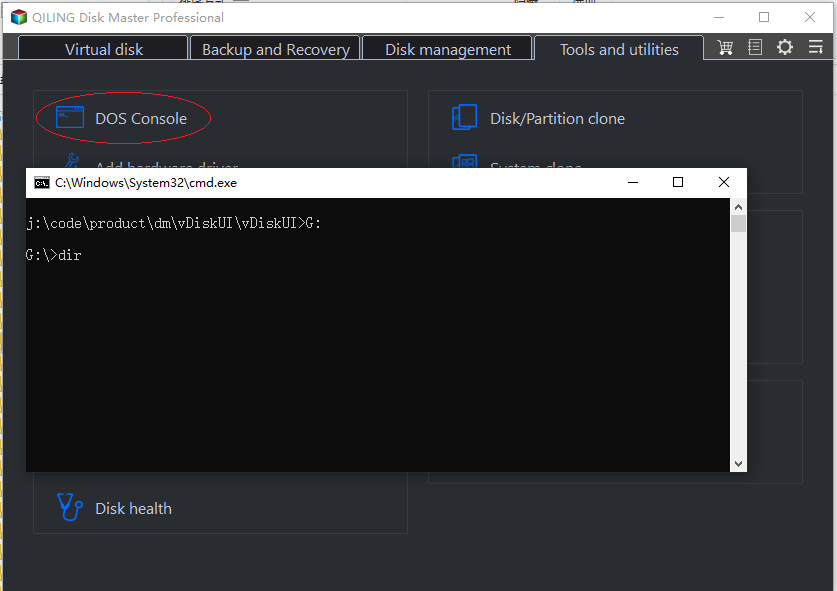
Step 5. To install Windows from the ISO file, go to the "Tools and utilities" tab page and click on "DOS Console". In the command prompt window that opens, run the "setup.exe" file from the ISO, which will guide you through the installation process.
Conclusion
Windows 7 has ended its life, you can choose to repair it with all the available methods. If it's not working, you can only choose to reinstall a new version of the system, which involves similar steps that can be taken as a reference from the above.
To prevent data loss, back up your files to an external hard drive or other devices not connected to your computer, and then restore them from the backup if needed.
After reinstalling Windows, it's recommended to install Qiling Disk Master Standard on your computer. This will enable continuous protection of your system and data, allowing for quick recovery in case of system or data loss. For companies looking to protect an unlimited number of computers, Qiling Disk Master Technician is the suitable option.
Related Articles
- How to Repair Windows 7 without Losing Data?
Try 6 solutions provided in this article to repair Windows 7 without losing data, it's easy to troubleshoot Windows 7 problems with the guide. - How to Refresh Windows 7 without Losing Data?
Learn how to Refresh Windows 7 without Losing Data with clear steps, key checks, and practical tips. - How to Reinstall Windows 7 without CD or USB with Ease?
Learn how to Reinstall Windows 7 without CD or USB with Ease with clear steps, key checks, and practical tips. - Full Guide to Upgrade to Windows 10 without Losing Files
This guide explains Full Guide to Upgrade to Windows 10 without Losing Files with clear steps, key checks, and practical tips. - How to Transfer Files From SSD to HDD in Windows 10 (Easiest)
No matter what files you want to transfer from SSD to HDD, such as personal data, user files, and program files, you can find the solution from this page. After data transfer, you can make full use of the advantages of both SSD and HDD, higher performance and larger capacity. - Solved: Not Enough Space On C Drive Windows 10/8/7
If you find there is not enough space on C drive in Windows 11, 10, 8, 7, here you can find the best way to solve this problem easily, no matter you want to reclaim some free space or add more space to C drive.
Products
Articles & Tutorials
- Data Recovery
- Data Backup
- File Recovery
- File Backup
- File synchronize
- System Backup and Restore
- Disk and Partition Clone
- Technical articles
- Disk Master Help
- Windows Deleted File and Disk Recovery Tutorials
- Windows File and Data Recovery Tutorials
- More Windows Tutorials for Install, Security, Files, and PC Tips
- Windows Boot, Repair, and Recovery Environment Tutorials
- Windows Backup Tutorials
- Windows Restore Tutorials
- Windows Clone and Migration Tutorials
- Windows Server Backup, Recovery, and Management Tutorials
- Windows Disk, Partition, and Storage Management Tutorials