How to Upgrade Windows 7/8.1 to Windows 10 Without Losing Files
Why upgrade to Windows 10 from XP, Vista or Windows 7/8/8.1?
Windows 10 was officially released on July 29th, 2015, and has since been optimized through Microsoft's continuous efforts. Upgrading to Windows 10 may be appealing due to its improved performance and functionality.
- Fast startup
- Improved Start menu with a tile-based appendage
- A hands-free technology—Cortana
- Microsoft Edge, the default browser, has been improved with enhanced compatibility and speed, and features a few new capabilities, making it a better default browser.
- Strengthened security…
Windows 7 users have already been informed of the end of support for Windows 7 after January 14, 2020, and should consider upgrading to Windows 10 to continue receiving Microsoft services and support.
Many people worry that upgrading to Windows 10 will result in lost files, but you can ease your mind and learn how to upgrade without losing data.
How to upgrade to Windows 10 without losing files simply
To upgrade to Windows 10, you need a license and should check the minimum hardware requirements, such as going to the PC manufacturer's website for updated drivers and hardware compatibility.
● Processor: 1 GHz or faster processor or System on a Chip (SoC) is required.
● RAM: 1 GB for 32-bit or 2 GB for 64-bit
● Hard disk space: 16 GB is the minimum required RAM for a 32-bit operating system, while 32 GB is the minimum required RAM for a 64-bit operating system.
● Graphics Card: DirectX 9 or later with WDDM 1.0 driver
● Display: 800×600
★ Video tutorial
★ Graphic tutorial of upgrading Windows 7/8.1 to Windows 10 without losing data
1. Download the media creation tool from Microsoft and click the "Download tool now" button to save the installer on your computer.
2. Right-click the MediaCreationTool.exe and select Run as administrator.
3. On the License terms page, select Accept.
4. On the What do you want to do? page, select Upgrade this PC now and then select Next.
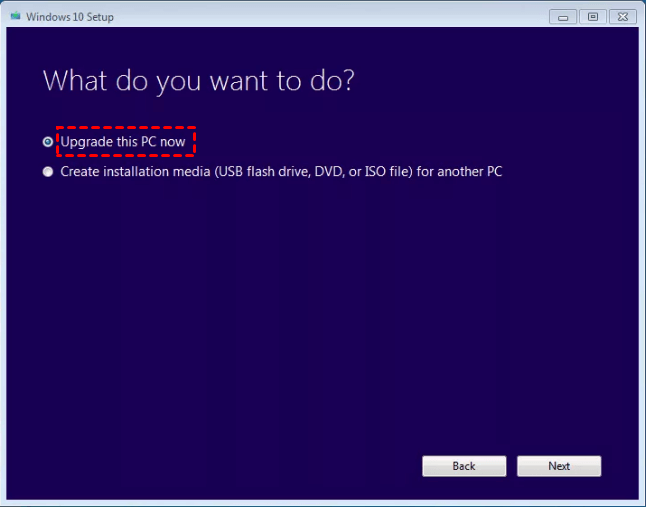
5. After downloading and installing the tool, it will guide you through setting up Windows 10 on your PC. You'll be prompted to enter your Windows 10 product key.
✎ Note: If you're reinstalling Windows 10, you don't need to enter a product key because your copy of Windows 10 will automatically activate later using your digital license.
6. When Windows 10 is ready to install, you'll see a recap of what you've chosen, including what will be kept through the upgrade, such as personal files and apps, which is selected by default. You can change this option by clicking "Change what to keep".
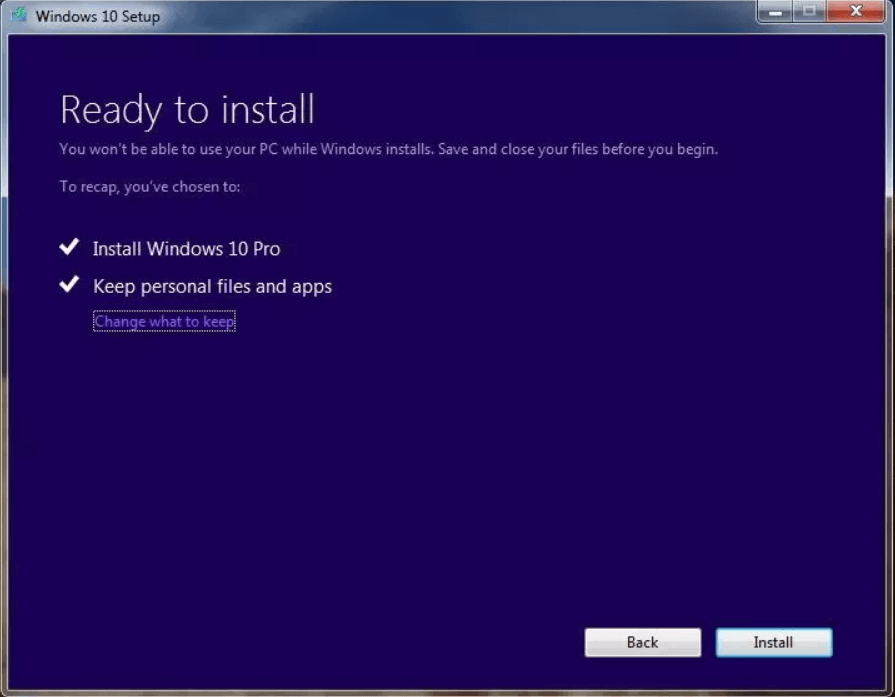
7. Save and close any open apps and files you may be running, and when you're ready, select Install.
8. Installing Windows 10 may take some time, with your PC restarting a few times, so be sure to keep it running without turning it off.
After installing Windows 10, you'll need to complete the out-of-box-experience to finish setting it up. Once done, you'll see your familiar desktop and be able to access all the new features included with Windows 10.
✍ Tip: To upgrade from XP or Vista to Windows 10, create Windows 10 installation media and do a clean installation, backing up your files first to prevent data loss.
Extra tips for avoiding data loss after upgrading to Windows 10/11
To securely upgrade Windows 10 to Windows 11, it's recommended to backup your crucial data using a reliable backup tool, such as Qiling Backup, which can help prevent data loss in case the upgrade doesn't run properly.
The best free backup software, Qiling Disk Master Standard, is an ideal choice for its all-around backup solutions, which include.
|
📂 Backup Type |
It offers System/Disk/Partition/File/Cloud Backup to meet your different needs. |
|
⏰ Automatic Backup |
To keep your backups up to date, you can schedule them to run automatically. |
|
📈 Incremental Backup |
The system uses an incremental backup method, which saves both time and space for scheduled backups. |
|
🧿 WinPE Backup & Restore |
To run backup and restore operations without booting Windows, you can create bootable media or a recovery environment (paid) as per your need. |
|
💻 Supported OS |
All Windows PC operating systems, including Windows 11/10/8.1/8/7/Vista/XP, are supported, and for Windows Server systems like Server 2022/2019, Qiling Disk Master Server is available. |
You can try this freeware by downloading it. Once you click "Backup" on the left-hand panel, you'll see all the available backup types. With its intuitive interface, performing backups requires just a few clicks.

With the backup, you don't need to worry about data loss in system partitions. You can use the system image to restore your computer to an earlier date if you have problems with your new system or are not satisfied with its performance.
Summary
To upgrade to Windows 10 without losing files, you can follow the step-by-step guide. However, to prevent data loss caused by unexpected upgrade errors, consider using Qiling Disk Master, which provides powerful data protection. Additionally, you can use this tool for SSD data migration. By using Qiling Disk Master, you can ensure a smooth and safe upgrade process.
Related Articles
- How to Reinstall Windows 10 without Losing Data (3 Ways)
Sometimes, you may need to reinstall Windows 10/11 to solve system issues. This guide will show you how to reinstall Windows 10/11 without losing data step by step. - How to Safely Upgrade Windows 10 32 Bit to 64 Bit
Be sure your computer meets the upgrade requirements and you have a copy of your important data. Then you can upgrade Windows 10 from 32 bit to 64 bit without losing data. - How to Reset or Refresh Windows 10 without Losing Programs
This article tells you how to refresh Windows 10 without losing programs and data. It seems a good idea to reinstall Windows 10 when serious system problem occurs. Read on to learn more. - Backup Installed Programs in Windows 11 to Avoid Reinstallation
Learn how to Backup Installed Programs in Windows 11 to Avoid Reinstallation with clear steps, key checks, and practical tips. - Is Norton Ghost 15 Crack with Serial Key 100% Working
Be cautious of Norton Ghost 15 Crack, as it may not be reliable. Instead, consider using a free alternative to ensure your data security. This approach will save you from potential risks and provide a safer solution for your needs. - 10 Best OS Deployment Software [Updated 2022]
If you're looking for a professional and easy OS deployment software, you're in luck! We've compiled a list of the top 10 Windows deployment software options, and this article will guide you in finding the best OS deployment tool for your needs.
Products
Articles & Tutorials
- Data Recovery
- Data Backup
- File Recovery
- File Backup
- File synchronize
- System Backup and Restore
- Disk and Partition Clone
- Technical articles
- Disk Master Help
- Windows Deleted File and Disk Recovery Tutorials
- Windows File and Data Recovery Tutorials
- More Windows Tutorials for Install, Security, Files, and PC Tips
- Windows Boot, Repair, and Recovery Environment Tutorials
- Windows Backup Tutorials
- Windows Restore Tutorials
- Windows Clone and Migration Tutorials
- Windows Server Backup, Recovery, and Management Tutorials
- Windows Disk, Partition, and Storage Management Tutorials