Windows 7 End of Support: What Does It Mean and What to Do?
Quick Navigation:
- The issue: Windows 7 end of support
- Windows 7 end of support, what does it mean?
- Things before upgrading Windows 7 to Windows 10
- How to run Windows 7 upgrade to Windows 10 step by step?
- Verdict
The issue: Windows 7 end of support
Microsoft ended support for Windows 7 on January 14, 2020, after warning users in March 2019 that the operating system would no longer receive security updates or technical support. If you still use Windows 7, you may receive a full-screen notification with this information. Microsoft recommends upgrading to Windows 10 or another supported operating system for continued security and support.
Your Windows 7 PC is out of support
As of January 14, 2020, support for Windows 7 has ended, making your PC more vulnerable to viruses and malware.
• No security updates
• No software updates
• No tech support
Microsoft recommends using Windows 10 on a new PC for the latest security features and protection against malware.
Windows 7 end of support, what does it mean?
Windows 7 end of support means that Microsoft will no longer provide security updates or technical support for the operating system after January 14, 2020. This means that users will be vulnerable to security risks and may not be able to fix issues with the operating system. However, users can still use Windows 7, but they will not receive any further support or security updates.
1. What support on Windows 7 PCs ends?
Microsoft has stopped providing security updates and technical support for Windows 7, and related services such as Internet Backgammon are also being discontinued.
Software installed on Windows 7 will no longer receive updates, causing security vulnerabilities and potential system crashes.
2. What consequences does it bring?
If you keep using Windows 7 after support ends, your computer will still work, but it will be more vulnerable to security threats and viruses, and you won't be able to upgrade your programs to the latest version to access new features.
3. What should you do?
Windows 7 users may face costly technical support, especially for businesses and education institutions, as extended security updates will be available for a fee. To avoid this, it's best to switch to Windows 10.
4. Can you upgrade to Windows 10 for free?
Unfortunately, the free upgrade offer for Windows 10 ended on July 29, 2016, and now requires a purchase of a new PC with Windows 10 pre-installed or a full version of the software to upgrade an existing device.
Things before upgrading Windows 7 to Windows 10
If you're upgrading from Windows 7 to Windows 10, check if your PC meets the minimum requirements for Windows 10 and back up your crucial documents, apps, and data before upgrading, as the process may wipe your settings and apps.
To make a backup efficiently, consider using Qiling Disk Master Standard, a free backup software that offers various backup types, including system, disk, partition, and file backup. It also provides flexible options, such as scheduling backups and receiving email notifications, to ensure your data is safely backed up.
This freeware supports all Windows PC operating systems, including Windows 10/8.1/8/7/Vista/XP, and allows users to perform a backup task in a short time with its user-friendly interface.

How to run Windows 7 upgrade to Windows 10 step by step?
To upgrade from Windows 7 to Windows 10, ensure your computer is compatible and back up important data. Then, go to the Windows 10 download page, click on the "Download now" button, and select the correct version for your system.
1. Go to Microsoft's Windows 10 download site, click the "Download tool now" button to save the installer on your computer.
2. Run the MediaCreationTool.exe as administrator.
3. Accept the license terms and choose "Upgrade this PC now" on the "What do you want to do?" page.
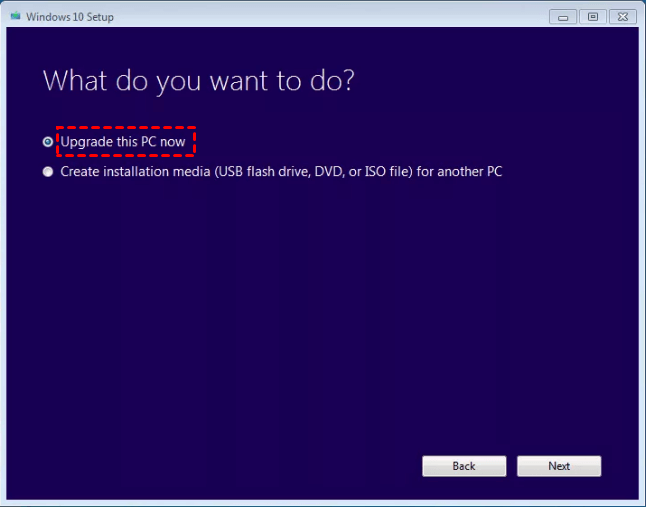
4. After downloading and installing the tool, you will be guided through the process of setting up Windows 10 on your PC. When prompted, enter your Windows 10 product key.
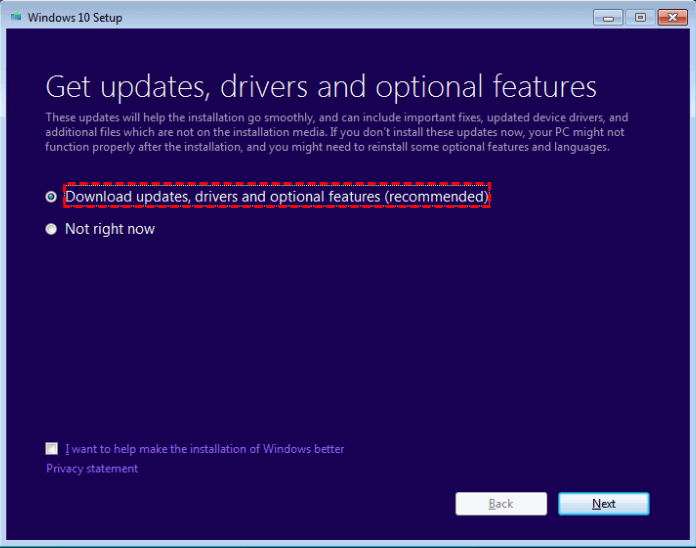
5. When Windows 10 is ready to install, you'll see a recap of what you've chosen, with the option "Keep personal files and apps" selected by default.
Note: When upgrading from Windows 7 to Windows 10, the "Keep personal files and apps" option may not always preserve all of your existing apps, due to differences between the two operating systems. If you notice some apps missing, you can try restoring program files from a backup you've made or download the installers again after the upgrade.
6. Save and close any open apps and files you may be running. Then, select Install.
7. It may take some time to install Windows 10, and your PC will restart a few times, so be sure not to turn off your PC during the process.
Verdict
Windows 7 will no longer receive security updates or technical support, meaning it's no longer safe to use. To stay safe, users can upgrade to Windows 10 or purchase a new PC with the updated operating system.
Before upgrading to Windows 7, it's recommended to back up important data using Qiling Disk Master, a professional backup software that also serves as powerful disk clone software. This will ensure your data is insured and ready for the upgrade process.
Related Articles
- Solved|"Cleaning up. Do Not Turn off Your Computer."
This guide explains Solved|"Cleaning up. Do Not Turn off Your Computer." with clear steps, key checks, and practical tips. - How to Repair Corrupted or Missing System Files in Windows 7/8/10?
You will learn 4 helpful ways to repair system files in Windows 7, 8, 10, 11 and how to effectively prevent this error and data loss due to it. - Full Guide to Upgrade to Windows 10 without Losing Files
This guide explains Full Guide to Upgrade to Windows 10 without Losing Files with clear steps, key checks, and practical tips. - Solved | File is too Large to Copy to External Hard Drive (4 Ways)
You will learn how to fix "the file is too large for the destination file system" easily or directly backup large files to external hard drive without converting file system. - How to Backup QNAP to Another QNAP NAS Easily? (2 Free Ways)
Set up backup QNAP to Another QNAP NAS Easily (2 Free Ways) with practical backup or sync options, storage checks, and safer ways to protect files. - Real Time File Backup in Windows 7/8/10 to Backup Changes
In this article, you will find the best real-time backup software to perform real-time file backup. Any changes made on the source will be synced to the destination immediately.
Products
Articles & Tutorials
- Data Recovery
- Data Backup
- File Recovery
- File Backup
- File synchronize
- System Backup and Restore
- Disk and Partition Clone
- Technical articles
- Disk Master Help
- Windows Deleted File and Disk Recovery Tutorials
- Windows File and Data Recovery Tutorials
- More Windows Tutorials for Install, Security, Files, and PC Tips
- Windows Boot, Repair, and Recovery Environment Tutorials
- Windows Backup Tutorials
- Windows Restore Tutorials
- Windows Clone and Migration Tutorials
- Windows Server Backup, Recovery, and Management Tutorials
- Windows Disk, Partition, and Storage Management Tutorials