How to Reinstall Windows 7 without CD or USB with Ease
- Why do you want to reinstall Windows 7 without CD or USB?
- Stepwise guide to reinstall Windows 7 without CD or USB (2 cases)
- Preparation: Backup important data in advance
- Case 1. Install Windows 7 without CD
- Case 2. Reinstall Windows 7 without CD or USB
- Bonus tip: how to reset Windows 7 to factory settings without CD
- Conclusion
Why do you want to reinstall Windows 7 without CD or USB?
Many Windows 7 users want to reinstall the operating system when it encounters problems, as it can often return their computer to a normal state.
You can reinstall Windows 7 without a CD or USB drive by using the built-in recovery options on your laptop, such as the Windows Recovery Environment or the manufacturer's recovery partition, if available. If not, you can also use a Windows 7 installation media created on a different computer and transfer it to a USB drive or burn it to a CD/DVD on a different computer. Alternatively, you can also download a Windows 7 ISO file and create a bootable USB drive using a tool like Rufus or a similar software. These options allow you to reinstall Windows 7 without needing a physical CD or USB drive.
Stepwise guide to reinstall Windows 7 without CD or USB (2 cases)
Preparation: Backup important data in advance
It's highly recommended to backup your computer regularly to avoid losing important data, such as applications and personal files like family photos, which can be erased during a reinstallation.
To keep your data safe, you can use Qiling Disk Master Standard, a free PC backup tool that allows you to back up your system, files, hard drive, and partition. You can save the backup image to various locations, such as an external hard drive, USB flash drive, or network, providing a secure and convenient way to protect your important files and system.
Step 1. Run the tool, plug in your USB drive if desired, click Backup, and select File Backup to proceed.

Step 2. Click Files or Folders to choose the data you want to backup.

Step 3. Choose the destination path to save the backup image and click Proceed.

Note:
When choosing a backup destination, consider using Qiling Cloud for worry-free storage, which offers 1TB of free space for 15 days upon signing up.
To install Windows 7 without a CD or USB, you can use the built-in Windows 7 installation process to create a bootable installation media on a blank DVD or USB drive. This process is called "Windows 7 USB/DVD Download Tool".
Case 1. Install Windows 7 without CD
To install Windows 7 without a CD, you'll need your product key and a blank USB flash drive. The process involves creating a bootable USB drive with Windows 7 installed on it, which can then be used to install the operating system on your computer. This requires a few steps, including downloading the Windows 7 installation files, creating a bootable USB drive using a tool like Rufus, and then using the USB drive to install Windows 7 on your computer. It's a straightforward process that allows you to install Windows 7 without needing a physical CD.
◆ Make USB bootable
Insert the USB flash drive, run Command Prompt window as an administrator.
1. Type "diskpart" and press Enter.
2. Type "list disk" and press Enter.
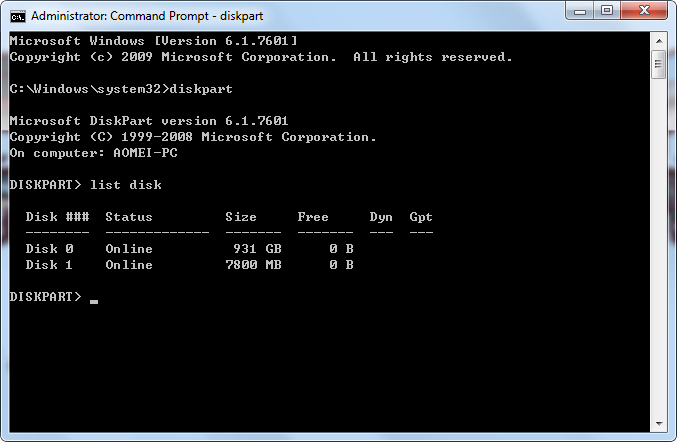
3. Enter the following commands one by one and wait for each step to complete. Replace the "x" with the drive number of the USB flash drive where you can find in the "list disk" command.
- select disk x
- clean
- create partition primary
- select partition 1
- format fs=NTFS
- active
- exit
◆ Create the installation USB
1. The bit number can be confirmed by following these steps: Click Start, type "system" in the search box, and then click System Information. This will display the system's configuration, including the bit number.
2. To find the product key, look for a 25-character key on the bottom of your laptop. Alternatively, open Command Prompt as an administrator, type "wmic path softwarelicensingservice get OA3xOriginalProductKey", and press Enter.
3. To download Windows 7, go to the Microsoft page at https://www.microsoft.com/en-us/software-download/windows7, enter your product key to verify, confirm the language, and then click either the 64-bit Download or 32-bit Download option.
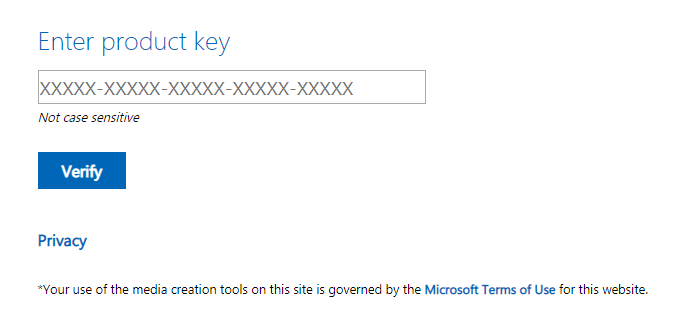
4. After downloading the ISO file, plug in your USB flash drive and copy the downloaded ISO file to it.
◆ Change the boot order
1. To access the BIOS screen, restart your computer and press the BIOS key, usually Esc, Delete, or F2, until the screen appears. You can confirm the correct key by checking the computer's product page. Keep pressing the key until the BIOS screen is displayed.
2. Set the USB as the boot drive.
- You will typically see a "Boot Order" or "Boot Options" tab, which can be accessed using the arrow keys, possibly located in the Advanced Options tab.
- To move your USB flash drive to the top of the screen, select Removable Devices, press the "+" key.

- Press the Exit key and click Yes to save the configuration.
◆ Start installing Windows 7
To install Windows 7, press any key to boot the computer, agree to Microsoft's license terms, select the hard drive with the old Windows 7 installation and click "Delete" to erase it, then choose the installation location and click "Next". The installation process will begin, taking several minutes to an hour to complete.

Case 2. Reinstall Windows 7 without CD or USB
If you've previously created a system image backup, you can simply restore your computer to a previous date that works well, eliminating the need for a CD or USB.
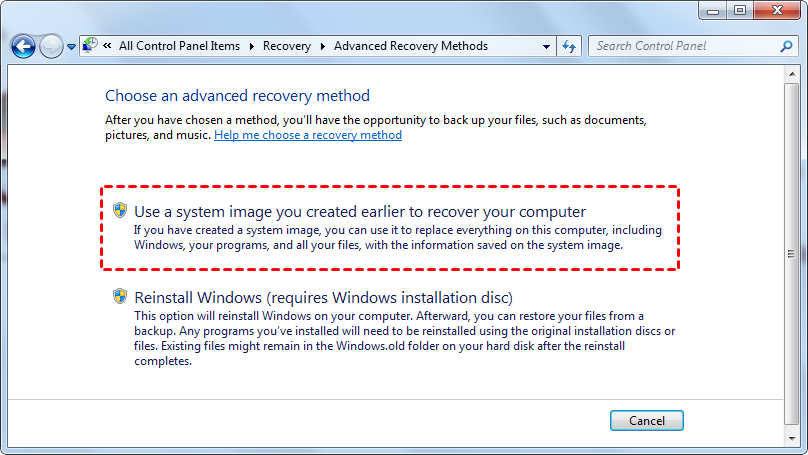
Step 1. Click Start > type Recovery in the search box and hit Enter.
Step 2. On the Recovery screen, click Advanced Recovery methods.
Step 3. On the Advanced Recovery Methods window, you will see two options. Choose "Use a system image you created earlier to recover your computer" to proceed.
It will replace everything on your computer, including Windows, programs, and files, with the system image.
Bonus tip: how to reset Windows 7 to factory settings without CD
To reset Windows 7 to its factory settings, you can use System Restore in Safe Mode. This will allow you to restore your computer to its original state.
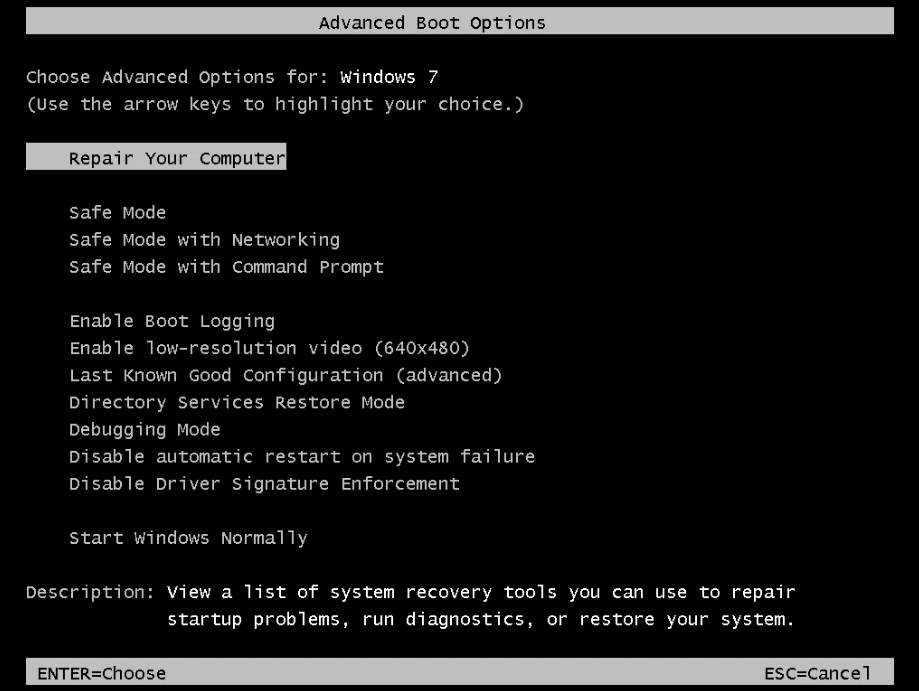
1. Turn off your computer, then turn it back on and immediately press and hold the F8 key when the logo appears on the screen.
2. Choose Safe Mode with Command Prompt and press Enter.
3. Log in as a local user or administrator.
4. Type "rstrui.exe" and press Enter.
5. Go to the settings on your computer and select the option to reset it to its factory settings, which will erase all data and restore the system software to its original condition. Click next to proceed with the process.
6. Follow the instructions to finish the process.
Conclusion
To reinstall Windows 7 without a CD or USB, follow these steps: create a bootable USB drive using the Media Creation Tool, download the Windows 7 installation media from Microsoft's website, and use the built-in Windows 7 installation media to install the operating system. This process allows you to install Windows 7 from scratch, and it's essential to backup your computer before proceeding to avoid data loss. By following these steps, you can successfully reinstall Windows 7 and get your computer up and running again.
With Qiling Disk Master Standard, you can create a system image, which allows you to restore Windows 7 to a previous date if a fatal system crash occurs, and also creates a bootable USB to help boot your computer in case of a malfunction.
Related Articles
- How to Repair Windows 7 without CD Easily
Get clear ideas below and follow the stepwise guide to repair Windows 7 without CD. You have three choices, please check them and select one per your needs. - How to Restore Default Programs in Windows 7 Easily
Learn how to Restore Default Programs in Windows 7 Easily with clear steps, key checks, and practical tips. - Windows 7 Professional/Home Premium Backup to Network Drive
In this article, I will share you something about Windows 7 backup save on a network missing and Windows 7 Professional backup to network drive. Swipe to learn more. - Best Free Cobian Backup Alternative
This guide explains Best Free Cobian Backup Alternative with clear steps, key checks, and practical tips. - Safely Move Downloads from C Drive to D Drive
Here's a tutorial about how to move downloads from C drive to D drive to free up to release your D drive. - How to Move Folders to a Different Drive in Windows 11/10/8/7?
Learn how to Move Folders to a Different Drive in Windows 11/10/8/7 with clear steps, key checks, and practical tips.
Products
Articles & Tutorials
- Data Recovery
- Data Backup
- File Recovery
- File Backup
- File synchronize
- System Backup and Restore
- Disk and Partition Clone
- Technical articles
- Disk Master Help
- Windows Deleted File and Disk Recovery Tutorials
- Windows File and Data Recovery Tutorials
- More Windows Tutorials for Install, Security, Files, and PC Tips
- Windows Boot, Repair, and Recovery Environment Tutorials
- Windows Backup Tutorials
- Windows Restore Tutorials
- Windows Clone and Migration Tutorials
- Windows Server Backup, Recovery, and Management Tutorials
- Windows Disk, Partition, and Storage Management Tutorials