Set Windows 10 Backup Encryption to Protect Data Easily
Double protection for your priceless data
You're using Windows 10 with the latest update and have learned the importance of backing up your files after experiencing issues with the 1809 update. You're now looking for a way to protect your Windows 10 backups with encryption, so only authorized individuals can access them. Is that correct?
To protect your data with double protection, you can set Windows 10 backup encryption. This ensures that even if your backup drive is lost or falls into the wrong hands, your data remains private and secure, preventing unauthorized access. By encrypting your backups, you can rest assured that your sensitive information is safeguarded with an extra layer of protection, guaranteeing your privacy and peace of mind.
While you may have other reasons for performing backup encryption, the key is to find a way to do it easily.
Easiest way to do Windows 10 backup encryption
Qiling Disk Master Professional is a complete backup software that allows users to password protect their Windows 10 backups, ensuring that only authorized individuals can access the encrypted data. The encryption process is straightforward, involving setting up a backup or sync task, configuring a password, and executing the task. This added layer of security requires a password to be entered every time the backup is accessed, providing an extra layer of protection for sensitive data.
The system allows passwords of up to 64 characters, enhancing password complexity and making them more difficult to decrypt.
You can also optimize your disk space usage by encrypting passwords, compressing images, or implementing an efficient backup strategy that includes auto-deleting old backups. Additionally, you can split backup images into customized sizes to facilitate backup to CD or DVD discs.
You may want to take advantage of the 30-Day Free Trial of this software to experience its power firsthand.
How to encrypt Windows 10 backup image step by step?
1. Install and run Qiling Disk Master Professional. If you'd like to backup Windows 10 to an external hard drive, connect the external storage in advance.
2. Click Backup and then System Backup.

3. Select the destination path for the installation.

4. To enable encryption for backups, click on the "Options" button beneath, which will reveal a pop-up window. Check the box next to "Enable encryption for backups" and enter your desired password. Once you've done this, click "OK" to confirm your changes.
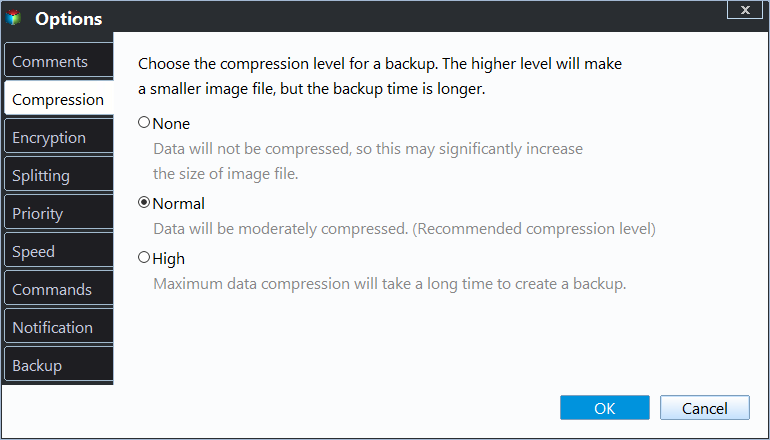
- You can also choose to backup Windows 10 on a regular basis, such as daily, weekly, monthly, or event-triggers, by checking the "Schedule" option.
- You can save disk space with an efficient backup strategy by checking the Scheme to see what needs to be backed up and what can be skipped. This will help reduce the amount of data being backed up, thereby saving disk space.
5. Click Proceed to execute the task.
Tips:
- You can check if your backup image is encrypted in the Home tab after the task completes.
- You can also do disk backup, file backup, partition/volume backup and file sync with encryption.
- The steps for Windows 10/8 backup encryption also apply to Windows 7 backup encryption, as the Professional version supports Windows 10/8/7/XP/Vista OS.
- To perform Windows Server 2012 backup encryption, refer to Qiling Disk Master Server edition.
Encrypt Windows 10 with built-in tools
Windows 10 offers encryption options, such as encrypting a backup drive with BitLocker, but it's a complex process that's not user-friendly. To encrypt a backup drive, you need to create a virtual hard disk (VHD), adjust its size and format, mount virtual drives, enable BitLocker, and then encrypt Windows 10 File History, all of which requires the Windows 10 Pro or Enterprise edition.
To encrypt a Windows 10 folder or drive using Encrypted File System (EFS), go to the folder or drive's properties, click on the "Advanced Attributes" button, and check the box next to "Encrypt contents to secure data". This will encrypt the contents of the folder or drive, making it accessible only from your Windows account. If you encounter issues, refer to the article for troubleshooting tips on encrypt folder greyed out or Encrypt contents to secure data greyed out in Windows 10.
Conclusion
To perform Windows 10 backup encryption, Qiling Disk Master Professional is recommended as a complete and powerful backup solution that makes it easy to protect your computer from data loss.
This tool allows for system cloning and data backup, also supporting GPT disk cloning, which enables upgrading hard disks and improving performance.
Related Articles
- How to Delete Backup Files in Windows 10 When Backup Disk Full?
Learn how to Delete Backup Files in Windows 10 When Backup Disk Full with clear steps, key checks, and practical tips. - Backup User Profile Windows 10 and Move it to Another Computer
You will learn how to backup and restore user profile in Windows 10/11, without spending hours customizing the new computer. - Windows Server Backup Encryption – Double Protection for Your Data
You can set Windows Server 2008/2008 R2/2012/2012 R2/2016/2019/2022 backup encryption using BitLocker or third-party backup software - Qiling Disk Master. - Solved: exFAT Drive Not Recognized in Windows 11
This guide explains Solved: exFAT Drive Not Recognized in Windows 11 with clear steps, key checks, and practical tips. - How to Extend Volume in Windows 10 (2 Methods)?
Learn how to extend volume in Windows 10 with this article, which will demonstrate two methods to help you achieve this.
Products
Articles & Tutorials
- Data Recovery
- Data Backup
- File Recovery
- File Backup
- File synchronize
- System Backup and Restore
- Disk and Partition Clone
- Technical articles
- Disk Master Help
- Windows Deleted File and Disk Recovery Tutorials
- Windows File and Data Recovery Tutorials
- More Windows Tutorials for Install, Security, Files, and PC Tips
- Windows Boot, Repair, and Recovery Environment Tutorials
- Windows Backup Tutorials
- Windows Restore Tutorials
- Windows Clone and Migration Tutorials
- Windows Server Backup, Recovery, and Management Tutorials
- Windows Disk, Partition, and Storage Management Tutorials