Solved: exFAT Drive Not Recognized in Windows 10 or 11
- Scenario: exFAT drive not recognized Windows 10
- About exFAT, NTFS, FAT32
- How to solve the exFAT drive not recognized in Windows 10/11?
- Fix 1. Access a Mac-formatted drive with HFSExplorer
- Fix 2. Reformat drive to exFAT to be compatible with both Windows and Mac
- Conclusion
- FAQs on exFAT drive not recognized on Windows 10
Scenario: exFAT drive not recognized Windows 10
"Hey, I might have some issues with the exFAT file system in Windows 10. My version of the operating system is Windows 10 Pro, 64-bit. I have a USB flash drive with a ton of music and a copy of Windows 7 Pro 32-bit meant for Oracle's VirtualBox. The USB drive is about 32GB and I formatted it on my MacBook running OSX Mavericks into exFAT, because this seems to be the only available file system that is compatible with both Mac and Windows."
You can resolve the issue by installing the exFAT driver on your Windows 10 computer. This can be done by downloading and installing the Microsoft exFAT driver from the official Microsoft website, which will allow your Windows 10 computer to recognize and read/write to exFAT formatted drives.
About exFAT, NTFS, FAT32
Windows introduced three file systems: FAT32, NTFS, and exFAT, to improve data storage and organization.
▶exFAT
ExFAT, introduced in 2006, is a flash drive format that's compatible with older Windows operating systems. It's a lightweight file system that balances the functionality of NTFS with the simplicity of FAT32, offering a practical compromise between the two. ExFAT's primary benefit is its wide compatibility, supported on most mainstream Windows, MacOS X, and Linux operating systems with additional software.
▶NTFS
Microsoft's NTFS (New Technology File System) is a proprietary journaling file system developed in 1993, which is the default file system for most modern Windows operating systems, including Windows 11, 10, 8, 7, and others. It offers improved cache and metadata performance on internal hard drives, allowing for faster file and folder access, and also includes a "Security Descriptor" for setting up access control. While it supports newer systems, it doesn't support macOS.
▶ FAT32
FAT32 is the most widely used version of the FAT file system, developed by Microsoft in 1977. It is less efficient and sophisticated than NTFS, but still widely used. The FAT system uses a File Allocation Table to track the allocation of disk clusters and their relationships, serving as a content table for the operating system to locate folders and files on the disk.
The program works on Windows, Linux, and Mac, but has limitations, including a 4GB file size restriction, making larger files ineligible.
Windows can't normally read Mac-formatted drives, including those formatted with Apple's HFS Plus, even though the exFAT file system is compatible with both Mac and Windows. Some manufacturers sell "Mac drives" pre-formatted with this Mac-only file system.
How to solve the exFAT drive not recognized in Windows 10/11?
If your exFAT drive is not recognized in Windows 10 or Windows 11, you can try resolving the issue by following these methods. Firstly, ensure the drive is properly connected and powered on.
Fix 1. Access a Mac-formatted drive with HFSExplorer
HFSExplorer is a free software that allows Windows 10 users to access and read Mac-formatted drives. To use it, you'll need to install Java and then HFSExplorer on your Windows PC. Once installed, you can freely copy files from the Mac drive to your Windows PC. However, if you need to write to the Mac drive, you'll need to purchase a paid version of the software.
To access a Mac-formatted drive using HFSExplorer, follow these steps: download and install HFSExplorer on your Windows machine, then launch the application, select the drive you want to access from the list, and click "Mount" to make it accessible as a Windows drive. This will allow you to view and interact with the files on the Mac-formatted drive as if it were a native Windows drive.
Step 1. Connect the drive to your Windows computer. Launch HFSExplorer.
Step 2. To access the file system from a device, click on the "File" menu and select "Load File System From Device." This will automatically locate the connected drive and allow you to load it.
Step 3. When you see the contents of the HFS+ drive in the graphical window, select the files or folders you want, click "Extract", and choose a folder on your Windows computer to copy them to.
HFSExplorer isn't the best choice for reading and writing on both Windows and Mac, as it's read-only and lacks features. A better option is to reformat the Mac-formatted drive into exFAT, allowing for seamless reading and writing on both operating systems.
Fix 2. Reformat drive to exFAT to be compatible with both Windows and Mac
Pay attention:
Formatting a drive will erase all data on it. Make sure you've backed up any important files before proceeding.
When you connect a Mac-formatted drive to a Windows computer, it may prompt you to format the drive, which would erase all data on it. If the drive contains important data, you should cancel the formatting operation to avoid losing your files.
Once you've backed up all data on the Mac-formatted drive, you can format it with the exFAT file system on your Windows computer.
You can format drive to exFAT with Windows File Explorer:
To format a drive, right-click it and select "Format". Choose the exFAT file system and set the allocation unit size and volume label as desired. Tick the "Quick Format" option and click "Start" to begin the formatting process.
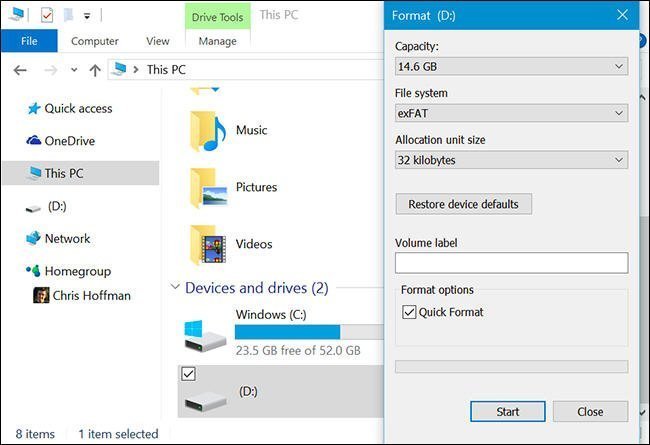
However, you may encounter issues with formatting a drive to exFAT in Windows File Explorer. To successfully format the drive, you may need to use third-party software. This can save you time and effort compared to trying to format the drive manually in Windows File Explorer.
Format drive as exFAT with Qiling Disk Master:
Qiling Disk Master Standard is a free exFAT formatter that can format drives to exFAT with simple steps, serving as a better disk manager that addresses Windows tool shortages and fixes the "exFAT not recognized on Windows 10" issue.
Step 1. To access a Mac-formatted drive on your Windows computer, download and install Qiling Disk Master, a free software, and then launch it. Once installed, you can connect your Mac-formatted drive to your Windows computer and use Qiling Disk Master to access it.
Step 2. Right click the Mac-formatted drive, select "Format Partition" to format it on Windows. This will display all disks on the Windows system.
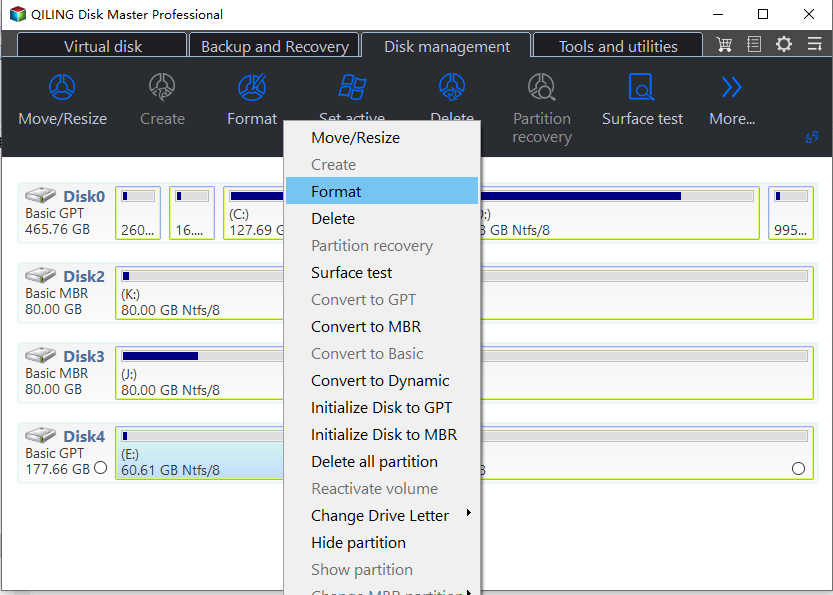
Step 3. Qiling Disk Master will allow you to format a drive to various file systems, including FAT32, NTFS, Ext2, Ext3, and exFAT, and you can select exFAT as the formatting option.
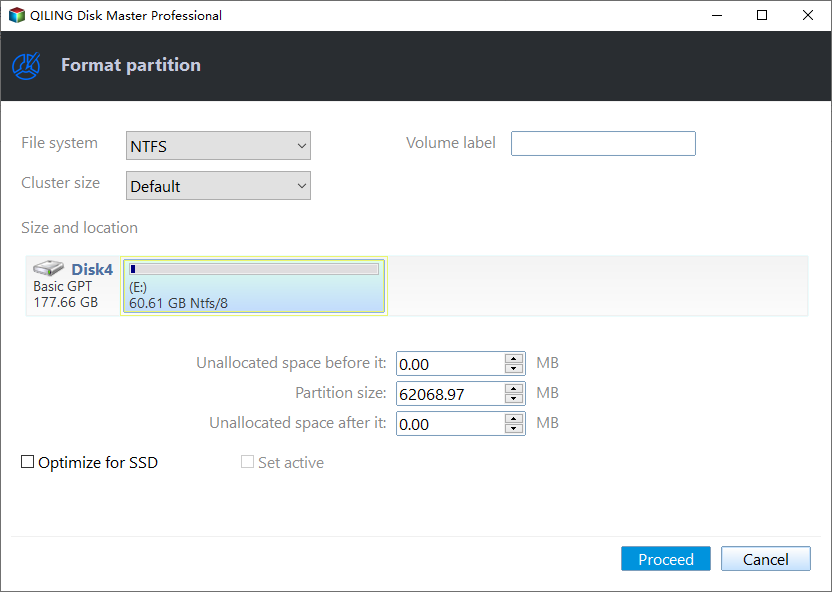
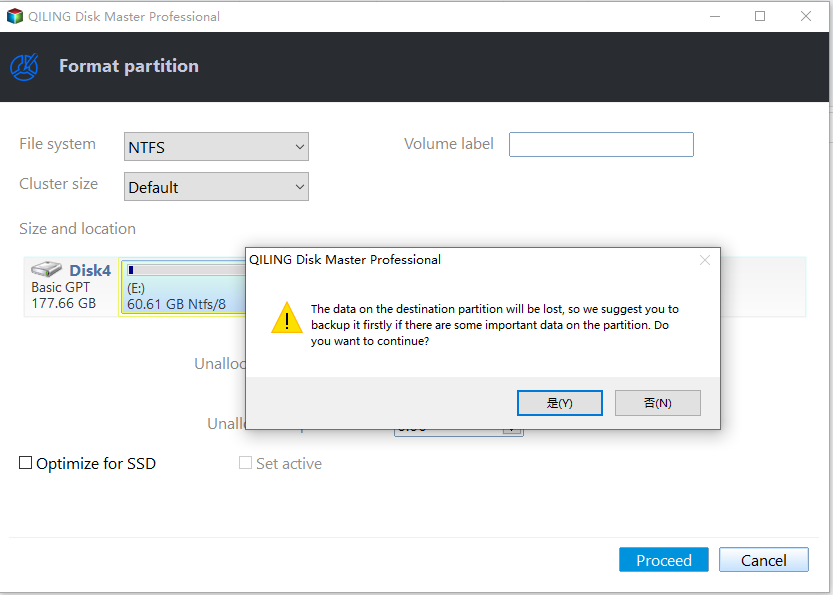
Step 4. When you return to the main interface, click "Proceed" to initiate the process.
Conclusion
If your exFAT external hard drive isn't being recognized on Windows, Qiling Disk Master can be a helpful tool. This software allows you to manage your internal and external hard drives, including formatting and creating exFAT partitions, as well as other file systems, making it a popular choice among Windows PC users.
You can upgrade to Qiling Disk Master Professional to unlock features like Allocate Free Space, Convert boot Drive between MBR and GPT, etc. if you need more advanced features.
FAQs on exFAT drive not recognized on Windows 10
Q: Why is my ExFAT drive not showing up on Windows 10?
There could be several reasons for this, including outdated drivers, file system errors, conflicts with other devices, physical connection problems, or compatibility issues.
Q: How do I update Windows 10 and drivers?
To update Windows 10, go to Settings > Update & Security > Windows Update. To update drivers, open Device Manager, right-click on the respective device, and choose Update driver.
Q: Should I consider using alternative file systems instead of ExFAT?
If compatibility issues persist, consider using other file systems like NTFS or FAT32 for better support on Windows 10.
Q: Why are regular backups important for ExFAT drives?
Regular backups are crucial to protect your data from potential losses due to drive failures or other unforeseen issues.
Related Articles
- Guide: How to Set NVMe as Boot Drive
If your exFAT drive is not recognized in Windows 10, you can troubleshoot by checking the USB port, updating drivers, or using Disk Management to assign a drive letter. - How to Speed up Dell (Inspiron) Laptop on Windows 11/10/8/7?
Learn how to Speed up Dell (Inspiron) Laptop on Windows 11/10/8/7 with clear steps, key checks, and practical tips. - How to Transfer OS to SSD without Losing Everything on HDD
To transfer your operating system to an SSD without losing anything on your HDD, you can find the solution in this post. - How to Wipe A USB Drive Clean in Windows 10, 8, 7? [Two Methods]
To create a bootable USB drive on Windows 10, you can use Qiling Disk Master to make a Windows To Go USB or burn an ISO to USB for system installation and recovery. - How to Switch Laptop HDD to SSD without Reinstalling in Windows 7/10?
Learn how to Switch Laptop HDD to SSD without Reinstalling in Windows 7/10 with clear steps, key checks, and practical tips. - Best SyncBack Alternative - Qiling Disk Master in Windows 10/8/7
Find practical guidance for Best SyncBack Alternative - Qiling Disk Master in Windows 10/8/7, including disk, partition, file system, or Windows troubleshooting steps.
Products
Articles & Tutorials
- Data Recovery
- Data Backup
- File Recovery
- File Backup
- File synchronize
- System Backup and Restore
- Disk and Partition Clone
- Technical articles
- Disk Master Help
- Windows Deleted File and Disk Recovery Tutorials
- Windows File and Data Recovery Tutorials
- More Windows Tutorials for Install, Security, Files, and PC Tips
- Windows Boot, Repair, and Recovery Environment Tutorials
- Windows Backup Tutorials
- Windows Restore Tutorials
- Windows Clone and Migration Tutorials
- Windows Server Backup, Recovery, and Management Tutorials
- Windows Disk, Partition, and Storage Management Tutorials