How to Extend Volume in Windows 10 (2 Methods)?
Scenario
Why need to extend volume in Windows 10?
You're experiencing a situation where one of your volumes, possibly the C drive, is full, causing your computer to slow down significantly. Despite deleting unnecessary files, the issue persists. To address this, you can consider extending the volume to increase available space. This can help alleviate the slowdown and provide more room for files and programs.
Extending a partition is a process of reassigning free space on a hard disk, allowing for better utilization of disk space. It's essential to leave some free space on the C drive to ensure smooth operation of the system.
Next, this post will demonstrate you how to extend volume in Windows 10 with 2 methods.
How to extend volume in Windows 10 (2 methods)?
There are two methods to extend volume: deleting adjacent volume or using a professional disk space manager. If the adjacent volume is behind the one that needs to be extended, method 1 is applied. Otherwise, method 2 should be used.
Method 1. Extend volume by deleting adjacent volume
✍ Attention:
1. To extend a volume, there must be adjacent unallocated space. This unallocated space is required to add to the existing volume.
2. If there is no unallocated space, you can either delete the adjacent partition to free up space, or if there is some space available on the existing partition, you can resize it to fit your needs.
Step 1. Press "Win + R" to open Run box, and input "diskmgmt.msc" and press Enter to open Disk Management.
Step 2. In the Disk Management, the disk and partition information will be demonstrated on the main interface.
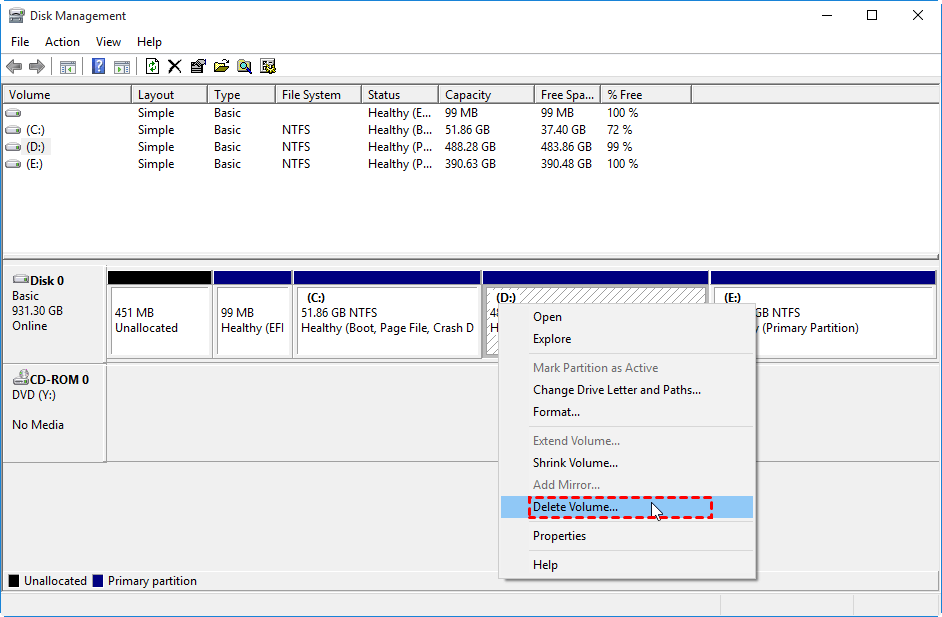
Step 3. Right-click on the D drive or an adjacent partition, and choose "Delete Volume".
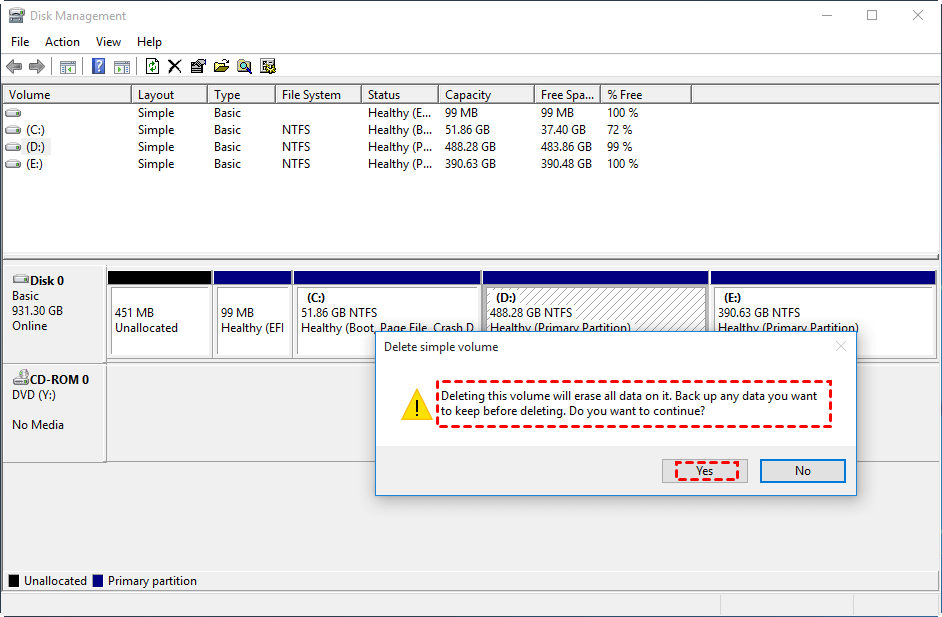
Step 4. Disk Management will warn you the data on the partition will be deleted, click "Yes" to continue.
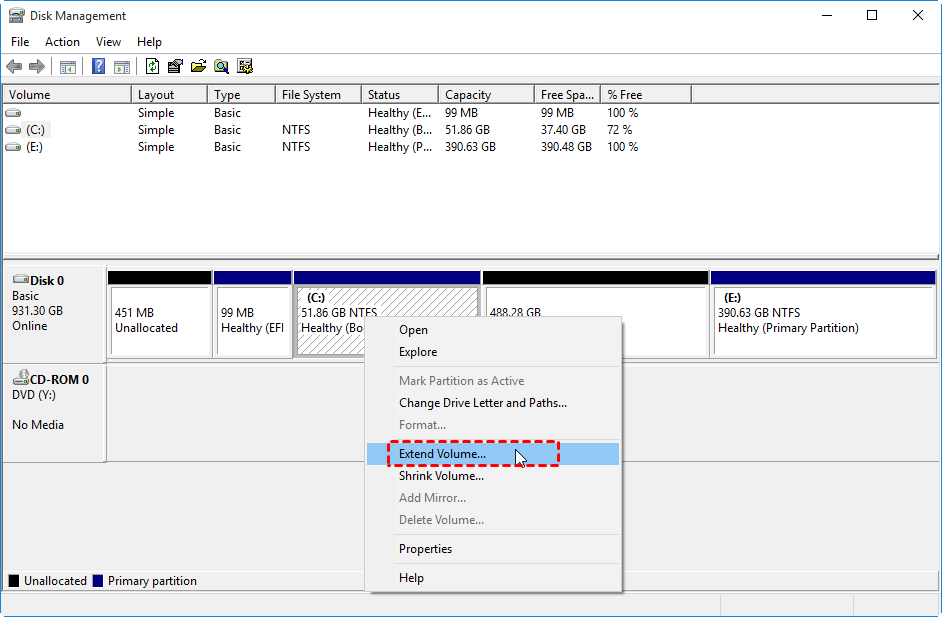
Step 5. And right-click on the partition you want to extend, and choose "Extend Volume".
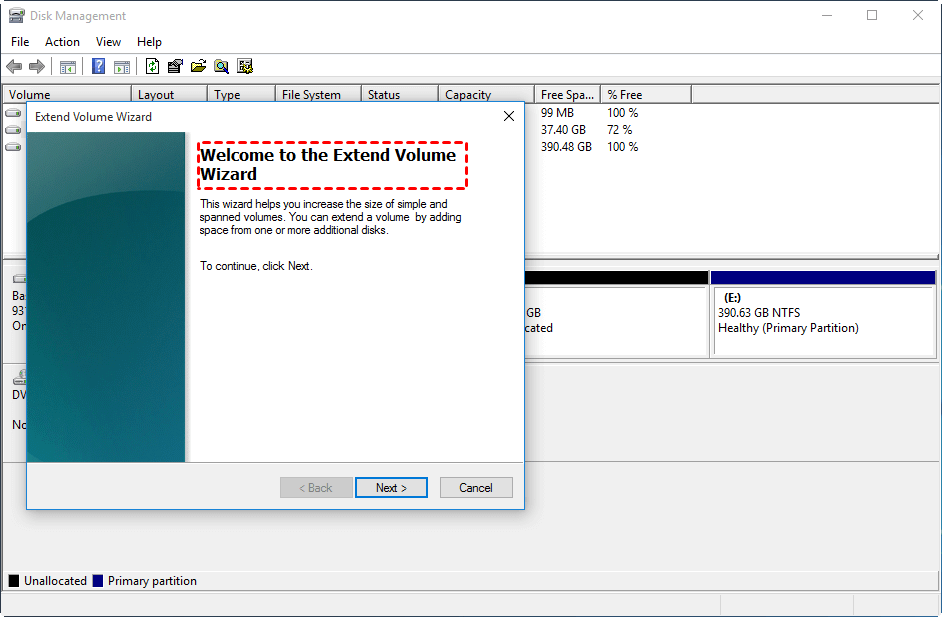
Step 6. And the Extend Volume Wizard will be launch, follow the prompts and finish the operation.
Method 2. Extend volume without data loss
Method 1 will delete all data on the adjacent partition, so it's not recommended. If you want to extend a volume, you can use Disk Management to shrink a volume for unallocated space, but it can't be added to the volume you want to extend because the unallocated space is not adjacent to it.
To extend a volume in Windows 11, 10, 8, or 7, you can use a free disk and partition manager called Qiling Disk Master Professional. This software allows you to directly extend a volume using free space on other partitions, even if there is no contiguous unallocated space, eliminating the need to delete any existing volume.
And just download the Demo version and follow the steps below to see how to extend volume without data loss in Windows 10.
Conclusion
In Windows 10, you can extend volume using two methods, but Qiling Disk Master is a better choice as it allows you to do so without data loss. It also features allocated free space, which enables you to reallocate free space to the volume you want to extend, and is available for Windows Server operating systems through Qiling Disk Master Server.
Related Articles
- How to Extend Volume in Disk Management?
Learn how to Extend Volume in Disk Management with clear steps, key checks, and practical tips. - Everything About DiskPart Commands in Windows 10
DiskPart is a command-line utility in Windows 10/11, enabling you to perform disk partition operations with commands. Learn how to use DiskPart commands with typical examples here. - How to Wipe an SSD with Windows 10 for Selling
Learn how to Wipe an SSD with Windows 10 for Selling with clear steps, key checks, and practical tips. - Best Intenso USB Stick Format Tool in Windows
If you cannot extend volume in Windows 10, you can use Qiling Disk Master to extend the partition by taking free space from other partitions or unallocated space on the same disk. - How to Test Hard Drive Health on Windows PC
Regularly testing hard drive health can help you avoid many PC and hard disk issues that might cause more serious problems. To check hard drive health, you can follow this guide, which will show you how to perform a simple test to ensure your hard drive is running smoothly. - Solved: The File Cannot Be Accessed by the System
If you encounter the file cannot be accessed by the system problem, the most common causes are computer virus and insufficient administrator privileges. Try following solutions to fix them.
Products
Articles & Tutorials
- Data Recovery
- Data Backup
- File Recovery
- File Backup
- File synchronize
- System Backup and Restore
- Disk and Partition Clone
- Technical articles
- Disk Master Help
- Windows Deleted File and Disk Recovery Tutorials
- Windows File and Data Recovery Tutorials
- More Windows Tutorials for Install, Security, Files, and PC Tips
- Windows Boot, Repair, and Recovery Environment Tutorials
- Windows Backup Tutorials
- Windows Restore Tutorials
- Windows Clone and Migration Tutorials
- Windows Server Backup, Recovery, and Management Tutorials
- Windows Disk, Partition, and Storage Management Tutorials