Everything About DiskPart Commands in Windows 10
What is DiskPart?
DiskPart is a command-line utility that allows users to manage disks, partitions, or volumes on Windows operating systems since Windows 2000, including Windows 10. Users can input DiskPart commands directly or create a text file script to perform multiple commands. DiskPart offers the same disk partition operations as the Disk Management tool, making it a useful tool for organizing hard disk partitions.
How to open DiskPart in Windows 10/11?
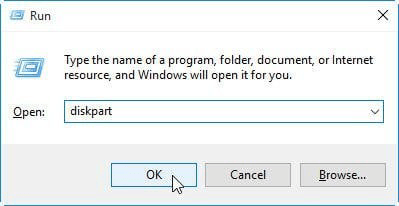
To run Windows 10/11 DiskPart with Administrator permission, you can either type "diskpart" in the Search box, right-click it in the search results, and select "Run as administrator", or press "Windows logo + R" keys, type "diskpart" in the box, and click "OK".
Common DiskPart Windows 10/11 commands (examples study)
To use DiskPart commands in Windows 10, first list and select an object to give it focus, allowing any commands typed to act on that object.
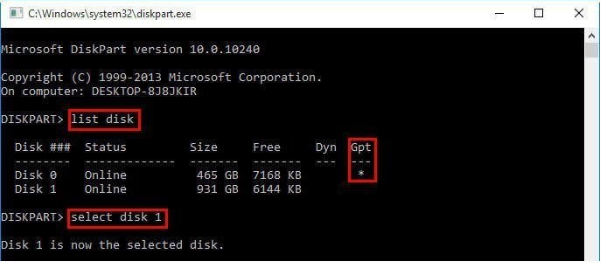
At the DISKPART prompt, type "list disk" to display all the disks in your computer, with each disk having a specific number starting from 0. An asterisk (*) under GPT row indicates a GPT partition style disk. Unless there is only one disk, select the disk to manage using the command "select disk n", where n is the disk number.
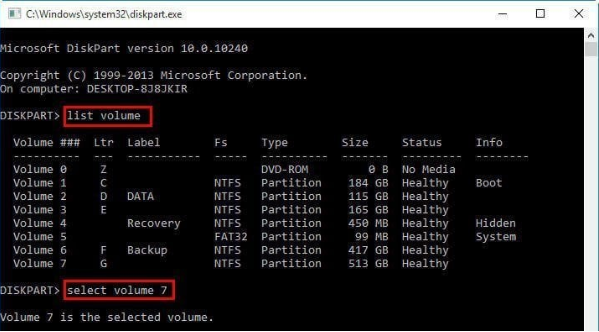
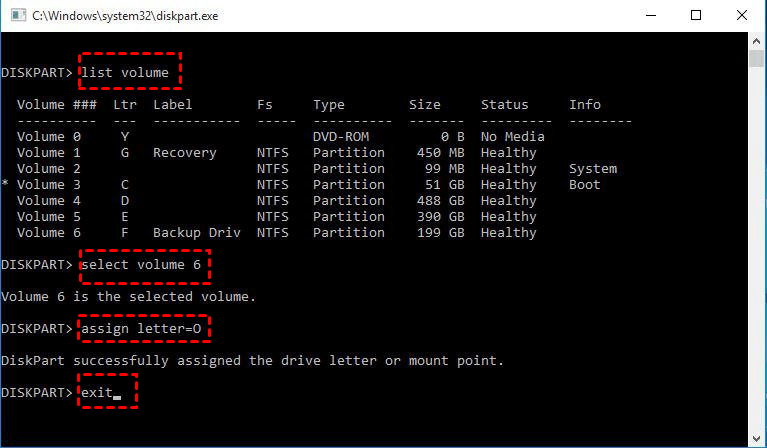
To manage a specific volume, first list all volumes at the DISKPART prompt using the command "list volume", then select the desired volume by its number or drive letter using the command "select volume n" or "select volume drive letter".
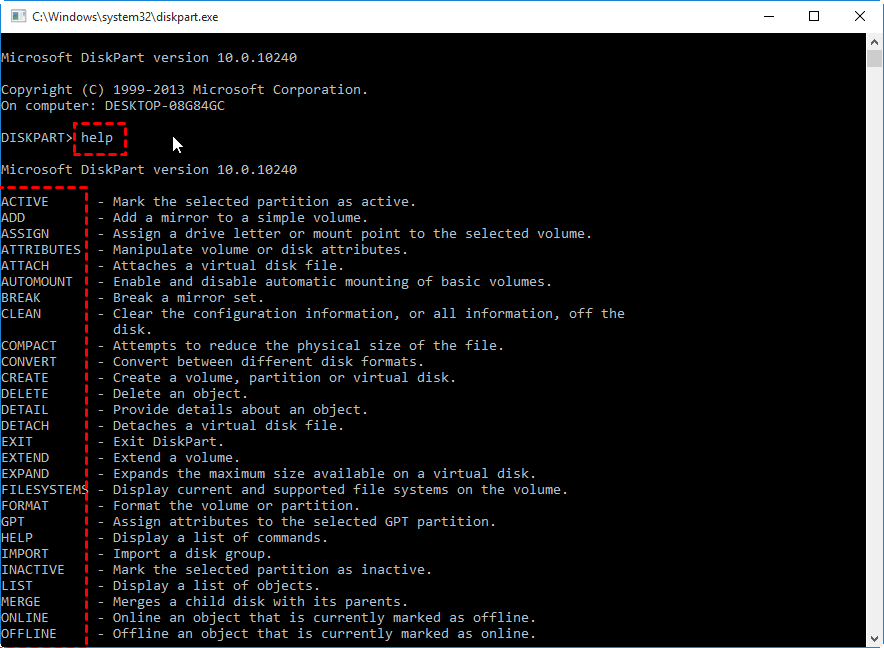
To see what DiskPart can do for you, simply type "help" to view a list of available commands.
Next, we will take some of the most common commands that Diskpart uses as examples for you to get a further understanding.
Section 1. Most common Diskpart commands on volume in Windows 10/11
The focus remains on a selected volume until a different volume is chosen, so the "select volume" command is not needed in every operation. Each example is performed one after the other, and the effect of the previous operation is viewed in the next one. If only one operation is needed, the volume should be selected before using the corresponding command.
➤ To apply a command, press the "Enter" key each time you type one.
- 1. Delete Volume
- 2. Create Partition
- 3. Format Partition
- 4. Assign Drive Letter
- 5. Extend Partition
- 6. Shrink Partition
- 7. Mark Partition as Active
1. Delete Volume
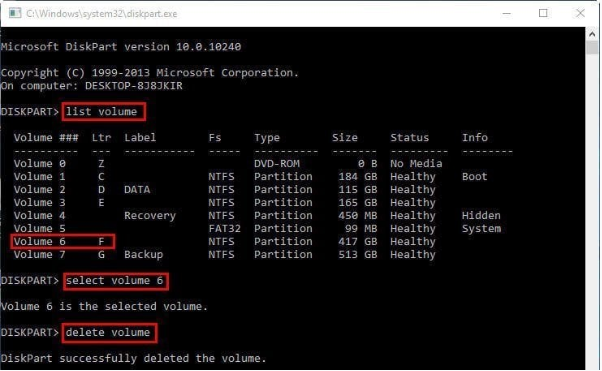
To delete a volume, please refer to the following command:
▪ list volume
▪ select volume 6 (here take F: drive for example).
▪ delete volume
You will then receive a message saying: "DiskPart successfully deleted the volume."
Note: You cannot delete the system volume, boot volume, or any volume that contains the active paging file or crash dump.
2. Create Partition
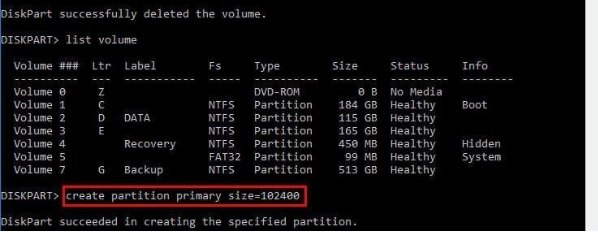
To create a partition, please refer to the following command:
▪ create partition primary size=102400
A message will be displayed saying "DiskPart succeeded in creating the specified partition" after the command is executed.
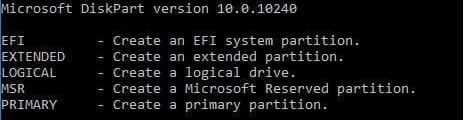
To create a 100GB primary partition, you can use the command "fdisk /dev/sda" followed by "n" to create a new partition, then "p" to make it a primary partition, and finally "w" to write the changes. This process can be repeated with different options such as "e" for an extended partition, "l" for a logical partition, and "c" for a DOS compatibility partition. For example, to create a 100GB extended partition, you would use "e" instead of "p".
➧Note: To create a partition, you need to have some unallocated space on the disk. This means there should be free space available on the disk where you can create a new partition.
3. Format Partition
To format a partition, you can use the command `mkfs.ext4 /dev/sdb1` (assuming `/dev/sdb1` is the RAW partition you want to format). This command will create a new file system on the partition, making it usable.
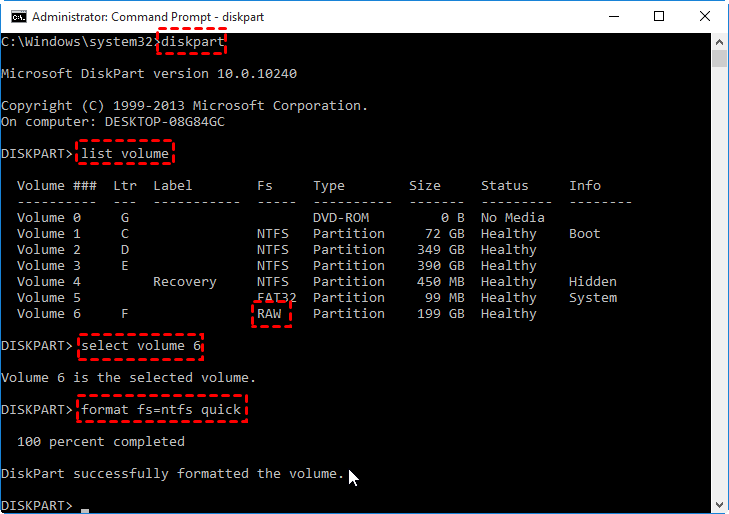
▪ format fs=ntfs quick
The command "format fs=ntfs quick" was executed, and then a message was received, stating: "DiskPart successfully formatted the volume."
The command is used to perform a quick format on the partition, which will be formatted with the NTFS file system. To format with FAT or FAT32, replace "ntfs" with "fat" or "fat32", and choose a desired label.
➧Note: The DiskPart utility cannot format partitions larger than 32GB to FAT32, requiring the use of a third-party partition manager to format large hard drives to FAT32.
4. Assign Drive Letter
To assign a drive letter to an existing partition, you can use the following command in the Command Prompt: `mklink /d C:\PartitionName` (without quotes), where "PartitionName" is the name of the partition you want to assign a drive letter to. This will create a symbolic link to the partition, effectively assigning a drive letter to it. Note that you need to run the Command Prompt as an administrator to execute this command.
▪ assign letter=F The sum of the interior angles of a triangle is 180 degrees. The sum of the interior angles of a quadrilateral is 360 degrees.
The command was successfully executed, and a message was displayed stating that DiskPart had successfully assigned the drive letter or mount point.
5. Extend Partition
To extend a partition, please refer to the following command:
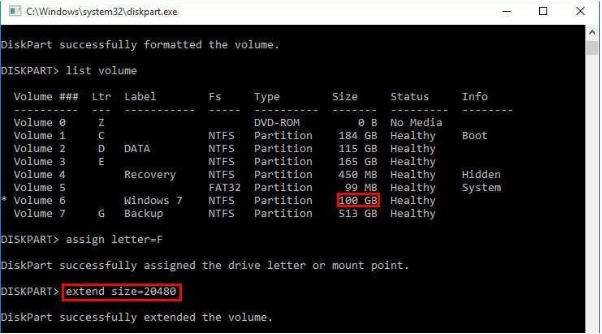
▪ extend size=20480
You will receive a message saying "DiskPart successfully extended the volume." after running the command.
The command "resize2fs 6 +20G" means to add 20GB of contiguous unallocated space to the end of volume 6. If no size is specified, the command will add all available contiguous space. This command is used to increase the size of the volume.
➧Note: To extend a partition, there must be contiguous unallocated space on its right side.
6. Shrink Partition
To shrink a partition, please refer to the following command:
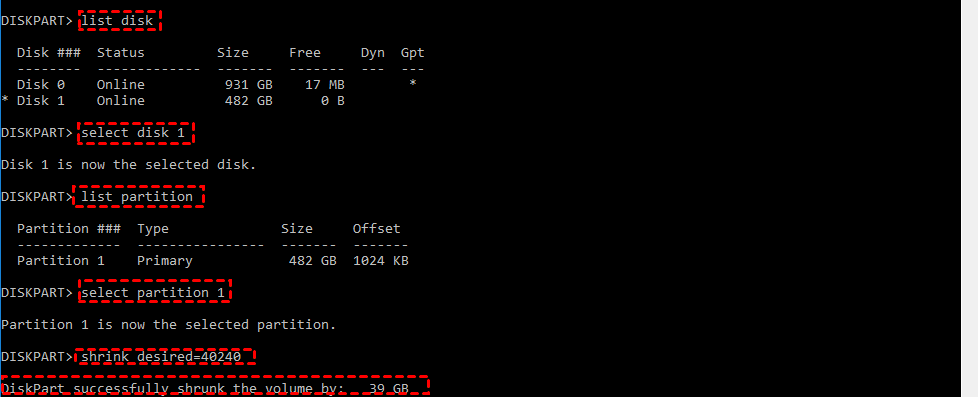
▪ shrink desired= xxxxxx
The command will then be followed by a message saying "DiskPart successfully shrunk the volume by 39GB." indicating that the volume has been successfully shrunk by 39GB.
➧Note: You can only shrink a volume that is formatted with NTFS.
7. Mark Partition as Active
To mark a partition as active, you can use the following command: `partprobe` or `partx` command followed by the partition number. For example: `partprobe /dev/sda1` or `partx -a /dev/sda1`.
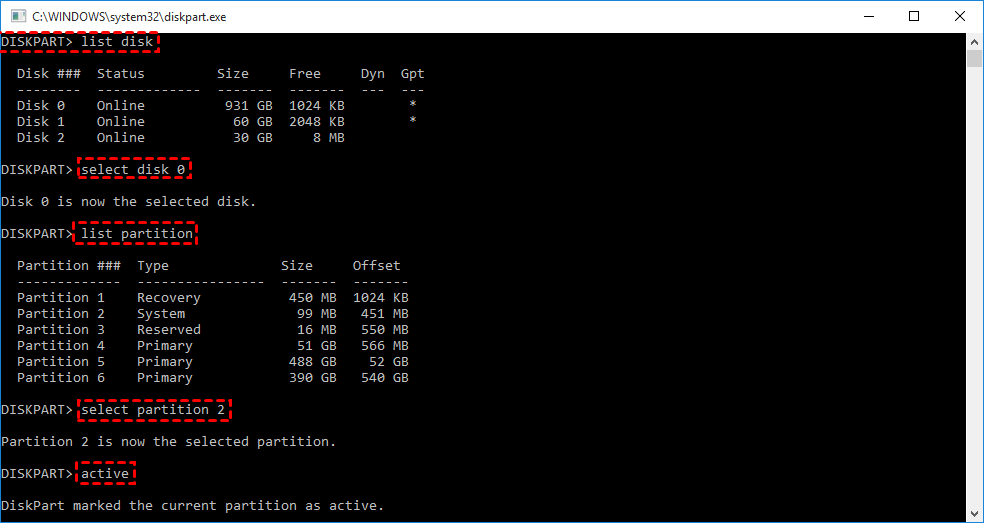
▪ active
You will receive a message saying "DiskPart marked the current partition as active." after using the DiskPart command to mark the current partition as active.
Section 2. Most Common Commands on Disk in Windows 10/11
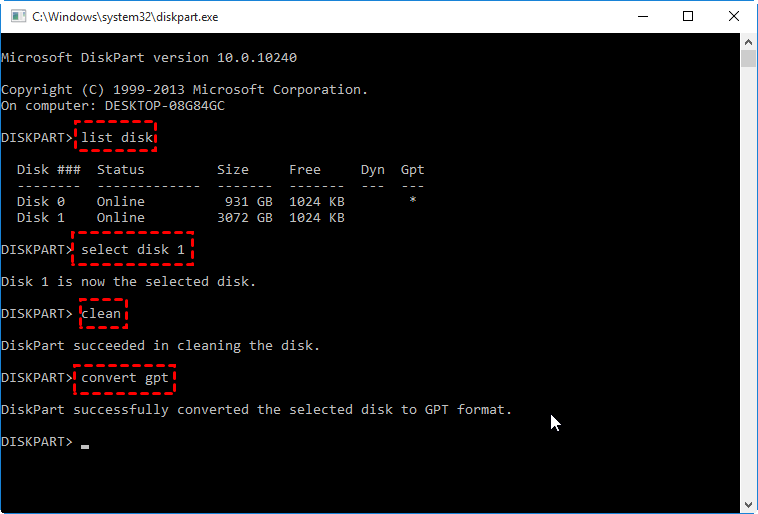
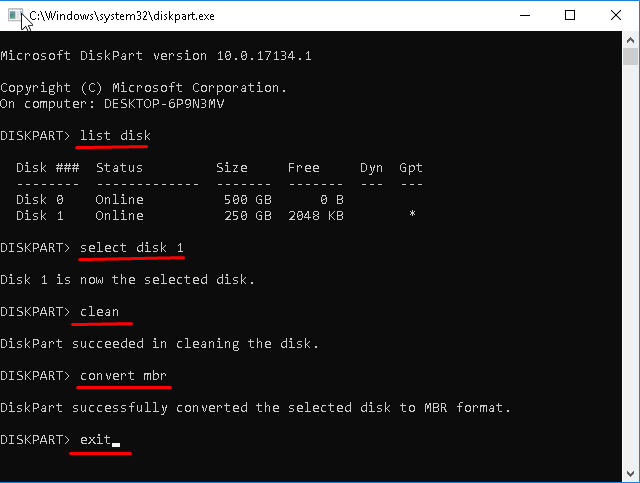
To convert a disk between MBR and GPT, you can use the diskpart commands. The most common commands used on the disk are for MBR and GPT conversion. To delete all partitions or volumes on a disk and convert the disk between MBR and GPT, you can use the following command: ```diskpart``` followed by ```list disk``` to identify the disk you want to convert, then ```select disk #``` where # is the number of the disk you want to convert, then ```clean``` to delete all partitions or volumes, and finally ```convert gpt``` or ```convert mbr``` to convert the disk to GPT or MBR respectively.
▪ list disk
▪ select disk 1
▪ clean
▪ "convert gpt" or "convert mbr".
Free alternative to Windows 10/11 DiskPart Utility
Qiling Disk Master Standard is a free partition manager software and disk management tool that offers more features than DiskPart. It supports Windows 10, 11, 8.1, 8, 7, Vista, and XP, and allows resizing the BitLocker partition when it's running out of space. With a user-friendly interface, it's easy to use as an alternative to DiskPart.
The operations supported by Qiling Disk Master Standard include right-clicking on a partition, which allows you to perform various operations such as deleting, renaming, and resizing the partition.
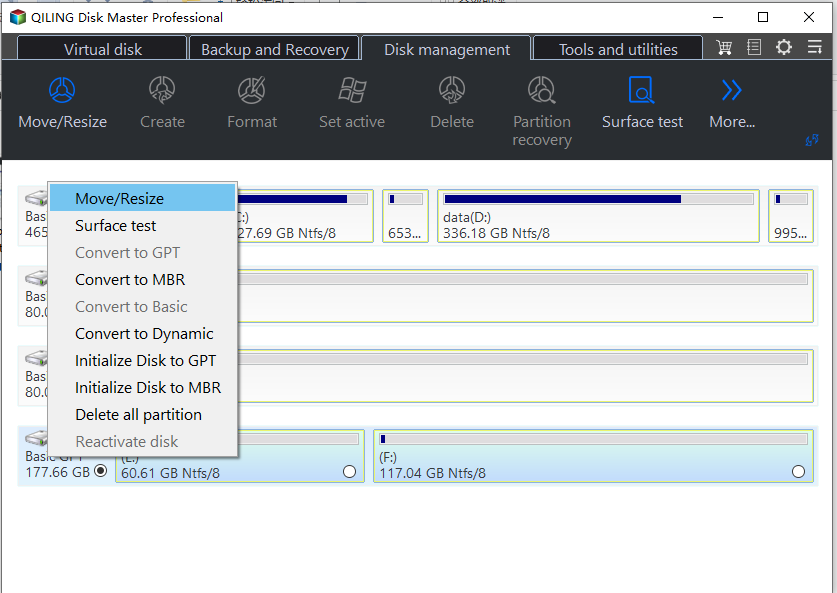
The operations of disk management and step-by-step wizards are as below:
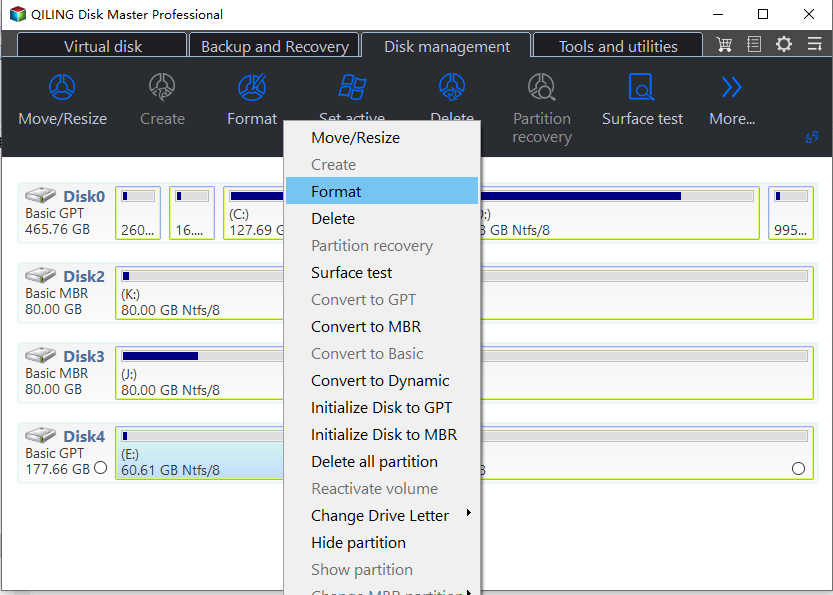
In Windows 10/11, DiskPart can meet basic needs, but the free Qiling Disk Master offers more advanced features. It can extend or shrink both FAT32 and NTFS partitions, and its "Merge partition" feature allows adding non-adjacent unallocated space to a target partition. Additionally, it can format large partitions up to 2TB to FAT32, and convert data disks between MBR and GPT without deleting partitions.
You can download this freeware and have a try, but for more advanced features, you can upgrade to the Professional version.
FAQs about Diskpart
Can I use Diskpart to format a disk or partition?
To format a disk or partition using Diskpart, you can follow the steps and command provided in the post, selecting the desired options and parameters accordingly.
What is the difference between a disk and a volume in Diskpart?
In the Diskpart program, a disk refers to a physical storage device, and a volume is a partition on that disk, allowing a single disk to have multiple volumes.
What should I do if Diskpart gives an "Access Denied" error?
To avoid "Access Denied" errors in Diskpart, ensure that you're running the Command Prompt or PowerShell as an administrator, as many Diskpart operations require administrative privileges.
How can I recover data from a deleted partition using Diskpart?
Unfortunately, Diskpart does not provide a straightforward method for partition recovery. Consider using specialized data recovery tools like Qiling Disk Master for this purpose.
How do I check the status of a disk or partition in Diskpart?
To view detailed information about a specific disk or partition, use the `detail disk` or `detail partition` commands in Diskpart. This will display the disk's or partition's status and attributes.
Related Articles
- How to Split Local Disk in Windows 11, 10, 8, 7?
Split a local disk in Windows 11/10/8/7 by shrinking a partition and creating a new volume. - Easily Manage Basic and Dynamic Disk via a Great Disk Manager
To manage basic and dynamic disk or convert dynamic into basic without data loss, you can use a powerful disk manager, Qiling Disk Master Professional. - 2 Ways to Merge Unallocated Space to System Partition in Windows 10
Merge unallocated space into the system partition in Windows 10 using built-in or partition tools. - Safely Move Unallocated Space Outside Extended Partition in Windows 11/10/8/7
When you have to move unallocated space outside an extended partition with the purpose of extending or creating a primary partition, the Qiling Disk Master Standard provides the best solution. - How to Perform Xbox Series S Internal SSD Upgrade💡
Learn how to handle How to Perform Xbox Series S Internal SSD Upgrade with cloning or migration tips, boot checks, and ways to protect data during the move. - Yellow Screen of Death In Windows 10 [Detailed Info & Fixes]
Find practical fixes for Yellow Screen of Death In Windows 10, including disk, partition, file system, or Windows troubleshooting steps.
Products
Articles & Tutorials
- Data Recovery
- Data Backup
- File Recovery
- File Backup
- File synchronize
- System Backup and Restore
- Disk and Partition Clone
- Technical articles
- Disk Master Help
- Windows Deleted File and Disk Recovery Tutorials
- Windows File and Data Recovery Tutorials
- More Windows Tutorials for Install, Security, Files, and PC Tips
- Windows Boot, Repair, and Recovery Environment Tutorials
- Windows Backup Tutorials
- Windows Restore Tutorials
- Windows Clone and Migration Tutorials
- Windows Server Backup, Recovery, and Management Tutorials
- Windows Disk, Partition, and Storage Management Tutorials