Set Windows Server 2012 Backup Schedule Weekly (4 Solutions)
- In need of Windows Server 2012 backup schedule weekly
- How to perform Windows Server 2012 backup once a week
- Solution 1: Create a weekly Server 2012 backup from Task Scheduler
- Solution 2: Run Server 2012 backup once a week using PowerShell
- Solution 3: Create Windows Server backup weekly with Qiling Disk Master
- Solution 4: Backup Server 2012 weekly via Qiling Disk Master
- Summary
In need of Windows Server 2012 backup schedule weekly
The Windows Server Backup utility in Server 2012 (R2) allows users to create backups of the current operating system, such as backing up Windows Server 2012 to a new hard drive for protection. However, the Backup Schedule Wizard only offers two backup types: "Once a day" and "More than once a day", limiting users to daily backups and not allowing for weekly or monthly backup frequencies.
While Windows Server 2012 does not have a built-in weekly backup option, there are scenarios where users may still want to perform a weekly backup on the server. These situations typically involve specific use cases where a weekly backup is necessary, such as for users who need to perform a weekly backup.
- The company is reducing the frequency of backups on their server since it is already protected by a Database Availability Group (DAG). This means that the server's data is being replicated and synchronized across multiple locations, providing a level of redundancy and protection against data loss.
- To achieve this in Windows Server 2012, you can create multiple backup schedules for different types of data, such as daily backups for files and folders, and a separate schedule for backing up the system state drive at a lesser frequency, like weekly or monthly, to ensure that critical system information is protected at a different interval than regular file backups.
- You're experiencing a "Backup failed" error on a daily backup task because some external hard drives are being added weekly, causing the task to fail six times a week.
Fortunately, you can complete weekly backups in Windows Server 2012 in alternative ways. Four commonly used methods are described below.
How to perform Windows Server 2012 backup once a week
To schedule a weekly backup on Windows Server 2012, you can use the following methods:
- Solution 1: Using Task Scheduler
- Solution 2: Using Powerfull
- Solution 3: Using Qiling Disk Master
- Solution 4: Using Qiling Disk Master
The previous methods require familiarity with the command prompt, such as Windows Server 2012 Wbadmin, which may not be beginner-friendly. Instead, consider using GUI-based third-party backup software as an alternative solution.
Solution 1: Create a weekly Server 2012 backup from Task Scheduler
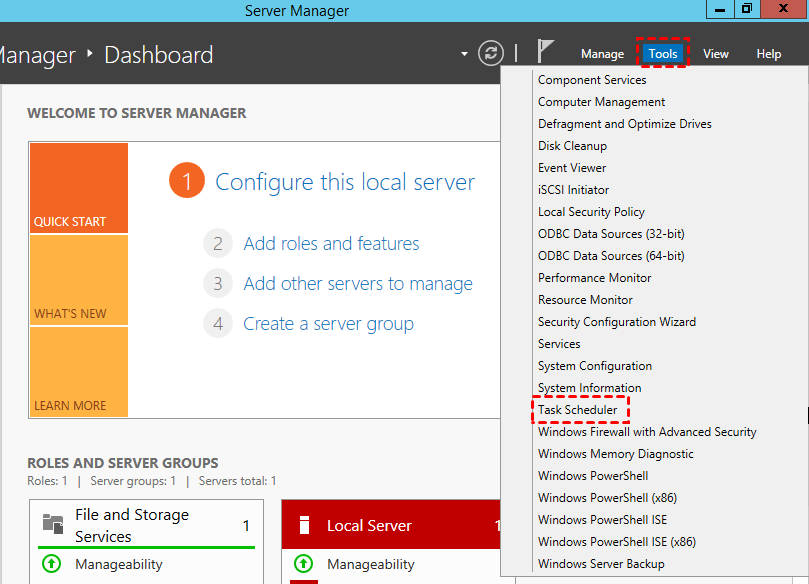
1. To access the Task Scheduler, go to Server Manager, then click on Dashboard, followed by Tools, and finally select Task Scheduler.
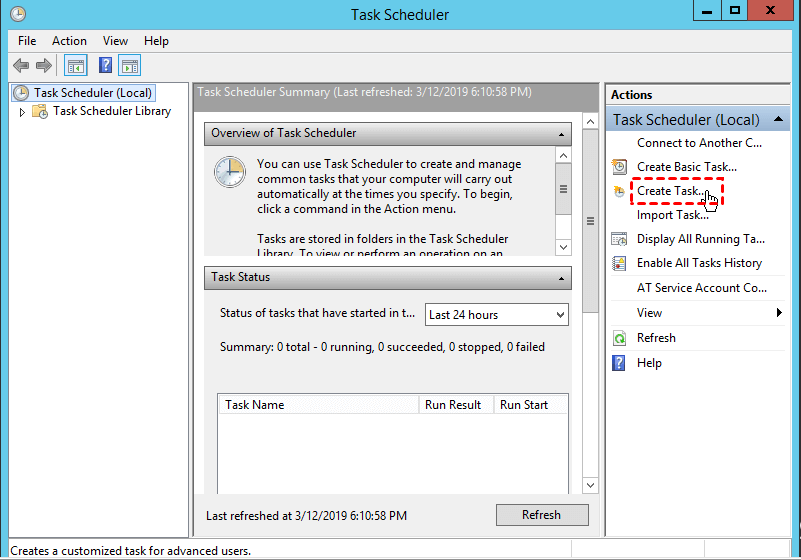
2. In Task Scheduler click "Create Task" under the "Actions" tab on the right side.
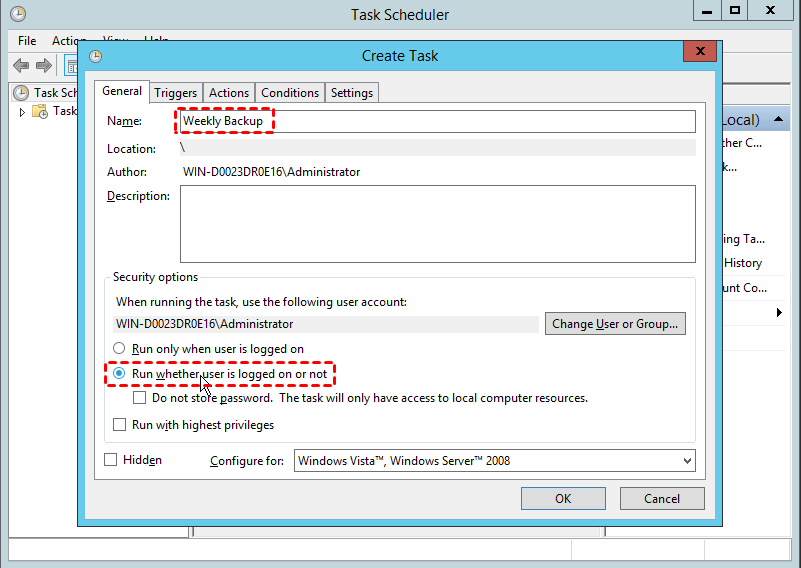
3. In the Create Task window, you can name the task in the General tab if desired. Under Security options, switch the option to "Run whether user is logged on or not".
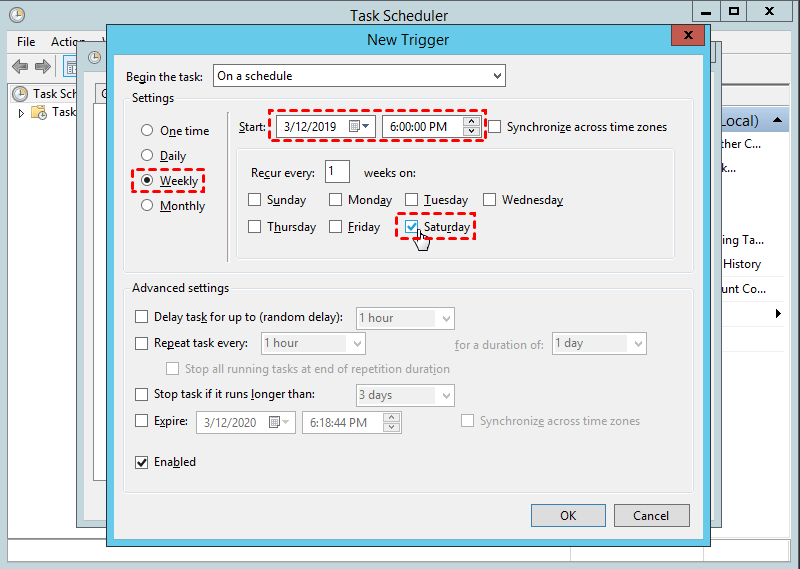
4. To set up a new backup trigger, click the "New" button in the Triggers tab, then select the day of the week (or month) when you want the backup to run.
5. To backup the entire C: drive including all critical volumes to the H: drive, click on the "New" button in the Actions tab, then input the wbadmin command in the pane next to "Add arguments (optional)". Type "wbadmin start backup -backuptarget:H: -vsystem -volumes:C" to perform the backup.
wbadmin start backup -backupTarget:H: -include:C: -allCritical -quiet
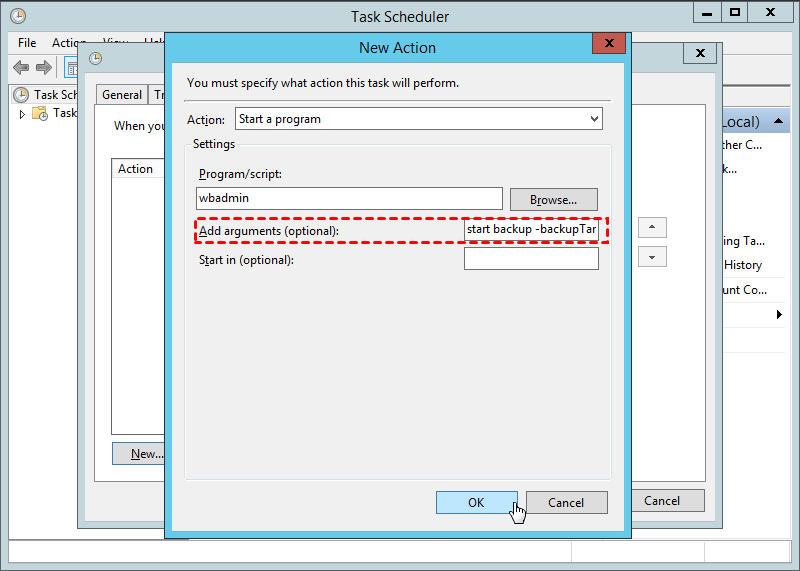
Descriptions:
- wbadmin start backup: start the wbadmin backup process
- -backupTarget: the target volume to store the backups.
- To backup, specify the volume(s) you want to include. If you want to backup more than one volume, separate them with a comma.
- The backup program also includes any other data required for a full server recovery, such as configuration files and system state.
- -quiet: to perform unattended backup tasks.
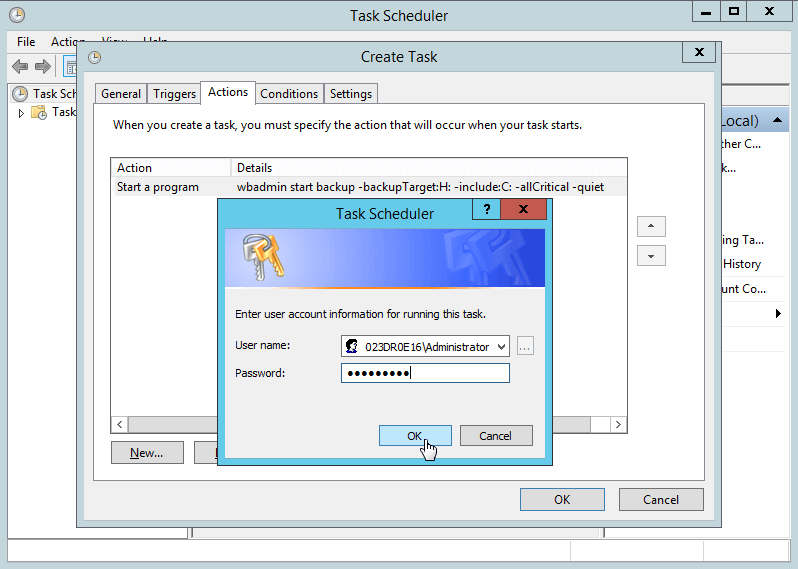
6. You can configure other settings in the left "Conditions" and "Settings" tabs as you wish, then click OK, noting that you'll be prompted to enter a user password afterwards.
Solution 2: Run Server 2012 backup once a week using PowerShell
You can create a batch script file from the Command Prompt (Windows PowerShell) and have Task Scheduler execute it. For example, to back up the system state drive every Saturday at 6:00 PM using CMD, you can input a script like this: ```batch
SCHTASKS /CREATE /SC WEEKLY /D SAT /TN WeeklySystemStateBackup /RL HIGHEST /ST 18:00 /TR "Wbadmin start systemstatebackup –backupTarget:H: -include:C: -allCritial -quiet"
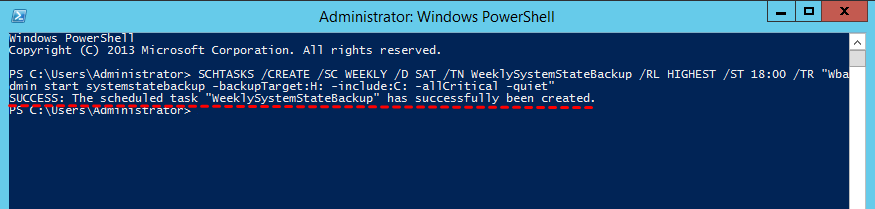
Descriptions:
- SCHTASKS: scheduler tasks.
- /Create: create a task.
- /SC: schedule.
- /D: the day in a week to run.
- /TN: task name.
- /RL: run level.
- /ST: start time.
- /TR: trigger.
If the Windows Server Backup Scheduler isn't running as expected, you can manually start the task to see if it works. If not, check if the task is set to run whether a user is logged on or not, or verify if the wbadmin command is correct.
For users familiar with Windows Server Task Scheduler or Command Line Interface, setting up a weekly backup on Server 2012 can be a convenient and straightforward process. However, for average users, these methods can be overly complex and prone to errors, making it difficult to achieve the same level of automation.
Due to limitations with Windows Server Backup, only NTFS-formatted partitions can be included in backups, and critical volumes cannot be set as backup targets. Scheduled backups on network shares only complete full backups, not incremental or differential ones, making third-party server backup tools a more viable option for easy weekly backups.
Solution 3: Create Windows Server backup weekly with Qiling Disk Master
Qiling Disk Master Server, a professional server backup software, enables you to schedule backups of Windows Server 2012 on a weekly basis, utilizing its own services or the Windows Task Scheduler. This allows for efficient and automated backup processes, ensuring data protection and integrity.
- It has a user-friendly interface that allows users to quickly create weekly backup tasks with just a few clicks.
- Partitions that are not formatted with NTFS can be backed up.
- The backup target location is not limited, allowing users to save backup images on local or external hard drives, USB flash drives, network shares, or other storage locations.
To demonstrate how the software back up Windows Server 2012 step by step, following will take system backup as an example.
1. To start, download a 30-day free trial of Qiling Disk Master and then install and run it on a Server 2012.
This software offers a 30-day free trial, allowing you to try the software for free. You can then upgrade to the official version with a $100 discount to protect your system continuously.
2. In the main console click "Backup" and then "System Backup".

3. Now, you need to select the target location and edit task name as you wish. You can back up to local disk, external storage, NAS, network share, etc.

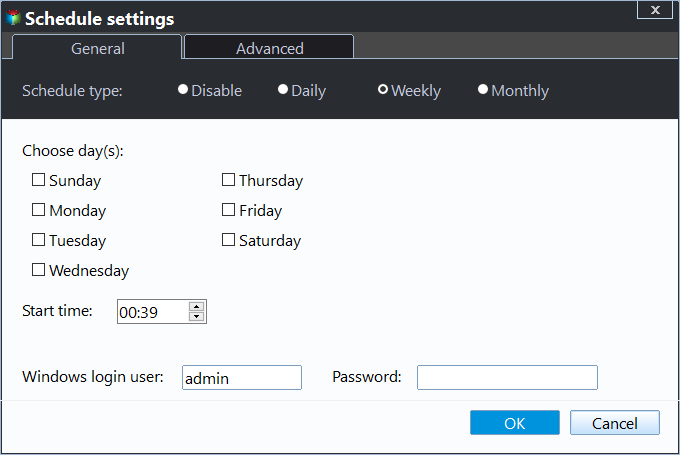
4. To schedule a backup, click on the "Schedule Backup" option and toggle on "Enable Schedule Backup". In the pop-up window, select "Weekly" as the backup frequency and choose the specific day and time for the backup to occur. Click "OK" to confirm the settings.
5. To automatically delete obsolete backups and save disk space while keeping backups up-to-date, select a backup strategy from the "Backup Scheme" to implement.
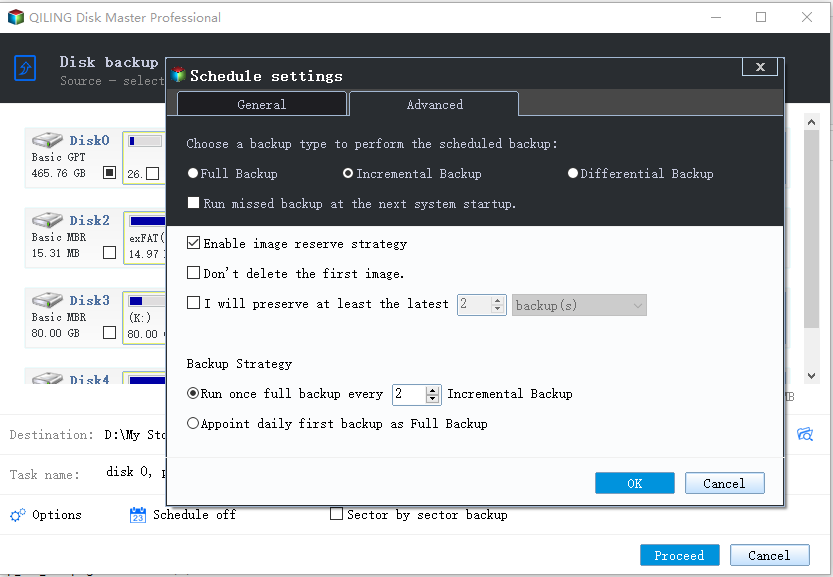
Tip: The scheduled backup will run in incremental mode by default, but can be changed to differential backup via the "Backup Method" drop-down menu, which allows for easier recovery by requiring only one full backup plus any differential backup.
6. Click "Proceed" to run Windows Server 2012 backup schedule weekly.
Tips:
- You can set password to encrypt the backups in "Options".
- To create multiple schedules on Server 2012, repeat above steps.
- This method applies to Windows Server 2016/2019/2022 backup schedule weekly as well.
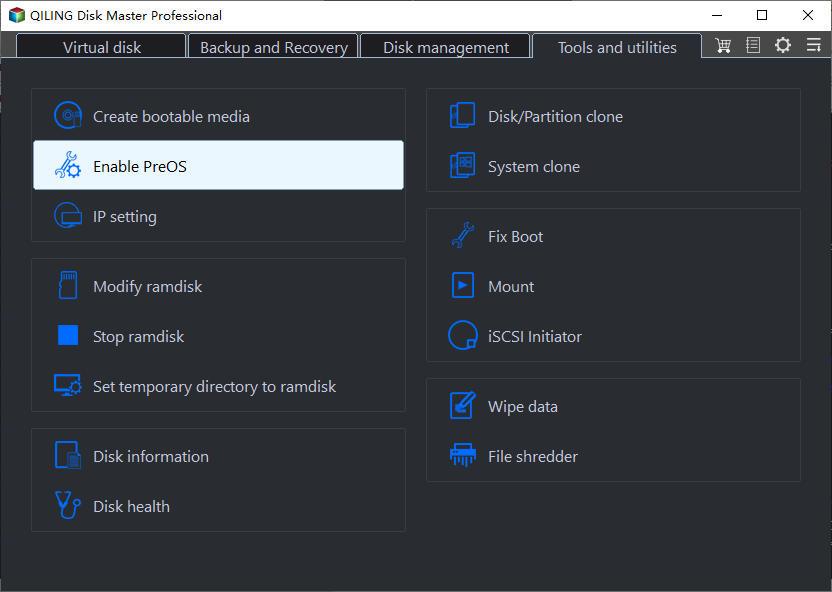
- If your Windows computer won't boot, you can try booting it with a bootable disk you created earlier. Alternatively, you can create a recovery environment on your computer in advance, which will help you boot successfully and enter the software interface.
Solution 4: Backup Server 2012 weekly via Qiling Disk Master
Qiling Disk Master is a convenient and reliable solution for centralized backup management of all Windows operating systems, providing the best enterprise backup software.
- A backup software that creates system, disk, and partition backups for multiple Windows PCs and Servers, supporting various Windows versions, including Windows 11/10/8.1/8/7 and Windows Server 2022/2019/2016/2012 (R2)/2008 (R2).
- Cloud storage options, such as Google Drive, Dropbox, and OneDrive, also allow you to save backup images on their servers.
- You can schedule a backup task to run daily, weekly, or monthly using the full, incremental, or differential backup method.
Download this powerful enterprise backup software now and learn how to run a system state backup for Server 2012, a crucial step in ensuring business continuity and data protection for your organization.
Summary
To create a weekly backup schedule for Windows Server 2012, you can choose from four options. Qiling Disk Master Server, a versatile software, can also serve as a powerful disk cloning tool, allowing you to clone Windows Server 2012 to a new hard drive if needed. This software is a great option for those looking for an all-around solution.
Related Articles
- Create Windows Server 2008 Backup Schedule Weekly with Simple Ways
Although Windows Server Backup can either schedule a daily backup, or more frequent backup, it's not enough. Read this guide to get two ways to configure Windows Server 2008 backup schedule weekly task. - How to Schedule Automatic Backup in Windows Server 2016?
To create a schedule to backup Windows Server 2016 automatically could save a lot of troubles. You don't need to worry about forgetting backup sometimes. Here you can find how to make it. The way to set weekly backup is also included. - How to Recover Deleted Files in Windows Server 2012/2008 R2?
Learn how to Recover Deleted Files in Windows Server 2012/2008 R2 with clear steps, key checks, and practical tips. - How to Backup and Restore Information in Firefox Profile (Manual & Automatic Ways)
Firefox profiles store these important data, and you may back up and restore firefox profiles to transfer or keep them safe. This passage mainly tells how to back up and restore information in Firefox profiles manually or automatically. - How to Backup Windows XP to USB Drive? 2 Ways Recommended
To back up Windows XP to a USB drive, you can either use Qiling Disk Master to create a backup or utilize the Windows Backup Utility, which can be accessed through the Control Panel. - Top 2 Best Cloning Software for HDD and SSD of 2024
This guide explains Top 2 Best Cloning Software for HDD and SSD of 2024 with clear steps, key checks, and practical tips.
Products
Articles & Tutorials
- Data Recovery
- Data Backup
- File Recovery
- File Backup
- File synchronize
- System Backup and Restore
- Disk and Partition Clone
- Technical articles
- Disk Master Help
- Windows Deleted File and Disk Recovery Tutorials
- Windows File and Data Recovery Tutorials
- More Windows Tutorials for Install, Security, Files, and PC Tips
- Windows Boot, Repair, and Recovery Environment Tutorials
- Windows Backup Tutorials
- Windows Restore Tutorials
- Windows Clone and Migration Tutorials
- Windows Server Backup, Recovery, and Management Tutorials
- Windows Disk, Partition, and Storage Management Tutorials