How to Recover Deleted Files in Windows Server 2012 R2
- The Issue: files are deleted accidentally in Windows Server 2012 R2
- Recover deleted files from Windows Server 2012 R2 with 2 Easy Methods
- Method 1: Recover deleted files from Windows Server Backup image
- Method 2: Recover deleted files from previous versions via shadow copies
- Method 3. Recover accidentally deleted files from Windows Server 2012 R2 efficiently
- Reliable way to prevent files deleted accidentally in Windows Server 2012 R2
- Verdict
The Issue: files are deleted accidentally in Windows Server 2012 R2
To recover a deleted file from Windows Server 2012 R2, you can try using the built-in System Restore feature to revert the system to a previous point when the file was still intact. Alternatively, you can use a third-party data recovery software like Recuva or Deep Data Recovery Wizard to scan the drive for deleted files. If the file was hard deleted using Shift-Delete, you may need to use a more advanced recovery tool like Deep Data Recovery Wizard or a professional data recovery service to recover the file. It's also a good idea to check the drive's Event Viewer logs to see if there are any clues about the file's deletion. If you're unable to recover the file, you can also try using a file recovery service like OnoSan or Disk Drill. However, please note that the success of these methods depends on various factors, including the file's size, the drive's health, and the time elapsed since the file was deleted. It's also worth noting that if the file was deleted from the Recycle Bin, it may be more challenging to recover it.
Data loss can be a frustrating experience, whether it's due to accidental deletion or a system glitch. Fortunately, Microsoft Office applications like Word and Excel often retain a temporary copy of deleted files. To recover them, check the Options under File Locations. If the deleted files are still in the Recycle Bin, you may be able to retrieve them, provided the Bin isn't too large.
In Windows Server 2012 R2, if you delete files, they are moved to the Recycle Bin. If the Recycle Bin is too large, it may delete files permanently. However, you can recover deleted files from a backup image or previous versions, even if you empty the Recycle Bin.
Recover deleted files from Windows Server 2012 R2 with 2 Easy Methods
In the first place, it is not suggested to re-write data to that volume or path where you've lost files. As mentioned, data loss is troublesome (such as Ransomware WannaCry), so many users have the awareness of data backup.
To recover deleted folders or files in Windows Server, you can use either Windows Server Backup images or restore files from previous versions with the help of shadow copies. However, the first option requires that you had imaged Windows Server 2012 in advance, making it a prerequisite for this method. The second option is a more flexible solution that allows you to restore files from previous versions without the need for prior imaging.
- Recover deleted files from Windows Server Backup image
- Recover deleted files with previous versions
- Recover accidentally deleted files from Windows Server 2012 R2 efficiently
Method 1: Recover deleted files from Windows Server Backup image
Step 1. Open Windows Server Backup from the tools menu. Select Local Backup and then Recover in the right pane.
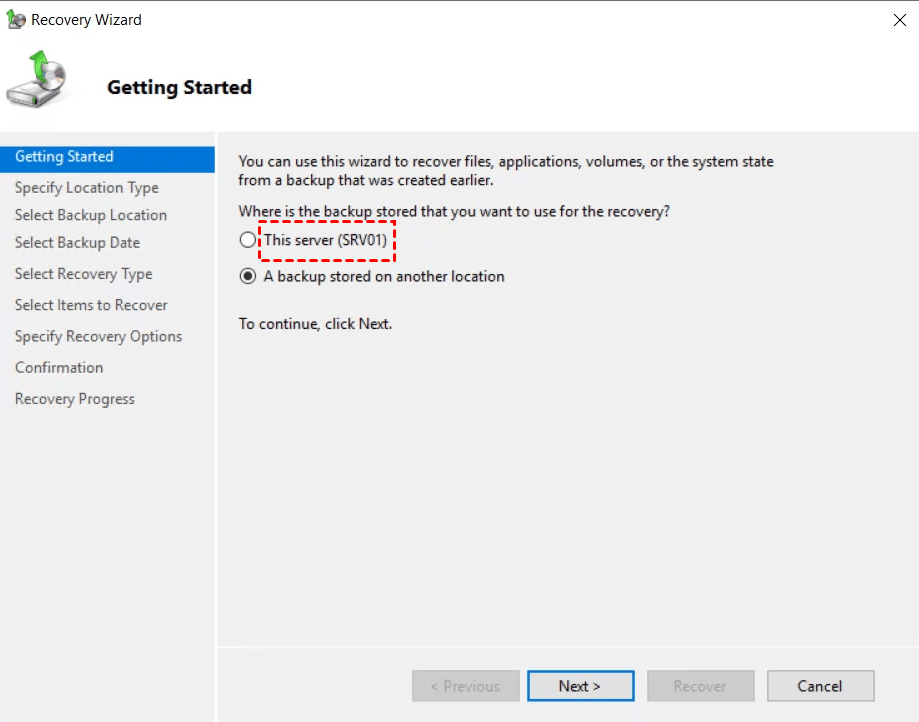
Step 2. If the backup image is stored on a local disk attached to this server, select this option. Otherwise, if it's stored on a remote drive, you may need to provide the share path.
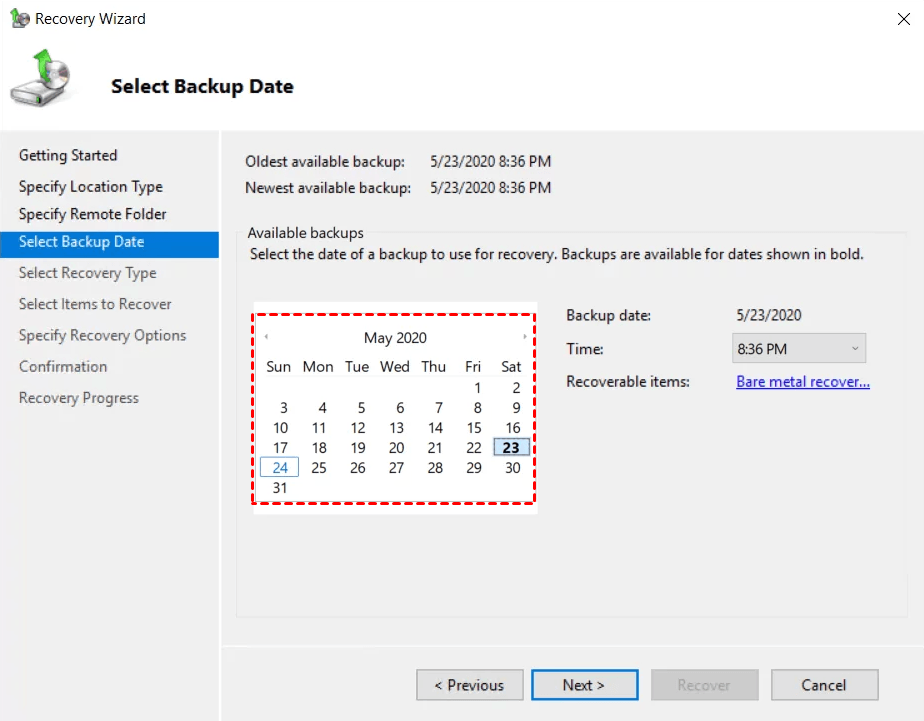
Step 3. Select the Backup Date, the time when your files are not deleted.
Step 4. On the Select Recovery Type step, check Files and folders.
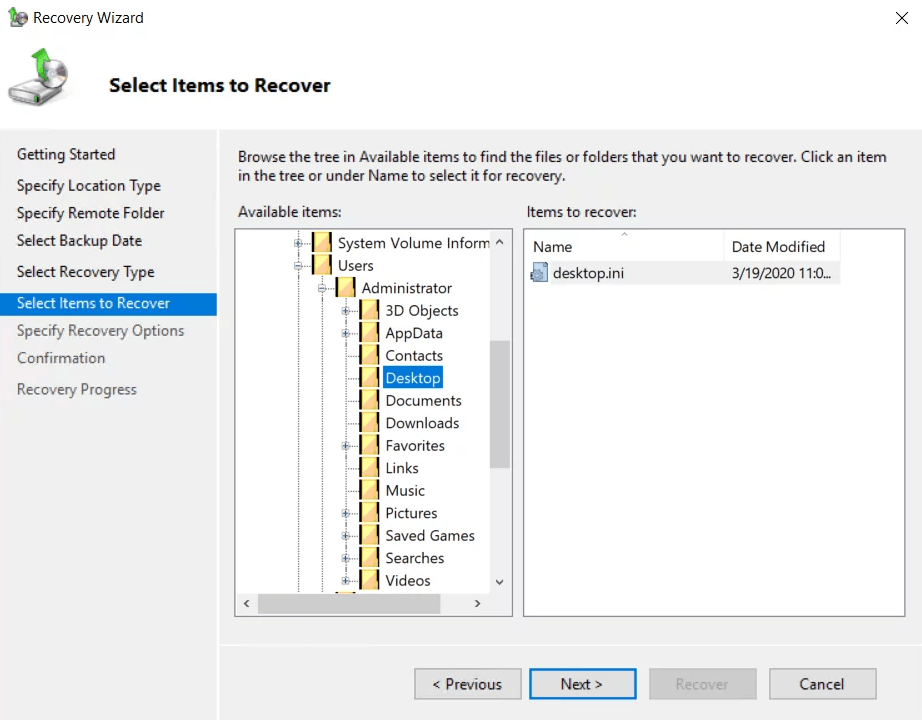
Step 5. On the Select Items to Recover step, expand the server to select the folder that you want to restore.
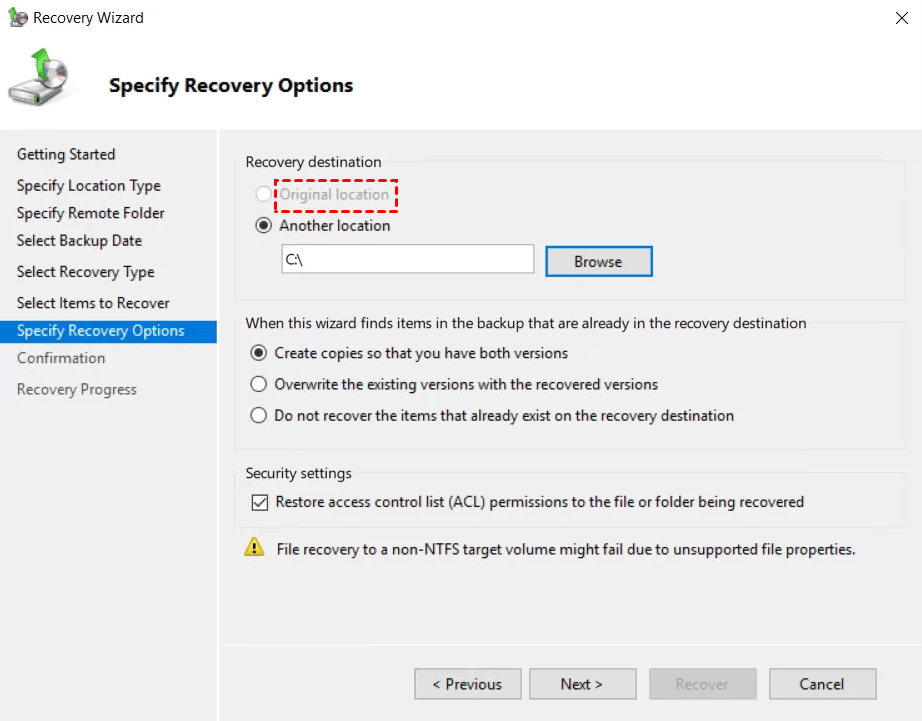
Step 6. On the Specify Recovery Options step, choose Original location normally. Another location can also be chosen if a different plan is available.
Step 7. On the Confirmation step, verify that the correct files have been selected. Click "Recover" to initiate the process, and wait for it to complete. Once finished, close the Recovery Wizard.
Method 2: Recover deleted files from previous versions via shadow copies
In general, Windows Server creates shadow copies for all saved versions, so you can try to recover deleted files in Windows Server 2012 with the following steps.
Step 1. Go to the directory on the Windows Server 2012 R2.
Step 2. Right-click the blank space in Windows Explorer and click Properties.
Step 3. To access previous versions of a file, you can select the "Previous Versions" option from the context menu when right-clicking on the file. This will list the available shadow copies, allowing you to restore a previous version of the file if needed.
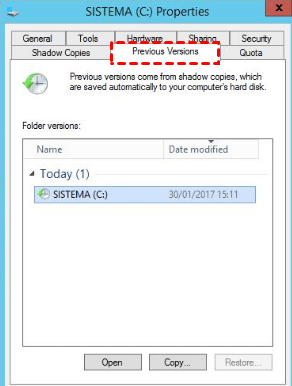
Step 4. Choose the right version and click Restore to start.
You can recover deleted files in Windows Server 2008 R2 using the simple methods mentioned earlier. However, some users have reported issues with Windows Server 2012 R2, where the "Restore previous versions" option is not available or the shadow copy is not enabled, making it difficult to recover deleted files.
Some users may attempt to restore their system to a previous state to recover deleted files, but this may not work if they are using a domain and server. In such cases, recovering deleted partitions or using professional Windows data recovery tools is recommended.
Method 3. Recover accidentally deleted files from Windows Server 2012 R2 efficiently
While Windows backup image and the Previous Versions feature can be useful in retrieving deleted data, many users haven't developed the habit of regularly backing up their files, making these options less effective in recovering lost data.
Disasters and accidents often catch people off guard, leaving them with little to no time to take precautions, and it's usually those with no prior warning who are affected.
If you're one of the users who have accidentally deleted files from Windows Server 2012 R2, don't worry, with the help of a reliable Windows data rescue app, it's an easy task to recover the deleted files.
Deep Data Recovery is one of the eligible apps you could utilize.
The software is specifically designed for Windows users, ensuring compatibility with Windows Server 2012, 2012 R2, and up to the latest 2022, making it easy to recover data.
Step 1. Install and run the program > select the affected drive > Start Scan.

Step 2. Files could be sorted and searched by extensions, Type, Size, Date modified, etc.

Step 3. Go to Deleted files > go to the original location > select wanted files > click Recover.

Reliable way to prevent files deleted accidentally in Windows Server 2012 R2
In Windows Server 2012 R2, if you have a backup image or shadow copy, you can easily recover deleted files. However, if you don't have either of these, you risk losing your files permanently. To prevent this, it's recommended to use a professional server backup software like Qiling Disk Master Server to ensure your data is always backed up, rather than relying on the built-in freeware.
- A backup tool may not allow individual file or folder backups unless the entire partition where the files are located is backed up.
- The tool only allows scheduling a backup task to run once a day or at more frequent intervals, but not at specific times of the day.
- Incremental backups are not completing as expected, resulting in a full backup being created instead, which consumes more time and storage space.
- ...
In Qiling Disk Master Server, you can backup individual files or folders, such as documents, pictures, music, and videos, and schedule them to run automatically at daily, weekly, or monthly intervals.
- You can select "File Backup" to back up both local and network files, and it supports a wide range of storage devices, including external hard drives, USB flash drives, network drives, and cloud drives like Google Drive. This feature also retains support for differential backup and automatic backup cleanup, which significantly reduces backup time and disk space usage.
- If you have a Qiling account, you can choose Cloud Backup to save files to a cloud drive without re-installing the desktop app, and you'll still get 1TB of free cloud storage for 15 days.
To use the File Backup feature, follow these steps: download and install the software, launch it, select the files and folders you want to backup, choose a backup location, and schedule the backup to run automatically at a specific time. The software will then create a backup of your selected files and folders at the specified time, ensuring that your important data is safely stored and can be easily restored if needed.
Step by step guide: Backup files in Windows Server 2012 R2
Step 1. Open Qiling Disk Master Server and then click Backup > File Backup.

Note: You can also choose to backup Server 2012 system, the whole hard drive, or individual partitions, allowing you to tailor the backup process to your specific needs.
Step 2. Click Files or Folder to select the files/folders you want to backup.

Step 3. Select a destination location to store the image file.

Step 4. To set up automatic backups, click the "Schedule Backup" button and choose from five options: daily, weekly, monthly, event triggers, or USB plug-in.

Note: If you're concerned about forgetting to insert the backup disk, you can enable the "Wake the computer to run scheduled tasks" option or use the "automatically backup your files to USB" plug-and-pull method with a USB drive.
Step 5. In Windows Server 2012, you can choose between incremental and differential backup methods and set a cleanup method to regularly delete file backups. Click Backup Scheme, select the desired backup method, and choose a cleanup method. Confirm the operation and click Proceed to initiate the backup.
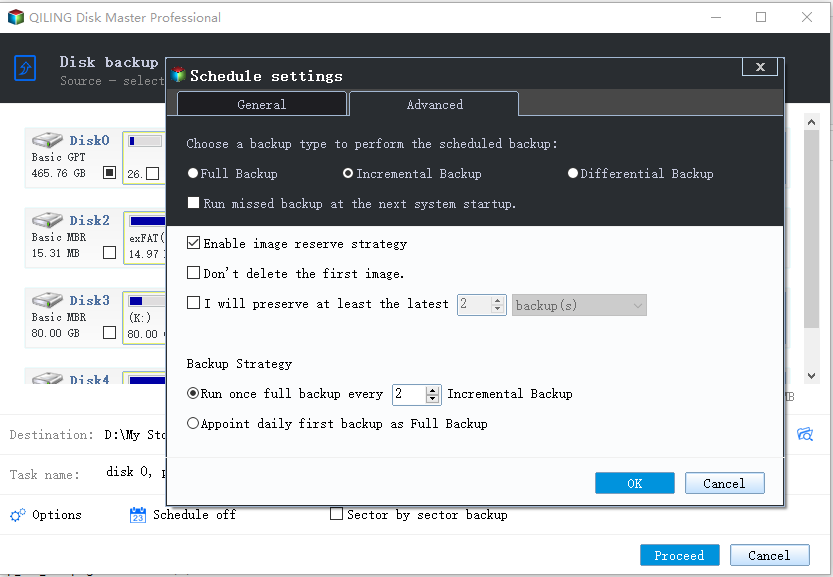
Note: Differential backups are relatively independent, so when restoring, you only need one full backup and one differential backup, rather than the full backup and all linked incremental backups.
When you want to restore deleted files, you can simply click Restore to make it. If you don't have a file backup, you can still try its selective file restore to recover specific files instead of the entire backup image.
Verdict
To recover deleted files in Windows Server 2012 R2, use Windows Server Backup or Previous Versions in File Explorer, and consider regular file backups for comprehensive protection.
Qiling Disk Master Server is a comprehensive backup software that not only backs up files but also entire systems, disks, or partitions, providing a one-stop solution for data protection.
Qiling Disk Master Technician Plus allows unlimited PCs and servers within a company to be protected, offering unlimited billable technical services and enabling portable version creation through copying installation directories.
Related Articles
- How to Do Windows Server 2012 Backup Schedule Weekly Step by Step
Learn how to Do Windows Server 2012 Backup Schedule Weekly Step by Step with clear steps, key checks, and practical tips. - Create Windows Server 2012 (R2) Backup to USB Drive with an Easier Way
This article will introduce how to create Windows Server 2012 backup to USB drive or other external hard drives with detailed steps. - Create Windows Server 2012 Restore Point with 2 Alternative Ways
A restore point allows you to restore system to the previous state. This article will show you how to create Windows Server 2012 restore point with two ways. - How to Recover Deleted Files in Windows 7 without Backups?
Learn how to Recover Deleted Files in Windows 7 without Backups with clear steps, key checks, and practical tips. - Best USB Formatter to Format 64GB Flash Drive to FAT32 in Windows
Two reliable FAT32 USB flash drive formatters can help you format USB stick (Sony Bravia, HP/Samsung/Kingston USB), pen drive, USB hard drive, SD card greater than 32GB to FAT32 in Windows 10/8/7. - Free FBackup Alternative You Need to Backup Windows 10/8/7
As the best free alternative to FBackup, Qiling Disk Master is easier to use and provides more features than FBackup.
Products
Articles & Tutorials
- Data Recovery
- Data Backup
- File Recovery
- File Backup
- File synchronize
- System Backup and Restore
- Disk and Partition Clone
- Technical articles
- Disk Master Help
- Windows Deleted File and Disk Recovery Tutorials
- Windows File and Data Recovery Tutorials
- More Windows Tutorials for Install, Security, Files, and PC Tips
- Windows Boot, Repair, and Recovery Environment Tutorials
- Windows Backup Tutorials
- Windows Restore Tutorials
- Windows Clone and Migration Tutorials
- Windows Server Backup, Recovery, and Management Tutorials
- Windows Disk, Partition, and Storage Management Tutorials